
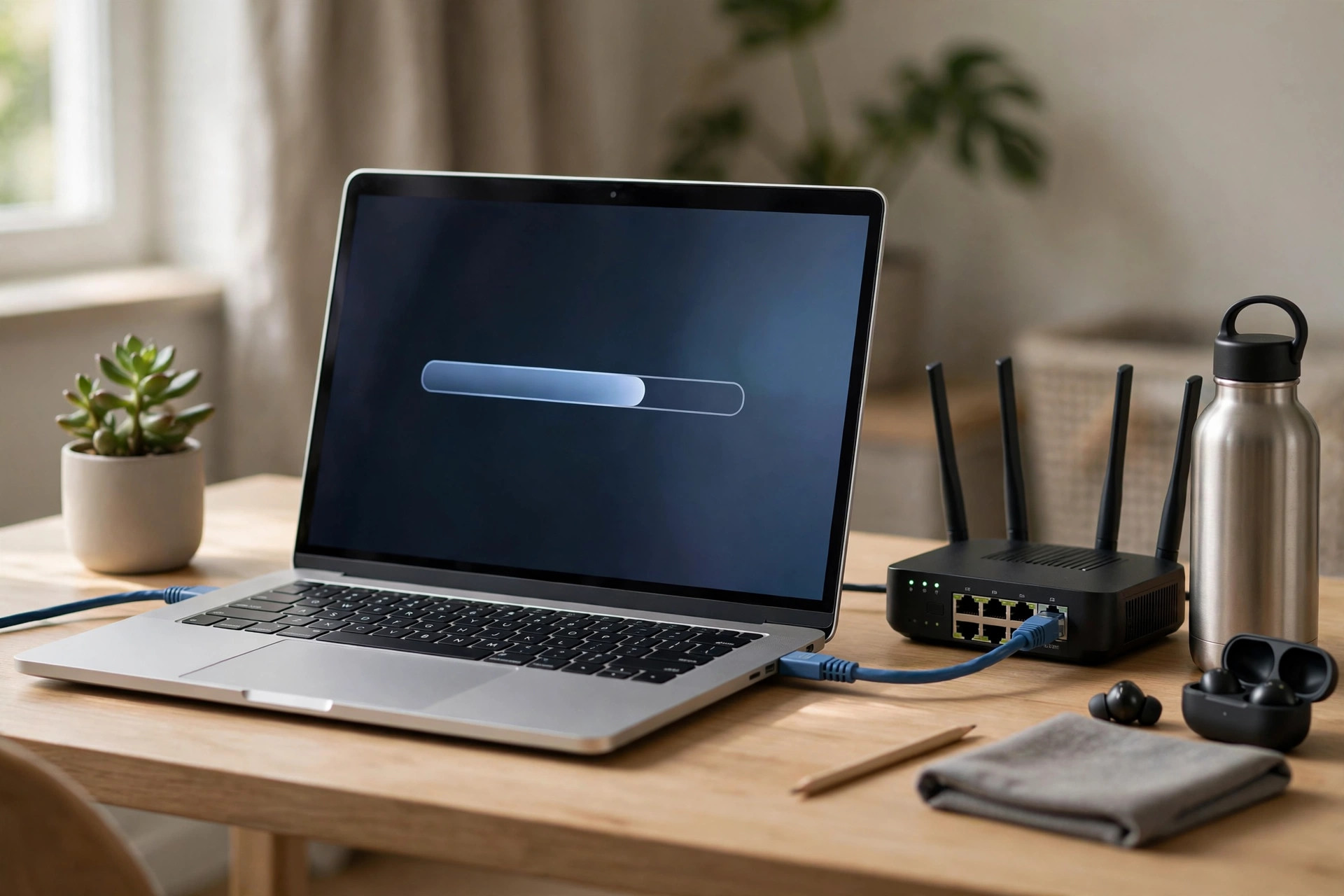
Your router is the one computer in your home that never sleeps, guards every device you own, and yet almost never gets updated. Inside it runs its own operating system, called firmware, and just like the software on your phone or laptop, that firmware contains bugs and security flaws that the manufacturer fixes over time. An update you have been ignoring for three years might be the one that closes a hole a hacker could walk through, or fixes the annoying dropout that hits every evening.
Many people avoid firmware updates because they fear breaking the one box the whole house depends on. That fear is understandable, but a careful update is genuinely low risk, and this guide is built around doing it safely: preparing properly, using only the correct file for your exact model, and knowing what to do if anything goes wrong.
What Firmware Is and Why Updating It Matters
Firmware is the built-in software that controls your router’s hardware: it runs the Wi-Fi radios, the firewall, the admin pages, and everything in between. Manufacturers release new versions for three main reasons. First, security: vulnerabilities are discovered in routers constantly, and unpatched routers are actively scanned for and recruited into botnets by criminals. Second, stability: updates fix memory leaks, random restarts, and devices mysteriously dropping off the network. Third, features and compatibility: newer versions may add WPA3 support, better parental controls, mesh compatibility, or fixes for working with a particular broadband provider.
Very occasionally an update introduces a new bug, which is why this guide emphasises preparation rather than blindly installing the newest release the minute it appears. Being a week behind is fine; being years behind is not.
Before You Start: Preparation That Makes Updating Safe
1. Identify your exact model and current firmware
Turn the router over and read the label. Note the full model name and, critically, the hardware version, which might say something like “Ver 5.0” or “HW v2”. Manufacturers often sell the same model name with different hardware inside, and each version needs a different firmware file. Installing the file for the wrong hardware version is the single most common way people damage a router.
Then log in to the admin page, usually at 192.168.1.1 or 192.168.0.1, and find the current firmware version, typically shown on a status page or under System Tools. Write it down. While you are there, note your hardware version as shown in the admin pages too, since that is the most reliable source.
2. Back up your settings
Most routers have a backup or save configuration option, often under System, Administration, or Advanced settings. Save the configuration file to your computer. A normal update should preserve all your settings, including your Wi-Fi name and password, but if anything goes wrong or a reset becomes necessary, this file lets you restore everything in one click instead of reconfiguring the household from scratch. Also make a note of any custom settings the backup might not hold, such as port forwarding rules or static IP reservations.
3. Choose the right time and connection
Update when the household can tolerate ten minutes without internet, not five minutes before an important video call. Connect your computer to the router with an Ethernet cable for the update itself. Never update over Wi-Fi if you can avoid it: if the wireless link hiccups mid-update, the transfer can corrupt, and that is a risk with no upside. Finally, make sure the router’s power supply is secure and no one is likely to unplug it. Losing power during the writing stage is the other classic way updates go wrong.
Method 1: Updating Through the Router’s Built-In Checker
Many modern routers can check for and install updates themselves, which is the easiest and safest route because the router verifies the file is correct for its own hardware.
- Log in to the router admin page and look for Firmware Update, Router Update, or a similar entry, usually under Advanced, Administration, or System settings.
- Click Check for Updates or Check Now. The router will contact the manufacturer and report whether a newer version exists.
- If an update is offered, start it and then leave everything alone. Do not browse the admin pages, do not unplug anything, and do not panic if the Wi-Fi disappears and the lights behave oddly; that is normal while the router reboots itself.
- After five to ten minutes, reconnect, log in again, and confirm the firmware version now shows the new number.
- Check that your Wi-Fi name, password, and any custom settings survived. In the vast majority of updates they do.
Some routers and mesh systems also offer automatic updates, often scheduled for the middle of the night. Turning this on is a sensible choice for most households, as it guarantees security patches are never forgotten. Our guide to making your home Wi-Fi network more secure explains how updates fit into the bigger security picture.
Method 2: Updating Manually With a Downloaded File
Older routers, and some brands, require you to fetch the file yourself. This is perfectly safe if you follow the checks carefully.
- Go to the manufacturer’s official support website, and only there. Never download router firmware from third-party download sites.
- Search for your exact model and select the exact hardware version from your label. Download the latest firmware for your region if the site separates regions.
- The download is usually a zip file. Extract it and look for the firmware file itself, commonly ending in .bin or .img, and read any release notes or instructions included.
- In the router admin page, find the manual firmware upgrade option, browse to the extracted file, and start the upgrade.
- Wait for the progress bar to complete and the router to reboot fully, which can take several minutes even after the bar reaches 100 percent.
- Log in and verify the new version number, then test your connection and settings.
Major manufacturers maintain their own support portals for this process, for example the official TP-Link download centre and the NETGEAR support download pages, both organised by exact model number. If your router came from your broadband provider, check the provider’s help pages instead, since ISP-supplied routers often update automatically through the provider and may not accept retail firmware at all.
After the Update: Sensible Checks
Once the router is back, spend two minutes confirming everything is healthy. Connect a phone and a laptop, load a few websites, and check that a printer or smart TV is still reachable. If speeds seem worse, try a simple restart first, as some updates leave the system untidy until the first clean reboot. If problems persist, check the manufacturer’s support pages for reports about that version.
What If Something Goes Wrong?
Stay calm; most failed updates are recoverable. If the router does not respond, leave it powered for ten minutes first, since it may still be working. Next, try a restart. If the admin page remains unreachable, perform a factory reset using the recessed reset button, held for about ten seconds, then set up again and restore your saved configuration file. If the router shows only a single light for a long period, search the manufacturer’s site for a firmware recovery procedure for your model. Genuinely bricked routers from a careful update are rare.
Common Mistakes and Helpful Tips
- Installing firmware for the wrong hardware version: Always match the model and the hardware version on the label, not just the model name.
- Updating over Wi-Fi: Use a wired connection so a wireless dropout cannot interrupt the transfer.
- Unplugging during the update: Even if it looks frozen, wait at least ten minutes before touching the power.
- Downloading from unofficial sites: Firmware from a random download portal can be outdated or tampered with. Official support pages only.
- Skipping the settings backup: It takes thirty seconds and can save you an evening of reconfiguration.
- Tip: Set a reminder to check for router updates every three months, at the same time you might test your smoke alarms. Security patches are the main prize.
Conclusion
Updating router firmware safely is mostly about respect for the process: identify your exact model and hardware version, back up your settings, use a wired connection, source the file only from the manufacturer or let the router fetch it itself, and then leave the box completely alone until it has finished and rebooted. Done that way, updates are routine maintenance rather than a gamble, and they deliver the security patches and stability fixes your home network quietly depends on. Ten careful minutes, a few times a year, is a small price for a safer and better-behaved network.
Frequently Asked Questions
Will updating my router firmware erase my Wi-Fi password and settings?
Normally no. Standard updates preserve your configuration, including your network name and password. Very rarely, a major version jump recommends or performs a reset, which is exactly why backing up your settings first is part of a safe update routine.
How long does a router firmware update take?
The whole process usually takes five to ten minutes, including downloading, installing, and the automatic reboot. Your internet will be unavailable during that time, so pick a moment when the household can manage without it briefly.
How do I know if my router actually needs an update?
Log in to the admin page, note the installed firmware version, and use the built-in update checker or compare against the latest version listed for your exact model on the manufacturer’s support site. If yours is older, an update is available and worthwhile.
Can I go back to the old firmware if the new one causes problems?
Sometimes. Some manufacturers allow reinstalling an older file through the same manual upgrade page, while others block downgrades. Check the release notes and support pages for your model, and try a restart and, if needed, a factory reset before attempting any downgrade.
Should I turn on automatic firmware updates?
For most households, yes. Automatic updates, usually applied overnight, ensure security patches are installed without anyone remembering. If you run unusual custom settings or work from home in a way that cannot tolerate any surprise change, manual updating on your own schedule may suit you better.



Leave a Reply