
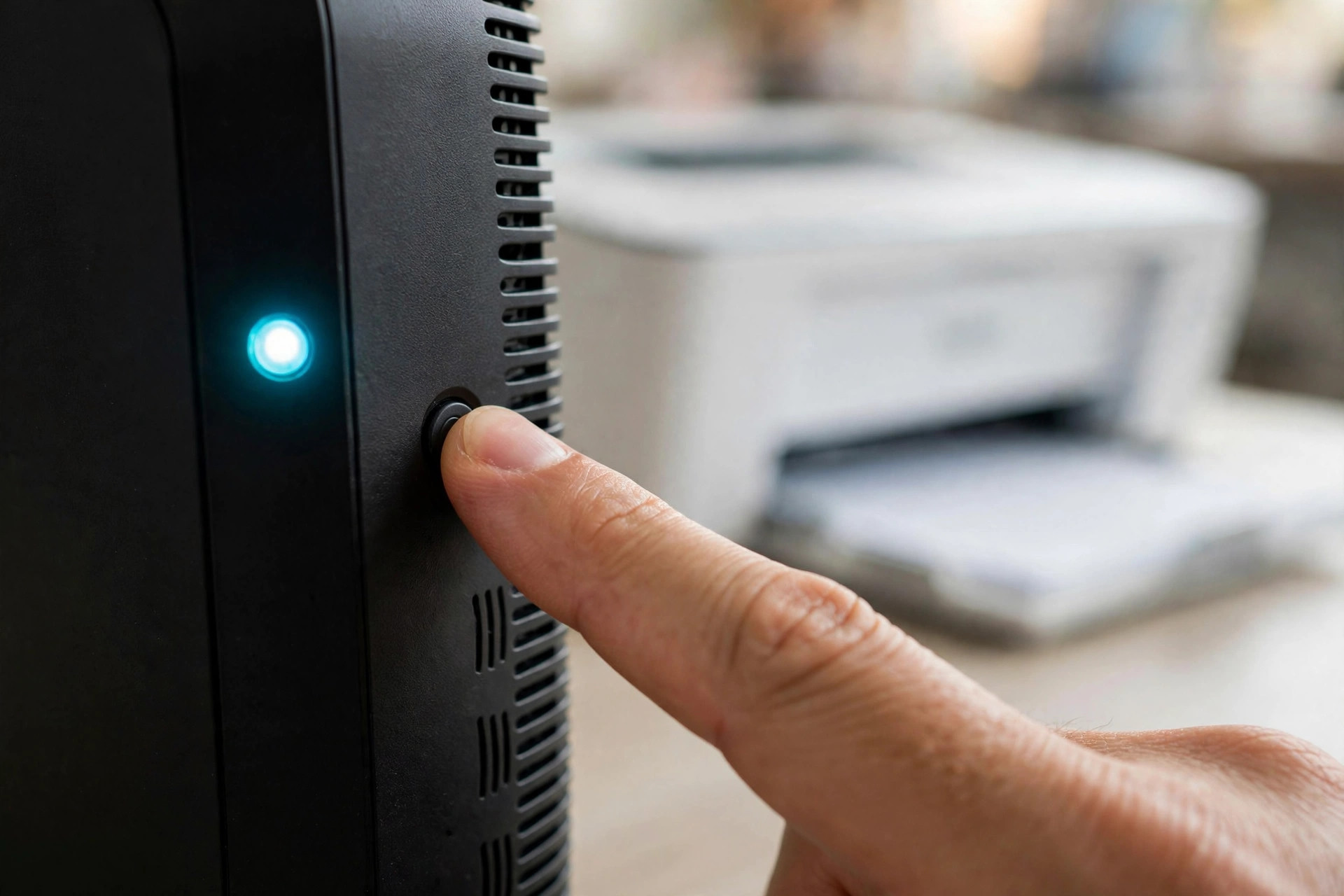
Almost every home router has a small button labelled WPS, often with an icon of two arrows chasing each other in a circle. Many people press it by accident while unplugging a cable, see a light flashing, and quietly worry they have broken something or opened their network to the world. Others have used it for years to connect printers without ever knowing what it actually does.
WPS stands for Wi-Fi Protected Setup, and it was designed to solve a real annoyance: typing a long, complicated Wi-Fi password on devices that have no keyboard, such as printers, cameras, and smart plugs. This guide explains how the WPS button works, the different ways to use it, the genuine security concerns you should know about, and when it is sensible to use it or switch it off entirely.
What WPS Actually Does
When you press the WPS button, your router opens a short pairing window, usually lasting about two minutes. During that window, a nearby device that is also in WPS mode can join your network without anyone typing the password. The router and the device perform a quick, automatic handshake, the router hands over the network name and password securely to that one device, and the window closes again.
Nothing else about your network changes. Your password stays the same, your other devices stay connected, and once the window closes, no further devices can join this way until you press the button again. Think of WPS as briefly holding the door open for one expected guest, rather than leaving it unlocked all day. WPS works mainly on the 2.4GHz band, although support is fading: Android removed it from version 10 onwards and Apple never supported it on iPhone.
The Three Ways WPS Is Used
1. The push-button method
This is the method the physical button exists for, and it is the safest form of WPS. You press the button on the router, then select the WPS option or press the WPS button on the device you want to connect within two minutes. Printers are the classic example: their setup menus almost always include a “WPS push button” option. The two devices find each other, exchange the details, and the device joins the network.
2. The PIN method
Some devices ask for an eight-digit WPS PIN instead. This PIN is printed on the router’s label or shown in its admin pages, and you type it into the device during setup, or type a device’s PIN into the router. The PIN method has a well-known design flaw, discussed in the security section below, and it is the main reason experts are cautious about WPS as a whole.
Step by Step: Connecting a Device With the WPS Button
- Place the device you are connecting reasonably close to the router for the setup, ideally in the same room. You can move it afterwards.
- On the device, open its network or Wi-Fi setup menu and choose the WPS or push-button option first, so it is ready and listening. On a printer, this is usually under Network Settings, then Wireless Setup.
- Now press the WPS button on your router. On many models you press and hold it for two or three seconds until the WPS light starts flashing. A very long press of ten seconds or more can trigger a factory reset on some routers, so do not hold it down indefinitely.
- Wait while the lights flash. A successful connection is usually shown by the WPS light turning solid for a short time, and by the device reporting that it is connected or printing a network status page.
- Confirm the device appears and works: send a test print, or check the connected devices list in your router’s admin page.
- If it fails, simply repeat the process. The most common cause of failure is timing: the two-minute window expired before both sides were ready, which is why starting the device side first works better.
If your device offers both WPS and manual password entry, the manual method is honestly not much slower on anything with a screen and keyboard. WPS earns its keep on headless gadgets where typing a 16-character password with arrow keys would be miserable. Our guide to connecting a printer to your Wi-Fi network covers both methods in more depth.
The Security Question: Is WPS Safe?
This is where WPS deserves honest scrutiny. The push-button method is reasonably safe in a normal home, because an attacker would need physical access to press the button on your router during the short pairing window. If someone is standing in your hallway pressing buttons on your router, Wi-Fi security is probably not your biggest concern.
The PIN method is a different story. The eight-digit PIN has a serious design weakness: the router effectively checks it in two halves of four and three digits plus a checksum, which reduces the possible combinations an attacker must try from one hundred million to roughly eleven thousand. Security researchers demonstrated practical attacks against WPS PINs back in 2011, and tools to exploit the flaw have existed ever since. An attacker within radio range can keep guessing PINs automatically, and on a vulnerable router they may recover your full Wi-Fi password within hours, no matter how strong that password is. The overview of Wi-Fi Protected Setup and its known vulnerabilities documents this history in detail.
Some routers soften the risk with lockout features that slow down repeated PIN guesses, and some let you disable the PIN method while keeping push-button WPS. Unfortunately, a number of older routers keep the PIN feature active even when the settings page claims WPS is off. The practical advice is simple:
- If your router lets you disable the WPS PIN specifically, disable it.
- If you never use WPS at all, turn the whole feature off in the wireless settings.
- If your router is very old and offers no PIN controls, treat this as one more reason to consider a modern replacement, alongside better speed and security standards such as WPA3.
To check your settings, log in to the router admin page, find the WPS options, usually under Wireless or Advanced Wireless, and review what is enabled. Any change takes effect immediately and does not disconnect devices that are already joined.
Why Is WPS Disappearing?
You may notice a new phone or laptop has no WPS option anywhere. That is deliberate. The industry has moved to methods that are easier and safer: scanning a QR code on the router’s label, sharing a password from a connected phone, or setup through a router’s app. The Wi-Fi Alliance now promotes a successor called Wi-Fi Easy Connect, which uses QR codes instead of PINs. WPS remains useful mainly for printers, extenders, and cameras still in service.
Common Mistakes and Helpful Tips
- Pressing and holding too long: On some routers a very long press resets the router to factory settings. A two or three second press is enough to start pairing; release when the light flashes.
- Starting with the router: Start WPS on the device first, then press the router button, so the full two-minute window is available for the handshake.
- Assuming WPS changes your password: It does not. It shares your existing password with one new device, and everything already connected is unaffected.
- Leaving the PIN method enabled: Check your settings and disable the PIN if you can, even if you keep push-button WPS.
- Expecting WPS on an iPhone: Apple devices never supported it. On iPhone, use password sharing from another Apple device or type the password manually.
- Tip: After using WPS to connect a gadget, check your router’s connected devices list once. It is a good habit that confirms the right device joined under the right name.
Conclusion
The WPS button is a shortcut for connecting keyboard-less devices: press it, and for about two minutes your router will securely hand your network details to one waiting device, no typing required. Used occasionally for a printer or camera, the push-button method is convenient and low risk in a home setting. The PIN method, however, carries a real and well-documented weakness, so it is worth two minutes in your router settings to disable the PIN, or WPS entirely if you never use it. Convenience is welcome, but only when it does not quietly leave a side door open.
Frequently Asked Questions
Does pressing the WPS button reset my router?
No, a normal short press only opens a two-minute pairing window. However, holding the button down for a very long time can trigger a factory reset on some models, so press it for two or three seconds and release when the WPS light starts flashing.
Will using WPS disconnect my other devices?
No. WPS adds one new device to your network without changing your network name or password. Everything already connected stays connected, and the pairing window closes automatically after about two minutes.
Should I turn WPS off completely?
If you never use it, turning it off is the safest choice and costs you nothing. If you do use it for printers or cameras, keep the push-button method if you wish, but disable the PIN method in your router settings if that option exists.
Why does my phone not have a WPS option?
Modern phones have dropped WPS because safer and easier alternatives exist, such as QR code setup and password sharing. Android removed WPS support from version 10 onwards, and iPhones have never included it.
Can someone hack my Wi-Fi through WPS from outside my home?
The push-button method requires physically pressing the button on your router, so it cannot be abused from outside. The PIN method, however, can be attacked over the air from within radio range on vulnerable routers, which is exactly why disabling the PIN matters.



Leave a Reply