
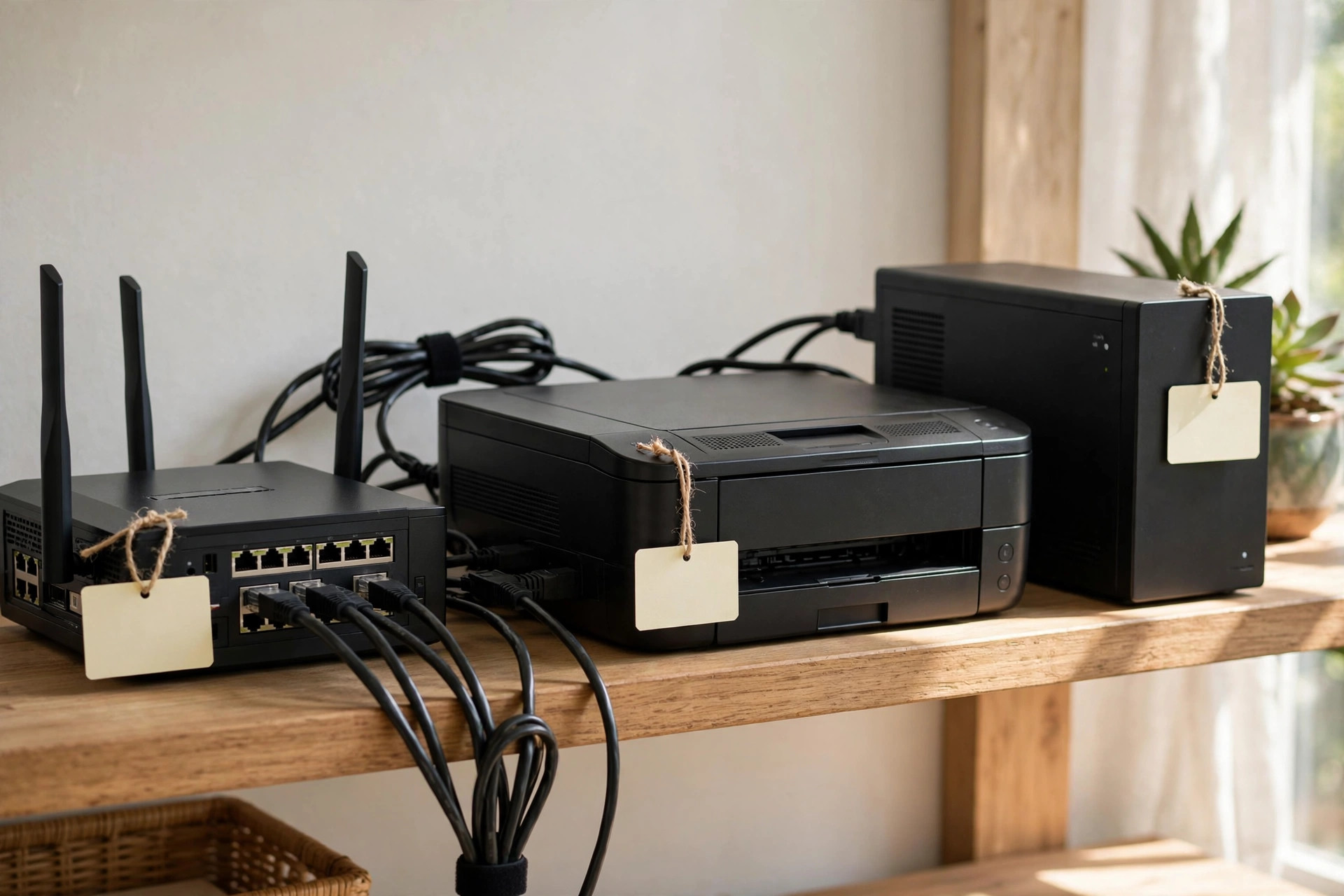
Most of the time, nobody needs to think about IP addresses. Your router hands them out automatically and everything just works. Then one day you set up a printer that keeps disappearing, a home server nobody can find, or a camera whose address keeps changing, and suddenly the phrase “static IP” appears in every help guide you open.
A static IP address is simply an address that never changes, assigned deliberately to a particular device instead of being handed out at random. This guide explains the difference between static and dynamic addresses, which devices genuinely benefit from a fixed address, and exactly how to set one up, using two different methods, without breaking your network in the process.
What Is an IP Address, Briefly?
An IP address is a numerical label that identifies each device on your network, allowing devices to find and talk to each other. Inside your home, these are private addresses, and on most home networks they look like 192.168.1.something or 192.168.0.something. Your router itself usually sits at 192.168.1.1, and everything else takes a number after it: your laptop might be 192.168.1.12 today, your phone 192.168.1.15, and so on.
Each device also needs a subnet mask, almost always 255.255.255.0 on a home network, a default gateway, which is the router’s address, and DNS server addresses, which translate website names into addresses. When you set a static IP, you fill in all four values manually and fix them in place. Microsoft’s documentation on changing TCP/IP settings in Windows shows where these fields live on a PC.
Do not confuse a private static IP inside your home with a public static IP from your provider. This guide is about the private kind, which is free and under your control. A public static IP is a separate, sometimes paid provider feature, needed only for special cases such as hosting services reachable from outside.
Dynamic vs Static: How Your Router Normally Hands Out Addresses
By default, a service in your router called DHCP automatically assigns an unused address to every device that joins. The address is leased for a set period, often 24 hours, and it may receive a different address next time. This is a dynamic IP, and for phones, laptops, and tablets it is fine, because those devices reach out to services rather than needing to be found at a fixed address.
A static setup removes that uncertainty for chosen devices. The printer is always at 192.168.1.200, today, next month, and after every power cut. Anything configured to talk to it keeps working, because the address it points to never moves.
Which Devices Should Get a Static IP?
- Network printers and scanners, so every computer can always find them at the same address.
- Network storage (NAS) drives and home servers, which other devices connect to by address.
- Security cameras and video recorders, especially if you view them through an app configured by address.
- Smart home hubs that integrate with other systems expecting a fixed target.
- Any device you have set up port forwarding for, such as a games server, because the forwarding rule points to one specific address.
Ordinary phones, laptops, tablets, and streaming sticks should stay on automatic DHCP. Giving everything a static address creates needless admin and increases the chance of mistakes, with no benefit at all.
Method 1: Reserve an Address in the Router (Recommended)
The smartest way to “set a static IP” on a home network is usually not on the device itself but in the router, using a feature called DHCP reservation or address reservation. You tell the router: whenever the device with this unique hardware address, called its MAC address, asks for an address, always give it the same one. The device stays on automatic, so there is nothing to misconfigure on the device, and the router’s DHCP records guarantee no other device will ever be handed that address by accident, which avoids conflicts entirely.
- Find the device’s MAC address. It is printed on a label on most printers and cameras, and shown in the network settings of computers and phones, in a format like 3C:7A:9F:12:44:B1.
- Log in to your router admin page, usually 192.168.1.1, and find the DHCP settings, then the section called Address Reservation, DHCP Reservation, or Static Leases.
- Add a new reservation: enter the device’s MAC address and the address you want it to always receive, for example 192.168.1.200.
- Save the setting, then restart the device or disconnect and reconnect it to the network. It will pick up its reserved address.
- Verify by checking the device’s network status page or by typing its new address into a browser if it has a web interface, as most printers do.
Method 2: Set a Static IP Directly on the Device
Sometimes you cannot use the router, perhaps because it is provider-locked. In that case, configure the device itself. On a Windows PC, open the network adapter settings, open the properties for Internet Protocol Version 4 (TCP/IPv4), select “Use the following IP address”, and fill in the fields. Other systems have the same fields under Wi-Fi or Ethernet settings, where you change the configuration from Automatic to Manual or Static.
Use these example values, adjusted to match your own network:
- IP address: 192.168.1.200
- Subnet mask: 255.255.255.0
- Default gateway: 192.168.1.1 (your router’s address; use 192.168.0.1 instead if that is your router’s address)
- Preferred DNS server: 192.168.1.1, or a public service such as 1.1.1.1 or 8.8.8.8
The golden rule for choosing the address itself is to pick one inside your router’s network range but outside the block DHCP hands out automatically, if your router shows that range, or at least a high number such as .200 that automatic assignment is unlikely to reach. If your router hands out addresses from 192.168.1.10 to 192.168.1.100, then .200 is safely outside the pool and no conflict can occur. Write down every static address you assign and which device owns it; future-you will be grateful.
For a broader explanation of how addresses and related settings fit together, the encyclopaedia overview of IP addresses is a solid reference. And if you are configuring a device so that it stays reliably reachable on your network, you may also find our guide to setting up port forwarding for gaming useful, since port forwarding almost always needs a static address underneath it.
What Can Go Wrong: IP Address Conflicts
The classic static IP accident is an address conflict: two devices with the same address. Both behave erratically, dropping on and off the network. Conflicts happen when a manually set address sits inside the DHCP pool and the router later hands it to someone else, or when the same address is typed into two devices. The fixes are equally classic: keep static addresses outside the DHCP pool or use reservations, keep a written list, and if a device suddenly becomes unreachable after you add something new, suspect a conflict first.
If a device stops connecting entirely right after you set a static address, you have probably made a typing error in the gateway or subnet mask. A wrong subnet mask or a gateway address from the wrong range, such as entering 192.168.0.1 on a 192.168.1.x network, will isolate the device completely. Simply switch it back to automatic DHCP to restore the connection, then try again more carefully.
Common Mistakes and Helpful Tips
- Choosing an address inside the DHCP pool: Pick a high address such as 192.168.1.200, or check the router’s DHCP range and stay outside it, to prevent conflicts.
- Typing the wrong gateway: The gateway must be your router’s own address. Get it wrong and the device loses internet access even though it appears connected.
- Forgetting the DNS server: Without a valid DNS entry, the device can reach local addresses but no websites, which looks baffling until you check.
- Setting static addresses on everything: Reserve fixed addresses only for devices that provide a service to others: printers, storage, cameras, and servers.
- Not keeping a list: Record each device, its MAC address, and its assigned IP in one note. Troubleshooting without it is guesswork.
- Tip: Prefer router reservations over device settings wherever possible; the configuration lives in one place and survives the device being reset.
Conclusion
A static IP address is nothing exotic: it is an address that stays put, so devices can always be found in the same place. Set one through your router’s DHCP reservation feature where you can, choose addresses like 192.168.1.200 outside the automatic pool with the subnet mask 255.255.255.0 and your router as the gateway, keep a short written list of what you assigned, and leave everyday gadgets on automatic. Do that, and the disappearing printer, the wandering camera, and the broken port forwarding rule all become problems of the past.
Frequently Asked Questions
Does a static IP address make my internet faster?
No. A static IP does not change your speed at all. Its benefit is reliability: devices such as printers, storage drives, and cameras stay reachable at one permanent address, so connections configured to reach them never break.
Is a static IP address safe to use?
Yes, a private static IP inside your home network is perfectly safe and is standard practice. It does not expose the device to the internet by itself; exposure only happens if you separately open ports in your router’s firewall.
What is the difference between a static IP and a DHCP reservation?
A static IP is configured on the device itself, while a reservation is configured in the router, which always gives that device the same address automatically. Reservations achieve the same fixed-address result with less risk of conflicts and are the recommended method at home.
Can two devices share the same static IP address?
No. Every device on a network must have a unique address. If two devices share one address, both will suffer dropouts and become unreachable in turn, a problem known as an IP address conflict.
Do I need a static IP from my internet provider?
Almost certainly not. The static addresses in this guide are private, free, and set up inside your home. A public static IP from a provider is a separate, sometimes paid feature needed only for unusual cases such as hosting a public server from home.



Leave a Reply