

EcoTank printers save money with refillable tanks, but how do you know the real ink level from your Windows PC without walking to the printer? Windows and Epson figures do not always match, and a missed level reset can make the on-screen reading unreliable.
This guide shows how to check levels in Windows, confirm them against the physical tanks, and keep them accurate after every refill.
Quick Answer
To check genuine ink levels on an Epson EcoTank from within Windows, open the Epson printer utility from the print queue or Epson Printer Connection Checker, or use Epson Smart Panel status via the driver maintenance tab, which shows estimated tank levels reported by the printer. Always confirm any low reading by looking at the actual ink in the front tank windows, because the Windows figure is an estimate based on usage and your last refill reset.
How EcoTank Ink Levels Work Differently
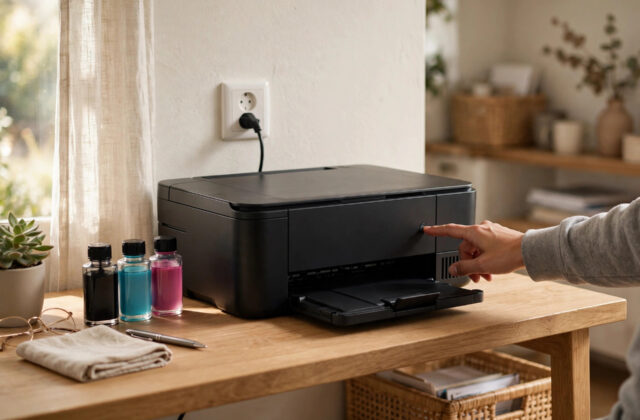
On an EcoTank there is no chip in a bottle of ink. The printer estimates consumption by counting pages, cleaning cycles, and ink used since you last told it you refilled a tank. The front tank windows are therefore the ground truth: the ink you can see is the ink you have.
This has two consequences:
- The Windows reading is only accurate if you reset the level in the software every time you refill, and refill to the marked line.
- If levels were never reset, or were reset without refilling, the PC can show empty while the tank is half full, or full while the tank is nearly empty.
Check in Windows for convenience, then verify physically before ordering ink or running big jobs. Never let a tank fall below the lower line, because drawing in air causes print quality faults.
Method 1: Check Levels in the Epson Driver Maintenance Tab
This is the most reliable Windows method, from Epson’s own driver.
- Turn the EcoTank printer on and confirm it is connected by USB or on the same Wi-Fi network as your PC.
- On Windows 11, open Settings, then Bluetooth and devices, then Printers and scanners. On Windows 10, open Settings, Devices, then Printers and scanners.
- Select your EcoTank printer and open Printing preferences.
- Open the Maintenance tab, sometimes labelled Utility, at the top of the driver window.
- Select EPSON Status Monitor 3 or Ink Levels, depending on your driver version.
- Read the level graphic for each colour: black, cyan, magenta, and yellow on most models. Note any warning icon or low-level message.
- Close the utility and compare the result with the tank windows before a large print run.
If the Maintenance tab is missing, you are likely using a generic Windows driver. Install the full driver package for your exact EcoTank model from the official Epson support and drivers page and restart your PC, which restores the Epson utilities.
Method 2: Check From the Print Queue While Printing
- Open Printers and scanners and select your EcoTank, then open the print queue.
- Send a one-page test document so the printer shows as active.
- In many Epson driver versions, a status window appears during printing showing ink levels and job progress. Do not cancel the job to view it; let the test page finish.
- Alternatively, right-click the Epson printer icon in the system tray, if present, and open the status or ink level option.
Method 3: Use Epson Software Installed With the Printer
Epson Printer Connection Checker and Status Tools
The full Epson install adds utilities in the Start menu under Epson. Open the connection checker to confirm the PC can communicate with the printer. If it cannot be found, check Wi-Fi, restart the printer, and confirm both devices share the same network.
Epson Smart Panel and Remote Status
If you use Epson Smart Panel on a phone, compare its ink display with the Windows reading. They should broadly agree. A large disagreement usually means an old PC driver or a refill that was not completed properly. For setup help, see our guide on how to connect an Epson EcoTank printer to Wi-Fi, which covers the stable connection these status checks depend on.
How to Verify the Genuine Level at the Printer
Do this 20-second verification whenever Windows reports low ink or before an important job.
- Stand directly in front of the printer in good light. EcoTank windows are on the front of most models.
- Compare each ink colour against the two marked lines: the upper line is the full level after a correct refill, the lower line is the minimum safe level.
- If ink sits between the lines, you have usable ink even if Windows warns. Plan a refill soon if it nears the lower line.
- If ink is below the lower line, stop printing in that colour, refill immediately, and reset the level as described below.
Microsoft’s general printer guidance in Microsoft support help for printer problems in Windows reminds users to rely on the manufacturer’s utility for supply status — for EcoTank, the Epson monitor plus this visual check.
How to Reset Ink Levels Correctly After a Refill
Most inaccurate Windows readings trace back to this step being skipped or done in the wrong order.
- Refill the tank first, slowly, with the correct ink code for your model, up to the upper line. Do not overfill past the line.
- Wipe any drips, close the tank cap and the tank cover fully.
- On the printer control panel, follow the prompts that appear for confirming the refill, selecting the exact colour or colours you refilled.
- If no prompt appears, open Settings, Maintenance, then Reset Ink Levels, or the equivalent on your model, and confirm only the tanks you actually filled.
- Return to Windows and reopen EPSON Status Monitor 3. The graphic should now show those tanks as full.
- Never reset a level without refilling. The printer will trust your reset, overestimate remaining ink, and may run the tank dry.
Why Windows Ink Levels Can Be Wrong
Level Reset Without Refilling, or Refill Without Reset
Both break the estimate in opposite directions. Agree on one rule: whoever refills, resets, and notes the date.
Generic Driver or Status Monitor Disabled
If EPSON Status Monitor 3 is disabled, Windows may show no levels or stale levels. Open the Maintenance tab and ensure the monitor is enabled. Reinstalling the full Epson package fixes persistent cases.
Network Communication Problems
On Wi-Fi models, a weak signal or the PC on a guest network can freeze the last known reading. Wake the printer, print a test page, then reopen the monitor for a fresh reading.
Using Non-Genuine Ink
Third-party ink does not change how the estimate works, because there is no bottle chip to read. The genuine part of checking is method, not brand: correct refill, correct reset, and visual confirmation. Use the ink code for your model and never mix codes in one tank.
Tips to Keep Levels Accurate and Avoid Running Dry
- Refill early: Top up when a tank reaches about a quarter remaining, not at the bottom line, to avoid air in the lines.
- Refill one tank fully rather than little splashes: Full refills to the line make the reset and estimate most accurate.
- Keep a spare black bottle: Black runs out first in most homes. A spare prevents rushed, messy refills.
- Check levels weekly in Windows if you print daily: A 30-second Status Monitor check prevents surprise stoppages mid-job.
- Record refills: A simple note on the printer with the date and colour refilled removes all guesswork in shared use.
- Do not ignore cleaning consumption: Repeated head cleans use real ink that page counts alone do not suggest. Levels can drop after maintenance-heavy weeks.
Conclusion
Checking genuine ink levels on an Epson EcoTank from within Windows is easy once you use the Epson driver utilities rather than generic Windows screens: open the Maintenance tab and EPSON Status Monitor 3 for the printer’s own estimate, then confirm with the front tank windows for the true physical level. Refill to the line, reset only what you filled, and check before big jobs. That simple routine gives you accurate readings, no surprise empty tanks, and the full savings EcoTank printing is meant to deliver.
Frequently Asked Questions
Why does Windows say my EcoTank is empty when the tank looks half full?
The Windows figure is an estimate since your last reset. If you refilled without resetting, or printed and cleaned a lot after a reset, the estimate drifts from reality. Trust the window for the physical amount, then refill to the line and reset that colour correctly so the two agree again from that point.
Can I check EcoTank ink levels without Epson software?
Basic Windows printer pages do not show reliable EcoTank levels on most models. You need the Epson driver and Status Monitor for a proper reading from Windows. Without them, use the front tank windows on the printer itself, which always show the true ink amount regardless of software.
What happens if an EcoTank tank runs completely empty?
Air can enter the ink lines, causing missing colours, streaks, and repeated cleaning cycles to recover print quality. In serious cases Epson service is needed. Avoid it by refilling before the lower line and never continuing to print a colour that has run dry, even to finish a document.
Do I need to reset every colour when I refill only black?
No. Reset only the tank or tanks you actually refilled to the line. Resetting colours you did not fill makes their Windows estimates falsely show full and increases the risk of running them dry later without warning. The control panel lets you select individual colours for this reason.
How often should I check ink levels in Windows?
Check weekly if you print most days, and always before a large or important job such as a report, photos, or exam papers. The Status Monitor check takes under a minute. Combine it with a monthly glance at the physical windows to confirm the estimate still matches reality.

Leave a Reply