
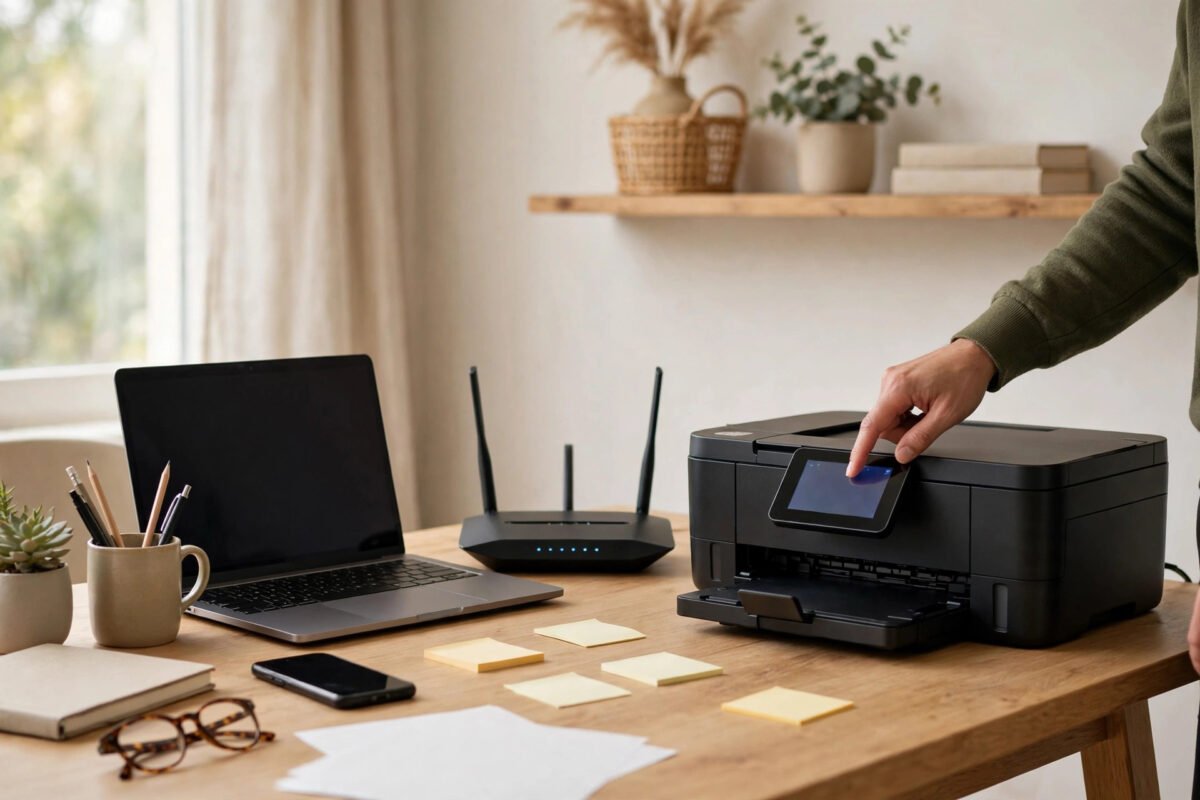
You try to connect your Epson printer to your fast 5GHz Wi-Fi network, but the network name never appears in the printer’s list. Your phone and laptop see it clearly, yet the printer only shows 2.4GHz networks, or nothing at all.
Many Epson printers cannot use 5GHz at all, and even models that support it have limits on channels and security settings. Once you know whether your model is compatible, you can choose the right solution instead of repeating a setup that can never succeed. In most homes, connecting the printer to 2.4GHz works perfectly, even if your computer uses 5GHz.
Quick Answer
Check your model’s specifications first, because many Epson printers only support 2.4GHz Wi-Fi and will never see a 5GHz network. If yours is 2.4GHz-only, connect it to 2.4GHz and your 5GHz devices will still print to it through the same network. If your model does support 5GHz, move it closer to the router, use a lower 5GHz channel, and use WPA2 security.
First Check: Does Your Printer Support 5GHz?
This is the step most people skip, and it is the most important. Epson has sold many popular home and small office models with 2.4GHz-only radios. No setting, firmware update, or router change can add 5GHz to hardware that does not have it.
Check the specification in your manual or on the product page for your exact model. If the wireless standard says IEEE 802.11 b/g/n only, that is 2.4GHz only. If it says 802.11 a/b/g/n or 802.11 ac, or explicitly lists 5GHz, your model supports both bands.
Confirm the specification for your full model number on the official Epson support and product specification pages.
What this means
- 2.4GHz-only model: Connect it to 2.4GHz. Print jobs are small, and 2.4GHz has better range through walls, so this is not a downgrade for printing.
- Dual-band model: Continue with the channel and security checks below if 5GHz does not appear.
- Unsure of the variant: Use the full model name from the label on the printer, not just the series name.
Why a Computer on 5GHz Can Print to a 2.4GHz Printer
The printer and computer do not need to be on the same band. They need to be on the same network, which is different. On a normal home router, the 2.4GHz and 5GHz bands are bridged into one local network, so a laptop on 5GHz can print and scan to a printer on 2.4GHz.
Problems only arise when bands are separated into different networks, when a guest network is used, or when AP isolation is enabled. If your router uses one combined name for both bands, often called band steering or Smart Connect, the printer joins on 2.4GHz automatically and other devices use whichever band suits them. You do not need to split the bands permanently just for the printer.
If Your Model Supports 5GHz But Cannot See It
For dual-band models, invisibility is usually caused by channel choice, range, or security settings. 5GHz signals have shorter range, and routers often choose high channels that some printers cannot use.
Check the 5GHz channel
Many printers only support lower 5GHz channels and may not see networks on high DFS channels. Log in to your router and set the 5GHz channel manually to 36, 40, 44, or 48. Restart the router, move the printer into the same room for setup, and search again.
Check distance and obstacles
5GHz range drops quickly through brick, concrete, and multiple walls. A printer that holds a stable 2.4GHz connection across the home may be out of reliable 5GHz range. Test close to the router. If it connects nearby but not in its normal place, 2.4GHz is the practical choice for that location.
Check security and Wi-Fi mode
- Set security to WPA2-Personal or WPA2/WPA3 mixed mode during setup. Avoid WPA3-only for older dual-band models.
- Use a mixed Wi-Fi mode that includes 802.11n or ac, rather than a Wi-Fi 6 only mode.
- Make sure the network is not hidden. Turn on SSID broadcast during setup.
- Turn off MAC filtering, or add the printer’s MAC address if you use it deliberately.
After any router change, restart the printer and start Wi-Fi setup from the beginning. Model-specific network limits are listed in the Epson support library and network setup guides.
Step-by-Step: Connect a 2.4GHz-Only Epson Correctly
- Confirm your router’s 2.4GHz band is enabled. If bands have separate names, note the exact 2.4GHz name.
- If bands share one combined name and setup keeps failing, temporarily split them or turn off band steering, and give 2.4GHz a distinct temporary name.
- On the printer, go to Wi-Fi Setup and choose Wi-Fi Setup Wizard. Select the 2.4GHz network.
- Enter the password carefully. Passwords are case-sensitive and the panel makes special characters easy to mistype.
- Wait for confirmation and a solid Wi-Fi indicator.
- Print a Network Status sheet and confirm the correct network name, good signal, and an IP address that is not 169.254.
- Turn the combined name or band steering back on if you changed it, then restart the printer.
- Add the printer on your computer using the latest full driver package, choosing the network option.
Most combined-name routers work without splitting. Only split if the printer repeatedly drops or cannot find the combined name. Our guide on connecting a printer to a Wi-Fi network step by step covers computer-side setup after the printer is online.
Alternative Options if 5GHz Will Not Work
Wi-Fi Direct
Many Epson models offer Wi-Fi Direct, which lets a phone or computer connect directly to the printer without a router. It is useful for occasional printing, but on some models your device must leave the home network while using it, so it is less convenient for daily shared use.
Ethernet
If your model has an Ethernet port, a wired connection to the router is the most stable option. The printer then serves both 2.4GHz and 5GHz devices, and the band question disappears. If the printer sits near the router or a switch, consider this first.
USB
For a printer used by one nearby computer, USB is simple and reliable. You lose shared network printing and network scanning convenience, so treat it as a fallback.
When the Printer Sees 2.4GHz But Setup Still Fails
- Re-enter the password slowly and watch for similar characters such as 0 and O, and 1, l, and I.
- Restart the router, wait until its lights are stable, then restart the printer and retry.
- Move the printer closer for setup, even if you move it back later. Check the final signal on the status sheet.
- Update router and printer firmware if setup fails across several devices.
- Remove old copies of the printer from your computer before reinstalling the driver.
- Simplify a network name or password that uses unusual symbols the printer panel cannot enter.
Common Mistakes and Helpful Tips
- Assuming every new printer supports 5GHz: Check the exact model’s specification first.
- Splitting bands permanently without need: A combined name works for most homes.
- Chasing speed for print jobs: Printing does not need 5GHz speed. Stability and range matter more.
- Using WPA3-only security: Use WPA2 or mixed mode unless your model explicitly supports WPA3.
- Using a guest network: Guest networks isolate devices. Use your main private network.
- Installing only a basic driver: Install the full Epson package so scanning works as well as printing.
Conclusion
If your Epson cannot see your 5GHz network, the most likely reason is that the model only supports 2.4GHz, which is completely normal. Connect it to 2.4GHz and your 5GHz devices will still print to it through the same network. If your model is dual-band, set a low 5GHz channel, use WPA2-compatible security, and set it up close to the router. A stable 2.4GHz or Ethernet connection will serve you better than an unreliable 5GHz link.
Frequently Asked Questions
Can I force my Epson printer to use 5GHz Wi-Fi?
No. If the model has a 2.4GHz-only radio, no setting can add 5GHz. Check the specification for 802.11 a or ac support. If it only lists b/g/n, it is 2.4GHz-only by design.
Will my laptop on 5GHz print to a printer on 2.4GHz?
Yes. On a normal home router both bands belong to the same local network, so devices can print and scan across bands. Problems only occur with guest networks or AP isolation.
Why does my dual-band Epson see 2.4GHz but not 5GHz?
The router may be using a high DFS channel the printer does not support, the printer may be out of 5GHz range, or security may be WPA3-only. Set a low channel such as 36 to 48, use WPA2 or mixed mode, and test close to the router.
Should I split my router into separate band names?
Only if setup with a combined name keeps failing. Splitting temporarily helps a 2.4GHz-only printer join the right band during setup. You can usually restore the combined name afterwards.
Is 2.4GHz fast enough for printing and scanning?
Yes. Print jobs and most scans are relatively small, and 2.4GHz gives more than enough speed with better range through walls. Stability matters more than band speed for a printer.

Leave a Reply