
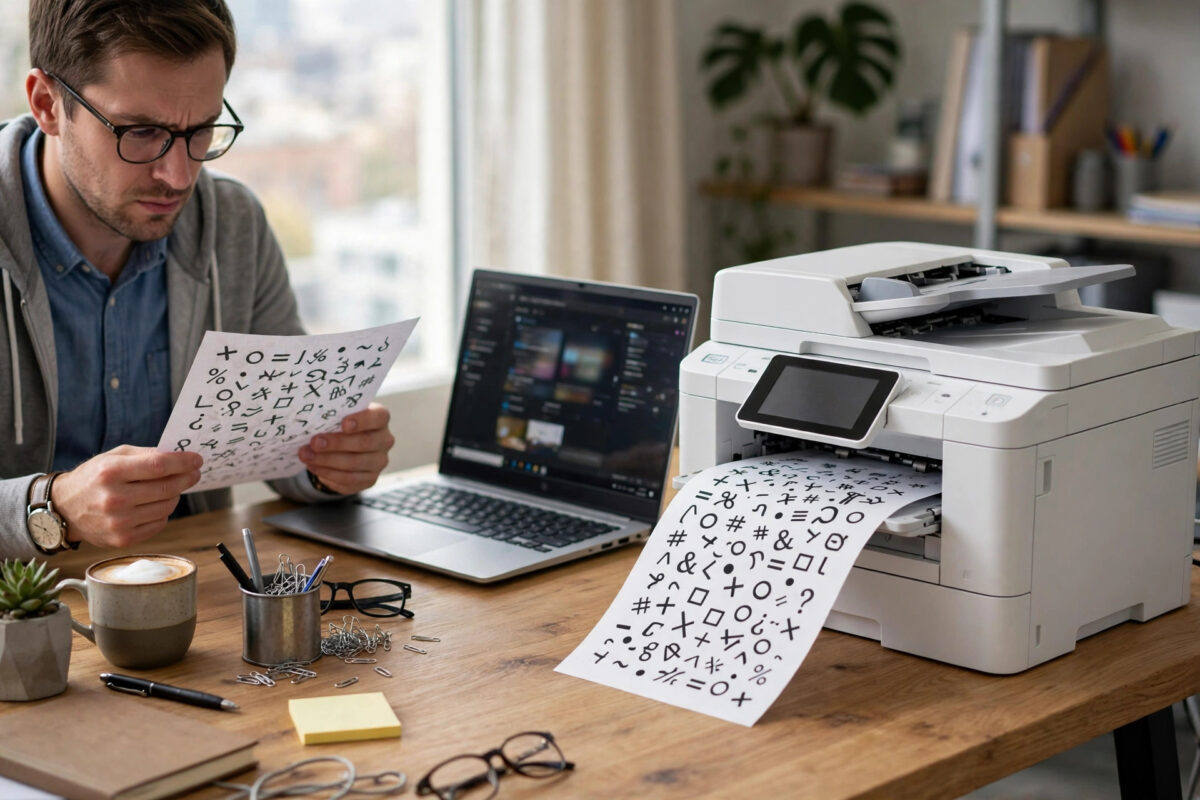
Your document looks perfect on screen, but the Epson WorkForce spits out pages of random symbols, broken lines, and strange characters instead. This problem, often called garbled printing or junk printing, is frustrating because the printer itself is usually fine. In almost every case, the fault sits somewhere between your Windows PC, the driver, and the data being sent to the printer.
The good news is that you can fix it yourself in most cases. This guide explains why it happens, how to find the real cause quickly, and the exact steps to get clean, readable pages again from your Windows computer.
Quick Answer
An Epson WorkForce usually prints garbled characters from a Windows PC because of a corrupted or wrong printer driver, a damaged print job stuck in the spooler, or a communication error on USB or Wi-Fi. Reinstalling the correct Epson driver, clearing the print queue, and testing with a different cable or connection fixes the problem in most cases.
What Garbled Printing Actually Looks Like
Garbled output is not poor print quality. Faded text and streaks point to ink issues. Here the layout and the characters themselves are wrong.
Common signs include:
- Pages filled with symbols like %, $, #, and random letters instead of your text
- One line of nonsense at the top, followed by many blank pages
- Correct words mixed with boxes, question marks, or foreign-looking characters
- The printer prints code or PostScript-style commands as plain text
- Only one application, such as a PDF reader, produces the bad output
Why Does My Epson WorkForce Print Garbled Characters From a Windows PC?
Windows and the driver translate your document into a language the printer understands. If that translation or transfer goes wrong, the printer still prints what it received — it just looks like nonsense to you.
1. Wrong, Generic, or Corrupted Driver
This is the number one cause. Windows sometimes installs a generic driver automatically, especially after an update. A generic or corrupted driver can send data in a format your WorkForce model does not fully understand.
2. A Damaged Job Stuck in the Print Spooler
The Windows Print Spooler holds jobs in a queue. If one job becomes corrupted, every job after it can inherit the problem, and Windows may keep resending the broken file even after a restart.
3. Communication Errors on USB or Network
A damaged USB cable, a loose plug, a faulty hub, or Wi-Fi interference can corrupt the data stream. The result looks like a driver problem, even when the driver is fine.
5. Damaged File, Font, or Application Issue
A single corrupted PDF, a broken embedded font, or an outdated app can produce garbled pages while everything else prints normally.
Step-by-Step Fix: Start With the Fastest Checks
Work through these steps in order. Stop as soon as printing returns to normal.
Step 1: Cancel Everything and Restart Cleanly
- Press the cancel or stop button on the printer to end the current job.
- Turn the printer off and unplug it from power for 60 seconds.
- On your PC, open Settings, then Bluetooth and devices, then Printers and scanners.
- Select your Epson printer, open the print queue, and cancel every pending document.
- Restart your PC, then turn the printer back on and try a single test page.
Step 2: Clear the Print Spooler Properly
If the bad job keeps coming back, a normal cancel is not enough. You need to clear the spooler folder.
- Press Windows key + R, type services.msc, and press Enter.
- Find Print Spooler, right-click it, and choose Stop.
- Open File Explorer and go to C:\Windows\System32\spool\PRINTERS.
- Delete all files inside that folder. Do not delete the folder itself.
- Return to Services, right-click Print Spooler again, and choose Start.
- Send one small test document, such as a single page from Notepad.
If Notepad prints clearly, the original file or application is likely the problem.
Step 3: Reinstall the Correct Epson Driver
Removing the old driver fully matters more than installing a new one over the top.
- Disconnect the USB cable if you use one, and keep the printer turned on for network setup.
- Open Settings, then Apps, then Installed apps, and uninstall any Epson printer software for your model.
- Go to Printers and scanners, select your printer, and choose Remove.
- Press Windows key + R, type printui /s /t2, and remove the Epson driver package if it is listed.
- Restart your PC.
- Download the latest full driver and software package for your exact WorkForce model from the official Epson support and drivers page.
- Run the installer and connect the printer only when the setup tells you to.
- Print the Windows test page offered at the end of setup.
Always match the driver to your exact model number. For shared office printers, also check our guide on how to fix a printer showing offline on Windows 11 if the printer also disappears from the network after reinstalling.
Step 4: Rule Out the Cable or Network
- For USB: try a different, short USB cable, plug directly into the PC, and avoid hubs and docking stations for the test.
- For Wi-Fi: move the printer closer to the router for one test print and check that PC and printer use the same network name.
- Restart your router once if several devices have had connection drops.
- Try printing from a second PC or laptop if you have one. If it prints fine, the fault is in the first PC, not the printer.
Step 5: Test the File and Application
- Print a plain text file from Notepad and a simple page from your browser.
- If those work, open the problem document and save a fresh copy with a new name.
- For PDFs, open the print dialog, choose Advanced, and tick Print as image, then test again.
- Update the application that produced the bad file, or try printing the same file from a different program.
- Change the document font to a standard font such as Arial for one test, to rule out a broken font.
The guidance in Microsoft’s official guide to troubleshooting printer problems in Windows also recommends checking the spooler and driver first, which matches the order used here.
Advanced Checks If Garbled Printing Continues
Check the Port and Driver Type
In Printer Properties, open the Ports tab and confirm the ticked port matches your connection. In the Advanced tab, confirm the driver name matches your exact Epson model, not a generic class driver.
Update Windows and Printer Firmware
Install pending Windows updates, restart, and check Epson’s support page for a firmware update for your model. Never turn the printer off during a firmware update.
Common Mistakes to Avoid
- Installing the driver for the wrong model: Similar WorkForce names are not interchangeable. Always check the label on your printer.
- Installing over a corrupted driver: Without removing the old package, the broken files can remain and the fault returns.
- Ignoring the queue: Reinstalling while a bad job is still queued means the new setup prints the same corrupted data.
- Using a long or damaged USB cable: It may work for weeks and then start corrupting larger jobs first.
- Assuming the printer is faulty: If a nozzle check and a copy made directly on the printer look perfect, the printer hardware is almost certainly fine.
- Downloading drivers from random sites: Unofficial driver sites bundle unwanted software. Use Epson only.
How to Prevent Garbled Printing in Future
Keep the Epson driver for your exact model, replace worn USB cables early, keep the printer on a stable Wi-Fi signal, and clear cancelled jobs from the queue instead of leaving them sitting there. Keep one known-good test file so you can prove quickly whether a new fault is the file or the system.
Conclusion
Garbled characters from an Epson WorkForce on Windows look alarming, but they rarely mean broken hardware. The cause is almost always the driver, a stuck spooler job, or corrupted data on the connection between PC and printer. Clear the queue, reinstall the exact Epson driver cleanly, and test with a simple file and a different connection. Work through those steps in order and you will normally have clean pages again within half an hour, without needing a repair visit or a new printer.
Frequently Asked Questions
Why does my Epson print symbols only from PDF files?
This usually points to a font or rendering problem inside the PDF, not the printer. Update your PDF reader, save a fresh copy of the file, and use the Print as image option in the advanced print settings for that document. If other PDFs print fine, the original file itself is likely damaged.
Can a Windows update cause garbled printing?
Yes. A Windows update can replace or change the printer driver, the spooler, or port settings. If the problem started right after an update, remove the printer and reinstall the latest driver package from Epson for your exact model, then restart both the PC and the printer.
Does garbled printing mean my print head is damaged?
No. A damaged or clogged print head causes faded colours, lines, and missing sections, not random symbols replacing your text. Make a copy directly on the printer or print a nozzle check. If that looks correct, the print head and ink system are working.
Why does the printer print many blank pages after one garbled line?
The printer received data it could not interpret as a normal page, so it treats parts of the job as page breaks and ejects blank sheets. Cancel the job on the printer, clear the Windows print queue and spooler folder, then resend a clean test document after reinstalling or checking the driver.
Should I use the Epson driver or the Windows generic driver?
Use the Epson driver made for your exact WorkForce model. Generic Windows drivers may offer basic printing but can mishandle fonts, layouts, and printer languages. The full Epson package also restores scanning and maintenance tools that generic drivers do not provide properly.
Leave a Reply