
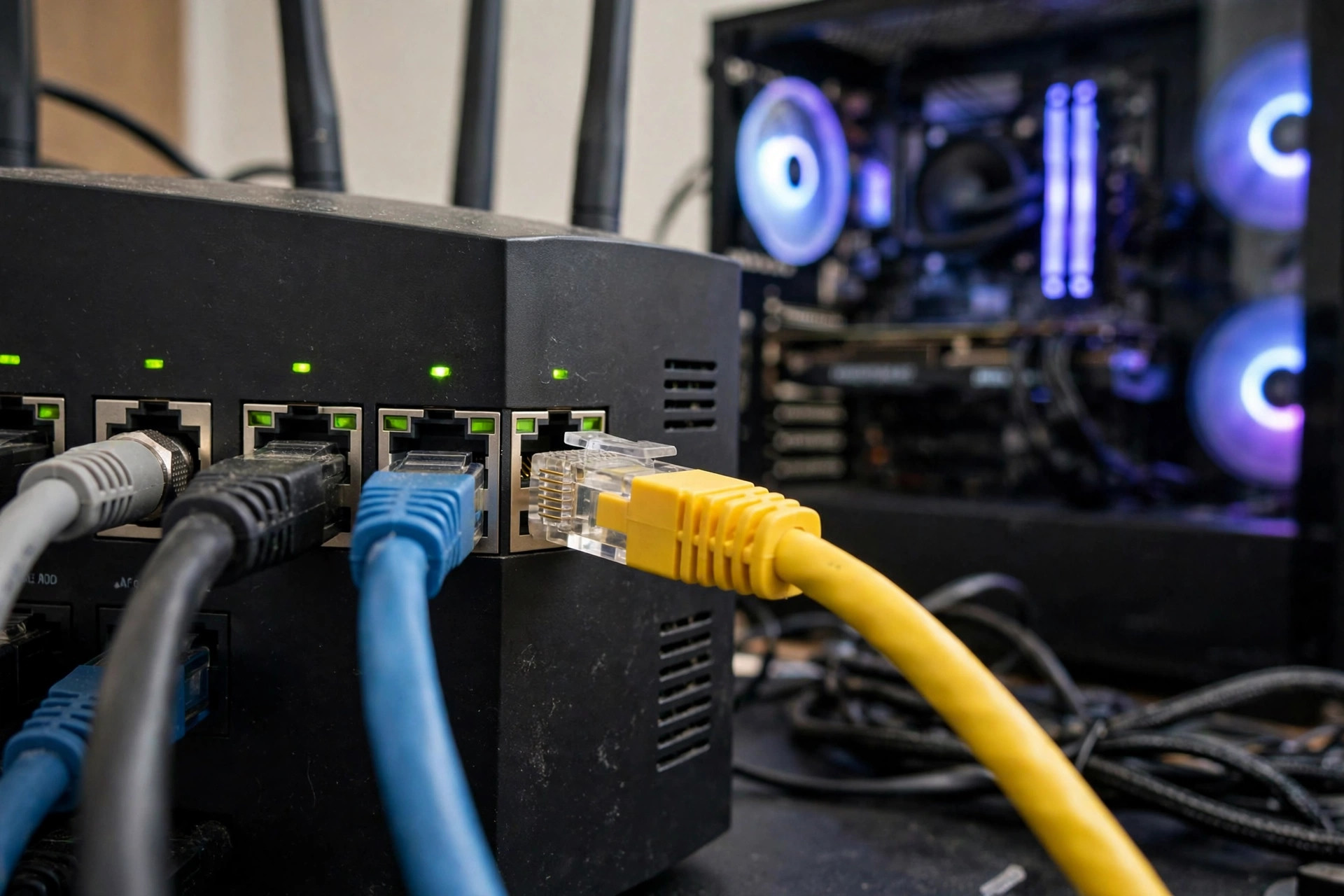
In a world of wireless everything, the humble LAN cable feels like a relic — a length of plastic-coated wire from the age of dial-up. Yet ask any network engineer what they plug their own desk into, and the answer is a cable, every time. Wired internet is not nostalgia; it is simply the most reliable, fastest, and lowest-latency connection you can give a device. The trick is knowing which devices deserve a cable and which are fine on Wi-Fi.
This guide explains what a LAN cable actually is, demystifies the Cat5e/Cat6/Cat7 alphabet soup printed along its jacket, compares wired and wireless performance honestly, and lists the situations where running one cable will transform a device’s behaviour.
What Is a LAN Cable?
LAN stands for Local Area Network — your home network. A LAN cable (almost always an Ethernet cable with RJ45 connectors on both ends) physically connects a device to your router or a network switch. Inside the jacket are four pairs of twisted copper wires; the twisting cancels interference, which is a large part of why cables are so dependable. When you plug one in, your device stops competing for airtime with every phone and smart bulb in the house and gets its own private lane to the router. Speeds are set by the cable category and the ports at each end, not by walls, distance within the home, or the neighbours’ networks. The reference overview of Ethernet over twisted-pair cabling documents the standards behind each generation if you want the engineering detail.
Cable Categories Explained: Cat5e, Cat6, Cat6a, Cat7, Cat8
Cat5e
The long-serving standard. Supports gigabit speeds (1 Gbps) up to 100 metres. If your home has cables from the last fifteen years, they are probably Cat5e — and still perfectly adequate for gigabit internet plans.
Cat6
The modern default for new purchases. Also gigabit-rated to 100 metres, and able to carry 10 Gbps over shorter runs (up to about 55 metres). Slightly stiffer and thicker than Cat5e. If you are buying cable today, buy Cat6.
Cat6a and Above
Cat6a guarantees 10 Gbps to the full 100 metres and is the sensible choice when cabling inside walls for the future. Cat7 and Cat8 exist but are overkill for homes — Cat8 targets data centres at very short distances. Beware ultra-cheap “Cat7/Cat8” cables from unknown sellers; a genuine Cat6 from a reputable brand beats a fake Cat8 every time. Also avoid cables labelled CCA (copper-clad aluminium) — insist on pure copper for reliability and safety with Power over Ethernet.
Wired vs Wi-Fi: The Honest Comparison
Speed: a gigabit cable delivers about 940 Mbps consistently, in both directions, all day. Wi-Fi 6 can beat that in peak bursts near the router but varies wildly with distance and congestion. Latency: wired connections typically respond in under a millisecond locally, with no spikes; Wi-Fi adds a few milliseconds and occasional jumps — small numbers that competitive gamers and video callers absolutely feel. Reliability: a cable is immune to interference from microwaves, neighbours, and thick walls. Its only enemy is physical damage. Security: wired traffic never leaves the wire, while Wi-Fi, however well encrypted, is broadcast through the air by design. Our broader comparisons in Network Ustad’s wired versus wireless guides dig into real-world test numbers.
When You Should Definitely Use a Cable
Desktop PCs and Workstations
A fixed computer gains nothing from being wireless. Cable it for full speed, stable video calls, and the fastest possible large downloads and cloud backups.
Gaming Consoles and PCs
Games use little bandwidth but are extremely sensitive to latency spikes. A cable removes Wi-Fi jitter from the equation and dramatically speeds up those enormous game downloads and updates.
Smart TVs and Streaming Boxes
A 4K stream needs a steady 15–25 Mbps; a cable guarantees it will never be the device buffering at the climax of the film — and frees Wi-Fi airtime for everything else.
Connecting Routers, Access Points, and Mesh Nodes
The single best use of a cable in a modern home: wired backhaul. An access point or mesh node fed by Ethernet delivers its full wireless speed to its area instead of spending half its radio budget relaying.
NAS Drives, Home Servers, and Office Printers
Anything that serves files to the whole house belongs on a wire, where its speed is consistent in both directions and it never drops off the network mid-transfer.
When Wi-Fi Is Perfectly Fine
Phones, tablets, laptops that roam between rooms, and the entire smart-home zoo of bulbs, plugs, and sensors lose nothing on Wi-Fi — their demands are small and mobility is the whole point. The goal is not to cable everything; it is to cable the few fixed, hungry, or latency-sensitive devices so the wireless network breathes easier for the rest.
Practical Tips for Cabling at Home
Measure before you buy and add a metre of slack. Flat cables run discreetly under carpets and along skirting boards; outdoor-rated cable is needed for garden buildings. If one router port is not enough, a cheap gigabit network switch (five or eight ports) expands your wired capacity instantly — it needs no configuration at all. Keep individual runs under 100 metres. And label both ends of every cable with a bit of tape; the day you need to unplug the right one, you will be glad you did.
How to Tell If Your Existing Cables Are the Bottleneck
If a wired device is stuck near 90–95 Mbps, something in its chain is a 100 Mbps component — and the cable is a prime suspect. Check the device’s network status for its negotiated link speed: 100 Mbps instead of 1 Gbps narrows the hunt instantly. Inspect the cable’s jacket printing; genuine Cat5 (pre-5e) cable still lurks in older homes and in free bundles from ancient routers. Try a short, known-good Cat6 cable directly between the device and router: if full speed returns, replace the original run. Also remember that one damaged pair inside an otherwise healthy-looking cable can knock a gigabit link down to 100 Mbps, because gigabit uses all four pairs while 100 Mbps needs only two — a cable can look fine, work “okay,” and still be the reason your fast device is slow.
Common Mistakes and Tips
Mistake one: strangling a gigabit setup with an ancient Cat5 (not 5e) cable or a 100 Mbps switch found in a drawer — the slowest component sets the speed. Mistake two: assuming a cable is faulty when the device negotiated a slow link — check the link speed in the device’s network settings and reseat or replace the cable to test. Mistake three: buying the highest category number rather than the right one — Cat6 from a known brand is the home sweet spot. Tip: when you run one cable to a room, run two — the second costs almost nothing extra and saves a repeat job when a second device moves in.
Conclusion
A LAN cable is the simplest performance upgrade in home networking: private, consistent, full-speed, and immune to everything that makes Wi-Fi fluctuate. You do not need to wire the whole house — just the fixed heavyweights: the desk PC, the console, the TV, the NAS, and the access points that serve everyone else. Do that, and both your wired and wireless devices will feel faster.
Frequently Asked Questions
Is Ethernet always faster than Wi-Fi?
It is more consistent rather than always faster in raw peaks. A gigabit cable holds about 940 Mbps with minimal latency all the time, while Wi-Fi varies with distance and interference — near the router it can briefly exceed cable speeds, across the house it usually falls far behind.
Which cable should I buy for a gigabit internet plan?
Cat6 from a reputable brand (pure copper, not CCA). Cat5e also handles gigabit fine, so if you already own Cat5e cables, there is no need to replace them.
How long can a LAN cable be?
Up to 100 metres for a single run at rated speeds — far longer than any home requires. Beyond that, signal degrades and a switch or fibre link is needed to extend.
Can I plug a cable into a mesh node or extender?
Yes, and you should where possible. Many mesh systems and extenders accept Ethernet backhaul, which removes the wireless relay penalty and dramatically improves speeds in that area.
Do I need special tools to make my own cables?
Crimping your own requires a crimp tool, connectors, and practice. For home use, buying pre-made patch cables in the right lengths is cheaper, faster, and more reliable.



Leave a Reply