
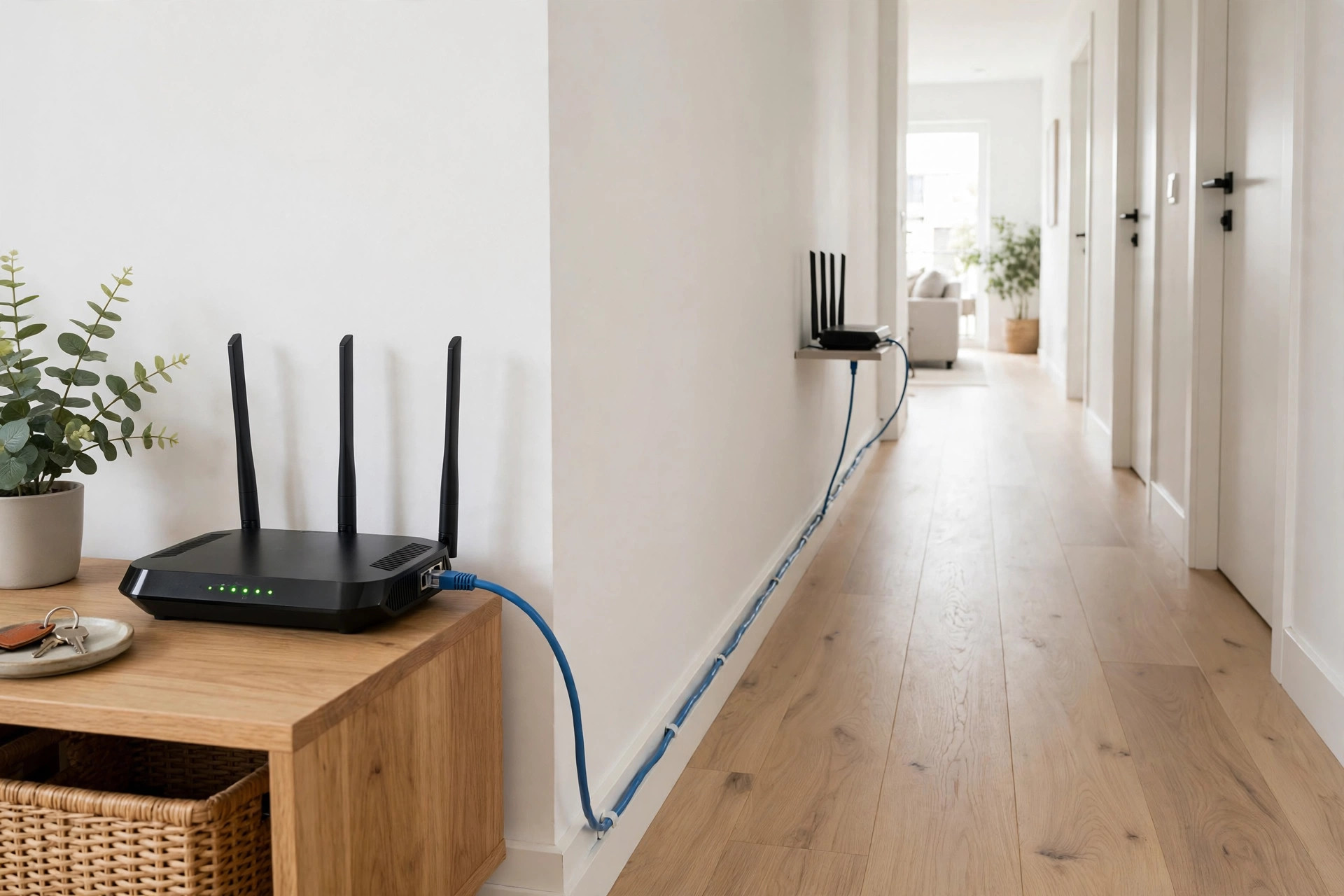
One router struggles to cover a whole house; two routers working together can blanket it. Whether your goal is Wi-Fi in the garden office, a strong signal in the far bedroom, or a wired network upstairs without running cables everywhere, connecting a second router to your first is one of the most practical projects in home networking — and you may already own the second router, retired in a drawer.
There are three ways to join two routers, each with different benefits. This guide explains all three — LAN-to-LAN (access point), LAN-to-WAN (separate sub-network), and wireless bridging — with step-by-step setup, so you can pick the right one and configure it correctly the first time.
The Three Methods at a Glance
LAN-to-LAN: One Network, Extended (Recommended for Most Homes)
The second router acts as an access point on the same network. Devices see one household network, one set of IP addresses, and can reach each other regardless of which router they joined — printers work, casting works, file sharing works. This is the setup almost every home wants.
LAN-to-WAN: A Separate Network Behind the First
The second router creates its own private network with its own IP range and DHCP. Devices behind it can reach the internet but are walled off from the main network. This suits a rented annexe, a teenager’s gaming den you want isolated, a home office separated from the family network — privacy through separation, at the cost of shared devices not being reachable across the wall.
Wireless Bridge / Repeater: No Cable at All
The second router connects to the first over Wi-Fi and extends it. Easiest to install, but throughput through it drops (typically by half) because it shares radios between receiving and rebroadcasting.
Method 1: LAN-to-LAN Setup, Step by Step
Step 1: Reset and Connect for Setup
Factory-reset the second router (hold Reset for 10 seconds, powered on). Connect a laptop to one of its LAN ports by cable and log in to its admin page — do not connect it to the main router yet.
Step 2: Give It a Fixed IP Outside the Main DHCP Pool
Find LAN settings. If your main router is 192.168.1.1 and hands out addresses from, say, 192.168.1.100–200, set the second router to 192.168.1.2. It must be in the same range but never an address the main router might hand to something else.
Step 3: Disable DHCP on the Second Router
This is the step everyone forgets and the one that breaks networks. There must be exactly one DHCP server per network — the main router. Turn the second router’s DHCP server OFF.
Step 4: Match the Wi-Fi Settings
Set the second router’s Wi-Fi name and password to match the main network exactly (same SSID, same password, same security type) for seamless coverage, or deliberately use a different name if you want to choose manually which router a device uses. Set its channels to different, non-overlapping ones from the main router (for 2.4GHz, pick from 1, 6, 11) so the two do not interfere with each other.
Step 5: Connect LAN Port to LAN Port
Run an Ethernet cable from a LAN port on the main router to a LAN port on the second router — the WAN/Internet port stays empty in this method. Power up the second router in its final location. Anything connecting to it is now on your main network with full wired speed behind the link. The TP-Link access point configuration guide illustrates this exact wiring for visual confirmation.
Method 2: LAN-to-WAN Setup, in Brief
Give the second router a different IP range for its LAN (for example, main network 192.168.1.x, second router’s network 192.168.2.x), leave its DHCP ON, and connect the cable from a LAN port of the main router into the WAN/Internet port of the second. Set the second router’s internet connection type to DHCP/Automatic. Its devices get internet and privacy from the main network — but they cannot see the main network’s printer or NAS, and port-forwarding through two routers (double NAT) complicates gaming servers and remote access. Choose this method only when isolation is the goal. For help deciding between these topologies, the explainers at Network Ustad’s two-router and access point guides go deeper.
Method 3: Wireless Bridge, in Brief
In the second router’s settings, look for Operation Mode, Bridge, WDS, or Repeater mode. Select it, scan for your main network, enter its password, and place the second router where it still receives a strong signal — roughly halfway toward the dead zone. It rebroadcasts your network from there. Accept the speed trade-off in exchange for zero cabling.
What About Mixing in a Network Switch?
Once two routers are cooperating, many people discover they need more wired ports than either box offers — that is the moment a network switch earns its keep. A basic unmanaged gigabit switch (five or eight ports, typically inexpensive) plugs into any LAN port on either router and multiplies it, with zero configuration: everything you plug into it joins the same network. Place one behind the TV for the console, streaming box, and TV itself, and another in the home office. The rules stay simple: switches can hang off routers, and off each other, but the network should still have exactly one router doing DHCP in LAN-to-LAN mode. Avoid plugging a cable from a switch back into the same router twice (creating a loop), which can flood the network with broadcast traffic and bring it to its knees — keep the cabling a tree, never a circle, and your two-router network will stay fast and boringly reliable.
Common Mistakes and Tips
Mistake one: two DHCP servers running (second router’s DHCP left on in LAN-to-LAN mode) — devices randomly get wrong addresses and lose internet. Mistake two: both routers using the same IP address, which knocks both offline intermittently. Mistake three: both routers broadcasting on the same 2.4GHz channel side by side, interfering with each other — separate the channels. Mistake four: cabling into the second router’s WAN port during a LAN-to-LAN setup — LAN ports on both ends. A pro tip: label the second router underneath with its fixed IP and admin password; future troubleshooting will take seconds instead of detective work.
Conclusion
Two routers extend a home network beautifully when each is given the right job. For most homes: LAN-to-LAN, second router on a fixed IP with DHCP disabled, cable between LAN ports, matching Wi-Fi names on different channels. For isolation, LAN-to-WAN builds a walled second network. And when no cable can run, wireless bridging trades speed for simplicity. Pick your method, follow its steps in order, and your dead zones become covered rooms.
Frequently Asked Questions
Can the two routers be different brands?
Yes. LAN-to-LAN and LAN-to-WAN setups work with any mixture of brands because they rely on standard Ethernet and IP behaviour. Wireless WDS bridging can be fussier across brands but usually still works.
Will devices switch automatically between the two routers?
If both routers broadcast the same SSID and password, devices will connect to the stronger signal — though some devices cling stubbornly to a weakening one. Mesh systems handle this handover more intelligently, but the two-router setup works well in practice.
Why did my network break after I connected the second router?
Almost always one of two causes: the second router’s DHCP is still on (disable it in LAN-to-LAN mode), or both routers share the same IP address (give the second a unique fixed IP like 192.168.1.2).
Does connecting two routers slow down my internet?
In LAN-to-LAN mode, no — the link between routers is full-speed wired Ethernet. In wireless bridge/repeater mode, devices behind the second router typically lose about half their potential speed.
Can I use my ISP router as the first and my own router as the second?
Yes — that is the most common arrangement. The ISP unit stays as modem/main router, and your own router extends coverage as an access point, or handles everything in LAN-to-WAN mode if you want its features in charge.



Leave a Reply