
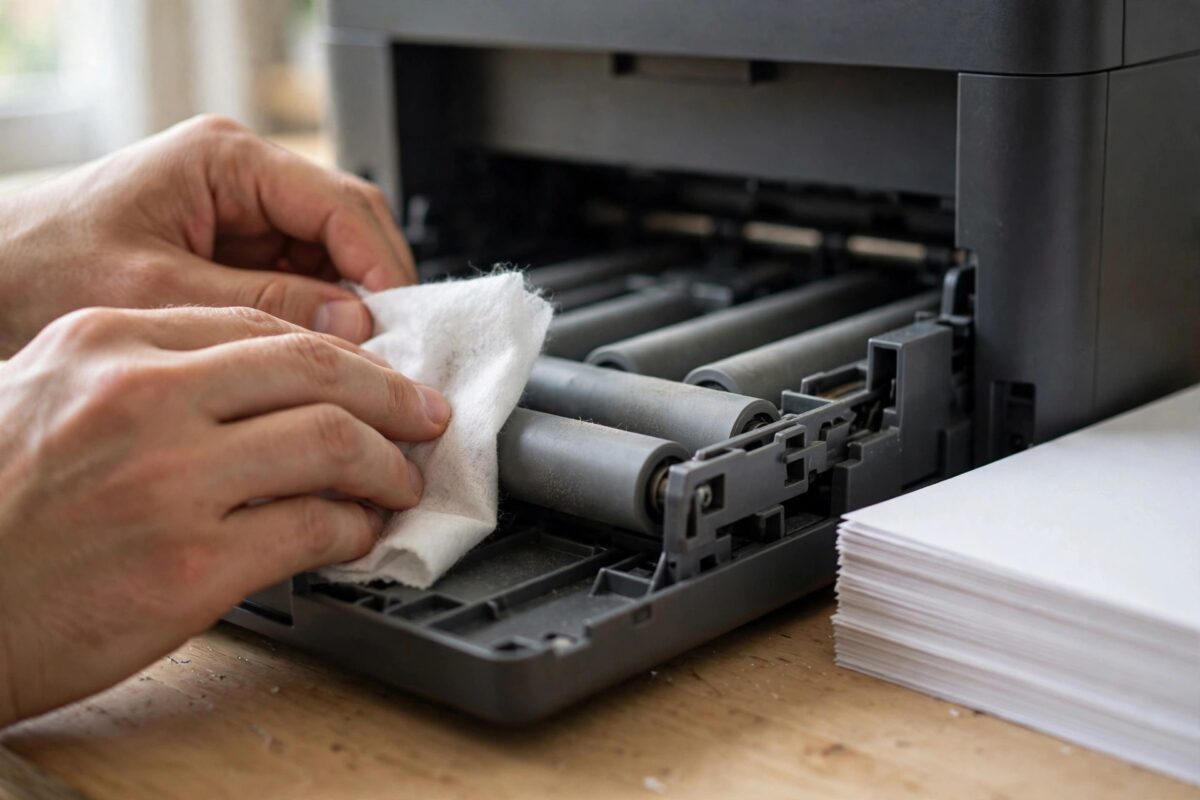
Your print job is only a few pages long, but your Epson printer keeps pulling two or three sheets through at once. The pages come out stuck together, the print is split across sheets, and sometimes the job stops with a jam. This problem is called double feeding or multi-feeding, and in most cases the paper pickup rollers are the cause.
The good news is that you usually do not need a repair shop. Dirty, dusty, or worn rollers and a small rubber pad inside the tray do almost all of the work of separating single sheets. Once you clean them and load the paper the right way, most printers go back to feeding one clean sheet at a time.
Quick Answer
An Epson printer feeds two sheets at once when its pickup rollers are dirty, dusty, glazed, or worn, or when the separation pad cannot hold back the rest of the stack. Turn the printer off, remove the paper, and clean the pickup rollers with a soft, lint-free cloth slightly dampened with water, then let them dry fully. Fan and reload a smaller stack of flat, dry paper, and the printer should feed one sheet at a time again.
Why a Printer Pulls Two Sheets at Once
Understanding the feeding system makes the fix much easier. When you press print, a rubber roller drops onto the top sheet and rolls it forward into the printer. A second part, the separation pad, presses against the stack from below with light friction. That friction is what keeps the second sheet in the tray while the first sheet moves.
The system works only when the friction balance is right. If the roller is covered in paper dust, it slips and grabs unevenly. If the pad is worn smooth, it cannot hold the lower sheets back. The result is two sheets travelling together, skewed pages, or a jam halfway through.
Common causes of double feeding
- Paper dust and coating dust built up on the pickup rollers
- Rollers that have become smooth, shiny, or cracked with age and heat
- A worn or dirty separation pad inside the cassette or rear tray
- Paper that is damp, curled, or stuck together from humidity
- Mixed paper types or sizes loaded in the same stack
- A tray loaded above its maximum fill line
- Static electricity making lightweight sheets cling together
- Edge guides set too loose, letting the stack shift and fan out
What You Need Before You Start
- Two soft, lint-free cloths, such as microfibre cloths
- Clean water in a small bowl
- A torch or phone light for looking inside the paper path
- A fresh stack of plain paper in good condition
- Optional: cotton swabs for narrow areas around the rollers
Never use alcohol, solvents, or rough paper towels on the rollers unless your model manual says so. Strong cleaners can harden the rubber, and rough towels leave fibres behind that make feeding worse. Epson’s own guidance in the Epson support and cleaning guidance for paper feeding problems also recommends plain water and a soft cloth for roller care.
Step-by-Step: Clean the Pickup Rollers
- Cancel any print job and turn the printer off. Unplug the power cable so nothing moves while your fingers are inside.
- Remove all paper from the cassette and from the rear feed slot, if your model has one.
- Take out the cassette and look at the roller assembly at the back or underside of the paper path. On many EcoTank and WorkForce models you can see the grey or black rubber rollers once the tray is removed.
- Dampen a lint-free cloth with water and wring it out well. The cloth should feel slightly damp, never dripping.
- Wipe each roller while rotating it slowly with your other hand. Keep turning and wiping until the cloth stops picking up grey dust.
- Clean the separation pad too. It is a small flat rubber or cork-like pad opposite the roller. Wipe it gently, because a dirty pad is just as guilty as a dirty roller.
- For rear-feed models, open the rear cover if it is designed to open, and wipe the rollers you can reach there as well.
- Leave everything open for at least ten minutes so all moisture dries. Damp rollers grab paper badly and can cause exactly the problem you are fixing.
- Reload the cassette, plug the printer back in, and run a test print of five or six pages.
If the test pages feed one by one, the rollers only needed cleaning. If double feeding returns within a few days, the rubber is probably worn rather than dirty, which the later sections cover.
Load the Paper the Right Way
Cleaning helps, but poor loading can defeat clean rollers. Paper handling is half of this whole problem, so treat the reload as part of the repair, not an afterthought.
The correct loading routine
- Take the stack out and flex it gently, then fan the sheets so air gets between them.
- Tap the stack on a flat table to align all four edges.
- Check for curled, folded, torn, or damp sheets and remove them.
- Load no more than the marked fill line in the tray. For older paper, try half a stack.
- Slide the side and front edge guides until they touch the paper lightly. They should guide, not squeeze.
- On the computer, match the paper size and type settings to what is actually in the tray.
If you print on a mix of plain, glossy, and thick paper, keep each type in its own sealed pack until you need it. Paper left sitting in an open tray for weeks absorbs moisture from the air, and damp sheets stick together and are far more likely to double feed. Our guide to fixing repeated Epson paper jams and paper path problems covers the storage and handling side in more detail.
Check the Printer Settings
Sometimes the hardware is fine and the settings are fighting the paper. A driver set to thick card while the tray holds thin copy paper changes how firmly and how long the rollers grip, and that can pull extra sheets through.
- Open the print dialog and confirm the paper size matches the loaded paper exactly.
- Set the media type to plain paper for normal office sheets, not to a photo or matte setting.
- Turn off any duplex setting for a quick test. A faulty return path can look like a feeding fault.
- Print a nozzle check or a simple test page first, so a feeding problem is not confused with a print quality problem.
When Cleaning Is Not Enough: Worn Rollers
Rubber rollers have a working life. Over years of use, heat, and dust, the surface becomes smooth and shiny, a condition often called glazing. A glazed roller feels hard instead of slightly grippy, and cleaning no longer restores its bite.
Signs the rollers need replacing
- The printer double feeds again within days of a proper clean
- The roller surface looks shiny, cracked, or flat in one spot
- You hear the roller spin but the paper does not move at first
- Feeding problems happen with every paper type and every tray load
- The printer has printed tens of thousands of pages on the original rollers
On some business models the pickup roller is a user-replaceable part that clips out of the cassette area. On smaller home models it is a service part. Check your model manual before ordering anything, because roller kits look similar but are not interchangeable. If the printer is under warranty, let Epson handle it rather than opening parts of the machine that are not meant for users.
Common Mistakes to Avoid
- Using too much water: a dripping cloth leaves moisture in the paper path and causes jams and stuck sheets.
- Scrubbing with rough materials: scouring pads and paper towels scratch the rubber and leave fibres behind.
- Forcing jammed paper backwards: always pull paper out in the normal direction of travel where possible, so you do not damage sensors.
- Overfilling the tray: a stack above the fill line presses too hard against the rollers and defeats the separation pad.
- Ignoring the separation pad: cleaning only the roller fixes half of the feeding system.
Conclusion
Two sheets feeding at once is rarely a serious failure. In most homes and small offices it comes down to dusty pickup rollers, a tired separation pad, or paper that is damp, mixed, or loaded too high. Clean the rollers and pad with a slightly damp lint-free cloth, let everything dry, fan and reload a modest stack of good paper, and confirm your driver settings match the tray. If the problem returns quickly after cleaning, treat the rollers as worn and look at replacement parts or a service visit for your model.
Frequently Asked Questions
Can dirty rollers really cause double feeding?
Yes. Paper dust coats the rubber and changes its grip, while dust on the separation pad stops it holding back the lower sheets. Cleaning both parts restores the friction balance that separates single sheets.
How often should I clean my Epson printer rollers?
Clean them whenever feeding problems start, or every few months in a dusty office. Printers in rooms with lots of paper cutting, pets, or building dust may need attention more often.
Is it safe to use alcohol to clean the rollers?
It is better not to unless your manual allows it. Alcohol can dry and harden rubber over time. Water on a well-wrung cloth is the safer default for Epson rollers.
Why does my printer feed two sheets only with glossy paper?
Glossy and coated sheets cling together more than plain paper, especially in humidity. Fan the stack well, load fewer sheets, and make sure the driver media type is set to the glossy paper you are using.
When should I call a technician for this problem?
Call for service if cleaning and correct loading make no difference, if you see cracked or shiny rollers, or if the printer reports a mechanical error after feeding. Those are signs of worn parts rather than dirt.
Leave a Reply