
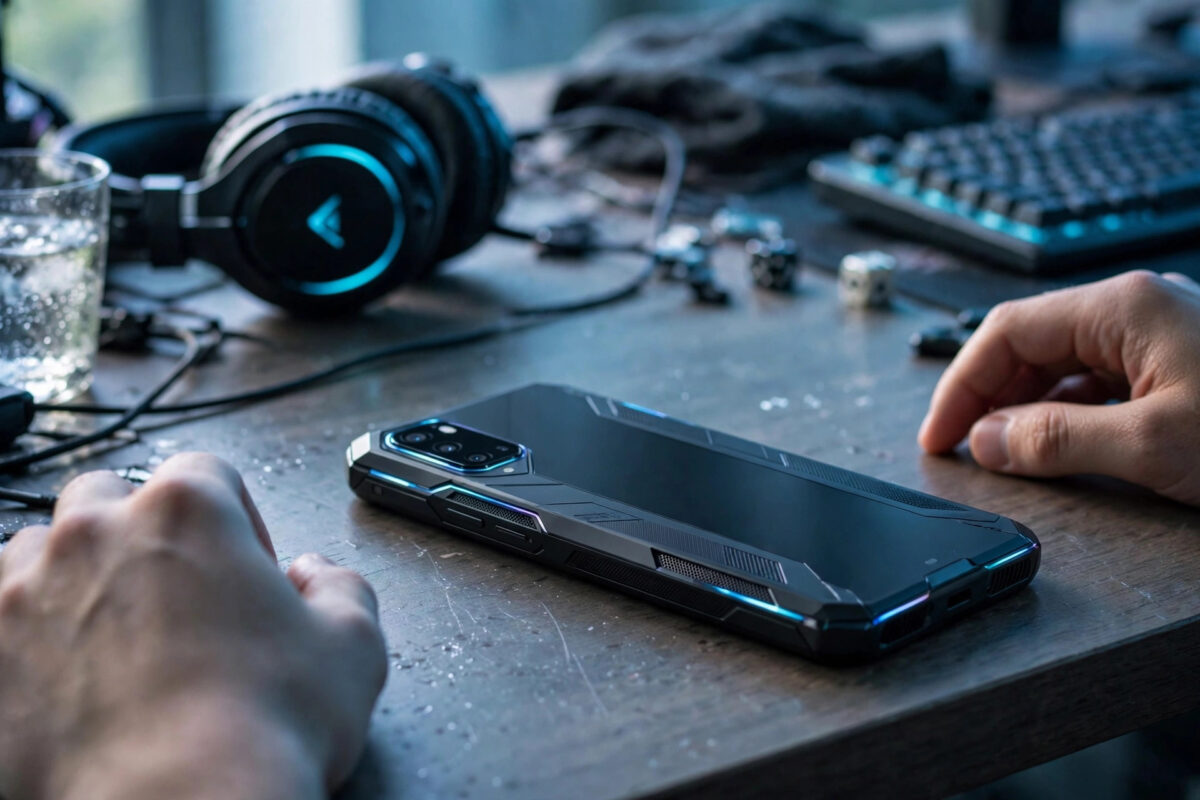
Twenty minutes into a match, the back of your phone feels like a hand warmer, the frame rate stutters, and the screen may dim on its own. Almost every Android gamer has felt this.
Some warmth during gaming is normal, because a game is one of the hardest jobs you can give a phone. Excessive heat is different: it throttles performance, drains the battery faster, and ages the battery over time.
Quick Answer
Your phone gets hot while gaming because the processor, graphics chip, bright screen, and mobile radios all work at full load at once in a sealed body with no fan. Remove the case, lower in-game graphics and frame rate, reduce brightness, and never fast-charge while you play.
Why Gaming Makes a Phone Hotter Than Anything Else
A phone has no fan and almost no empty space inside. Heat can only escape slowly through the glass and metal body.
Anything that works the hardware hard for a long time will therefore raise the temperature. Gaming does that more than almost any other task.
The processor and graphics chip work at full load
Modern games push both the CPU and the GPU at the same time. The CPU handles game logic, physics, and networking.
The GPU draws detailed 3D scenes dozens of times per second. Together they produce far more heat than browsing or video, where the chips spend most of their time idling.
Higher graphics settings and frame rates such as 90Hz or 120Hz modes make the load even heavier. Poorly optimised games are worse still.
The screen, radios, and battery add their own heat
Gaming also keeps the display at high brightness, which is a major heat source on its own. Online games hold the Wi-Fi or 5G radio active constantly.
On 5G with a weak signal, the modem boosts its power to stay connected, adding more heat. At the same time the battery discharges quickly, and fast discharge generates heat inside the cell.
How to Tell Normal Warmth From Overheating
Warmth across the upper back of the phone, near the camera where the processor sits, is expected after a long session.
Overheating looks different. Watch for these warning signs:
- Frame rates drop suddenly in the middle of a game.
- The screen dims on its own, even though you did not change brightness.
- Charging slows down or stops while the phone is plugged in.
- A temperature warning message appears on screen.
- The game or the phone closes apps without explanation.
Those signs mean thermal management has stepped in and is cutting performance to cool down. This process is called thermal throttling.
If you want a number, a reputable hardware monitoring app can show battery temperature during a session. Roughly 35 to 42 degrees Celsius during gaming is common, while sustained readings above 45 degrees mean you should act.
Step-by-Step Fixes That Actually Lower Temperature
Work through these steps in order. Most players see a clear improvement from the first three alone:
- Remove the case. A thick, rugged, or wallet case traps heat against the body. Take it off during long sessions, and play on a hard surface away from direct sunlight, not on a bed or sofa.
- Lower in-game graphics. Open the game’s settings, drop quality from ultra to high, and cap the frame rate at 60 instead of 90 or 120. Turn off anti-aliasing, shadows, and reflections first.
- Reduce brightness and refresh rate. Lower brightness to the lowest comfortable level. On Samsung, go to Settings > Display > Motion smoothness and choose Standard. On a Pixel, go to Settings > Display and turn off Smooth Display.
- Close background work. Open Recents and close unused apps before playing. Pause large downloads and cloud photo backups, which compete for the processor and add unrelated heat.
- Do not charge while playing. Fast charging generates significant heat on its own, and charging plus gaming is the most common cause of serious overheating. Charge first, unplug, then play.
- Improve your connection. Prefer strong Wi-Fi over weak mobile data. For offline games, turn on Airplane mode to switch the radios off completely.
If your phone offers a game mode, such as Samsung Game Booster, use it. These tools limit background activity automatically when a game starts.
Longer-Term Habits That Protect Your Phone
Keep games and system software updated, because developers regularly fix bugs that cause unnecessary processor load. Check in Settings > Software update on Samsung, or Settings > System > System update on a Pixel.
Clear a game’s cache if it starts behaving oddly. Follow these steps:
- Open Settings > Apps and select the game.
- Tap Storage > Clear cache. Your account and saved progress are not deleted by clearing cache alone.
- Restart the game and check whether temperature and performance improve.
For regular long sessions, a clip-on cooling fan is a legitimate accessory, not a gimmick. It moves air across the back and can drop temperatures by several degrees.
Short breaks help too. Ten minutes of rest between sessions lets the internal temperature fall back to normal and is kinder to the battery.
Our wider guides on the Network Ustad homepage cover more Android performance and battery topics in the same practical style.
Common Mistakes and Useful Tips
Never try to cool a hot phone quickly in a fridge or freezer, or against something icy. Sudden temperature changes can cause condensation inside the phone and damage components.
Let it cool gradually in normal air instead. Also, do not dismiss repeated temperature warnings and keep playing.
Download large game assets on Wi-Fi before a session, not during play. A big in-game download at the same time as gameplay is a reliable recipe for heat.
Never ignore a swollen or bulging battery, or a screen lifting from the frame. That is a safety issue, not a gaming issue, and the phone needs servicing.
Google’s own advice confirms many of these steps in the official Android Help guide on keeping your device at a normal temperature.
When Heat Points to a Bigger Problem
Sometimes heat is a symptom, not just a gaming side effect. A phone that gets hot during light games, or even while sitting on the home screen, deserves a closer look.
Check Settings > Battery for an app using unusual power in the background. A faulty update, a stuck sync, or a failing battery can all show up as constant warmth.
If the phone is hot to the touch while idle, restart it and monitor it for a day. Persistent idle heat, rapid battery loss, or swelling means you should back up your data and seek a repair assessment.
Conclusion
Your phone gets hot while playing games because the processor, graphics chip, bright screen, active radios, and fast-discharging battery all generate heat at once in a body with no fan.
A little warmth is normal, but throttling, forced dimming, and warnings mean it is time to act. Removing the case, lowering graphics, reducing brightness, and avoiding charging while you play will solve the problem for most players.
Frequently Asked Questions
Is it bad for my phone to get hot while gaming?
Occasional warmth is normal and harmless. Regularly running very hot accelerates battery ageing and forces the processor to slow down, so apply the fixes in this guide if it happens every session.
Why does my phone lag only after it gets hot?
That is thermal throttling. To protect itself, the phone deliberately reduces processor and graphics speed past a safe temperature limit. Cooling the phone is the only real fix.
Does a cooling fan for phones actually work?
Yes, within reason. A clip-on fan moves air across the back and lowers surface temperatures noticeably during long sessions. It works best alongside sensible graphics settings, not instead of them.
Why does my phone get hotter on 5G than on Wi-Fi?
A 5G modem uses more power than Wi-Fi, especially in a weak signal area where it boosts transmission power. That extra power becomes extra heat, so strong Wi-Fi is usually the coolest option.
Should I stop playing if I see a temperature warning?
Yes. Close the game, remove the case, and let the phone rest somewhere cool for ten to fifteen minutes. Playing through repeated warnings risks shutdowns and long-term battery damage.



Leave a Reply