
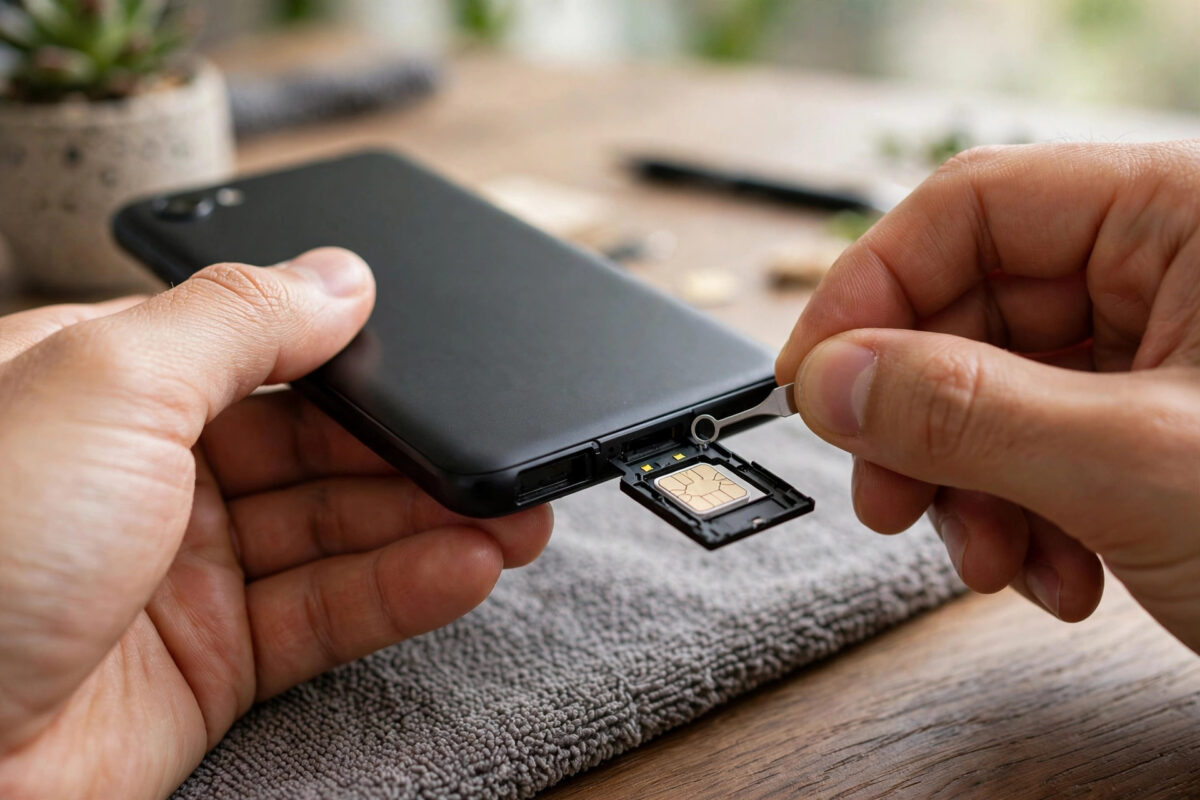
Your phone suddenly shows “No SIM”, “SIM card not detected”, or “No service” — and with it go your calls, texts, and mobile data. It often happens after a drop, a SIM swap, a software update, or for no obvious reason at all.
Do not rush to buy a new SIM or book a repair. In most cases the cause is simple: a poorly seated card, dirty contacts, a software glitch, or a wrong network setting.
This guide works through the fixes in the right order, from a two-minute reseat to network resets and replacement SIMs, with exact Android menu paths for Samsung One UI and Pixel or stock Android.
Quick Answer
Turn the phone off, remove the SIM tray, clean the SIM gently, reseat it firmly, and restart. If the error stays, toggle Airplane mode, check Settings > Network & internet > SIMs on Pixel or Settings > Connections > SIM manager on Samsung to confirm the SIM is enabled, and test the SIM in another phone. A SIM that fails in every phone needs replacing by your carrier — a phone that rejects every SIM needs repair.
What “SIM Card Not Detected” Actually Means
Your phone reads the SIM through metal contacts in the tray or slot. The SIM proves your identity to the carrier network.
When the phone cannot read it at all, it reports the card as missing. That is different from having no signal in a weak-coverage area.
Common causes fall into three groups. Physical causes include a loose tray, a misaligned nano-SIM, dust, or a worn or damaged card.
Software causes include a glitch after an update, a disabled SIM in settings, or corrupted network settings. Carrier causes include a deactivated SIM, a faulty replacement, or an account problem.
Work from cheapest to most involved: reseat, restart, settings, test, replace. For more troubleshooting walkthroughs, visit Network Ustad’s homepage for step-by-step tech tutorials for phones and home connectivity.
Fix 1: Reseat, Clean, and Inspect the SIM Card
Start here even if you have not touched the SIM in months. Trays loosen slightly over time, and pockets and bags add dust.
Remove and Reinsert the SIM Correctly
- Turn the phone completely off. Do not remove the tray while the phone is on unless your manual explicitly allows hot-swapping.
- Insert the SIM ejector tool — or a straightened paperclip — into the tray hole and press gently until the tray pops out.
- Lift the SIM out and note its orientation. The angled corner only fits one way, and the gold contacts face as shown on the tray.
- Wipe the gold contacts with a clean, dry, lint-free cloth. Do not use water, solvents, or an eraser, and do not touch the contacts with greasy fingers.
- Check for cracks, deep scratches, swelling, or heavy wear on the card.
- Place the SIM flat and fully seated in the tray, with no overhang. A nano-SIM sitting slightly crooked is a classic cause of this error.
- Slide the tray back in straight until it is flush. Do not force it — if it resists, remove it and check the alignment again.
- Turn the phone on, unlock the SIM with your SIM PIN if asked, and wait a full minute for network registration.
If the tray is bent, the seal is damaged, or the tray will not sit flush, stop and visit a repair shop. Forcing a damaged tray can damage the internal reader.
Fix 2: Restart, Airplane Mode, and SIM Settings
If reseating did not help, rule out software next. These steps take five minutes and fix a surprising number of cases.
The Quick Software Resets
- Turn Airplane mode on from Quick Settings, wait 30 seconds, then turn it off. This forces a fresh network registration.
- Restart the phone normally and wait two minutes after unlock before judging the result.
- If you recently updated Android, restart once more — update-related glitches often clear on the second boot.
- Remove any thick metal case or magnetic accessory temporarily and check again, in case it is disturbing the connection after a tray issue.
Confirm the SIM Is Enabled and Selected
- On Pixel and stock Android, open Settings > Network & internet > SIMs.
- Tap your SIM and make sure it is turned on and set for calls, texts, and mobile data as you expect.
- On Samsung, open Settings > Connections > SIM manager.
- Confirm the SIM toggle is on and the correct SIM is chosen for calls, messages, and mobile data in a dual-SIM setup.
- If you use dual SIM, disable the second SIM temporarily to check whether the phone reads the first SIM alone.
- Check for carrier settings or system updates in Settings > System > Software update on Pixel or Settings > Software update on Samsung, and install any waiting update.
Android’s own connectivity guidance is summarised in Google’s official help for fixing mobile connection problems on Android, which covers the same restart and SIM checks for Pixel devices.
Samsung owners can also compare steps with Samsung’s support guide for Galaxy phones that do not detect a SIM card, including tray diagrams for common models.
Fix 3: Reset Network Settings and Test Like a Technician
If the SIM is seated and enabled but still not detected, isolate whether the fault follows the SIM or stays with the phone. This decision saves you money.
Reset Network Settings
- On Pixel, go to Settings > System > Reset options > Reset mobile network settings — on older versions look for Reset Wi-Fi, mobile and Bluetooth.
- On Samsung, go to Settings > General management > Reset > Reset mobile network settings.
- Confirm the reset. This does not delete photos or apps, but it does clear saved Wi-Fi networks and Bluetooth pairings on some versions.
- Restart the phone, unlock the SIM, and wait for registration.
- Re-check Settings > Network & internet > Mobile network and set network mode to the automatic or recommended option, not a single manual band.
The Two-Way Test That Identifies the Fault
- Put your SIM into another unlocked phone. If it is not detected there either, the SIM itself is faulty or deactivated.
- Put a different, known-working SIM into your phone. If your phone detects it, your phone is fine and your original SIM needs replacing.
- If your phone detects no SIM at all — including the known-working one — suspect the tray or internal reader and book a repair.
- If both SIMs work in both phones after reseating, the original problem was alignment or dust, and you have already fixed it.
- Ask your carrier to check the SIM and account status if a replacement SIM also fails or shows as inactive.
Common Mistakes and Tips
Removing the tray while the phone is on and rushing the restart. Always power off first, and give the phone a full minute after unlock to register before declaring failure.
Cutting or sanding a SIM to fit. A hand-cut SIM that is slightly too thick or off-centre causes exactly this error. Get a correctly sized replacement from your carrier instead.
Factory resetting as a first step. A reset rarely fixes a hardware read failure and costs you hours of setup. Only consider it, after a full backup, if a known-working SIM is detected but service settings remain broken.
Tip: try the other SIM slot. On dual-SIM phones, move the card to SIM 2 and set it as primary. If it works there, the first slot or tray position is the problem.
Tip: note when it started. An error that began right after a drop points to hardware. One that began right after an update points to software. Tell the repair shop or carrier — it speeds up the fix.
Conclusion
Most “SIM card not detected” errors are fixed by the simplest steps: power off, reseat and clean the SIM, restart, and confirm the SIM is enabled in Settings. Work through Airplane mode and a network settings reset before you spend anything.
Use the two-way test to make the final call. If the SIM fails in another phone, get a carrier replacement and keep your number. If every SIM fails in your phone, the tray or reader needs professional repair.
Take the steps in order and do not force hardware or delete an eSIM profile in frustration. A calm ten-minute diagnosis will tell you exactly which side — SIM, settings, or phone — needs attention.
Frequently Asked Questions
Why does my phone say SIM not detected after an update?
Updates can leave network services in a glitched state or reset carrier settings. Restart twice, toggle Airplane mode, check the SIM is enabled, and reset mobile network settings if the error persists. The SIM itself is rarely damaged by an update.
Can a SIM card just stop working?
Yes. SIM contacts wear, cards crack or warp with age and heat, and carriers deactivate old or faulty SIMs. If your SIM fails in a second phone, a free carrier replacement on the same number is the fix.
Will resetting network settings delete my data?
No photos, apps, or messages are deleted. You will lose saved Wi-Fi passwords and Bluetooth pairings on most Android versions, and mobile settings return to defaults, so you will need to reconnect to Wi-Fi afterwards.
What if my phone uses eSIM and shows no SIM?
Check the eSIM is turned on in SIM settings, restart, and reset network settings. If it still fails, contact your carrier to re-provision the eSIM — do not delete the profile until the carrier gives you a new activation method.
How do I know if the SIM tray or reader is broken?
If a known-working SIM is not detected in your phone, the tray will not sit flush, or detection comes and goes when the phone moves, suspect hardware. Stop forcing the tray and take the phone to a reputable repairer.



Leave a Reply