
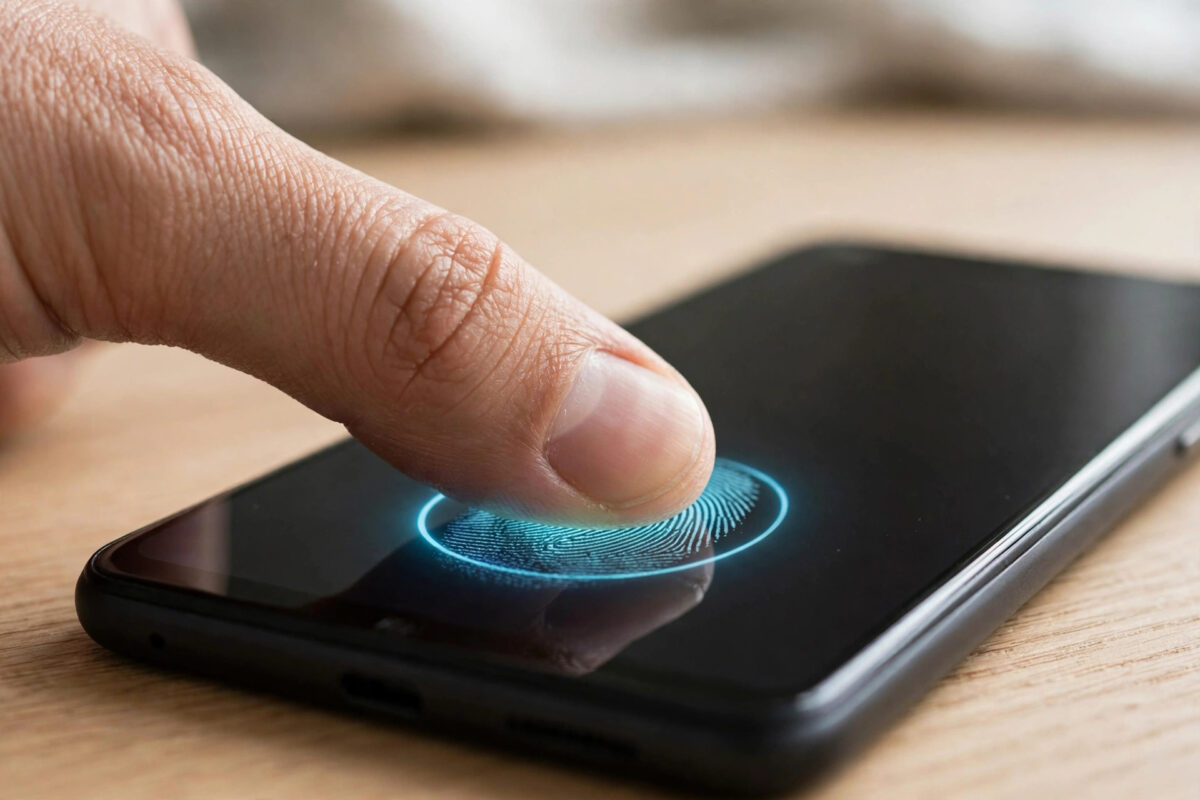
You press your thumb to the sensor, nothing happens, and after three failed tries the phone asks for your PIN anyway. A fingerprint sensor that stops working is one of the most annoying small failures on an Android phone.
The good news is that most fingerprint problems are not hardware failures. Dirt, dry skin, a rushed enrolment, or a software glitch cause the majority of cases, and they are all fixable at home.
Quick Answer
Clean the sensor and your finger, then delete your old fingerprint and enrol it again slowly in Settings > Security > Fingerprint Unlock. Restart the phone first if the sensor stopped suddenly. If it still fails in diagnostics or after a reset, the sensor itself likely needs repair.
First, Work Out Which Kind of Problem You Have
Different symptoms point to different causes. Taking thirty seconds to classify the problem saves a lot of random trial and error.
If the sensor rejects your finger but sometimes works, recognition quality is the problem. Dirty surfaces, moisture, dry or worn skin, and poor original enrolment are the usual causes.
If the sensor does nothing at all, with no vibration or error, think software or hardware. A recent update, a crash, or physical damage moves to the top of the list.
If fingerprint settings have vanished from the menu entirely, that is more serious. It usually indicates a hardware fault, a failed update, or a sensor disconnected during a screen repair.
Note whether the problem started after a specific event. A new screen protector, a software update, a drop, or a repair each points to its own fix below.
Step-by-Step Fixes to Try in Order
Work through these fixes from simplest to most involved. Most people succeed within the first four:
- Clean the sensor and your finger. Wipe the sensor area gently with a soft, dry, lint-free cloth. Wash and dry your hands, because moisture, lotion, sweat, and dust all block accurate reading.
- Press correctly. Cover the sensor fully with the pad of your finger, press flat and still for a second, and do not slide. On in-display sensors, a firmer, steady press works better than a light tap.
- Restart the phone. Hold the power button and tap Restart. A simple restart clears temporary biometric glitches surprisingly often, especially after an update.
- Remove the case or screen protector to test. A thick protector, especially glass over an in-display sensor, can interfere. Test without it before blaming the phone, and if it is the cause, fit a protector certified for in-display fingerprint use.
- Check for software updates. Go to Settings > Software update on Samsung, or Settings > System > System update on a Pixel, and install anything waiting. Biometric bugs are commonly fixed in monthly patches.
- Re-enrol your fingerprint. Delete the existing print and register it again using the detailed steps in the next section. This single step fixes the majority of stubborn recognition problems.
- Register the same finger twice. Add the same thumb as a second fingerprint entry. This doubles the reference data and often transforms reliability for worn or dry fingertips.
- Test in Safe Mode if failures continue. Safe Mode disables third-party apps, so if the sensor works there, a recently installed app is interfering and should be removed.
If the sensor works perfectly for other fingers but never for one, the issue is that finger, not the phone. Skin that is cracked, peeling, or worn smooth from manual work genuinely reads poorly.
How to Re-Enrol Your Fingerprint Properly
Enrolment quality decides daily reliability, and most people rush it. Do it slowly in good light, with clean, dry hands:
- Open Settings. On stock Android and Pixel, tap Security and privacy > Device lock > Fingerprint Unlock. On Samsung, tap Security and privacy > Biometrics > Fingerprints.
- Enter your PIN, pattern, or password when asked.
- Tap your existing fingerprint entry and choose Remove or Delete, then confirm.
- Tap Add fingerprint and follow the on-screen prompts.
- Place your finger naturally, exactly as you hold the phone in daily use, not in an artificial flat pose.
- Lift and replace your finger as instructed, deliberately shifting position each time so the edges and tip are captured.
- Complete the full sequence without hurrying, then rename the entry so you know which finger it is.
- Lock the phone and test unlocking five times before deciding whether it worked.
Register at least two fingers, ideally a thumb on each hand. That way a cut or bandage on one finger never locks you out of the quick unlock you rely on.
More Android security walkthroughs are available on the Network Ustad homepage, covering locks, privacy settings, and account protection.
Brand-Specific Notes: Samsung and Pixel
Samsung phones with in-display sensors benefit from one extra setting. Increasing touch sensitivity can help if you use a screen protector.
Enable it with these steps:
- Open Settings > Display.
- Scroll down and turn on Touch sensitivity.
- Re-enrol your fingerprint afterwards, so the stored print matches the new sensitivity.
- On Samsung, also run the sensor check in the Samsung Members app under Support > Phone diagnostics, where fingerprint recognition can be tested directly.
On Pixel phones with in-display sensors, Google recommends enrolling in the lighting and hand position you normally use. Its guidance is covered in the official Google Pixel Help pages on setting up and fixing fingerprint unlock.
Phones with side or rear sensors have different weaknesses. Side power-button sensors fail most often because of cases that cover the button, so test with the case removed first.
When It Is Probably a Hardware Problem
Sometimes the honest answer is that the sensor has failed. Suspect hardware if the fingerprint menu has disappeared, if diagnostics report a sensor error, or if the problem began immediately after a drop or screen replacement.
A factory reset is the last software test. Back up everything first, because a reset erases the phone, then set up a fingerprint on the clean system before restoring your apps.
If enrolment fails on a freshly reset phone, no setting will fix it. Book a repair with an authorised service centre, and mention any recent screen work, because fingerprint sensors are often paired with the display.
Until it is repaired, use a strong PIN or password. Face unlock is convenient on many models, but on most Android phones it is less secure than a fingerprint or PIN for payments.
Common Mistakes and Useful Tips
The most common mistake is enrolling with wet, dirty, or lotion-covered fingers. The phone faithfully learns that blurred version, then struggles to match your normal clean finger.
Another mistake is pressing harder and harder when a scan fails. Excess force flattens the fingertip and distorts the print, so a calm, flat, full contact works better.
A useful tip is to re-enrol in winter if your skin changes with the seasons. Dry, cracked winter skin reads differently from the print you registered in summer.
Also keep a backup unlock method you actually remember. After several failed scans or a restart, Android requires your PIN anyway, so it should not be a code you have forgotten.
Conclusion
A fingerprint sensor that stops working is usually suffering from dirt, moisture, a poor original enrolment, or a small software glitch, not a dead sensor. Clean both surfaces, restart, update, and re-enrol slowly, registering the same finger twice for good measure.
If the settings menu itself has vanished or a clean reset still cannot enrol a print, treat it as hardware and seek repair. Either way, you will know exactly where the problem lies.
Frequently Asked Questions
Why does my fingerprint sensor fail more in winter?
Cold, dry, and cracked skin changes the surface of your fingertip, so it no longer matches the stored print well. Moisturise, enrol again in winter conditions, and registering the same finger twice usually restores reliability.
Can a screen protector break in-display fingerprint unlock?
Yes. Thick or cheap glass protectors can block or distort the optical or ultrasonic reading. Use a protector certified as compatible with in-display fingerprint sensors, increase touch sensitivity on Samsung phones, and re-enrol after fitting it.
Why has the fingerprint option disappeared from my settings?
A missing fingerprint menu usually signals a hardware fault, a failed update, or a sensor disconnected during repair. Restart and update first, then run diagnostics. If it stays missing, the phone needs professional repair.
How many fingerprints can I register on Android?
Most Android phones allow up to five fingerprint entries. You can use them for different fingers, or deliberately register the same finger twice to improve its recognition rate.
Is it safe to keep using my phone if the sensor has failed?
Yes, as long as you use a strong PIN, pattern, or password instead. Your data stays protected. Book a repair when convenient, especially if the phone is still under warranty.


Leave a Reply