
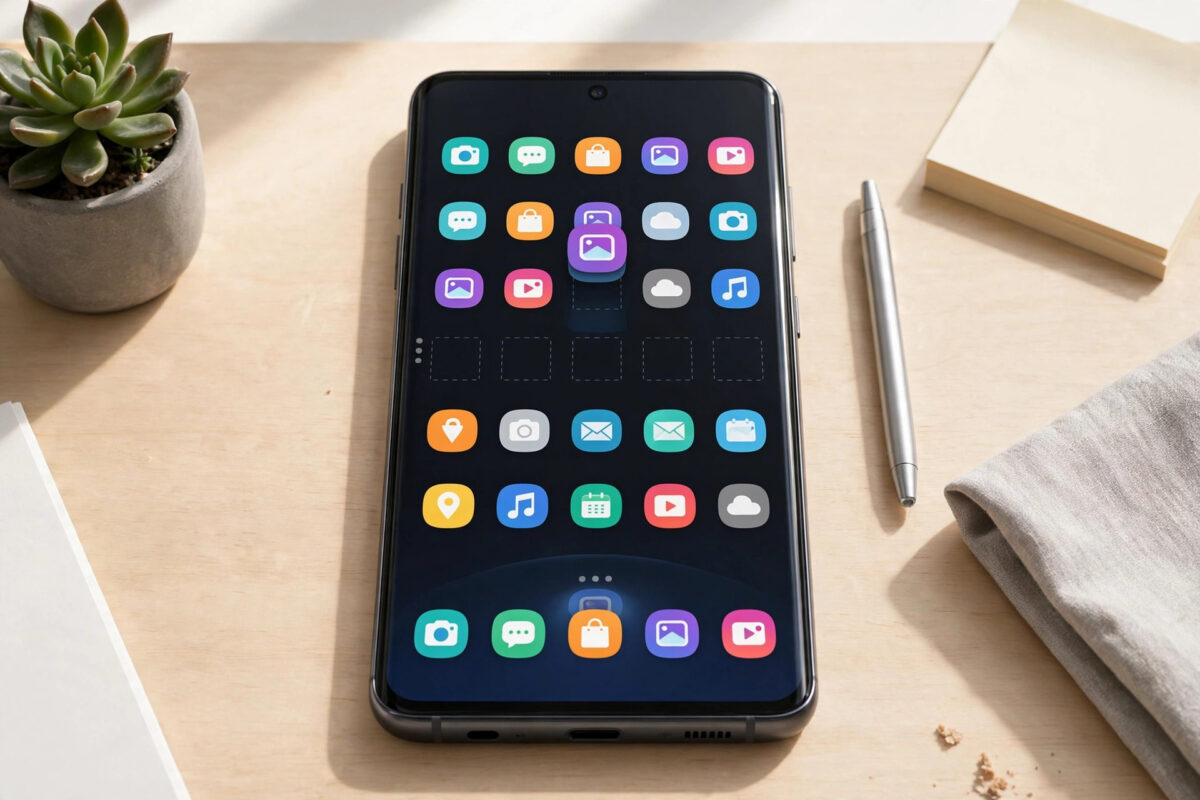
A new Samsung phone arrives with a crowd of pre-installed apps you never asked for: duplicate services, promotional games, carrier apps, and trials that nag you for subscriptions. You cannot uninstall all of them the normal way, but you can remove far more than the phone first suggests, and safely disable most of the rest, without root access and without breaking your phone.
In this guide you will work through the problem in a sensible order, starting with the checks that cost nothing and solve most cases. If you want to browse related topics while you work, you will find our complete Android and smartphones guides covering the rest of your phone, your home network, and your PC in the same plain, practical style.
Understanding the Problem Properly
Bloatware falls into three groups. Ordinary promoted apps can be uninstalled like anything you installed yourself. Samsung and carrier apps that are part of the system image often cannot be uninstalled, but can be disabled, which removes them from the app drawer, stops them running, prevents updates, and frees the space their updates consumed. True system components should be left alone, because disabling the wrong one can break calling, updates, or security features. The skill is telling the groups apart. A safe rule: if you recognise it as a service or promotion you do not use, it is a candidate. If you do not recognise the name at all, research it before touching it, because system apps often have technical names.
Before you start, gather what you need and give yourself a few uninterrupted minutes. Keep the phone charged or plugged in, stay close to your charger and, where a step involves an accessory or a second device, have it to hand before you begin. Work through the steps in order and test after each one rather than applying every change at once.
Step-by-Step: What to Do
Step 1: Uninstall everything that uninstalls normally
Start with the easy wins. Long-press an unwanted app on the home screen or in the app drawer and tap Uninstall where it appears, or open Settings > Apps, select the app, and tap Uninstall. Promotional games, streaming trials, shopping apps, and duplicate browsers usually leave this way. While working, open the Galaxy Store and Play Store update lists afterwards and cancel any pending update for apps you just removed. Clearing these first shrinks the list to the genuinely stubborn apps, and the recovered storage, often several gigabytes once their data is counted, is a satisfying early result that confirms the exercise is worthwhile.
Step 2: Disable the apps that refuse to uninstall
For an app with no Uninstall option, open Settings > Apps, select it, and tap Disable, then confirm. A disabled app disappears from the app drawer, stops running in the background, stops sending notifications, and its updates are removed, returning it to its small factory version. Before disabling, tap Force stop for good measure, and clear its storage on the same screen if you never used it. You can reverse any of this later from the same Apps list by selecting the disabled app, which the list can filter to show, and tapping Enable, so disabling is a safe experiment rather than a destructive one, unlike the guesswork of deleting system files.
Step 3: Know which Samsung apps are safe to deal with
Common safe candidates most owners never use include promotional and duplicate services such as extra app stores’ promotions, carrier-branded apps from a previous network, pre-installed games, kids or AR novelty apps, smart TV discovery tools for televisions you do not own, and trial security or cloud services you replaced with your own choices. Samsung’s own core tools are a judgement call: if you use Google’s equivalent for everything, the Samsung duplicate can usually be disabled, but keep exactly one working option for essentials like the phone dialler, messages, camera, and the Galaxy Store if you use Samsung’s update channel for system apps. When in doubt, disable rather than hunt for a way to delete, and live with it for a week.
Step 4: Leave the true system components alone
Do not disable anything whose name suggests core telephony, system updates, security policy, device care infrastructure, the launcher you are currently using, input methods you rely on, or packages with names you cannot identify from a reputable source. Disabling a genuine component can cause boot problems, lost updates, broken notifications, or features failing in ways that are hard to trace back. The battery and storage savings from system packages are tiny anyway, because they are not the apps filling your phone with cached video and update files. Your target is the visible commercial layer, not the plumbing of Android itself, and a phone that works perfectly with ten disabled promotions beats a broken phone with twelve.
Step 5: Stop bloat returning through the stores
Pre-installed apps love to resurrect through automatic updates. In the Galaxy Store, open Menu > Settings and turn off Auto update apps or set it to your preference, and do the equivalent in the Play Store under Settings > Network preferences > Auto-update apps. When setting up any new Samsung phone in future, read the optional services screens during setup slowly and untick the promotional app offers and partner downloads, which are presented as part of the process but are entirely optional. Also decline app recommendations inside the Galaxy Store settings. Preventing the next wave is worth as much as removing the current one, and it takes two minutes.
Step 6: Use the deeper options only with care
Advanced users sometimes use a computer tool over USB to disable packages that the settings menu protects. That route can genuinely break a phone when aimed at the wrong package, void the calm reversibility that makes the Settings method safe, and complicate warranty conversations. For almost everyone, the built-in uninstall and disable controls achieve the real goals: a clean app drawer, fewer notifications, no background activity from unwanted apps, and reclaimed update space. If an app cannot be disabled from Settings, treat that as information: Samsung considers it part of the system, and the remaining cost of its presence is a single hidden line in a list, not a drain on your day.
Common Mistakes and Expert Tips
Most people who struggle with this issue make one of a handful of predictable mistakes. Avoiding them is often worth more than any single step above, because the steps fix the current problem while these habits stop it coming back. Read through the list and be honest about which ones sound familiar, because recognition is usually the moment the pattern changes for good.
- Disabling unidentified system packages by name alone, risking broken updates, calling, and boot problems.
- Judging an app’s storage by its factory size while ignoring the updates and data that disabling actually reclaims.
- Leaving store auto-updates on, so removed promotions quietly reinstall themselves in the next update round.
- Rushing a new phone’s setup screens and accepting every optional partner app offer presented during first boot.
- Rooting or using aggressive removal tools for a problem the Settings disable button solves reversibly.
Two expert habits are worth adding to your routine. First, after any major system update, spend two minutes checking the settings connected with this topic, because updates occasionally reset preferences or introduce a renamed version of a familiar option. Second, keep a simple note, in your notes app or on paper, of what you changed and when. Phones accumulate small adjustments over years of ownership, and a short record turns future troubleshooting from archaeology into a quick look at your own history. For general background, the Samsung’s guide to disabling apps on Galaxy phones is a reliable reference, and brand-specific detail is covered in Google’s help on disabling and managing Android apps.
Conclusion
You now have a complete, ordered way to deal with this issue, from the free two-minute checks to the point where professional help or a replacement genuinely becomes the right answer. In most cases the earlier steps are enough, because most phone problems are settings, storage, dirt, or one misbehaving app wearing a disguise. Work calmly, test as you go, and resist the urge to jump straight to the most drastic option. A phone you understand is a phone that lasts longer, costs less to run, and causes far fewer bad mornings, which is the real prize for twenty minutes of methodical attention today.
Frequently Asked Questions
Is disabling an app the same as uninstalling it?
Not quite. A disabled app remains in the system image at its small factory size, but it cannot run, notify, update, or appear in the app drawer. For daily purposes the effect is the same, and disabling has the advantage of being reversible in seconds.
Will disabling bloatware speed up my phone?
It helps most when the disabled apps were active: sending notifications, updating themselves, and running background services. The bigger wins are a cleaner app drawer, fewer interruptions, and reclaimed storage from updates, rather than a dramatic change in raw speed.
Can I disable the Galaxy Store or Samsung account apps?
You can disable some Samsung services, but think carefully. The Galaxy Store delivers updates for Samsung system apps and features, and the Samsung account underpins backup and Find My Mobile. Disable promotional apps freely, but keep the infrastructure you actually depend on.
Why do some apps have Disable greyed out?
Samsung protects components it considers essential to the system, and the greyed-out button is that protection working. Accept it as a sign the app belongs to the phone’s plumbing and leave it alone rather than seeking workarounds.
Will a system update bring disabled apps back?
Major updates can occasionally re-enable a service or add new promotional apps, which is why a quick review of Settings > Apps after a big update is a good habit. Your disabled choices are respected in most cases, and re-disabling takes moments.


Leave a Reply