
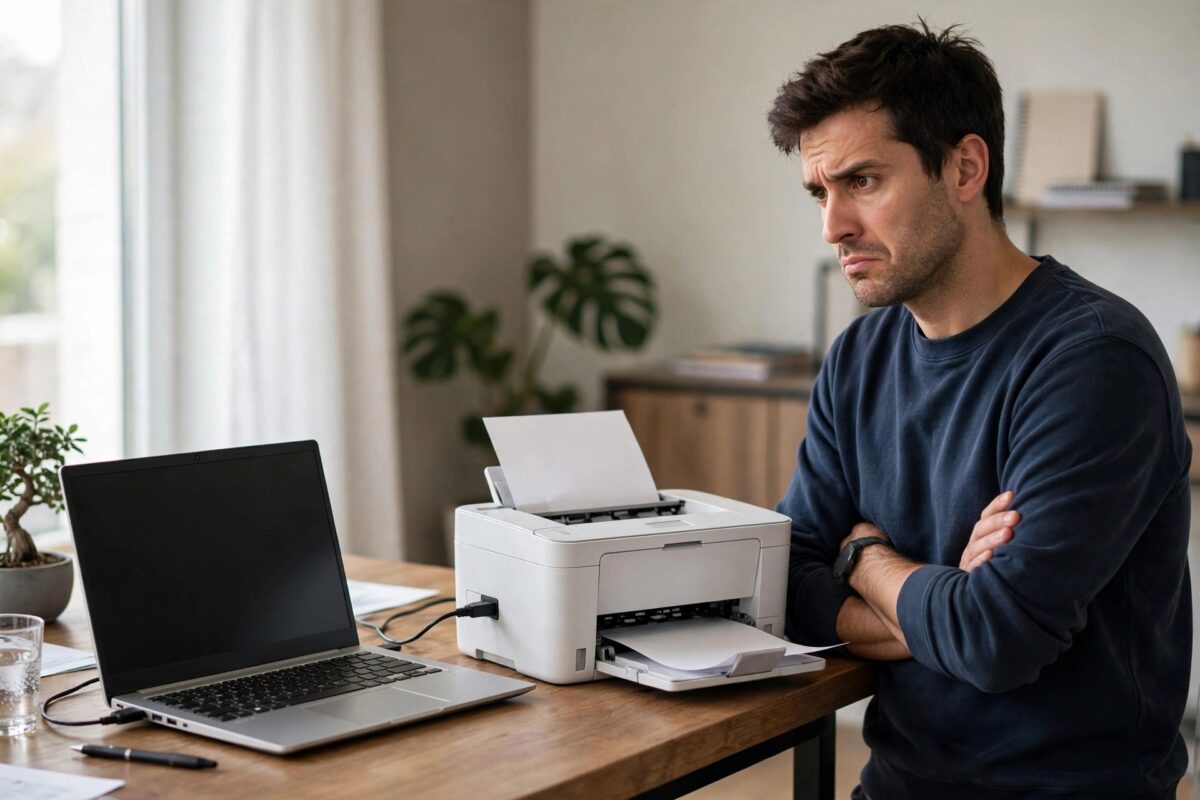
Your HP printer used to start within seconds of clicking Print. Now, on Windows 11 over USB, a simple document takes minutes to begin — or prints one page, pauses, prints another. Slow USB printing on Windows 11 is a recognised pattern with several distinct causes: the print spooler choking on large jobs, the wrong driver, USB power management putting the port to sleep, or a driver rendering everything at maximum quality. The fixes below go from the spooler settings that solve most cases to the USB checks people forget.
Quick Answer
Very slow printing from an HP printer on USB under Windows 11 is usually a spooler or driver issue, not the printer. In Printer Properties, set spooling to “Start printing after last page is spooled” or try “Print directly to the printer” as a test, reinstall HP’s full driver instead of the basic Windows one, and disable USB selective suspend in power settings. Also lower the print quality from Best/Max DPI to Normal for everyday documents.
Understand the Two Kinds of Slow
- Slow to start, then prints normally: the PC is taking a long time to render and spool the job — a computer/driver/spooler problem.
- Starts quickly but prints page-pause-page: data is reaching the printer in a trickle, or the printer is waiting while rendering complex pages — check USB, quality settings, and document complexity.
- Only slow with PDFs and photos: huge rendered files at high DPI. A single photo page at maximum DPI can be hundreds of megabytes of spool data.
Knowing which pattern you have points straight at the right fix.
Step 1: Fix the Spooler Settings
- Open Settings, Bluetooth & devices, Printers & scanners, select your HP printer, then Printer properties.
- On the Advanced tab, try “Start printing after last page is spooled” — this stops the printer waiting on half-rendered pages and makes total job time shorter for complex documents.
- Alternatively, as a diagnostic, choose “Print directly to the printer”. If speed improves dramatically, the spooler itself or its storage is the bottleneck — clear old spool files via Services: stop Print Spooler, empty
C:\Windows\System32\spool\PRINTERS, restart it. - Make sure the drive Windows spools to has plenty of free space; a nearly full system drive slows spooling badly.
- Ensure the Print Spooler service startup type is Automatic.
Step 2: Use HP’s Full Driver
Windows 11 often installs a basic class driver for HP printers, which renders pages inefficiently and lacks the printer’s own processing shortcuts. Remove the printer, remove the driver package in Print Server Properties, restart, and install the full-feature driver for your model from HP’s official driver downloads. Also check for duplicate printer entries — sending the job to an old queue on a wrong USB port (USB001 vs USB002) adds mysterious delays.
Step 3: Stop Windows Putting USB to Sleep
- Open Control Panel, Power Options, and for your active plan choose “Change plan settings”, then “Change advanced power settings”.
- Expand USB settings, then “USB selective suspend setting”, and set it to Disabled.
- In Device Manager, open each USB Root Hub’s properties and on the Power Management tab untick “Allow the computer to turn off this device to save power”.
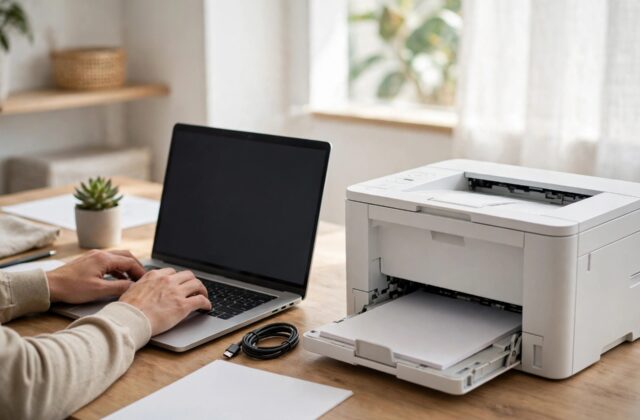
- Plug the printer directly into the PC — not through an unpowered hub — and try a different USB port and cable. A failing cable that keeps renegotiating speed is a classic cause of page-pause-page printing.
Step 4: Bring Quality Settings Back to Earth
In Printing preferences, check the quality is set to Normal for everyday work, not Best or Max DPI, and that features like “Print in Max DPI” are off. Also confirm the paper type matches plain paper — a driver set to photo paper slows output dramatically because the printer makes multiple passes. For genuinely complex documents (large PDFs), printing as image from the PDF reader can paradoxically be faster than the normal path because it flattens transparency. Our guide to why a printer is so slow covers network and hardware causes too, if USB fixes do not cover your case.
Common Mistakes to Avoid
- Blaming the printer’s age first — if the printer’s own test pages print at full speed, its engine is fine and the delay is in the PC-to-printer path.
- Leaving quality on Max DPI “for safety” — it multiplies render and transfer time for text documents with zero visible benefit.
- Testing with the same huge PDF every time — benchmark with a simple one-page text document so you can see changes clearly.
- Ignoring duplicate queues — the app may be sending to a stale USB port entry that retries before failing over.
When Slow Printing Is Really a Document Problem
Not every slow job is the printer path’s fault. Certain documents are simply enormous rendering tasks: a PDF exported with hundreds of vector objects and transparency layers, a presentation full of uncompressed photos, or a web page printed with background graphics at photo quality. The giveaway is that simple documents fly while one particular file crawls — and that the file crawls on any printer you try. For such documents, the practical fixes are to print the PDF as an image (which moves the heavy flattening work to the PC in one pass), reduce the print quality for drafts, or re-export the source file with images compressed to a sensible size. Also watch for the spool file size in the print queue: if a ten-page document shows a spool size in the hundreds of megabytes, you have found your delay, and it lives in the document, not the cable. Knowing that saves you from reinstalling drivers that were never broken.
Finally, keep expectations calibrated: an inkjet printing a full-page colour photo will always take a minute or more per page, and a budget laser’s first page out after sleep includes genuine warm-up time. The fault this guide targets is different in kind — simple text documents taking minutes, or page-pause-page behaviour on ordinary work. Judge your fixes against a plain one-page text document: on a healthy setup it should start within a few seconds and finish almost immediately. If it does, the pipeline is fixed, and any remaining slowness on complex files is the honest cost of rendering them, which the document tips above will trim.
If the printer is still slow after all of this, connect it to a completely different computer for one test print. A fast result there convicts the first PC’s software stack beyond doubt; a slow result on both machines finally points back at the printer, and its own self-test pages will show whether its engine speed has genuinely declined with age or heavy use.
Conclusion
Slow USB printing on Windows 11 is a software-path problem in most cases: spooler settings, a basic driver, USB power saving, and over-the-top quality defaults. Adjust the spooler, install HP’s full driver, disable USB selective suspend, and print everyday work at Normal quality. Work through those four and the old click-and-print speed comes back.
Frequently Asked Questions
Printing starts fast but each page takes ages. Same fixes?
Mostly — but emphasise the USB cable/port checks and quality settings. Page-pause-page means data starvation or heavy rendering per page, not spooler start-up delay.
Is Wi-Fi printing faster than USB?
Not normally. A healthy USB connection is quick and steady. If USB is slower than Wi-Fi on the same printer, that itself proves the USB path (cable, port, or driver) has a problem worth fixing.
Could my antivirus be slowing printing?
Yes — real-time scanning of large spool files adds delay. If the problem began with a new security suite, test by excluding the spool folder and see whether speed returns.
Why is only the first print of the day slow?
The printer warms up and calibrates, and a sleeping USB port wakes slowly. A minute of first-job delay is normal; ten minutes is not.
Does adding RAM to the PC help?
Only if the PC is genuinely memory-starved. For most people the spooler, driver, and quality settings give far bigger gains than hardware upgrades.
Leave a Reply