
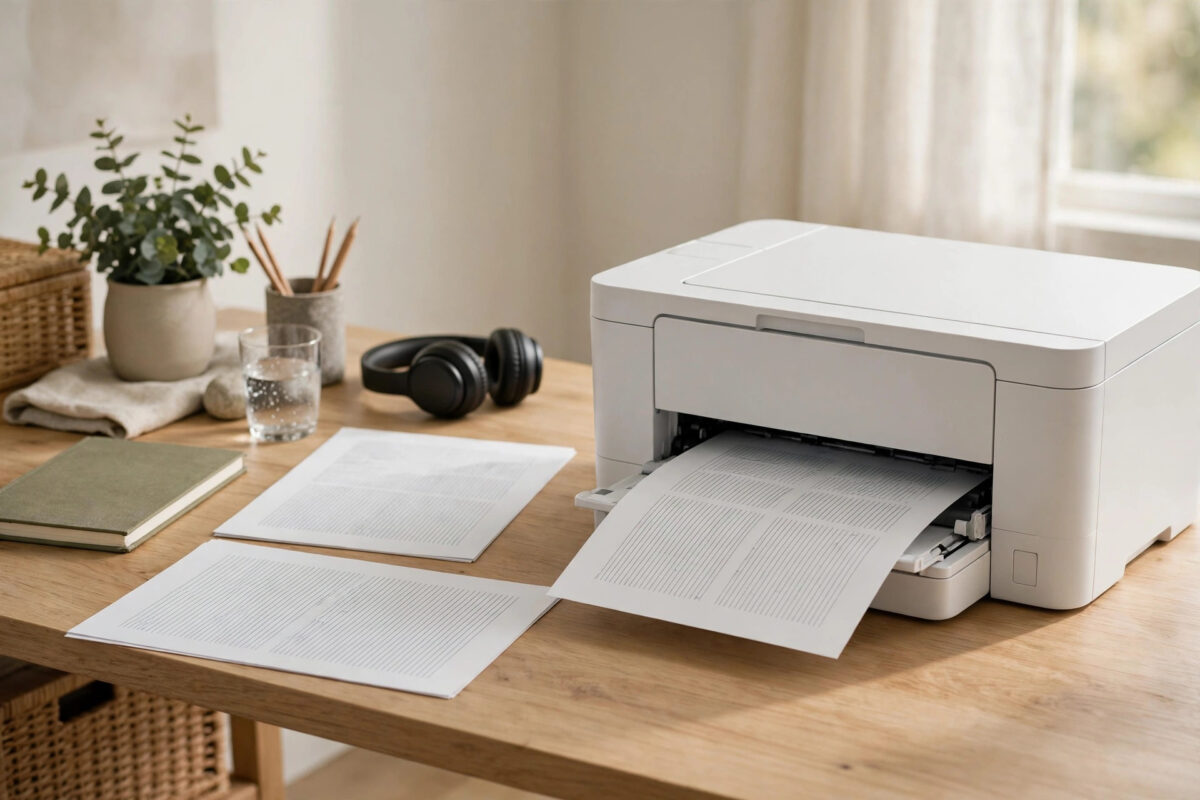
Printing on both sides of the paper saves money, cuts paper use in half, and makes reports, assignments, and booklets look much more professional. If your HP printer supports automatic duplex printing, the printer can flip the page by itself. You do not need to take the paper out and turn it over by hand.
Many people miss this option because it is hidden in different places on Windows and Mac. The setting also changes a little depending on the app you print from, such as Word, a web browser, or a PDF reader. This guide walks you through every method in simple steps, explains how to make duplex the default, and shows you what to check if the two-sided option is greyed out or missing.
Quick Answer
On Windows, open your document, press Ctrl + P, choose your HP printer, open Printer Properties or Preferences, and select Print on Both Sides or Two-sided Printing, then print. On Mac, open the print window, choose Layout or Two-Sided from the options menu, tick the Two-Sided box, and print. If the option is missing, install the full HP driver and enable the duplex unit in the printer settings.
First Check: Does Your HP Printer Support Automatic Duplex?
Not every HP printer can flip paper automatically. Some cheaper DeskJet models only support manual duplex, which means the driver pauses and asks you to reload the pages. Before you spend time looking for a setting, confirm what your model can do.
How to check in under a minute
- Look at the model name on the front of the printer, for example HP OfficeJet Pro 8025e or HP LaserJet Pro M404dn.
- Check the product box or the label on the back for words like automatic two-sided printing or duplex.
- As a quick rule, many LaserJet models with a d in the name, such as M404dn, include duplex. Many OfficeJet Pro models include it as standard.
- Open the printer properties on your computer and look for a Two-Sided or Duplex option. If the hardware is present, the driver normally shows it.
How to Print on Both Sides on Windows
Windows gives you two places to set duplex: inside the app for a single job, and in the system settings to make it the default for every job. Start with the single job method.
Print a two-sided document from any app
- Open the document, photo, or web page you want to print.
- Press Ctrl + P on your keyboard to open the print window.
- Select your HP printer from the printer list. Make sure you pick the correct copy if you see the same printer listed twice.
- Click Printer Properties, Preferences, or More Settings. The name depends on the app.
- Open the Finishing, Layout, or Printing Shortcuts tab.
- Find Print on Both Sides. Choose Flip on Long Edge for normal portrait documents like letters and reports.
- Choose Flip on Short Edge for landscape documents, calendars, and pages that you will flip up like a notepad.
- Click OK, then click Print.
The printer will print the first side, pull the page back inside, flip it, and print the second side. Do not pull the page out while it is halfway. Let the printer finish the full cycle, otherwise you may get a paper jam or a blank back page.
How to Print on Both Sides on Mac
Mac print windows hide the two-sided option under a small drop-down menu, which is why many users think their printer cannot do it. Follow these steps carefully.
- Open your document and press Command + P.
- Select your HP printer at the top of the print window.
- If you see a simple window, click Show Details to expand all options.
- Click the drop-down menu in the middle of the window. It may say Copies and Pages, Safari, or the name of your app.
- Choose Layout from that menu.
- Tick the Two-Sided box and choose Long-Edge Binding for normal documents or Short-Edge Binding for landscape pages.
- Check the preview pages on the left, then click Print.
If the Layout section has no Two-Sided box, the Mac may be using a generic AirPrint driver. Adding the full HP driver usually brings the option back.
Make Duplex the Default for Every Print Job
If you print double-sided most of the time, set it once and save clicks on every job. You can still switch back to one-sided for a single document whenever you need to.
On Windows 11 and Windows 10
- Open Settings, then Bluetooth and Devices, then Printers and Scanners. On Windows 10, go to Settings, Devices, Printers and Scanners.
- Click your HP printer, then open Printing Preferences.
- Go to the Finishing or Layout tab and set Print on Both Sides to Flip on Long Edge.
- Click Apply, then OK.
Flip on Long Edge vs Flip on Short Edge Explained
This choice confuses almost everyone, but the rule is simple. Think about how you will turn the finished page.
- Long edge: Use this for portrait pages you read like a book. You turn the page from right to left, and the text on the back stays the right way up. This is correct for essays, reports, letters, invoices, and most PDFs.
- Short edge: Use this for landscape pages, or portrait pages held in a top-bound notebook style. You flip the page upward, like turning a calendar page.
If you pick the wrong edge, nothing breaks. The back page simply comes out upside down. Print one test page first when you are printing a long document, check both sides, and only then print the rest.
What to Do If the Two-Sided Option Is Missing or Greyed Out
A missing duplex option is almost always a driver or settings problem, not broken hardware. Work through these fixes in order.
Install the full HP driver
Windows and Mac often install a basic driver that can print but hides advanced features. Download the full feature software for your exact model from the official HP software and drivers page, install it, restart your computer, and check the print window again. Remove any old generic copy of the printer first so you do not select the wrong one later.
Enable the duplex unit in Windows
- Open Printers and Scanners and click your HP printer.
- Open Printer Properties, not Printing Preferences.
- Go to the Device Settings tab.
- Find Duplex Unit or Two-Sided Printing Accessory and set it to Installed.
- Click Apply and OK, then try printing again.
Check paper size and type
Automatic duplex does not work with every paper. Most HP printers cannot duplex print on photo paper, envelopes, labels, transparencies, or very thick card. Some models also block duplex for small sizes like 4 x 6 inches. Load plain A4 or Letter paper, select Plain Paper in the driver, and test again. Also confirm the paper guides in the tray touch the edges of the stack without bending it.
If the printer keeps going offline while you change settings, follow our guide to fixing a printer that keeps showing offline. The HP guide to printing on both sides also lists model-specific notes.
Common Mistakes and Useful Tips
- Printing the whole document as a test: Always print pages 1 and 2 first. If the flip edge is wrong, you waste two sheets instead of fifty.
- Mixing paper types in one tray: Keep only plain paper in the tray for duplex jobs. A single photo sheet in the stack can cause a jam during the flip.
- Pulling the page too early: Duplex printers pause with the page half out while the ink dries or the sheet re-feeds. Wait until the printer pushes the finished page fully into the output tray.
- Forgetting the setting inside the app: Some apps remember their own last choice and override the Windows default. Check the app print window even when your default is duplex.
Conclusion
Automatic duplex printing on an HP printer is a one-time learning job. Set Print on Both Sides with Flip on Long Edge in the print window on Windows, or tick Two-Sided under Layout on Mac, and the printer handles the flipping for you. If the option is missing, install the full HP driver, enable the duplex unit in Device Settings, and test with plain A4 or Letter paper. Save duplex as your default once it works, print a two-page test for new document types, and you will save paper on almost every job without thinking about it again.
Frequently Asked Questions
Why does my HP printer print two separate sheets instead of both sides?
The job was sent as one-sided. This happens when the app setting overrides the system default, or when a basic driver is installed. Open Printer Properties from the print window, set Print on Both Sides manually for that job, and install the full HP driver if the option keeps resetting.
Can I duplex print on photo paper or envelopes?
On most HP models, no. Automatic duplex is designed for plain paper in standard sizes. Photo paper, envelopes, and labels can jam or damage the duplex path because they are too thick, too stiff, or have adhesive surfaces. Print those items one side at a time.
What is the difference between automatic and manual duplex?
With automatic duplex, the printer flips the sheet itself using a built-in duplex unit. With manual duplex, the driver prints one side of all pages, then asks you to reload the stack so it can print the other side. The print quality is the same; automatic is simply faster and less error-prone for long documents.
Why is the back page upside down?
You selected the wrong flip edge. Use Flip on Long Edge for normal portrait documents that turn like book pages. Use Flip on Short Edge for landscape documents or top-bound pages. Change the setting and print a two-page test before reprinting the full document.
Does duplex printing use more ink or lower quality?
No. Duplex printing uses the same ink and the same quality settings as one-sided printing. The only difference is that the printer feeds the sheet twice. If text looks lighter on the back, check that EconoMode or Draft quality is not enabled in the driver.
Leave a Reply