
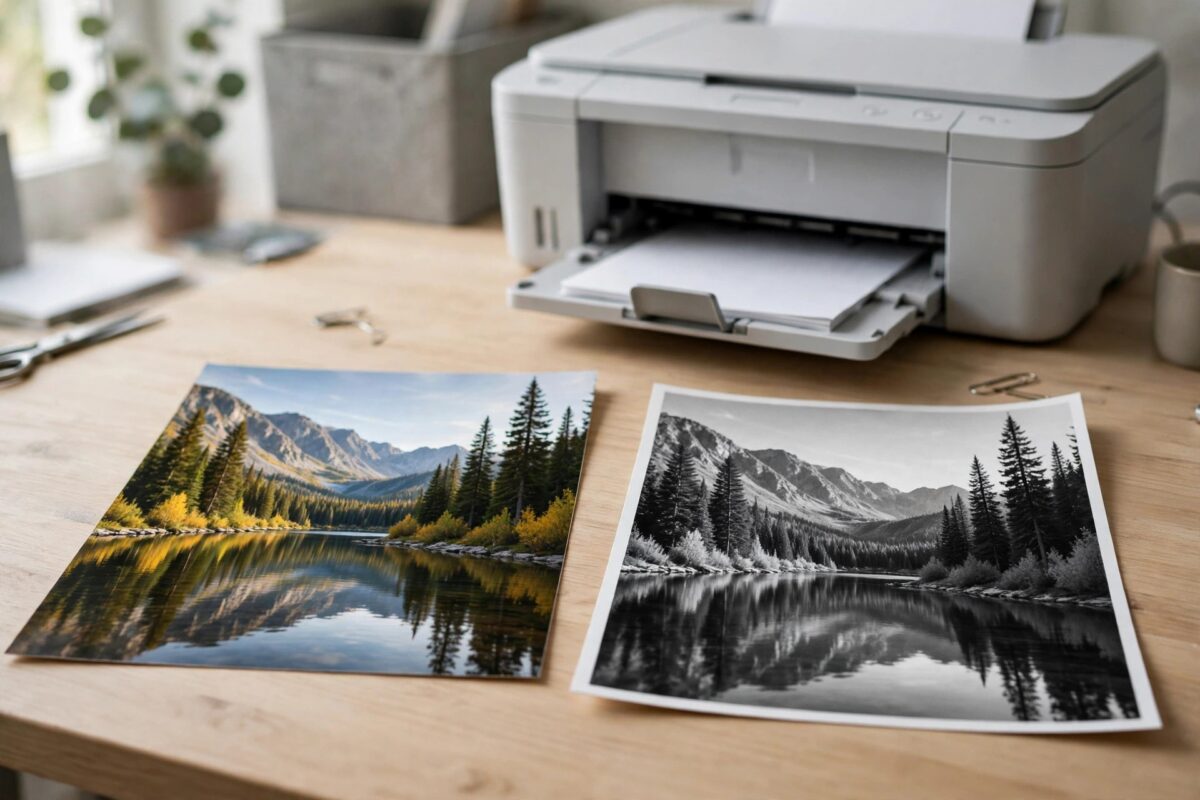
Your HP OfficeJet has full colour cartridges, the photos look fine when you copy them on the printer itself, yet everything printed from Windows comes out in black and white. Colour has not vanished from the printer — it has been switched off somewhere in the software path: a “print in grayscale” option in the driver, a monochrome default set in an app, or a basic driver that never offered colour in the first place. This guide finds the setting that is stealing your colour and sets colour back as the default.
Quick Answer
If an HP OfficeJet prints only in black and white from Windows, first print a test page directly from the printer’s own menu — if that is in colour, the printer is fine. Then open Printing Preferences from Windows, find the Color tab or Paper/Quality options, and switch from “Print in Grayscale” or “Monochrome” to Colour. Check the same setting inside the app you print from, and if no colour option exists anywhere, install HP’s full-feature driver instead of the basic Windows driver.
Step 1: Prove the Printer Can Print Colour
- On the printer’s control panel, find Tools or Setup, then print a Print Quality Diagnostic page or a Printer Status report.
- If the page shows colour blocks, the cartridges, printhead, and printer are all capable of colour — everything else in this guide is about Windows.
- If the page is missing a colour entirely (for example no yellow), that is a different fault: run a printhead cleaning cycle, check that colour’s ink level, and see our guide to cleaning printer heads safely if a colour stays missing.
Step 2: Fix the Driver’s Colour Setting
This is where the problem lives in the great majority of cases:
- Open Windows Settings, Devices, Printers & scanners.
- Select your OfficeJet, choose Manage, then Printing preferences. (Setting it here changes the default for all apps — setting it only in an app’s print dialog affects that one job.)
- Look for a Color tab, or on the Paper/Quality tab, a colour options section.
- If “Print in Grayscale” is ticked, untick it, or change the selection from Grayscale/Monochrome to Colour.
- On some drivers the option lives under Features as “Print in Grayscale”: the choices are typically “Off”, “Black Ink Only”, and “High Quality”. Choose Off.
- Click Apply and OK, then print a colour test document.
Step 3: Check the App’s Own Settings
Applications remember their own print choices and can override the system default:
- Microsoft Word / Office: in the print screen, open Printer Properties and check the same grayscale setting — Word stores it per document in some setups.
- Adobe Acrobat/Reader: the print dialog has a “Print in grayscale (black and white)” checkbox near the top. Untick it.
- Browsers: the print preview has a Colour / Black and white dropdown. Set it to Colour — browsers remember the last choice.
- Photos app: check its print options for a colour mode setting before blaming the driver.
Step 4: If There Is No Colour Option Anywhere
A missing colour option means Windows is using a basic or wrong driver that treats your OfficeJet as a mono printer. Fix it properly:
- Remove the printer from Printers & scanners, and remove its driver package in Print Server Properties.
- Download the full-feature software for your exact OfficeJet model from HP’s official driver downloads.
- Install it, let it set up the printer, and revisit Printing preferences — the colour options will now be present.
- Also watch for duplicate printer entries: if your PC has both the proper HP queue and a generic one, set the HP one as default and delete the generic.
Common Mistakes to Avoid
- Changing the setting in one app and declaring it fixed — set the default in Windows Printing preferences, then check stubborn apps individually.
- Replacing colour cartridges for a settings problem — if the printer’s own diagnostic page shows colour, the ink is fine.
- Choosing “Black Ink Only” thinking it just saves colour ink — it forces mono output for everything until you switch it off.
- Printing through a duplicate “Copy 1” queue — it may carry its own grayscale default. Clean up duplicates.
Colour Missing in Only One Program? Think Colour Management
There is one subtler cause worth knowing about: an individual application’s colour handling. Some design and photo programs manage colour themselves and can be set to output in grayscale or to a mono profile, which survives reinstalling the printer driver because it lives in the program’s own preferences. If exactly one program prints in black and white while everything else — including the Windows test page — prints in colour, the printer and its driver are innocent: dig into that program’s print and colour settings, and look for output profile, colour mode, or “print in” options. A quick cross-check is to export the document as a PDF and print the PDF from a different app; if the PDF prints in colour, the original program’s settings were the whole story. Also check whether the document itself was created in grayscale — a Word file or PDF built in mono will print in mono everywhere, and no setting on the printer can invent colour that is not in the file.
A Quick Word About “Economy” and Ink-Saving Modes
Several pieces of software between you and the page have their own idea of helpful ink saving. Windows’ print defaults, the HP driver’s “Eco” presets, and even some office document templates default to grayscale because mono printing is cheaper and faster. If this printer is shared — a family machine or a small-office workhorse — someone may have set grayscale as the default quite deliberately, and every other user inherits it. When you fix the setting, set it in the printer’s defaults on the host machine or in Windows Printing preferences as described above, so the change sticks for everyone, and tell the other users what you changed. Otherwise the next person who prefers mono will switch it back and the mystery will rotate forever. For a shared machine, agreeing one default (colour, with mono chosen per job when wanted) ends the tug of war.
If several people use this printer, leave a note of what the setting was and where you changed it. Grayscale defaults are one of those faults that quietly return whenever a driver is reinstalled or a well-meaning user tidies the settings, and a one-line note in a shared place ends the recurring mystery for everyone.
Conclusion
An OfficeJet that prints only black and white from Windows is almost always obeying a grayscale setting — in the driver defaults or in the app. Prove colour works from the printer’s own menu, switch grayscale off in Printing preferences, check your app’s dialog, and install the full HP driver if colour options are missing entirely. Colour will be back, and set as the default.
Frequently Asked Questions
Why did everything turn black and white after I changed a cartridge?
It is usually coincidence or a well-meaning helper ticking “black ink only” to save the new colour cartridge. Check the driver’s grayscale setting first.
Can low colour ink force black-and-white printing?
If a colour cartridge is completely empty, some models restrict colour printing, but they display a clear message about it. A silent switch to mono is a settings issue, not an ink level.
The colour option is greyed out in Printing preferences. Why?
Either the driver is a basic class driver without colour controls, or an administrator locked the settings. Install HP’s full driver; on work machines, ask IT about the policy.
Photos print in colour but documents do not. What differs?
The app. Photo apps use their own settings, while the document app (often a PDF reader or browser) has grayscale ticked. Fix it in that app’s print dialog and in the Windows default.
How do I keep colour as the permanent default?
Set it in Windows Printing preferences (not just an app dialog), and turn off “Let Windows manage my default printer” so the right queue stays default.
Leave a Reply