
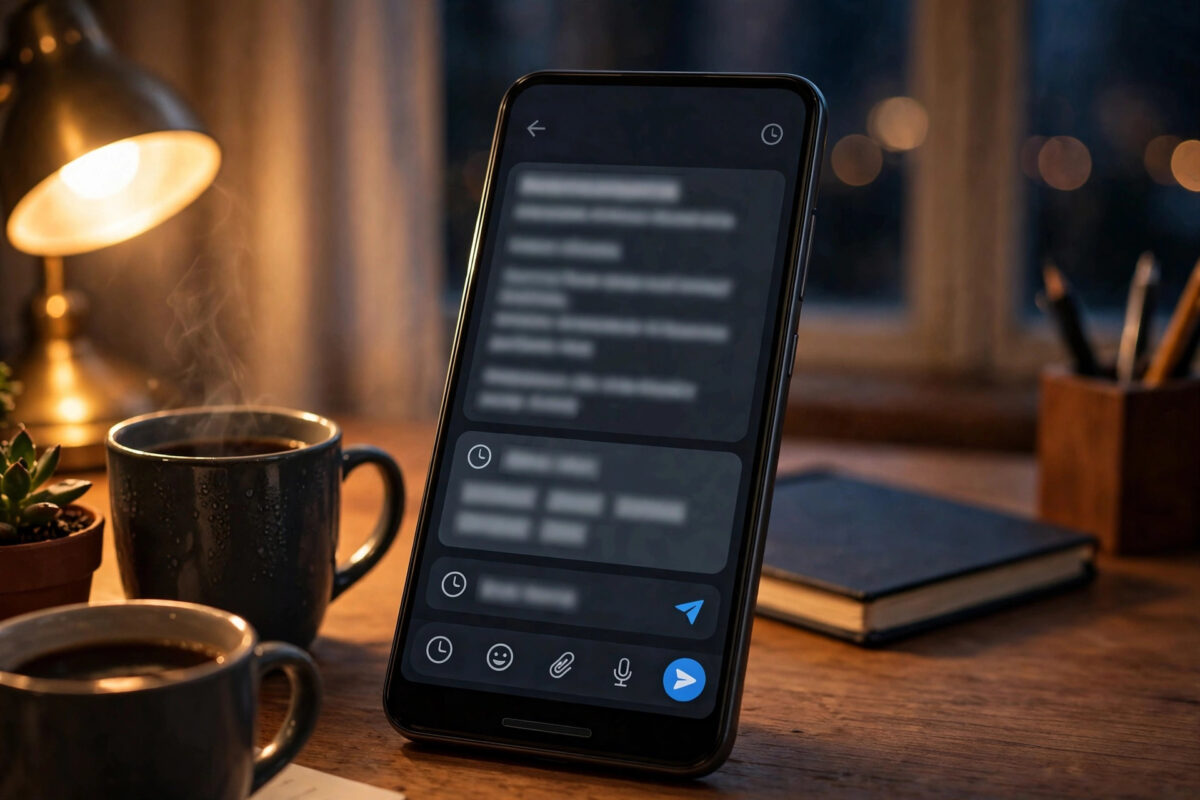
Writing a message at midnight that should really arrive at 9am, remembering a birthday a day early, or sending a reminder to yourself or a colleague at exactly the right moment: scheduling text messages solves all of these. Android does not hide the feature, but it does not advertise it either, and the exact method depends on whether your phone uses Google Messages or Samsung Messages.
In this guide you will work through the problem in a sensible order, starting with the checks that cost nothing and solve most cases. If you want to browse related topics while you work, you will find more practical Android and technology guides on NetworkUstad covering the rest of your phone, your home network, and your PC in the same plain, practical style.
Understanding the Problem Properly
Both major Android messaging apps include scheduling built in, with no extra app required. Google Messages calls it Schedule send, hidden behind a long press of the send button. Samsung Messages offers the same idea through the plus menu beside the message box. In both cases the message is stored on your phone and sent at the chosen time, which means the phone must be switched on and have signal when the moment arrives. Scheduled messages can be viewed, edited, sent immediately, or deleted before they go, and they are marked in the conversation so a scheduled birthday wish does not sit there looking like a mystery message you somehow already sent tomorrow.
Before you start, gather what you need and give yourself a few uninterrupted minutes. Keep the phone charged or plugged in, stay close to your charger and, where a step involves an accessory or a second device, have it to hand before you begin. Work through the steps in order and test after each one rather than applying every change at once.
Step-by-Step: What to Do
Step 1: Schedule a message in Google Messages
Open Google Messages and open or start the conversation. Type your message fully, then press and hold the send arrow instead of tapping it. A Schedule send panel appears with suggested times such as tomorrow morning, and an option to pick a custom date and time. Choose your moment and tap Save or Schedule. The message appears in the conversation with a small clock marker and a note showing its scheduled time, and the phone sends it automatically when that time arrives. This long press is the entire secret, and it works for ordinary SMS and for RCS chats alike, provided the phone is on and connected at send time.
Step 2: Schedule a message in Samsung Messages
Open Samsung Messages and open the conversation. Tap the + button beside the message field, or the arrow that expands the extra options, and choose Schedule message. Set the date and time using the picker, then type and send your message as usual. The message joins the conversation marked as scheduled, with its delivery time shown. Samsung allows scheduling well into the future, which makes it handy for birthdays and annual reminders. The same phone-on rule applies: the device sends the message itself, so it needs power and signal at the chosen moment, and switching the phone off overnight will delay a message set for the early hours.
Step 3: View, edit, reschedule, or delete a scheduled message
Before the time arrives, open the conversation and find the scheduled message, shown with its clock indicator. Tap or long-press it to reveal options to send now, edit the text, change the scheduled time, or delete it entirely. Use these controls freely, because nothing is committed until the send moment. Editing is particularly useful for messages written as drafts of an idea late at night, which read very differently in the morning. If you schedule several messages in a busy group conversation, the markers keep them distinguishable from sent history, and on most phones a filter or the clock icon itself helps you find pending messages quickly.
Step 4: Write messages that scheduling is perfect for
Scheduling shines for birthday and anniversary wishes written when you remember them, polite business messages composed after hours but delivered in working time, reminders to family that need to land at a specific moment, and messages across time zones where a thoughtful note would otherwise arrive at 3am for the recipient. Compose the message with its delivery moment in mind: a scheduled good morning should not reference tonight, and a reminder should state the event and time plainly, because the recipient may read it hours after you wrote it and without the context that was obvious to you at the keyboard.
Step 5: Know the limits and the phone-on rule
A scheduled message is not stored in the cloud waiting to send. It lives on your phone, so the phone must be powered on, with signal or Wi-Fi calling available, at the scheduled time. If the phone is off, the message sends shortly after it reconnects, which is acceptable for a birthday and useless for a precise alarm. Scheduled messages also go to the conversation as it exists at send time, so if a group changes membership in the meantime, check the thread before the moment arrives. Finally, delivery reports behave as they do for normal messages, so you can confirm arrival afterwards in the conversation as usual.
Step 6: Use alternatives for serious reminders
If the message is really a reminder for yourself, a calendar event or a reminders app gives you alarms, repetition, and snoozing that a text cannot. For recurring messages to others, such as a weekly check-in, some phones allow automation through Modes and Routines on Samsung or third-party automation apps, which can prepare a message at a set time each week for your confirmation. Keep genuinely sensitive or urgent communication manual and immediate: scheduling is for convenience and courtesy, not for anything where a powered-off phone or a missed signal would turn a thoughtful message into a problem for the person waiting on it.
Common Mistakes and Expert Tips
Most people who struggle with this issue make one of a handful of predictable mistakes. Avoiding them is often worth more than any single step above, because the steps fix the current problem while these habits stop it coming back. Read through the list and be honest about which ones sound familiar, because recognition is usually the moment the pattern changes for good.
- Tapping send instead of long-pressing it in Google Messages, then concluding the phone has no scheduling feature.
- Scheduling a message for a time when the phone will be switched off or in aeroplane mode, then blaming the app when it sends late.
- Writing a message whose wording only makes sense at the time of writing rather than the time of delivery.
- Forgetting a scheduled message exists and sending a duplicate manually the next morning.
- Scheduling sensitive or urgent news that should be delivered and confirmed personally in the moment.
Two expert habits are worth adding to your routine. First, after any major system update, spend two minutes checking the settings connected with this topic, because updates occasionally reset preferences or introduce a renamed version of a familiar option. Second, keep a simple note, in your notes app or on paper, of what you changed and when. Phones accumulate small adjustments over years of ownership, and a short record turns future troubleshooting from archaeology into a quick look at your own history. For general background, the Google Messages help on scheduling messages is a reliable reference, and brand-specific detail is covered in Samsung’s guide to scheduling messages on Galaxy phones.
Conclusion
You now have a complete, ordered way to deal with this issue, from the free two-minute checks to the point where professional help or a replacement genuinely becomes the right answer. In most cases the earlier steps are enough, because most phone problems are settings, storage, dirt, or one misbehaving app wearing a disguise. Work calmly, test as you go, and resist the urge to jump straight to the most drastic option. A phone you understand is a phone that lasts longer, costs less to run, and causes far fewer bad mornings, which is the real prize for twenty minutes of methodical attention today.
Frequently Asked Questions
Do scheduled messages send if my phone is off?
No. The message is stored on the phone and sent by the phone, so it goes out when the phone next has power and a connection. For anything time-critical, keep the phone on, or use a service designed for that reliability instead.
Can the other person see that I scheduled the message?
No. The recipient receives an ordinary message at the scheduled time, with no marker showing it was written earlier. The clock indicators and scheduled labels are visible only on your phone inside your copy of the conversation.
How far ahead can I schedule a text message?
Samsung Messages allows scheduling many months ahead, and Google Messages offers custom dates well beyond its suggested shortcuts. Practical limits come from keeping the same phone and app: a scheduled message lives on that device, so plan long-range messages on a phone you expect to keep.
Can I schedule a message to a group chat?
Yes. Scheduling works in group conversations exactly as in one-to-one chats. Just double-check the group’s membership before the send time if the message is personal, because people can be added to or leave a group after you write the message.
What happens if I change phones before the message sends?
The scheduled message lives in the messaging app on the old phone and will not migrate as a pending item in most cases. Before switching phones, review conversations for clock-marked messages and send or note any that still matter.



Leave a Reply