
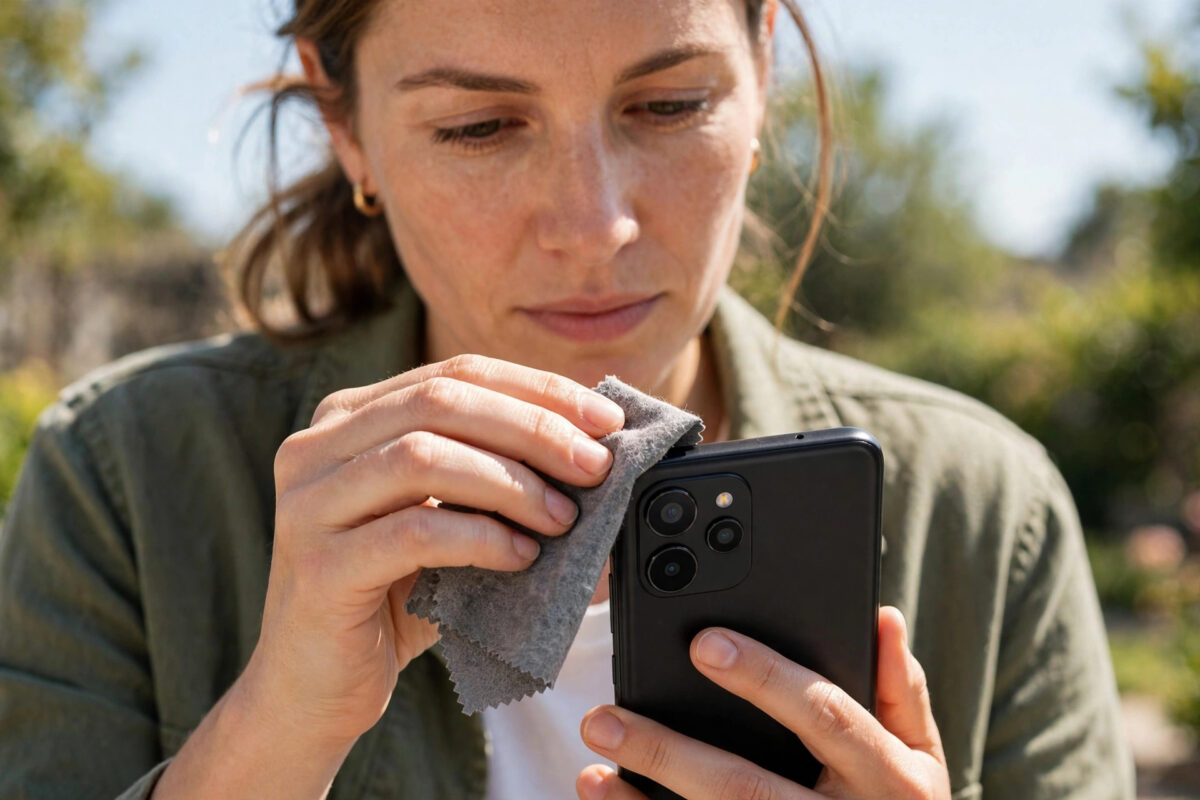
A blurry phone camera is frustrating, especially when it ruins a moment you cannot repeat.
One day your photos are sharp, the next every shot looks soft, smeared, or out of focus.
The good news is that most blur is not a broken camera. It is usually dirt, settings, movement, or light.
This guide helps you find the cause quickly. Then it walks you through fixes in order, from cleaning to settings.
Quick Answer
Clean the lens with a microfibre cloth, remove your case and check for a dirty protector, tap the screen to focus, hold the phone still with both hands, and use good light. If photos are still blurry, clear the camera app cache in Settings > Apps > Camera > Storage, update your software, and test in Safe Mode to rule out another app.
Why Is My Phone Camera Blurry?
Blur has several different causes, and each looks slightly different. Identifying the type points you to the right fix.
Look at your recent photos closely. Is the whole image soft, or only part of it blurred?
Dirty Lens, Case, or Screen Protector
This is the most common cause by far. Fingerprints, pocket lint, and skin oil build up on the lens daily.
The result is a hazy, glowing look. Bright lights often show streaks or a soft halo.
A case can also intrude into the frame. A poorly fitted camera protector can trap dust and moisture underneath.
Focus and Movement Problems
If one part is sharp and the subject is not, focus locked onto the wrong thing. This happens often with close subjects.
If everything is streaky in one direction, that is motion blur. Your hand moved, or the subject moved during the shot.
Low light makes motion blur worse. The phone uses a slower shutter to gather more light.
Low Light, Zoom, and Software Issues
Digital zoom crops and enlarges the image. Photos taken at high zoom almost always look soft or grainy.
Night photos can look blurry from noise reduction. The phone smooths detail to hide grain, which softens edges.
Occasionally an update or app glitch is to blame. The viewfinder itself may look blurry before you even shoot.
Basic Fixes to Try First
Start with these simple checks. They solve the majority of blurry camera complaints in minutes.
Take a test photo after each fix. That way you know exactly which step worked.
Clean the Lens Properly
- Take your phone out of its case.
- Inspect the front and rear lenses under good light.
- Wipe each lens gently with a clean, dry microfibre cloth.
- Use small circular motions to lift grease and fingerprints.
- Take a test photo of text or a distant sign.
Do not use tissues, sleeves, or cleaning sprays. They can leave fibres or push grit across the glass.
If you use a camera lens protector, remove it for the test. Replace it only if photos stay sharp without it ruled out.
Check Your Case and Hold the Phone Steadily
- Remove the case and take the same photo again.
- Compare the two shots for dark edges or soft corners.
- Hold the phone with both hands and tuck your elbows in.
- Brace against a wall or table for low-light shots.
- Tap the shutter gently instead of jabbing at the screen.
Use the volume button as a shutter if tapping moves the phone. Or set a 3-second timer for still subjects.
Fix Focus and Camera Settings
If cleaning did not help, the next step is focus and settings. Modern phones focus well, but they need help sometimes.
These steps apply to most Android phones. Menu names vary slightly between brands.
Tap to Focus and Lock Focus
- Open the Camera app and frame your subject.
- Tap directly on the subject on the screen.
- Wait for the focus box and exposure slider to appear.
- Press and hold on the subject to lock focus on many models.
- Slide the sun or exposure icon down slightly if the shot is too bright.
- Take the photo without moving closer or further away.
For close-ups, step back a little. Every lens has a minimum focus distance, often around 7–10 centimetres.
If you are too close, no tap will help. Move back and crop the photo afterwards instead.
Reset Camera Settings and Clear the Cache
- Open the Camera app and tap the Settings gear icon.
- Look for Reset settings and confirm if photos still look wrong.
- Close the camera and go to Settings > Apps > Camera.
- Tap Storage & cache, then tap Clear cache.
- Reopen the camera and take a new test photo.
Clearing cache does not delete your photos. It removes temporary camera data that can become corrupted.
Avoid tapping Clear data unless support advises it. That resets all camera preferences completely.
Google’s Pixel camera troubleshooting guide from Google Support also recommends checking for app and system updates at this stage.
Update Apps and System Software
- Open Google Play Store and update the Camera app if an update is listed.
- Go to Settings > System > System update on Pixel and stock Android.
- On Samsung, go to Settings > Software update > Download and install.
- Install any available update and restart your phone.
- Retest the camera in good daylight after updating.
Advanced Checks If Photos Are Still Blurry
If blur continues in bright light with a clean lens, test whether another app or hardware is involved.
Work through these checks before paying for a repair. They can save you time and money.
Test the Camera in Safe Mode
- Press and hold the power button.
- Press and hold Power off, then tap OK for Safe Mode.
- Open the built-in Camera app and take test photos.
- Compare them with photos taken in normal mode.
- Restart your phone normally to exit Safe Mode.
If photos are sharp in Safe Mode, a third-party app is interfering. Remove recently installed camera or filter apps.
On Samsung models, you can also run diagnostics. Open Samsung Members > Diagnostics > Camera for an automated test.
Samsung outlines these tools in its Samsung support guide for blurry camera photos. Follow the test result guidance there.
Check for Hardware Damage
- Inspect the lens glass for cracks, scratches, or moisture inside.
- Listen for clicking or buzzing when the camera tries to focus.
- Test both the front and rear cameras separately.
- Try another camera app from Google Play to compare results.
- Note whether blur affects video as well as photos.
Condensation inside the lens needs professional help. Do not try to open the phone yourself.
A damaged stabiliser can cause constant softness. That also needs a repair centre assessment.
For more phone troubleshooting in plain language, see Network Ustad’s Android troubleshooting and camera guides for step-by-step help.
Common Mistakes and Tips for Sharper Photos
Do not rely on digital zoom for important shots. Walk closer instead, or crop a full-resolution photo later.
Do not shoot through dirty glass or in very low light and expect sharpness. Add light or use Night mode and stay still.
Clean the lens as a habit before important photos. A two-second wipe prevents most disappointment.
Tap to focus on eyes for portraits. Faces are where viewers notice blur first.
Use burst mode for moving children or pets. Pick the sharpest frame afterwards and delete the rest.
Conclusion
Most blurry phone photos come from a dirty lens, poor focus, movement, or low light. Those causes are all fixable at home.
Clean first, tap to focus, hold steady, and reset the camera if needed. Then test in Safe Mode before assuming hardware damage.
Work through the steps in order and test after each one. In most cases, your next photo will be sharp again.
Frequently Asked Questions
Why are my photos blurry but the preview looks clear?
The preview can look fine while the final photo blurs from movement during capture, especially in low light. Hold the phone still for a second after tapping the shutter. Using a timer or volume button shutter also helps.
Why is only my front camera blurry?
The front lens collects makeup, oil, and protector smudges quickly because it sits near your ear and fingers. Clean it carefully and remove any screen protector covering it. Also check that beauty or softening filters are turned off.
Does a screen protector affect the camera?
Yes, if it covers a lens or traps dust underneath. Protectors with cut-outs are better than full-cover ones over the camera. Remove it temporarily to test whether it is the cause.
Can a software update fix a blurry camera?
Yes, if the blur came from a camera app or processing bug. Updates often improve focus and night processing. Always retest in daylight after updating, so light is not confusing the result.
When should I get my camera repaired?
Seek repair if the lens is cracked, moisture is inside, focus makes noise, or blur persists in Safe Mode in bright light. Those signs point to hardware, which cleaning and settings cannot fix.



Leave a Reply