
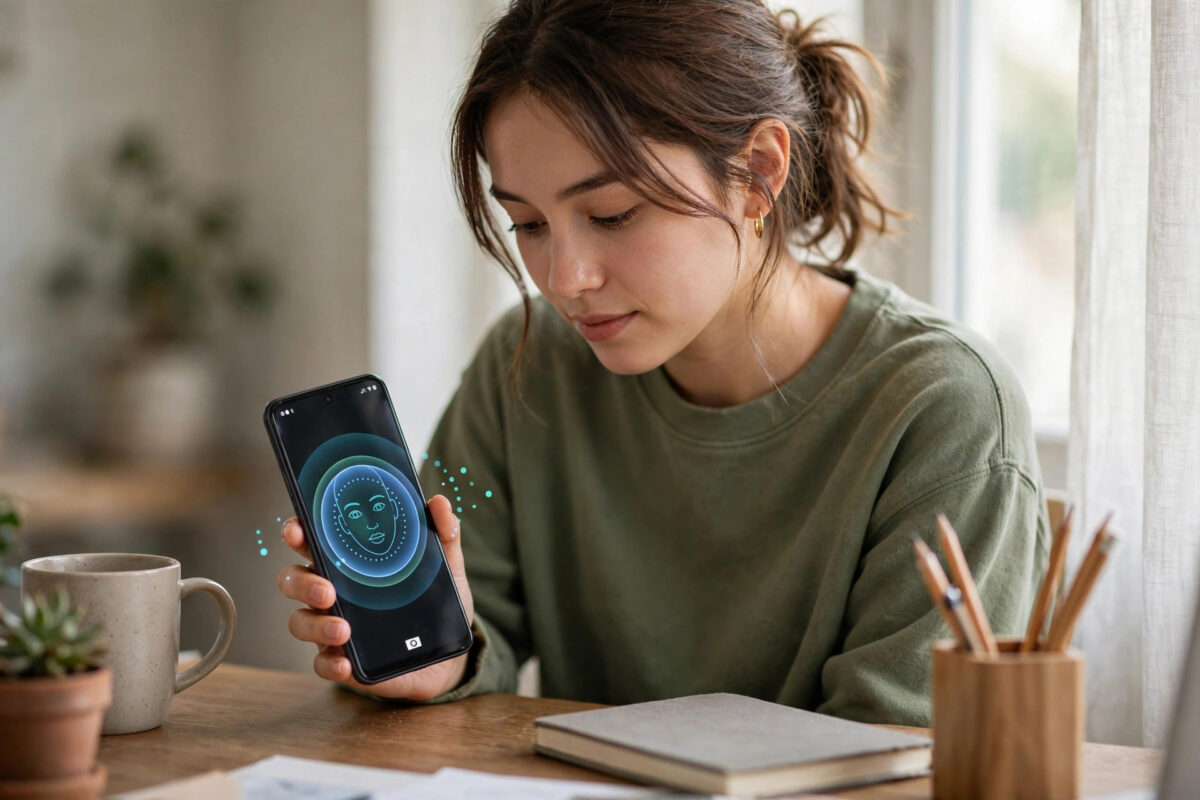
Face unlock lets you open your phone just by looking at it. It feels fast and effortless, especially when your hands are full.
Setup takes only a minute or two on most Android phones. You scan your face once, then the front camera recognises you.
Not every phone offers the same security, though. Some systems use a simple camera image, others use more advanced sensors.
This guide shows setup on Pixel and Samsung step by step. It also explains limits, safety choices, and fixes if it stops working.
Quick Answer
On Pixel go to Settings > Security & privacy > Device unlock > Face & Fingerprint Unlock > Face Unlock and follow the scan. On Samsung go to Settings > Security and privacy > Biometrics > Face recognition, register your face in good light, then turn on Face unlock. Hold the phone at eye level, look directly at the camera, and slowly turn your head as instructed.
Before You Start: What You Need to Know
A few quick checks make setup smoother. They also help you decide how to use face unlock safely.
Face unlock should support your lock, not replace careful security. Keep a strong PIN or password as backup.
Which Phones Support Face Unlock?
Most modern Pixel, Samsung Galaxy, OnePlus, and Xiaomi phones include face unlock. Budget models may offer it with fewer options.
The exact menu name varies. Look for Face Unlock, Face recognition, or Face & Fingerprint Unlock in Security settings.
If your phone has no such menu, it does not support it. Use fingerprint or PIN unlock instead on that device.
How Secure Is Face Unlock on Android?
Security depends heavily on hardware. A basic 2D camera system is convenient but easier to fool than advanced scanning.
Pixel 8 and later models meet a stronger biometric standard on many variants. They can approve more sensitive actions on supported apps.
Many Samsung phones treat face recognition as convenience unlock. They still ask for PIN or fingerprint for payments and sensitive apps.
Google explains the strength levels in its Pixel Face Unlock guide on security and use. Check it if you plan to use face unlock for banking.
Prepare for a Good Face Scan
- Sit or stand in bright, even light facing a window or lamp.
- Remove sunglasses and anything covering your face.
- Clean the front camera lens with a soft cloth.
- Make sure you know your PIN, pattern, or password.
- Hold the phone at eye level, about 25–40 centimetres away.
Avoid strong light behind you. Backlight shadows your face and causes failed scans.
How to Set Up Face Unlock on Pixel and Stock Android
Pixel phones group face and fingerprint together. The setup wizard guides you through the head movements.
You will need your backup PIN first. This proves it is really you enrolling a new biometric.
Step-by-Step Setup on Pixel
- Open Settings on your Pixel phone.
- Tap Security & privacy, then tap Device unlock.
- Tap Face & Fingerprint Unlock.
- Enter your PIN, pattern, or password when asked.
- Tap Face Unlock, then tap Set up or Enrol face.
- Tap Start and look directly at the front camera.
- Slowly move your head to complete the circle or prompts shown.
- Tap Done when enrolment is complete.
After setup, lock the phone and test it. Raise it to your face and check that it unlocks promptly.
Try it at different angles too. A good enrolment should work when you pick the phone up naturally.
Useful Pixel Face Unlock Settings
- Return to Settings > Security & privacy > Device unlock > Face & Fingerprint Unlock.
- Turn on options for app sign-in or payments only if offered and you trust them.
- Turn on Require eyes open if available for extra safety.
- Turn off Skip lock screen if you prefer to see notifications first.
- Re-enrol your face if you grow a beard or change glasses significantly.
Require eyes open is worth keeping on. It stops unlocking while you are asleep or looking away.
How to Set Up Face Unlock on Samsung Galaxy
Samsung calls the feature Face recognition. It lives under Biometrics in One UI.
The steps are similar to Pixel. The option names differ slightly by One UI version.
Step-by-Step Setup on Samsung One UI
- Open Settings and tap Security and privacy.
- Tap Biometrics, then tap Face recognition.
- Enter your PIN, pattern, or password.
- Tap Continue and position your face inside the circle.
- Keep looking at the camera until progress reaches 100 percent.
- Tap Done, then turn on Face unlock on the next screen.
Test by locking with the side key. Then pick the phone up and look at it directly.
If it is slow, remove and re-register in better light. Light is the biggest factor on Samsung models.
Samsung lists extra toggles in its Samsung support guide to face recognition settings. These include faster recognition and brightness boost options.
Samsung Options Worth Checking
- Go to Settings > Security and privacy > Biometrics > Face recognition.
- Turn on Require open eyes for safer unlocking.
- Consider turning off Faster recognition if security matters more than speed.
- Turn on Brighten screen in dark surroundings if unlock fails at night.
- Add an alternative appearance if you often wear glasses or head coverings.
Faster recognition uses a quicker, less strict check. For most people, the normal setting is the better balance.
How to Improve Face Unlock and Fix Problems
Face unlock can struggle after setup for simple reasons. Light, angle, and appearance changes are the usual causes.
Try these fixes before deleting your face data. Most take less than a minute.
If Face Unlock Is Slow or Fails Often
- Clean the front camera and remove any case blocking it.
- Unlock in better light, facing the light source.
- Hold the phone at eye level rather than looking down at it.
- Delete your face data and enrol again from scratch.
- Restart your phone and test once more afterwards.
To delete face data on Pixel, open the Face Unlock screen and tap Delete face model. On Samsung, tap Remove face data.
Then enrol again slowly. Rushing the head movements produces a weaker model.
Using Face Unlock With Glasses and Accessories
- Enrol your main everyday look first.
- Use Add alternative appearance, if offered, for glasses.
- Do not enrol while wearing sunglasses or a mask.
- Test unlocking both with and without glasses afterwards.
- Use fingerprint or PIN if a covering blocks the scan.
For more everyday setup help, visit Network Ustad for clear Android setup and security guides. Each guide uses the real menu names on your phone.
Common Mistakes and Safety Tips
Do not enrol in dim light. A poor first scan causes weeks of failed unlocks.
Do not rely on face unlock alone for banking if your phone warns against it. Use fingerprint or PIN for payments.
Do not let someone else enrol their face without understanding the risk. Any enrolled face can unlock your phone fully.
Keep a strong backup PIN that others cannot guess. Birthdays and simple patterns undermine biometric security completely.
Review who can use biometrics after lending your phone. Check the enrolment list whenever security matters.
Conclusion
Setting up face unlock takes just a few minutes in Security settings on Pixel or Samsung. Good light and a careful scan make all the difference.
Turn on Require eyes open, keep a strong backup PIN, and re-enrol after major appearance changes. That gives you speed without giving up safety.
Test your setup in normal daily light, not just at setup. If it unlocks reliably then, you have done it correctly.
Frequently Asked Questions
Can face unlock work in the dark?
Sometimes, but it is less reliable because the camera sees less detail. Samsung’s Brighten screen option helps by lighting your face. In very dark rooms, fingerprint or PIN will usually be faster.
Can someone unlock my phone with a photo of me?
Basic 2D systems are more vulnerable to photos than advanced systems. That is why many phones limit face unlock for payments. Use fingerprint or PIN for sensitive apps if your phone warns you.
How many faces can I register on Android?
It depends on the phone. Many models allow one main face plus an alternative appearance. Samsung and Pixel focus on your own variations rather than multiple different people.
Why does my phone ask for my PIN after using face unlock?
Android asks for your PIN periodically for safety, after restarts, after several hours, or after failed face attempts. This is normal and protects you if the phone is taken. Enter the PIN and face unlock resumes.
Will face unlock work if I wear a mask?
Generally no, because most of your face is hidden. Some phones handle partial coverings better than others. Use fingerprint or PIN in those situations for a reliable unlock.



Leave a Reply