
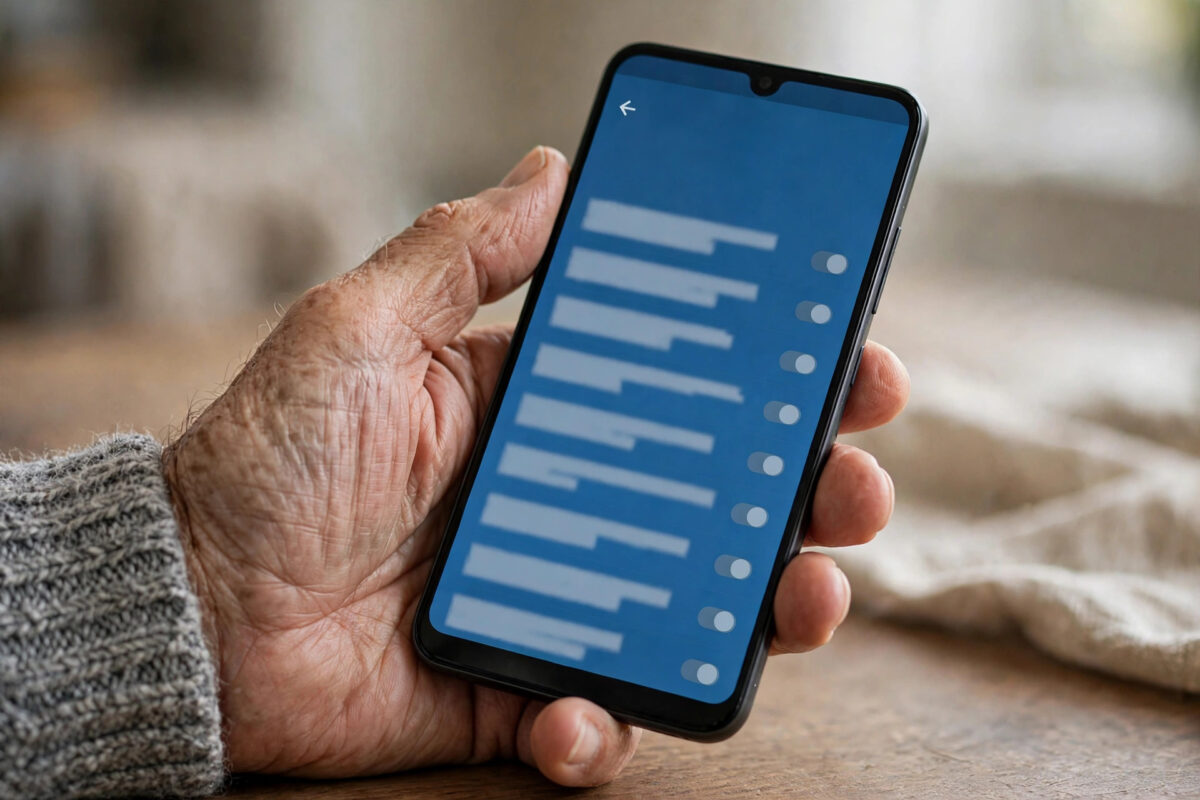
If you squint at messages or hold your phone far away to read, your font size is probably too small.
Some people prefer the opposite. Smaller text shows more content at once, especially on a large phone.
Android gives you several ways to adjust text. The right choice depends on what you want to change.
This guide covers Pixel, stock Android, and Samsung One UI. It also explains mistakes that break app layouts.
Quick Answer
Go to Settings > Display > Font size on Pixel and stock Android, or Settings > Display > Font size and style on Samsung, then move the slider right to make text larger or left to make it smaller. The change applies instantly with no restart. Use Display size / Screen zoom instead if icons and buttons also need to grow.
Font Size vs Display Size: What Is the Difference?
Many people change the wrong setting first. Android uses two similar-sounding options for different jobs.
Understanding the difference saves frustration. It helps you get exactly the result you want.
Font Size Changes Only Text
Font size controls letters in menus, messages, settings, and supported apps. Icons and images stay the same.
If reading is your main problem, start here. One step larger is often enough for a clear improvement.
A modest increase also avoids layout problems. Very large text can wrap buttons onto two lines.
Display Size Changes Everything
Display size scales the whole interface. Text, icons, buttons, and content density all change together.
On Samsung this is called Screen zoom. Larger is helpful if you also tap the wrong icons.
Smaller is useful on big phones. It lets you see more of a map, sheet, or web page at once.
You can combine both settings. For example, use a larger font with a medium display size.
How to Change Font Size on Pixel and Stock Android
On Pixel, Motorola, and Nokia phones, the control is in Display settings. A live preview helps you judge it.
There is no save button. The new size applies as soon as you move the slider.
Using the Display Settings
- Open Settings on your phone.
- Tap Display.
- Tap Font size, or Display size and text on newer Android versions.
- Drag the slider right for larger text or left for smaller text.
- Read the preview paragraph to judge the new size.
- Open Messages and your browser to check real apps.
Most phones offer four or five steps. They range from Small to Largest.
Try one step at a time. Use the phone for a few minutes before changing it again.
Using the Accessibility Menu
- Go to Settings > Accessibility > Display size and text.
- Move the Font size slider to your preferred level.
- Turn on Bold text if you want thicker, clearer letters.
- Turn on High contrast text if it is offered and helps you.
Bold text does not make letters taller. Many readers find it the most helpful change for clarity.
It is especially useful outdoors. It also helps when screen brightness is low.
Google details these options in its Android guide to display size and text settings. The guide also covers magnification.
Changing Display Size
- Go to Settings > Display > Display size.
- Or go to Settings > Accessibility > Display size and text.
- Move the Display size slider one step.
- Check the preview for cramped or cut-off content.
- Step back one level if apps look crowded.
How to Change Font Size on Samsung Galaxy Phones
Samsung One UI puts font controls in a different place. It also adds font styles that stock Android lacks.
The process is still quick. You also get more size steps than most other phones.
Using Font Size and Style on One UI
- Open Settings and tap Display.
- Tap Font size and style.
- Drag the Font size slider at the bottom, one notch at a time.
- Tap Bold font if you want thicker text.
- Tap Font style if you want a different typeface.
- Check the preview sentence at the top before leaving.
Some extra fonts are free in the Galaxy Store. Others are paid, so check before downloading.
Be careful with decorative fonts. They can look fun in menus but tiring in long articles.
For model-specific menu names, see Samsung support guidance on font and display settings. Wording can vary slightly by model.
Using Screen Zoom on Samsung
- Go to Settings > Display > Screen zoom.
- Move the slider to scale the whole interface.
- Check your home screen and keyboard afterwards.
- Reduce zoom if the keyboard feels too small to type on.
Icons and keyboards follow zoom, not font size. Adjust zoom if those elements are the problem.
Changing Text Size Inside Individual Apps
A system change affects most apps. Some apps have their own controls and ignore the system setting.
Check the app first before pushing the system font to maximum. Extreme settings can break other apps.
Common App Examples
- In WhatsApp, go to Settings > Chats > Font size inside the app and choose Small, Medium, or Large.
- In Chrome, go to Settings > Accessibility > Text scaling and set your preferred zoom level.
- In reading and news apps, look for Appearance, Reader, or Display settings for a text option.
- Close and reopen the app after changing its setting.
Magnification is useful for one-off moments. Enable it in Settings > Accessibility > Magnification.
You can then zoom any screen briefly. It is perfect for a tiny code or footnote.
For more customisation help, browse Network Ustad’s Android guides and display tips. They cover accessibility in plain language.
Common Mistakes and Helpful Tips
Do not jump straight to maximum size. Notifications can be cut off and controls can disappear.
Increase one step at a time. Live with each step for a day if you can.
If text looks fuzzy, not small, size is not the issue. Clean the screen and check screen resolution.
On supported phones, resolution is under Settings > Display > Screen resolution. A thick protector can also distort text.
Pair a modest size increase with bold text. That usually reads better than size alone.
If you set up a phone for a relative, note the settings you used. You can recreate them on their next phone.
Extra Help If Text Still Looks Wrong
Sometimes text looks odd even at the right size. Colour, contrast, and layout can all affect readability.
Try dark theme in the evening to reduce glare. Increase brightness slightly when reading outside in sunlight.
If letters overlap or buttons disappear, reduce display size by one step. That conflict is common at maximum settings on smaller phones.
Conclusion
Changing font size takes under a minute. Use Display settings on most phones, or Font size and style on Samsung.
Start with font size for reading. Use display size or Screen zoom when icons and buttons need to grow too.
Add bold text for clarity without bulk. Increase gradually, check individual apps, and your phone will be easier to read daily.
Frequently Asked Questions
Why did my font size change not affect some apps?
Some apps set their own sizes and ignore the system. Check the app’s appearance settings and restart the app. Browser pages may also need Chrome’s text scaling adjusted separately.
What is the best font size setting to use?
There is no single best setting. Most people like one step above Default, plus bold text. If maximum breaks layouts, try a smaller font with a larger display size instead.
Can I change the font style, not just the size?
On Samsung, yes, via Font size and style > Font style. On Pixel and stock Android, the system font cannot normally be changed. Individual apps may still offer their own typefaces.
Will increasing font size drain my battery?
No. Font settings only change how content is drawn. Brightness and resolution affect battery far more than text size ever will.
How do I reset the font size to normal?
Return to the Font size screen and move the slider to Default. Set Display size back to Default too. Everything returns instantly, with no restart needed.



Leave a Reply