
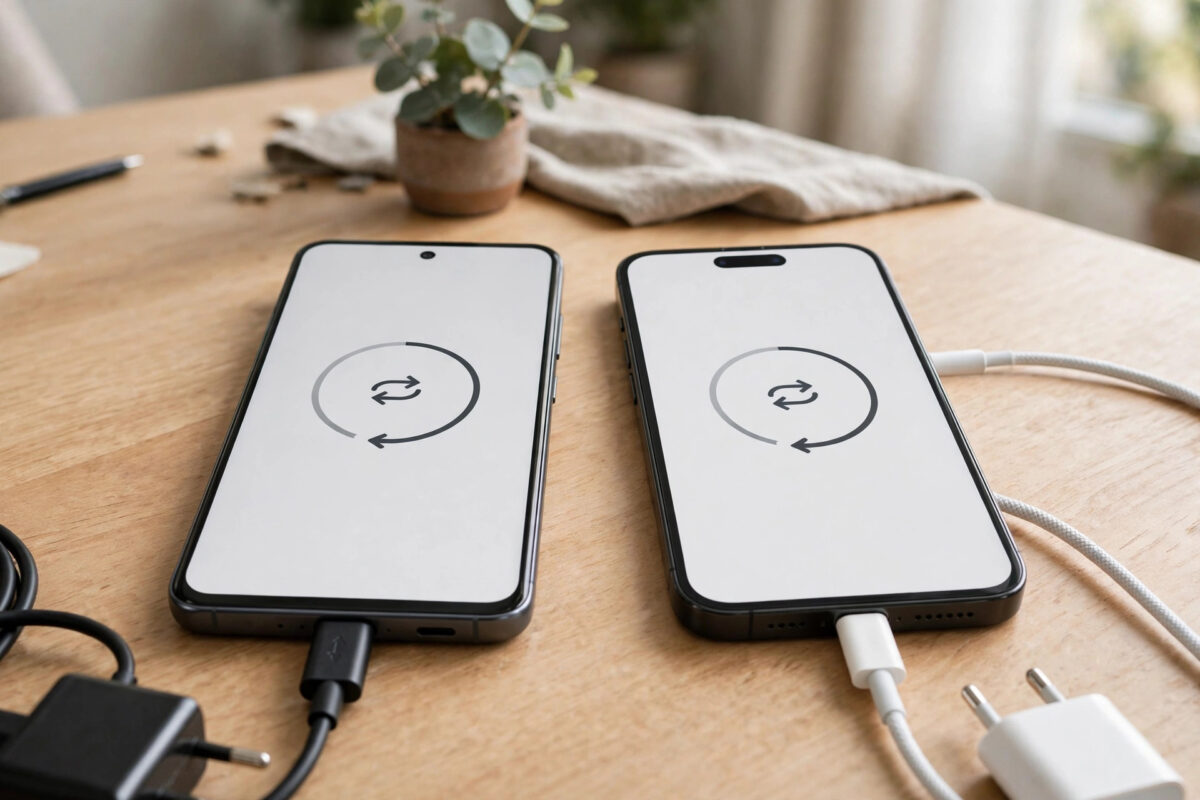
Switching from Android to iPhone used to mean abandoning your WhatsApp history. That changed when WhatsApp and Apple built migration into the Move to iOS app — your chats, group conversations, photos and videos can all come with you. But the process has strict rules, and most failures happen because one of them was missed before the transfer even started.
The single most important fact: this only works while the iPhone is being set up as new. If your iPhone is already set up and in use, WhatsApp migration requires resetting it. Read the requirements first, prepare both phones, and the transfer itself is uneventful.
Quick Answer
Update WhatsApp on the Android phone, charge both phones, and connect them to the same Wi-Fi. Factory-reset the iPhone if it is already set up, start setup, and at the Apps & Data screen choose Move Data from Android. Open Move to iOS on the Android phone, enter the code shown on the iPhone, tick WhatsApp on the transfer screen, and let it prepare and move your chats. Finish the iPhone setup, install WhatsApp, verify the same phone number, and your history appears.
Requirements Checklist — Get These Right First
- iPhone state: brand new, or factory reset. The Move Data from Android option only appears during initial setup.
- Versions: iOS 15.5 or later on the iPhone; a recent Android version and the latest WhatsApp from the Play Store on the Android phone.
- Same phone number. WhatsApp migration works with the number you will verify on the iPhone. Changing numbers mid-move is a recipe for an empty chat list.
- Power and Wi-Fi. Both phones plugged into chargers and on the same Wi-Fi network. Large chat histories can take an hour or more; a phone dying mid-transfer is a classic failure.
- Enough free space on the iPhone for your chat history and media, with room to spare.
- Turn off Android battery savers and VPNs for the duration, and disable mobile data so the Android phone does not wander off the local Wi-Fi connection the transfer depends on.
WhatsApp documents the requirements on its own site too — see the official WhatsApp FAQ — and Apple Support covers the Move to iOS side. What does not transfer: WhatsApp call history, payment messages, and your display name history. Chats, media and profile information do.
The Transfer, Step by Step
- Prepare WhatsApp on Android. Open it once so it is fully up to date and signed in. You do not need to make a fresh Google Drive backup for this process — Move to iOS works directly between the phones.
- Reset the iPhone if needed. Settings, General, Transfer or Reset iPhone, Erase All Content and Settings. Skip this if the phone is brand new out of the box.
- Start iPhone setup and proceed to the Apps & Data screen. Choose Move Data from Android. A six or ten digit code appears.
- Open Move to iOS on the Android phone and enter the code. The phones establish a direct connection.
- Select what to move. On the Transfer Data screen, WhatsApp appears in the list — make sure it is ticked, along with anything else you want (photos, messages, Google account).
- Wait through two phases. Move to iOS first shows WhatsApp preparing your data — this can take a long while on big histories — then transfers it. Do not use either phone, do not let them sleep, and do not walk away with one in your pocket.
- Finish iPhone setup, install WhatsApp from the App Store, and verify your phone number.
- Accept the restore prompt. WhatsApp detects the transferred data and offers to restore it. Confirm, and your chats appear exactly as they were.
- Verify before wiping Android. Open several chats, check old photos open, and confirm groups are intact. Only then reset or sell the Android phone.
If Something Goes Wrong
A transfer that stalls at “1 minute remaining” is so common it has its own playbook — our guide to fixing Move to iOS stuck on 1 minute remaining during a WhatsApp transfer works through it. If WhatsApp does not appear in the transfer list, update both apps and restart both phones. If the iPhone restore prompt never appears, the transfer phase did not complete — restart the process from the iPhone setup rather than trying to patch it afterwards, because there is no way to merge the data in later.
Common Mistakes to Avoid
- Setting up the iPhone first “just to look.” The moment setup completes without Move to iOS, your only route back is a full reset. Resist the peek.
- Verifying WhatsApp on the iPhone before transferring. Activating the account early can invalidate the prepared transfer data. Transfer first, then verify.
- Using the Android phone during the move. Answering messages mid-transfer changes the database being copied. Leave both phones alone.
- Letting the Android phone switch networks. Mobile data handover breaks the local connection. Airplane mode with Wi-Fi manually enabled is a reliable trick.
- Wiping the Android phone the same hour. Keep it untouched for a day or two, until you are certain everything you care about is openable on the iPhone.
After the Transfer: Your First Day on iPhone WhatsApp
With the chats restored, finish the job properly. Open WhatsApp’s settings on the iPhone and start an iCloud backup (Settings, Chats, Chat Backup) so your migrated history gains the safety net it had on Android — choose a backup frequency you will actually keep, and include videos only if your iCloud storage can afford them. Re-check the small things migration sometimes leaves behind: notification preferences, chat wallpapers, and starred messages, which generally survive but deserve a glance. Your groups will be present, though you may appear as having “joined” quietly; a quick message in your most important groups confirms to everyone (and to you) that the account is alive on its new home.
Keep the Android phone, un-reset, for at least a few days. Its WhatsApp cannot be active at the same time as the iPhone’s — verifying the number on one logs out the other — but its local data remains readable through the file system, and if you discover a missing attachment or a chat that matters, the Android phone is still your reference copy while you decide what to do. Only when a week of normal use has surfaced no gaps should the old phone be wiped, sold or handed down.
Conclusion
WhatsApp migration with Move to iOS works well when its rules are respected: a fresh iPhone setup, the same number, both phones charged and undisturbed on the same Wi-Fi, and WhatsApp ticked in the transfer list. Prepare carefully, be patient during the long preparation phase, and verify your chats before the old phone goes anywhere.
Frequently Asked Questions
Can I transfer WhatsApp without resetting my iPhone?
No. Move to iOS only runs during initial setup, so an iPhone that is already set up must be erased first. Back up anything on it you need before resetting.
Will my group chats and media transfer too?
Yes. Groups, individual chats, photos, videos and documents move across. Call history and payment-related messages are the notable exceptions.
Do I need a Google Drive backup before starting?
No. Move to iOS copies directly from the phone’s local WhatsApp data. A Drive backup is a good safety net in general, but the migration does not use it.
How long does the transfer take?
Anywhere from fifteen minutes for a light account to well over an hour for tens of gigabytes of media. The preparation phase is the slowest part and gives poor progress feedback — patience is genuinely required.
What if I already activated WhatsApp on the iPhone and it is empty?
There is no merge. Your path is to back up anything new you need from the iPhone (it will be lost), factory-reset it, and run the migration properly this time.



[…] the migration again following the full sequence in our guide to transferring WhatsApp from Android to iPhone with Move to iOS, and this time do not touch either phone until it […]