
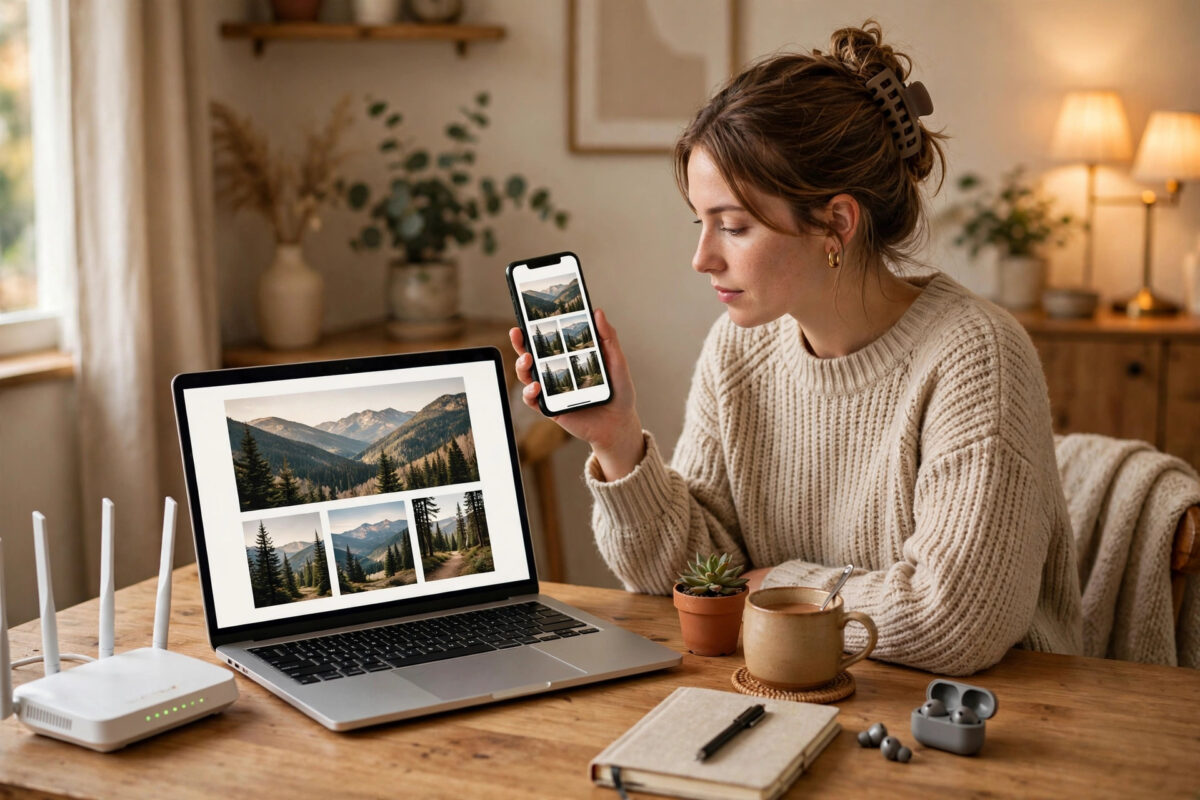
You have built a web page on your computer and it looks great there. But a computer monitor is not a phone. Fonts, buttons, menus, and spacing can all behave differently on a small touch screen, and you cannot trust the result until you see it on the real device in your hand.
You do not need to upload your unfinished page to the internet to do that. If your phone and your computer are connected to the same home router, they can already talk to each other. You just need to serve the page on your computer and open it on your phone using a local address.
This guide explains the whole process step by step, for Windows, Mac, and Linux users, including what to do when the page refuses to load.
Quick Answer
Connect your phone and computer to the same Wi-Fi network, start a small local server on your computer inside your project folder, find your computer’s local IP address such as 192.168.1.5, and open http://192.168.1.5:8000 in your phone browser. If the page does not load, allow the server through your computer firewall and check that both devices really share one network.
How This Works, in Simple Terms
Every device on your home network gets a private address from your router. Your computer might be 192.168.1.5 and your phone might be 192.168.1.8. These addresses only work inside your home. People on the internet cannot use them to reach you.
A local server is a small program that listens for requests and sends your files to anything that asks. When your phone opens your computer’s address, it asks for the page, and the server sends it back over Wi-Fi, just like a real website would, only much faster and fully private.
The number after the colon, such as :8000, is the port. Think of the IP address as the building and the port as the apartment number. Your server lives at one specific port, so your phone must knock on the right door.
What you need before you start
- A computer with your HTML files saved in one project folder.
- A phone connected to the same Wi-Fi as the computer.
- A simple server tool, such as Python, Node.js, or an editor extension.
- Five quiet minutes to check firewall and network settings if needed.
Step 1: Connect Both Devices to the Same Network
- On your phone, open Wi-Fi settings and note the network name.
- On your computer, check its Wi-Fi or network settings and confirm the same name.
- Turn off mobile data testing confusion by keeping Wi-Fi on and active on the phone.
- If your router offers both a 2.4 GHz and a 5 GHz network, put both devices on the same one for this test.
Guest networks deserve special attention. Many routers isolate guest devices so they cannot see other devices on the main network. If your phone is on a guest network, this method will fail quietly. Move the phone to your main home network before you troubleshoot anything else.
Step 2: Start a Local Server on Your Computer
Option A: Use Python
Python is installed by default on most Mac and Linux systems, and it is a free, quick install on Windows. Open a terminal or command prompt, move into your project folder with the cd command, and run:
python -m http.server 8000
On some systems the command is python3 -m http.server 8000. Leave that window open while you test. Closing it stops the server. You will see a line in the window each time your phone requests a file, which is a helpful sign that the connection works.
Option B: Use Node.js
If you already use Node.js for development, run npx serve inside your project folder. It will print the local and network addresses you can use. The network address is the one your phone needs.
Option C: Use your editor
Editors such as VS Code offer server extensions that start with one click and show the address. This is often the easiest route for beginners because there is nothing to type, although you still need the computer’s network address, not the localhost address, for your phone.
The MDN guide to setting up a local testing server explains these same options with background notes that are useful if this is your first time using the terminal.
Step 3: Find Your Computer’s Local IP Address
On Windows
- Open Command Prompt.
- Type
ipconfigand press Enter. - Find the line called IPv4 Address under your Wi-Fi adapter.
- Write down the number, which often starts with
192.168.
On Mac
- Open System Settings and go to the Wi-Fi section.
- Click the details of your connected network.
- Read the IP address shown there, or run
ipconfig getifaddr en0in Terminal.
On Linux
Run hostname -I in a terminal and use the first private address it prints. You can also check the network section of your system settings.
Be careful not to confuse this private address with your public internet address shown on lookup websites. Your phone needs the private, local one. The public address points at your router from outside and will not open your test page.
Step 4: Open the Page on Your Phone
- Open the browser on your phone.
- Type the full address:
http://followed by the computer IP, a colon, and the port, for examplehttp://192.168.1.5:8000. - If your main file is not named
index.html, add its name at the end, such as/about.html. - Bookmark the address so you can reload quickly after each change.
Now test like a real visitor. Tap every menu, fill in every form, and scroll the whole page. Check that images load, because a missing image on the phone but not on the computer usually means a file path uses a form that only works locally, such as an absolute path from your hard drive. Our guide to checking whether a website is responsive gives you a simple checklist to work through while the page is open on your phone.
After you change a file on the computer, save it and pull down to refresh on the phone. If an old version keeps showing, clear the browser cache or open the address in a private tab, because phones hold on to cached files eagerly.
Step 5: Fix the Page Not Loading
Check the firewall
Your computer firewall may block the server the first time it runs. On Windows, a prompt usually appears asking whether to allow access on private networks. Choose Allow. If you missed the prompt, open the firewall settings and allow Python, Node, or your editor through for private networks only. You do not need to allow it on public networks.
Check the basics again
- Is the server still running, with its window open on the computer?
- Did you type the address exactly, including the port number?
- Are both devices on the same network name, not a guest network?
- Did your computer get a new IP address after a restart or sleep?
- Is a VPN active on either device, which can reroute local traffic?
Router settings can also block devices from seeing each other. A feature sometimes called AP isolation or client isolation does exactly that. If everything else looks right, log in to your router, find that setting, and turn it off for your private home network.
Tips for Better Phone Testing
- Test with real content: long words, real images, and full menus reveal problems that placeholder text hides.
- Use your thumb: check that buttons and links are easy to tap without zooming, and that nothing important sits too close together.
- Watch performance: a page that feels instant on a wired computer may feel slow when images are large, even over home Wi-Fi.
- Keep the server private: this setup is for your home network. Do not forward the port on your router to share a test page, because that exposes your computer to the internet.
- Note the address: your computer’s local IP can change. When the page stops loading one day, checking the IP again is the fastest first step.
Conclusion
Testing a local page on your phone sounds technical, but it rests on one simple idea: devices on the same home network can reach each other. Start a small server in your project folder, find your computer’s local IP address, and open that address with the right port in your phone browser. Fix firewall or network mismatches if the first attempt fails. Once this habit is part of your routine, you will catch mobile problems early, while they are still cheap and easy to fix.
Frequently Asked Questions
Why does localhost work on my computer but not on my phone?
The word localhost always means the device you are holding. On your phone, localhost points to the phone itself, not to your computer. Your phone must use your computer’s local IP address instead.
Do I need an internet connection for this method?
No. The traffic stays inside your home network between your phone, your router, and your computer. Your internet could be down and the test would still work, as long as the local network is running.
Is it safe to let my phone connect to my computer like this?
Yes, on your own private network with the firewall allowed for private networks only. Anyone who could open the page would already need to be inside your home network. Stop the server when you finish testing for extra peace of mind.
Why do images show on my computer but not on my phone?
The page probably references an image with a path that only exists on your computer, or the file name uses different capital letters than the real file. Servers are strict about paths, so check the exact file name and use relative paths inside your project folder.
Can I test on more than one phone at the same time?
Yes. Any device on the same network can open the same address, so you can check an Android phone, an iPhone, and a tablet side by side. This is a great way to compare how different browsers render the same page.

Leave a Reply