
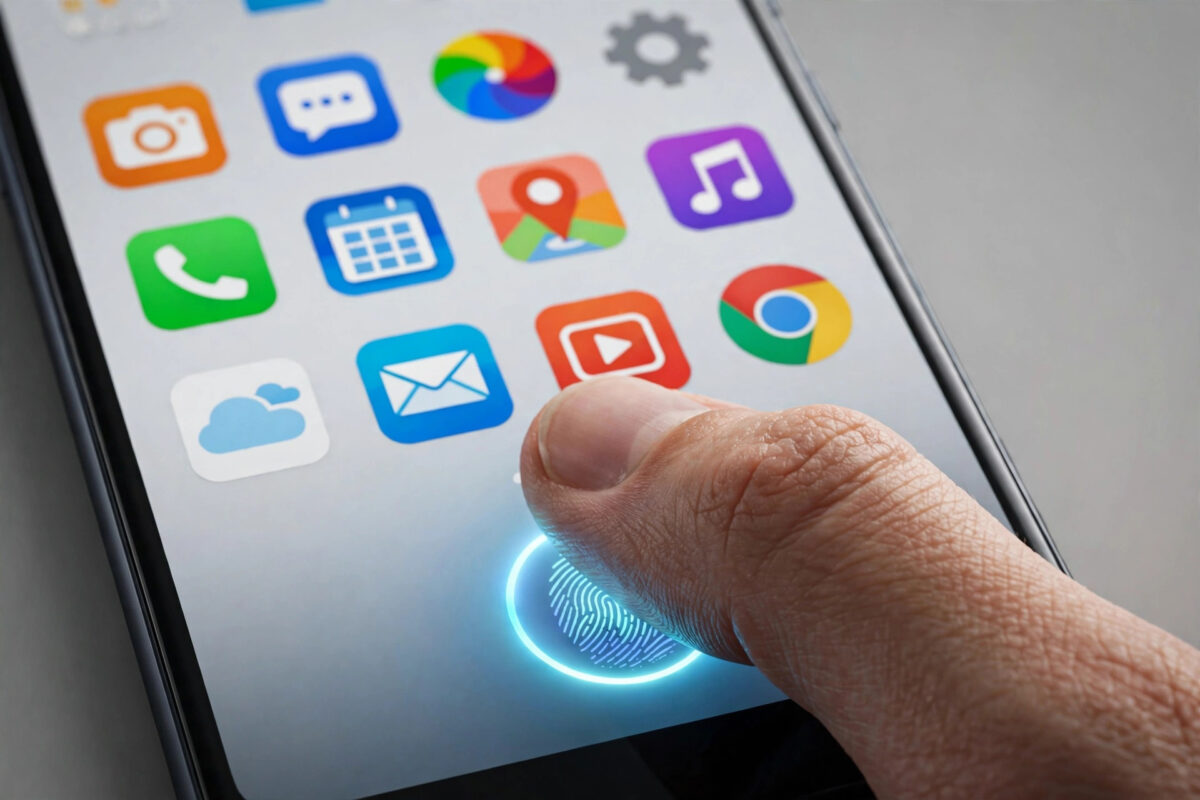
Your fingerprint already unlocks your phone in a split second. It can protect individual apps too, even after the phone itself is unlocked.
That matters when you hand your phone to a child, a friend, or a colleague. Without app locks, anyone holding it can open your messages, email, photos, and banking apps.
Quick Answer
On Xiaomi, go to Settings > Apps > App lock and turn on fingerprint unlock. On Samsung, use Secure Folder in Settings > Security and privacy. On Pixel, use Private Space or the biometric lock inside apps like WhatsApp. Register your fingerprint first in Settings > Security.
Why Lock Individual Apps?
A screen lock only protects a phone sitting on a table. Once the phone is unlocked and in someone else’s hands, it offers no protection at all.
App locking adds a second wall around the apps that matter most. Banking, payments, messaging, email, and your photo gallery are the usual candidates.
Games, weather, and the calculator rarely need protection. Locking everything makes the feature so annoying that most people switch it off within a week.
A shortlist of five to ten sensitive apps gives real privacy with very little friction. You can find more ideas in our Android tips and guides at Network Ustad.
There is another benefit. If your phone is snatched while unlocked, app locks buy you precious minutes while you change passwords from another device.
Before You Start: Set Up Your Fingerprint
Every method below depends on a fingerprint that already works well. If unlocking is unreliable now, app locks will frustrate you later.
Register the Same Finger Twice
- On Pixel, open Settings > Security and privacy > Device unlock > Fingerprint Unlock.
- On Samsung, open Settings > Security and privacy > Biometrics > Fingerprints.
- Add your main unlocking finger as normal.
- Add the exact same finger again as a second entry.
- Register a thumb and index finger on both hands if the phone allows it.
Registering the same finger twice gives the sensor more data. Recognition improves noticeably, especially in winter when skin is dry.
Fix Poor Recognition
Wipe the screen and press firmly and evenly. Under-display sensors struggle with dirty glass, thick protectors, and wet fingers.
If recognition worsened after fitting a new screen protector, that protector is the likely culprit. Google explains this in its guide to setting up fingerprint unlock on Pixel phones.
How to Lock Apps on Samsung Galaxy Phones
Most Galaxy phones have no feature literally called App Lock. Samsung instead offers Secure Folder, an encrypted space protected by your fingerprint.
It is the strongest option on Samsung. Apps inside it are separate copies, and their notifications stay inside the folder too.
Set Up Secure Folder
- Open Settings > Security and privacy > More security settings > Secure Folder.
- Sign in with your Samsung account if asked.
- Choose a lock type and select Fingerprints.
- Confirm with your existing PIN or pattern.
- Open Secure Folder and tap the + icon.
- Add your bank, WhatsApp, email, and gallery apps.
- Optionally rename or hide the folder icon in Secure Folder settings.
You will sign into the protected copies again. That separation is a strength, because nothing leaks back to the main app list.
Remember the original apps still exist outside the folder. Remove sensitive originals from your home screen, or uninstall them if you only use the protected copies. Samsung explains the concept in its guide to using Secure Folder to protect apps and files.
How to Lock Apps on Xiaomi, Redmi, and Poco
Xiaomi owners have the easiest route. MIUI and HyperOS both include a dedicated App Lock that supports fingerprint unlocking.
- Open Settings and scroll down to Apps.
- Tap App lock, then tap Turn on.
- Set a pattern or PIN as your backup.
- Link your Mi account when prompted, for recovery.
- Toggle on the apps you want to protect.
- Tap the settings gear inside App Lock.
- Enable Unlock with fingerprint.
- Enable hiding notification content for locked apps.
HyperOS uses the same path. It simply groups recommended apps, such as messaging and payments, at the top of the list.
You can also choose when the lock engages. Immediate locking is safest for banking. A short delay is more comfortable for messaging apps you open all day.
How to Lock Apps on Pixel and Stock Android
Pixel, Motorola, and Nokia phones do not include a traditional app lock. Pixel phones running Android 15 or newer offer Private Space instead.
Set Up Private Space
- Open Settings > Security and privacy > Private space.
- Tap Set up and authenticate with your screen lock.
- Choose a separate PIN and enable fingerprint unlock.
- Add or install apps inside Private Space.
- Optionally hide Private Space from the app drawer.
On older Android versions, check the apps themselves. Many important apps protect themselves without any extra software.
WhatsApp offers Settings > Privacy > App lock with biometric unlock. Most banking apps require fingerprint sign-in by default.
Google Photos also has a Locked Folder. It hides sensitive pictures behind authentication, which covers one of the most common worries.
Using a Third-Party App Lock Safely
On phones with no built-in option, a third-party locker can fill the gap. Choose carefully, because these apps need powerful permissions.
An app lock typically needs accessibility access and permission to draw over other apps. In the wrong hands, those permissions are dangerous.
- Pick a well-known developer with millions of downloads.
- Read the privacy policy before installing.
- Avoid lockers bundled with cleaners, boosters, and heavy ads.
- Grant only the permissions the app clearly explains.
- Set a strong backup PIN during setup.
- Lock one test app, then restart the phone.
- Confirm the lock appears immediately after restarting.
Some cheap lockers leave a brief window after restart where apps open freely. That flaw defeats the whole purpose, so test for it.
Common Mistakes and Tips to Avoid Them
Using an obvious backup PIN. A fingerprint lock backed by 1234 or your birth year is decoration, not security. Use a PIN you use nowhere else.
Forgetting the recovery route. Link your Mi account or Samsung account during setup. People regularly lock themselves out of their own apps.
Ignoring notifications. A locked WhatsApp means little if message previews show on the lock screen. Hide sensitive content in Settings > Notifications.
Leaving the original app unprotected. A Secure Folder copy is pointless if the same account is wide open outside it. Commit to one copy.
Locking everything. Twenty prompts a day will train you to disable the feature. Protect money, messages, photos, and work apps only.
Skipping updates. Major Android upgrades can reset lock settings. Re-check them after every big update.
Conclusion
Locking apps with your fingerprint takes about ten minutes. Samsung users should build around Secure Folder, and Xiaomi users get App Lock ready-made in Settings.
Pixel users can use Private Space or the biometric locks inside individual apps. Whichever route you choose, use a strong backup PIN and hide notification previews.
Start today with your bank, your messages, and your photos. Your phone will finally stay private, even when it is out of your hands.
Frequently Asked Questions
Can someone bypass my fingerprint app lock?
Copying a fingerprint is very difficult. The real risks are a guessed backup PIN or a weak account password, so make both strong and unique.
Does app locking slow my phone down?
Built-in features like App Lock and Secure Folder have almost no effect on speed or battery. Some third-party lockers run heavy background services, so prefer built-in options.
What happens if my fingerprint stops working?
Every system falls back to the PIN or pattern you set during setup. Use it to get in, then re-register your fingerprints in the main security settings.
Should I lock a banking app that already asks for a fingerprint?
Probably not. It is already protected, and a second layer adds friction without much benefit. Focus on apps that open straight into private content.
Can I lock apps with my face instead?
Some brands allow it, but camera-based face unlock is less secure than a fingerprint. Keep fingerprint protection for banking, messages, and anything financial.



Leave a Reply