
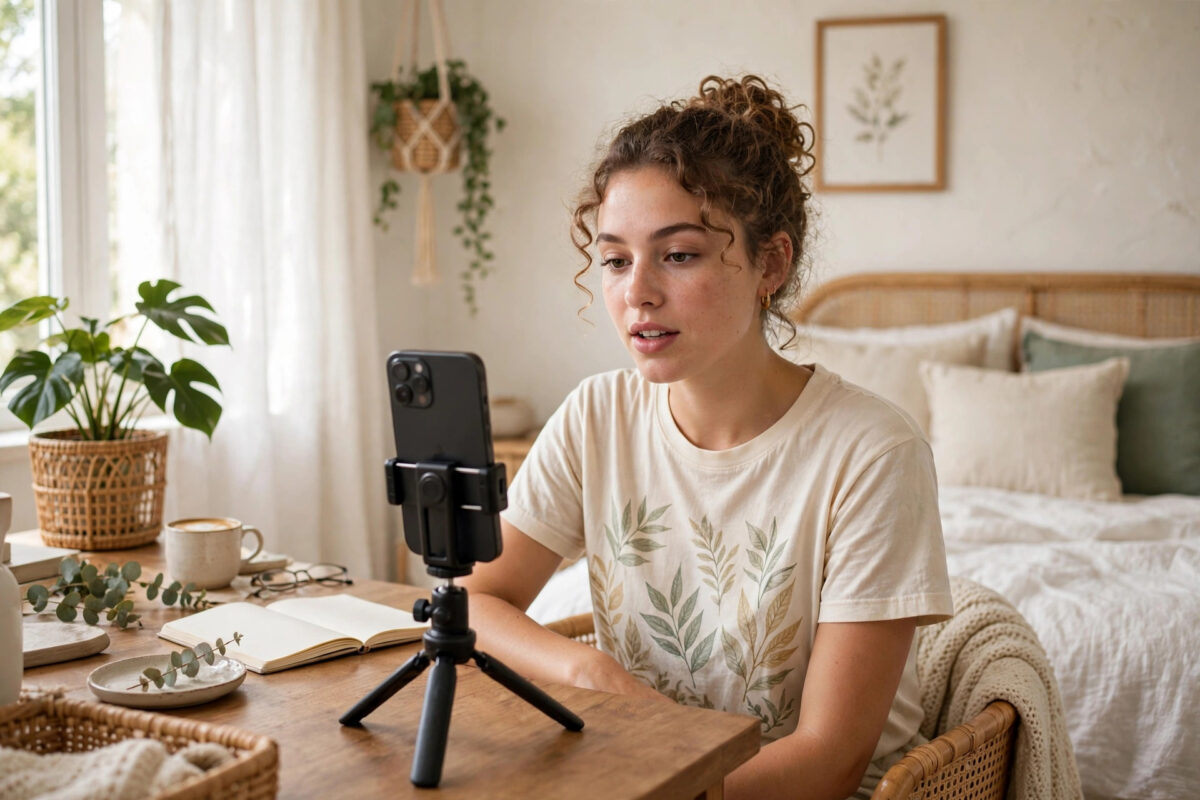
You record a video with your front camera, everything looks right while filming, and then TikTok flips it the moment you finish. Text on your shirt reads backwards, your parting swaps sides, and the video no longer matches what you saw on screen. It is one of the most annoying TikTok camera quirks.
The flip happens because of mirroring. Your front camera shows you a mirror image while you record, just like looking in a bathroom mirror. TikTok then saves the video as others would see you, which reverses it. The good news is that you can control this behaviour with a built-in editing tool and a few simple recording habits.
Quick Answer
To stop TikTok flipping your front camera videos, record as normal, then on the editing screen tap Adjust clips or the editing tools and use the flip or mirror option to reverse the video back before posting. For text and logos, plan ahead by avoiding printed clothing, or use TikTok’s editing tools after recording. The preview while filming is mirrored, so what you save is often the true, unmirrored view.
Why TikTok Flips Front Camera Videos
Understanding mirroring makes the fix much easier. When you look into a mirror, left and right are swapped. Your phone’s front camera preview copies that mirror view because it feels natural. You raise your right hand, and the hand on screen rises on the side you expect.
When the video is saved, many apps, including TikTok, store the footage as a normal camera would see you. That is how other people see you in real life. The saved version therefore looks flipped compared with the preview you trusted while recording.
When the Flip Matters Most
- Text on clothing, signs, or products appears backwards
- You point to something on a specific side and it ends up on the wrong side
- Dance or fitness moves look reversed compared with a tutorial
- Your face looks unfamiliar, because you mostly know your mirror image
- A logo you wanted to show clearly becomes unreadable
For a casual talking video with no text and no pointing, most viewers will never notice. For tutorials, product videos, and anything with writing, the flip can ruin the whole point of the clip. That is why fixing it before you post matters.
How to Flip a TikTok Video Back After Recording
TikTok includes editing tools that let you correct the direction after you record, inside the app itself. The exact labels move slightly between versions, but the workflow stays similar on Android and iPhone.
- Record your video with the front camera as normal, or upload a front camera clip from your gallery.
- On the preview screen, tap Next to move to the editing stage.
- Look for the Edit or Adjust clips option and open the full editor.
- Select your clip on the timeline so the clip tools appear.
- Find the Rotate or Flip tool. In many versions, flipping is grouped with rotate and mirror controls.
- Tap the horizontal flip once and watch the preview carefully. Text should now read correctly.
- Play the whole clip through before posting, checking the start and end.
- Add your caption, cover, and sounds only after the direction is correct, so nothing else needs redoing.
If you use this workflow often, build it into your routine: record, flip, check text, then edit. Doing the flip first avoids the frustration of adding stickers and text, then realising the background is reversed and all your placements are wrong. You can find more filming help in our guide to fixing TikTok camera quality on Android and iPhone.
How to Avoid the Flip Before You Record
Correcting a video is useful, but avoiding the problem in the first place saves time. A few habits make mirroring a non-issue for most creators.
Simple Habits That Work
- Check your phone’s own camera settings. Some phones have a Mirror front camera or Mirrored photos option for photos, and knowing your phone’s behaviour helps you predict the result.
- Record a five-second test clip with a book cover or printed shirt before an important shoot.
- Avoid clothing with large text when filming front-facing tutorials.
- When you need to point at something, point, record, and check the preview before filming the full video.
- For dance and fitness content, decide whether you want mirror view, which learners find easier to copy, or true view, and stay consistent across your videos.
Many creators actually prefer mirror view for teaching, because students can copy movements like a mirror. The problem is not mirroring itself. The problem is inconsistency. Pick the view that suits your content, test it, and use the same approach every time so your audience is never confused.
Fixing Videos Recorded Outside TikTok
If you film in your phone’s camera app or another editor and then upload to TikTok, you have even more control. Most phone galleries and free editors include a flip tool.
- Open the video in your gallery or editor before uploading.
- Use the edit option and look for flip horizontal or mirror.
- Save a copy rather than overwriting the original, so you keep both versions.
- Upload the corrected copy to TikTok.
- Watch TikTok’s preview before posting, because the app will show exactly what viewers will see.
This method is best for longer or more valuable content, such as brand videos, because you can correct the direction, trim, and check quality on a bigger workflow. The TikTok Support guidance on camera and editing tools explains which editing features are available inside the app, and your phone maker’s support pages explain gallery editing for your specific model.
What About Live Videos and Photos?
LIVE video cannot be edited after the fact, so the mirror question matters before you go live. During a LIVE, think about text in your background. Banners and printed backdrops can appear reversed to viewers depending on the view TikTok presents. Test with a private practice, a photo screenshot, or a short draft video using the same setup before an important stream.
For photos taken inside TikTok or with the front camera, check your phone settings as well as the app. If your selfies always save flipped, the phone’s mirror setting is usually the cause, not TikTok. Changing that setting affects every app, so test carefully after you change it.
Common Mistakes to Avoid
- Flipping twice: It is easy to flip a video that was already correct. Always judge by text in the frame. If text reads correctly, do not flip.
- Adding text and stickers before flipping: Flip first, then add overlays. Otherwise your stickers end up in the wrong places.
- Using the rotate tool by mistake: Rotate turns the video sideways. Flip or mirror is the tool you want for a left-right reversal.
- Assuming every app behaves the same: Your phone camera, TikTok, and other social apps can each save front camera footage differently. Always check the final preview.
- Re-uploading a posted video to fix it: Fixing the direction means posting a new video. Check before you publish rather than deleting and reposting, which loses comments and momentum.
Conclusion
TikTok flips front camera videos because the recording preview is a mirror image and the saved file shows the true view. Once you understand that, the fix is simple: check the preview, use the flip or mirror tool in the editor when text or direction matters, and build a quick test clip into your routine. With those habits, your tutorials, product clips, and talking videos will look exactly as you intended, every single time you post.
Frequently Asked Questions
Why does my face look different in saved TikTok videos?
You know your face mainly from mirrors and mirrored previews, so the true saved view feels unfamiliar. This is normal and happens to everyone. Other people see the saved view as completely natural, because it is how they see you in real life. You will get used to it after a few videos.
Can I turn off mirroring permanently in TikTok settings?
TikTok does not offer a single permanent switch that stops all front camera flipping in every version. The reliable method is to use the flip tool in the editor for videos where direction matters. Check the setting again after major app updates, as TikTok changes its camera tools from time to time.
How do I make text readable in front camera videos?
The simplest methods are to flip the video in the editor after recording, or to avoid relying on printed text in the shot. You can also add your message using TikTok’s own text stickers, because app-added text is placed on the final video and always reads correctly for viewers.
Does flipping a video reduce its quality?
A simple horizontal flip inside TikTok or your gallery editor does not meaningfully reduce quality. It changes direction only, not resolution. Quality loss is more likely when you repeatedly download, edit, and re-upload the same video many times, so keep your original file safe.
Why do tutorials look reversed compared with the creator I follow?
The creator probably posted in mirror view, true view, or flipped their video in editing, while you are comparing with a different view. For learning movements, mirror view is often easier to copy. If a tutorial feels reversed, try following it as a mirror image before assuming you are doing it wrong.



Leave a Reply