
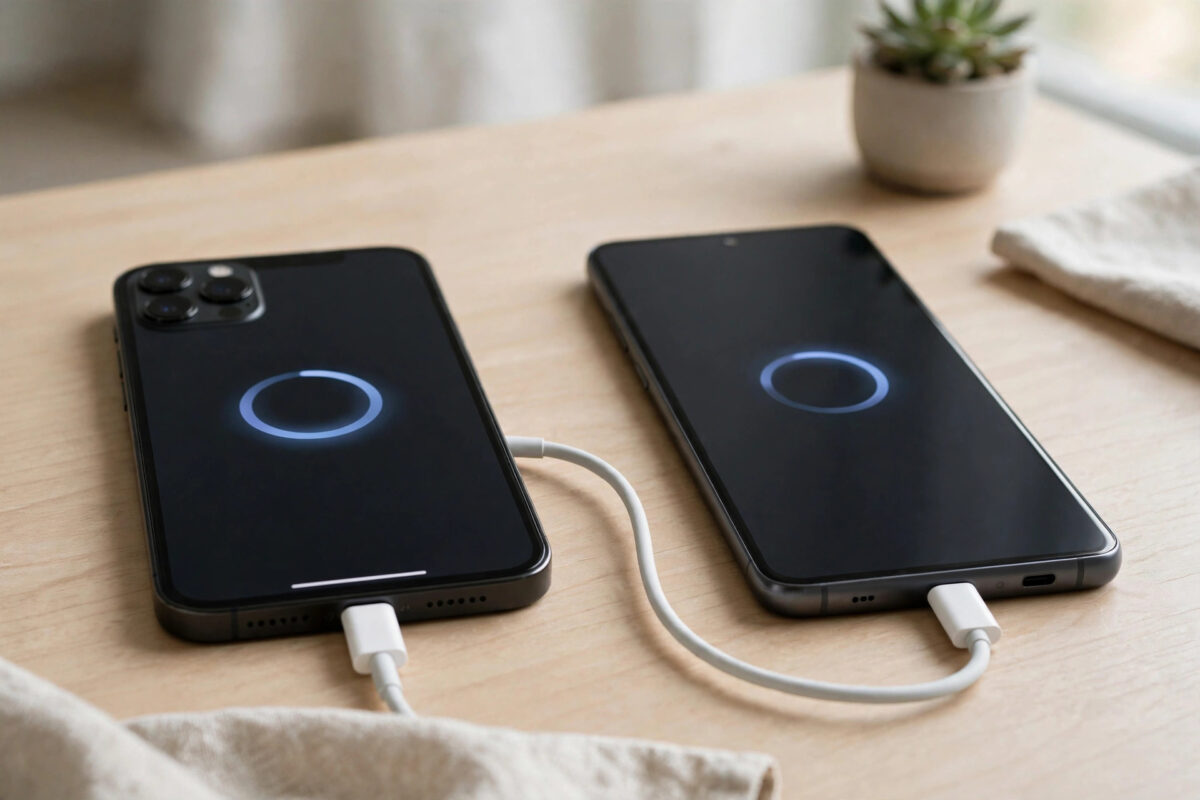
Moving from an iPhone to a Samsung phone is exciting, but most people worry about one thing: WhatsApp. Years of chats, family photos, voice notes, and important work messages live inside WhatsApp, and losing them is not an option.
In the past, moving WhatsApp between iPhone and Android was very difficult because the backups used different systems. iPhone used iCloud, and Android used Google Drive, and they did not talk to each other. Now WhatsApp and Samsung offer an official cable transfer method that moves your chats directly from one phone to the other.
This guide walks you through the cable method step by step, what you need before you start, and how to fix the most common problems.
Quick Answer
To move WhatsApp from an iPhone to a Samsung using a cable transfer, connect both phones with a USB-C to Lightning or USB-C to USB-C cable during Samsung Smart Switch setup on a new or reset Samsung phone. On your iPhone, scan the QR code shown on the Samsung, approve the transfer in WhatsApp, and wait for your chats, photos, and media to copy over. Your Samsung must be on the setup screen for this official transfer to appear.
What You Need Before You Start
Preparation is the key to a smooth transfer. Do not skip this list.
- A Samsung Galaxy phone that is new or has just been factory reset. The WhatsApp transfer option only appears during first setup with Smart Switch.
- Your iPhone with WhatsApp installed and your chats visible.
- The same phone number on the Samsung WhatsApp account. You cannot transfer chats to a different number at the same time.
- A compatible cable. For older iPhones, use a USB-C to Lightning cable. For iPhone 15 and newer, use a USB-C to USB-C cable.
- Both phones charged above 50 percent, or plugged into power.
- The latest version of WhatsApp on your iPhone.
- Enough free space on the Samsung. Your WhatsApp backup can be several gigabytes if you have many videos.
The official requirements are also listed in the WhatsApp Help Center guide on transferring chat history from iPhone to Android, which confirms the supported Samsung models, Android versions, and cable types.
Important Things to Know Before Transferring
The cable transfer moves most of your WhatsApp data, including personal chats, group chats, photos, videos, documents, and settings. Some things do not move.
- WhatsApp call history does not transfer.
- Peer-to-peer payment messages and status updates may not transfer in all regions.
- Your iPhone WhatsApp data stays on the iPhone until you delete it yourself. The transfer makes a copy, it does not erase the original right away.
- You cannot merge chats from two different phone numbers or two different WhatsApp accounts into one.
Also note that after the transfer, your iPhone backup in iCloud is not converted to a Google Drive backup automatically. Future backups on Samsung will go to Google Drive once you set them up.
Step-by-Step: Move WhatsApp Using Samsung Smart Switch and a Cable
Follow these steps in order. Do not disconnect the cable until the transfer is fully finished.
- Turn on your new Samsung phone and start the setup process.
- Connect to Wi-Fi when asked and sign in or create a Samsung account if prompted.
- When the setup asks how you want to copy apps and data, choose the option to transfer from an iPhone or iPad.
- Connect the cable between your iPhone and your Samsung phone.
- On your iPhone, tap Trust if a message asks whether to trust this computer or accessory, and enter your iPhone passcode.
- On the Samsung, Smart Switch will search the iPhone for transferable data. Wait for the list to appear.
- Select WhatsApp and any other data you want to move, then tap Transfer or Next.
- The Samsung will show a QR code. Open WhatsApp on your iPhone. If a transfer screen does not open automatically, go to WhatsApp Settings, then Chats, then Transfer chats to Android.
- Tap Start on the iPhone and use the iPhone camera view inside WhatsApp to scan the QR code on the Samsung.
- Keep both phones unlocked, close together, and connected by cable. Wait while chats and media copy. Large accounts can take 20 to 60 minutes.
- When Smart Switch finishes, disconnect the cable and finish the Samsung setup.
- Open WhatsApp on the Samsung, verify the same phone number with the SMS or call code, and tap Restore or allow it to import the transferred history when prompted.
- Wait for your chats to appear, set your profile name and photo, and check a few old chats, photos, and voice notes to confirm everything arrived.
Do not open WhatsApp on the Samsung and complete verification before the cable transfer is done. If you register WhatsApp on the Samsung too early with an empty account, you may need to reset the phone and start the setup again.
What to Do After the Transfer
Once your chats are visible on the Samsung, take a few minutes to secure the new setup.
- Turn on chat backup on the Samsung. Open WhatsApp, go to Settings, Chats, Chat backup, and back up to Google Drive.
- Check your media. Open a few group chats and confirm photos and videos play correctly.
- Re-enable two-step verification in WhatsApp Settings, Account, if you used it on iPhone.
- Review notification and privacy settings, as some preferences may return to defaults.
- Keep your iPhone data for at least a few days until you are sure the Samsung copy is complete. Only then reset or sell the iPhone.
If you are planning a wider phone switch, our full guide on how to transfer everything from iPhone to Samsung with Smart Switch covers contacts, photos, and apps alongside WhatsApp.
Fixing Common Cable Transfer Problems
The QR Code Does Not Appear
This usually means Smart Switch did not detect WhatsApp correctly or the Samsung was already set up. The transfer option only appears during initial setup. If you missed it, you will need to back up your Samsung data, factory reset it, and start setup again with the cable connected.
The iPhone Does Not Trust the Connection
Try a different Apple-certified cable, unlock the iPhone and keep it on the Home Screen, and clean the charging port gently. Avoid cheap cables that only charge and do not transfer data.
The Transfer Gets Stuck
Keep both phones unlocked and do not use them for other tasks. If it is stuck for more than an hour with no progress, cancel, restart both phones, and restart the setup. Make sure both phones have enough free space and battery.
Some Media Is Missing
Very large videos or corrupted media files sometimes fail to copy. Check whether those files played on the iPhone before transfer. In most cases text chats transfer fully even if one or two large files do not.
Common Mistakes to Avoid
- Setting up the Samsung fully before starting: If you skip the Smart Switch step during first setup, the WhatsApp cable transfer option disappears. You will need a factory reset to try again.
- Changing your phone number at the same time: Change your number inside WhatsApp on the iPhone first, wait for it to complete, and only then transfer to Samsung with the new number active on both sides.
- Using a charging-only cable: Not all USB cables transfer data. Use the cable that came with the phone or a certified data cable.
- Disconnecting early: Unplugging the cable or letting a phone lock and die during transfer can corrupt the import. Keep both phones charged and awake.
- Deleting WhatsApp from the iPhone too soon: Keep the original chats until you have verified everything on Samsung and made a fresh Google Drive backup.
Conclusion
Moving WhatsApp from an iPhone to a Samsung with a cable is now the official and most reliable method. It copies your chats and media directly, without needing paid third-party tools or complicated workarounds.
The secret is timing. Start with a new or reset Samsung, connect the cable during Smart Switch setup, scan the QR code from WhatsApp on the iPhone, and give the transfer enough time and battery to finish. Afterward, verify your number, check your chats, and turn on Google Drive backup. Done carefully, you can switch phones and keep your WhatsApp history intact.
Frequently Asked Questions
Can I transfer WhatsApp from iPhone to Samsung without a cable?
The official Samsung method requires a cable during setup. Some newer Android transfer tools offer wireless options for other brands, but for Samsung the cable method is the supported and most stable choice recommended by WhatsApp.
Will my WhatsApp groups and settings transfer?
Yes. Group chats, personal chats, most settings, your profile information, and media in those chats transfer with the cable method. You will remain a member of the same groups after you verify your number on Samsung.
Do I need to factory reset my Samsung if I already set it up?
Yes, if you already finished setup without using Smart Switch to transfer from iPhone, the WhatsApp transfer prompt will not appear. Back up anything on the Samsung first, then factory reset it and repeat the setup with the cable.
How long does the cable transfer take?
It depends on the size of your WhatsApp data. A small account may take 10 minutes, while an account with many gigabytes of videos can take an hour or more. Keep both phones connected and charged the whole time.
What happens to my iCloud WhatsApp backup after I move?
Your old iCloud backup stays in your iCloud account until you delete it. It is not moved to Google Drive. On Samsung, start a fresh backup to Google Drive after the transfer so future restores work on Android.


Leave a Reply