
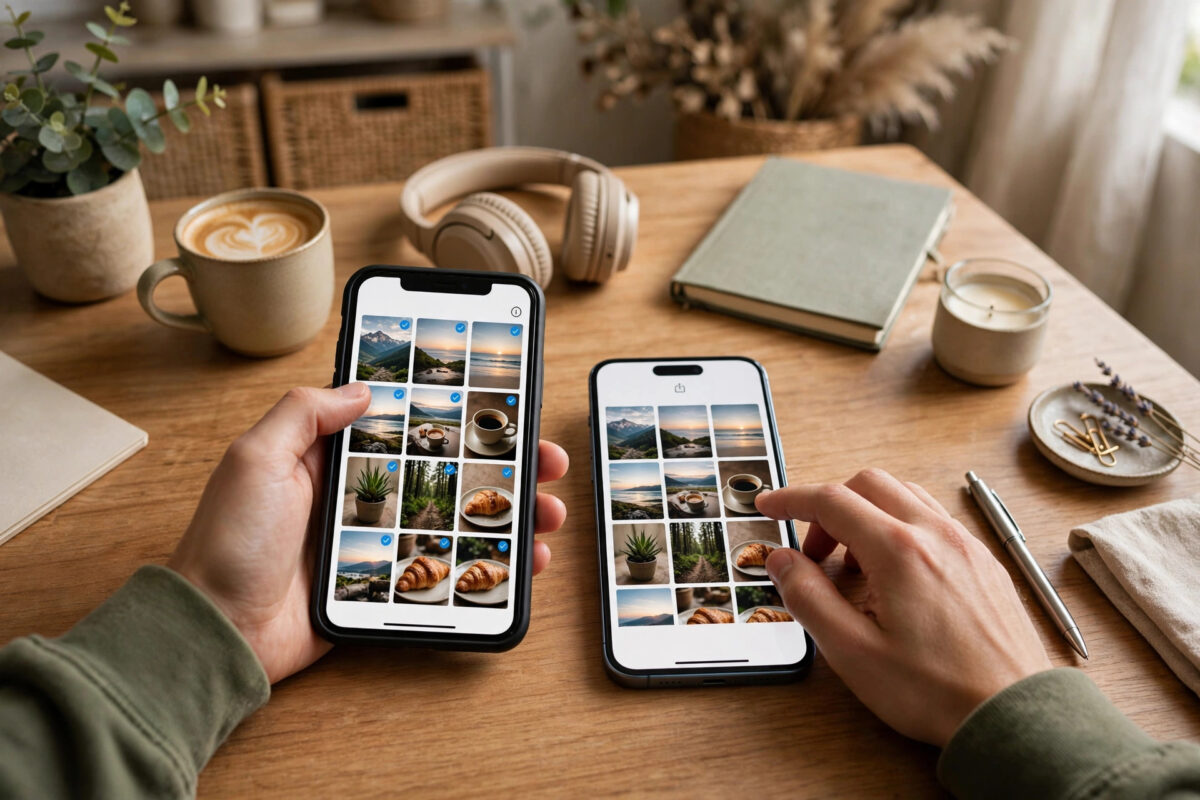
Getting a new phone is exciting until you remember your Instagram drafts. That half-edited Reel, the photo post you were saving for the right day, and months of saved collections organized for ideas, shopping, and work — you do not want to lose any of it.
The tricky part is that Instagram stores different things in different places. Some content lives safely on your Instagram account online, and some lives only inside the app on your old phone. If you switch phones without checking, the online content follows you, but the local drafts can disappear.
This guide explains exactly what transfers automatically, what does not, and the safe steps to move everything you can to your new phone.
Quick Answer
To move Instagram drafts and saved collections to a new phone without losing them, sign in to the same Instagram account on the new phone to restore saved collections automatically, because they are stored online. Drafts for posts, Stories, and Reels are stored locally on the old phone and do not transfer, so save each draft to your device or publish it as a private draft copy before switching. Exporting drafts as videos or images is the only reliable way to keep them.
What Transfers Automatically and What Does Not
Understanding this difference saves you from a nasty surprise after you reset your old phone.
Saved Collections: Stored Online
Your saved posts, saved Reels, and collections are tied to your Instagram account, not to your phone. When you save a post and put it in a collection like Travel Ideas or Recipes, Instagram stores that list on its servers.
On your new phone, simply install Instagram, sign in with the same username, and your profile, followers, posts, saved items, and collections will sync. You do not need a cable, backup, or special tool for saved collections. The official Instagram Help Center guide on saving posts and managing collections explains how saved content is organized under your account.
Drafts: Stored Locally on the Old Phone
Drafts are different. A Reel draft with music, stickers, text, and edits, a feed post draft, and most Story drafts are stored in the app data on that specific phone. They are not uploaded to your account as editable drafts.
If you delete Instagram on the old phone, change phones, or log out in a way that clears app data, those drafts are usually gone. Instagram also warns that uninstalling the app deletes drafts. That is why you must export them before you switch.
How to Check and Export Your Instagram Drafts
Do this work on your old phone while you are still signed in.
Find Your Reel Drafts
- Open Instagram and tap the plus icon.
- Select Reel.
- Tap the gallery or drafts area. On many versions you will see a Drafts folder at the top of your camera roll inside the app.
- Open each draft one by one and review it.
- Tap Edit, then look for Save to Device, Download, or the download arrow to export the draft as a video to your Photos or Gallery.
- Note that music from Instagram’s library may be removed in the exported file due to copyright rules. If that happens, save the track name so you can add it again on the new phone.
Find Your Feed Post Drafts
- Tap the plus icon and select Post.
- If you have drafts, a Drafts option or Manage Drafts link appears above your photos.
- Open each draft, check its caption, tags, and edits.
- For important drafts, either publish them, copy the caption text into your Notes app, or take the original photo from your gallery and recreate the edits later.
- Feed drafts cannot always be exported as a single file, so saving the caption and the edited image separately is the safest plan.
Find Your Story Drafts
Open the Story camera and swipe up or tap the gallery icon. If Story drafts exist, they appear under a Drafts section. Open each one and tap Save to download it to your device. Story drafts are only kept for a limited time in some versions, so do not delay this step.
Step-by-Step Plan to Move to a New Phone Safely
- On the old phone, connect to Wi-Fi and back up your full photo library to iCloud, Google Photos, or your computer. This ensures exported draft videos and images move too.
- Export every Reel and Story draft to your device as described above.
- Copy all draft captions, hashtags, and notes into a notes app that syncs online, such as Apple Notes or Google Keep.
- Check your saved collections. Open your profile, tap the menu, tap Saved, and confirm your collections look complete. Take screenshots of collection names if you have many, for a quick reference.
- Make sure you know your Instagram password and that your email and phone number on the account are current. Turn on and test two-factor authentication.
- On the new phone, transfer your photos and videos using your normal phone transfer method, such as iCloud restore, Google backup, or Samsung Smart Switch.
- Install Instagram on the new phone from the official App Store or Google Play Store.
- Sign in with the same account. Check your profile, posts, saved collections, messages, and settings and wait a few minutes for everything to sync.
- Open the exported draft videos from your gallery on the new phone. Upload them as new Reels or posts in Instagram, re-add music, stickers, and captions from your notes, and save them as new drafts if you are not ready to publish.
- Keep your old phone without resetting it for at least a week, until you are sure nothing is missing.
For a wider checklist that keeps your other social data safe during the switch, see our guide on how to transfer Instagram to a new phone without losing data for account and security steps to follow alongside drafts.
How to Verify Your Saved Collections on the New Phone
After signing in, tap your profile picture, tap the three-line menu, and tap Saved. You should see All Saved Posts and each collection by name. Open two or three collections and scroll to the bottom to confirm older saves loaded. If a collection looks empty at first, close and reopen the app on a strong Wi-Fi connection and give it time to sync.
If saved items are missing, check that you signed in to the correct account. Many people have a second account and accidentally sign in to the wrong one.
What About Direct Messages, Settings, and Search History?
Direct messages are stored online and will appear on the new phone after sign-in, although message requests and some local notification settings may need to be set up again. Your blocked accounts, privacy settings, and followers are account-based and transfer automatically.
Search history and notification preferences are sometimes device-specific. Screenshot important settings on the old phone so you can match them quickly.
Common Mistakes to Avoid
- Assuming drafts sync like saved collections: They do not. Saved collections are online, drafts are local. This is the number one reason people lose work when switching phones.
- Resetting or selling the old phone on the same day: Keep the old phone for several days. If something is missing, you still have a chance to export it.
- Forgetting the music problem: Exported Reels may lose library music. Write down the song name, artist, and the exact start point you used, so you can rebuild the Reel quickly.
- Not backing up exported videos: Exporting a draft to the old phone alone is not enough. Make sure that video is included in your cloud photo backup or transferred to the new phone.
- Signing in to the wrong Instagram account: Check username carefully, especially if you manage a personal account and a business account.
Conclusion
Moving Instagram to a new phone is safe for most of your account, but drafts need your attention. Saved collections, posts, followers, and messages follow your account automatically when you sign in on the new phone. Drafts do not, because they live only on the old device.
Take twenty minutes before you switch to export each Reel and Story draft, copy your captions, back up your photo library, and confirm your login details. Then sign in on the new phone, check your collections, and rebuild your drafts from the exported files. That simple routine protects months of creative work and makes your phone switch stress-free.
Frequently Asked Questions
Do Instagram saved collections transfer to a new phone automatically?
Yes. Saved posts and collections are stored on your Instagram account online. Install Instagram on the new phone, sign in with the same account, and go to Saved from your profile menu to see all your collections.
Can I transfer Instagram Reel drafts directly to a new phone?
No, there is no direct transfer for editable Reel drafts. They are stored locally on the old phone. The reliable method is to save or download each draft as a video on the old phone, transfer that video, and upload it again on the new phone.
What happens to my drafts if I log out of Instagram?
Logging out or uninstalling the app can delete local drafts on many versions of Instagram. Always export important drafts before you log out, uninstall, or switch phones, even if you plan to sign back in on the same device.
Why did my exported Reel lose its music?
Instagram cannot always include licensed library music in a downloaded file. The video exports without that track, or with no sound. Note the track name before you switch and add the same music again when you recreate the Reel on your new phone.
How can I download a copy of my Instagram account data?
Go to Settings, Accounts Center, Your Information and Permissions, and choose Download Your Information. Instagram will prepare a file with account data such as posts and messages information, but this download does not replace exporting your local drafts manually.


Leave a Reply