
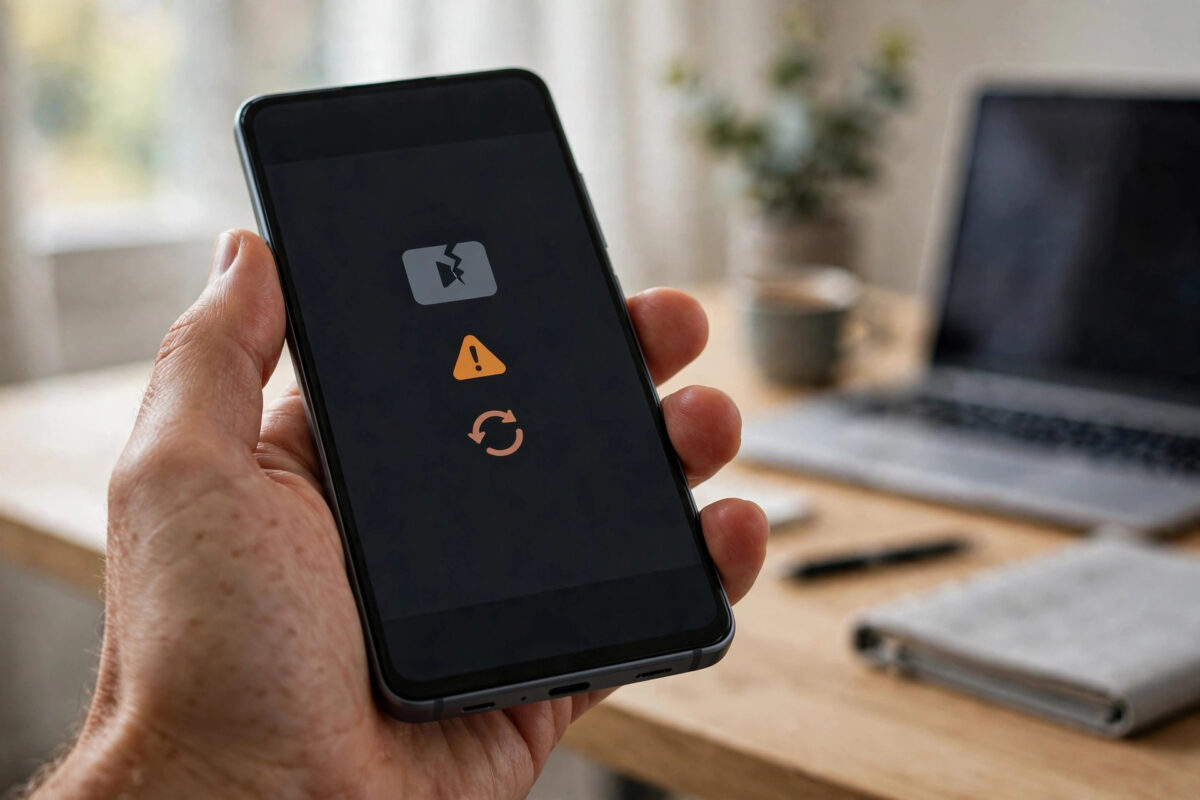
You tap the YouTube icon on your Android phone and, instead of your home feed, you get a blunt message: error 400. The app will not load, videos will not open, and restarting the app alone rarely helps. It feels like YouTube is broken, but in most cases the fault is on the phone itself.
Error 400 is a bad request error. In simple terms, your phone sent YouTube’s servers a request they could not understand or accept. Corrupted app data, a wrong date and time, an outdated app, or a broken account sync are the usual triggers. The fixes below start with the quickest checks and move toward the stronger resets only if you need them.
Quick Answer
To fix YouTube error 400 on Android, restart your phone, check that your date and time are set automatically, and update the YouTube app. If the error stays, clear the YouTube app’s cache and then its data in Settings, remove and re-add your Google account if needed, and make sure you have a stable internet connection. These steps fix the corrupted request that causes error 400 in most cases.
What Does YouTube Error 400 Actually Mean?
Error codes in the 400 range come from the request side, not from a total YouTube outage. The server received something from your app that it rejected. Think of it like sending a form with a damaged or outdated section: the office cannot process it until the form is corrected.
On Android, that damaged section is usually local. The YouTube app stores login tokens, settings, and cached data. If those files clash after an update, or if your system clock is badly wrong, the server sees an invalid request and replies with error 400. That is why the same account often works fine in a browser or on another device at the same moment.
Common Triggers on Android
- Corrupted YouTube cache or app data after an update
- Date and time set manually and drifting out of sync
- An old YouTube version that no longer matches server requirements
- Google account sync errors on the phone
- VPN, proxy, or filtered network changing the request
- Very low storage causing the app to fail while writing data
Step 1: Do the Quick Checks First
Do not jump straight to clearing data. These two-minute checks solve a surprising number of error 400 cases.
- Restart your phone completely and open YouTube again.
- Test your connection. Open a website in your browser. Then switch between Wi-Fi and mobile data and retest YouTube.
- Turn off any VPN, private DNS changer, or data-saving proxy app and try again.
- Check for a wider outage by trying YouTube in your phone browser. If the browser version also fails for everyone, wait rather than resetting your phone.
- Free up storage if your phone is nearly full. Leave at least 1 GB free for apps to work properly.
If YouTube loads in the browser but not in the app, you have confirmed the problem is the app or its data. Move on to the app fixes with confidence. For wider Android app problems, our guide on fixing apps that will not open on Android covers the general checks that apply to any app.
Step 2: Fix Your Date and Time Settings
This step sounds too simple to matter, but an incorrect clock is a classic cause of 400 errors. Servers check timestamps for security. If your phone thinks it is weeks or years in the past or future, requests can be rejected.
- Open Settings and search for Date and time.
- Turn on the automatic date and time option, sometimes called Use network-provided time.
- Turn on the automatic time zone option as well.
- Restart your phone so every app picks up the corrected time.
- Open YouTube and test again before changing anything else.
If you had set the time manually for a game or an app trick, this is very likely your cause. Return the setting to automatic and keep it there. Many apps, including banking and messaging apps, rely on accurate time for secure sign-in.
Step 3: Update YouTube and Clear the Cache
An outdated app and a bloated cache are the next most likely causes. Updating first ensures you clear the cache on the latest version, not an old one you are about to replace.
- Open the Google Play Store, search for YouTube, and tap Update if it is offered.
- Also update Android System WebView and Google Play services if updates are waiting, as YouTube depends on them.
- Go to Settings, then Apps, then YouTube, then Storage and cache.
- Tap Clear cache. This removes temporary files only and keeps you signed in.
- Open YouTube and test. Many 400 errors stop at this point.
The official steps for Android app problems are also listed in YouTube Help guidance for fixing app errors, and Google’s general advice in Google Play Help for apps that will not load follows the same order: update, clear cache, then clear data only if needed.
Step 4: Clear YouTube App Data and Sign In Again
If clearing the cache did not work, the stored app data itself is probably damaged. Clearing data is stronger. It signs you out and resets the app to a fresh state, but it does not delete your YouTube account, uploads, or subscriptions, because those live on Google’s servers.
- Go to Settings, then Apps, then YouTube, then Storage and cache.
- Tap Clear storage or Clear data and confirm.
- Reopen YouTube and sign in again with your Google account.
- Allow a minute for your home feed and library to load fully.
- Play a short video to confirm the error is gone.
Downloaded videos stored inside the YouTube app may be removed by this step and will need downloading again. Your watch history, likes, and playlists are tied to your account and will return after sign-in, as long as you use the same Google account.
Step 5: Remove and Re-add Your Google Account
If error 400 survives a data clear, the phone’s account sync itself may be broken. Removing and re-adding the Google account refreshes the sign-in tokens YouTube uses.
- Make sure you know your Google account password before you remove anything.
- Go to Settings, then Accounts or Passwords and accounts, and select your Google account.
- Tap Remove account and confirm.
- Restart your phone.
- Return to Accounts, tap Add account, choose Google, and sign in again.
- Open YouTube after sync finishes and test.
Do not use this step if you are unsure of your password or if your account is managed by a school or employer with extra sign-in steps. In those cases, try the other steps first and contact your administrator if the account will not re-add cleanly.
Common Mistakes to Avoid
- Installing YouTube from unofficial websites: Modified or old APK files are a major cause of request errors and a security risk. Use the Play Store only.
- Clearing data before checking the time: A wrong clock will simply recreate the error on a fresh app. Check date and time early.
- Using a VPN while testing: A VPN can change how requests look to the server. Keep it off until YouTube works, then test it separately.
- Factory resetting the phone as a first fix: Error 400 is almost never a reason to wipe a phone. The app-level steps above solve it without that disruption.
- Ignoring storage warnings: A completely full phone causes strange app errors. Keep some free space permanently.
Conclusion
YouTube error 400 on Android looks serious, but it is usually a local problem with a damaged request, not a broken account. Restart, fix the date and time, update the app, clear the cache, and clear data only if you need to. Re-adding your Google account is the final strong step. Work in that order and you will fix the error in minutes in most cases, without losing your subscriptions, history, or uploads.
Frequently Asked Questions
Will clearing YouTube data delete my subscriptions and history?
No. Subscriptions, history, likes, and playlists are stored on your Google account, not only on the phone. After clearing data you sign in again and they return. Only app settings on that device and in-app downloads are reset, so you may need to download offline videos again.
Why does YouTube work in my browser but show error 400 in the app?
The browser uses a separate, fresh connection and does not rely on the app’s stored data or login token. That contrast actually helps you diagnose the fault: if the browser works, your account and internet are fine, and the app’s cache, data, or version is the problem.
Can a VPN cause YouTube error 400?
Yes. A VPN or proxy can change your apparent location, alter request details, or use an overloaded server that YouTube rejects. Turn the VPN off completely, restart YouTube, and test on a normal connection. If the error disappears, try a different VPN server or keep the VPN off for YouTube.
What if error 400 appears only for one video?
A single-video error is different. That video may be removed, private, age-restricted, or unavailable in your region. Try other videos to confirm the app itself works. If every video shows error 400, follow the app fixes in this guide. If only one fails, the problem is that video, not your phone.
How do I stop error 400 from coming back?
Keep YouTube and Google Play services updated, leave date and time on automatic, keep at least 1 GB of free storage, and avoid unofficial app downloads. Restarting your phone once in a while also clears small glitches before they grow into errors like this one.



Leave a Reply