
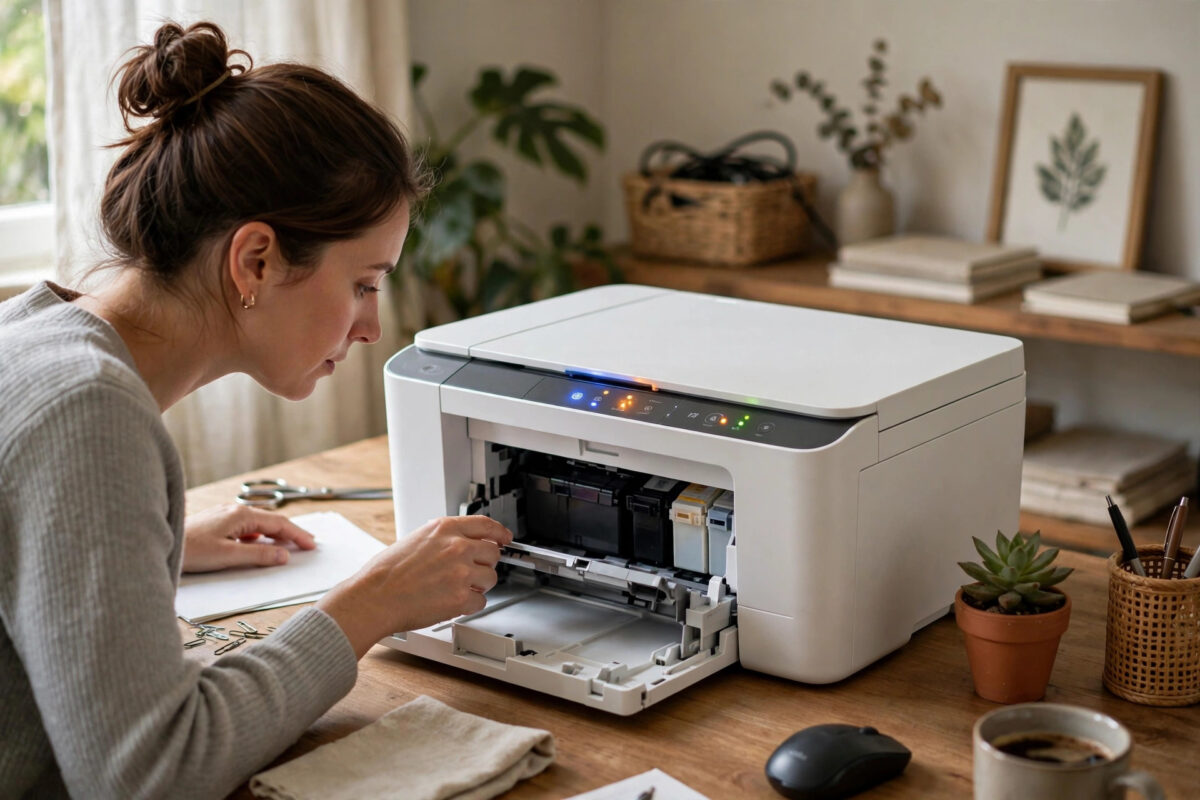
Your HP DeskJet 4155e was working fine, and suddenly the control panel shows error code 0x83C0000A, the lights start flashing, and nothing will print. The code looks alarming because it gives you no clue about what actually went wrong. It appears on the small screen as a string of numbers and letters, sometimes with all the panel lights blinking at the same time.
This error is a general firmware and system fault on the DeskJet 2700 and 4100 series, including the 4155e. In plain language, the printer’s internal software has hit a problem it could not recover from during start-up or a print job. The encouraging part is that in many homes and small offices, a correct power reset, a cartridge check, or a firmware update clears it without any repair. This guide explains what the code means and works through the fixes in a safe order.
Quick Answer
Error 0x83C0000A on the HP DeskJet 4155e is a printer system or firmware error. First, with the printer switched on, unplug its power cable, wait 60 seconds, plug it directly into a wall socket, and turn it on again. If the error returns, remove and reseat both cartridges, check for jammed paper, and update the firmware through HP Smart. If it still returns on an empty start-up with no cartridges, the printer likely needs HP service.
What Does Error 0x83C0000A Mean?
HP uses 0x codes for internal system errors. The code does not point to one single part like a paper jam code does. Instead, it tells you the printer’s firmware stopped a process because something in the system did not respond as expected. Common triggers on the DeskJet 4155e include:
- A temporary firmware glitch after a power cut, brownout, or interrupted update.
- A cartridge that is not seated correctly, has dirty contacts, or has a damaged chip.
- Paper or a small object jammed inside that stops the carriage from moving freely at start-up.
- Outdated firmware struggling with a newer operating system, app, or network change.
Because the same code covers several causes, start with the steps that cost nothing and rule out simple causes first, before assuming the printer is broken.
Step 1: Do a Proper Power Reset
A quick off-and-on is not the same as a full reset. The DeskJet holds temporary error states in memory, and only a complete power drain clears them.
- Turn the printer on if it is not already on, even with the error showing.
- With the printer still on, pull the power cable out of the back of the printer. Do not switch it off first.
- Unplug the other end from the wall socket as well.
- Wait a full 60 seconds. Press nothing during this time.
- Plug the cable directly into a wall socket — not a power strip, extension lead, or surge board — and reconnect it to the printer.
- Turn the printer on and wait two minutes while it initialises. The carriage may move and make normal start-up sounds.
If the printer reaches the ready state with no error and steady lights, print a test page from HP Smart before printing anything important. If the error comes back during that first test, note whether it appears at start-up or only when printing — that detail helps narrow the cause. Power strips deserve special mention: a failing strip can deliver unstable power that repeatedly triggers system errors, so testing on a direct wall socket genuinely matters.
Step 2: Check for Paper Jams and Blocked Carriage
At start-up, the 4155e moves its carriage across the full width of the printer. If anything blocks that movement, the system can throw a general error instead of a jam message.
- Turn the printer off and unplug it.
- Open the cartridge access door and look inside with a torch. Check for torn paper, labels, or packaging material.
- Open the input tray area and the rear of the printer if your model has a rear cleanout, and remove any paper you find. Pull paper out gently in the direction it normally travels.
- Try sliding the carriage gently left and right by hand. It should move smoothly. Never force it if it is locked in place.
- Check the output tray and the paper path under the printer for small objects such as paper clips or children’s toys that may have fallen in.
- Close everything, reconnect power, and turn the printer on.
Even a small torn corner of paper left on a sensor can keep the error alive, so inspect again carefully after a recent jam.
Step 3: Remove, Inspect, and Reseat the Cartridges
Cartridge problems are a leading cause of this error on the 4155e, which uses HP 67 or 67XL cartridges depending on your region.
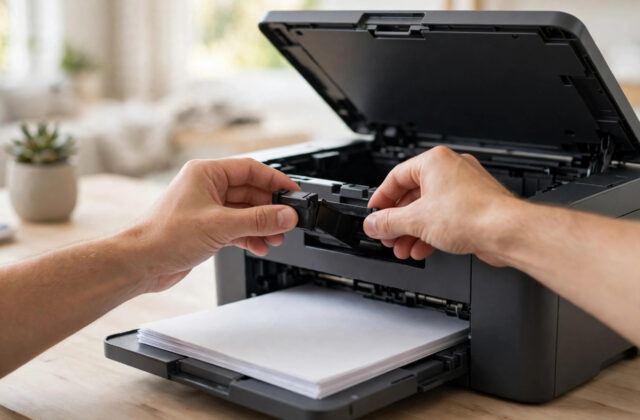
- Turn the printer on, open the cartridge door, and wait for the carriage to stop.
- Remove both cartridges and place them nozzle-up on a clean sheet of paper.
- Inspect the copper contacts on each cartridge. They should be clean and bright. Wipe them gently with a dry, lint-free cloth if you see ink or dust.
- Check that no protective tape remains on a recently installed cartridge, and look for cracks or leaks.
- Reinstall each cartridge into its colour-coded slot and push until it clicks firmly into place.
- Close the door, wait for initialisation, and watch whether the error returns.
Step 4: Update the Firmware and Reconnect HP Smart
If the printer starts but the error appears when you print from a computer or phone, outdated firmware or a corrupted HP Smart connection may be responsible.
- Make sure the printer is in a ready state with no error on the panel.
- Open HP Smart, select your printer, and go to Advanced Settings or Printer Settings.
- Look for a firmware update option under Tools or Printer Maintenance, and install any update offered. Keep the printer powered on and do not unplug it during the update.
- Alternatively, download the latest firmware for the DeskJet 4155e from the official HP drivers and downloads page and run the installer with the printer connected by USB for the most stable update.
- After updating, remove the printer from HP Smart and add it again fresh. This clears stale connection data that can trigger repeated errors.
- Print a simple one-page test document.
If the printer will not stay on long enough to update, try USB rather than Wi-Fi. If it also disappears between jobs, see our guide to fixing a printer that keeps showing offline.
When the Error Will Not Clear
If you have completed a full power reset on a wall socket, cleared the paper path, reseated and isolated the cartridges, and updated the firmware, and 0x83C0000A still appears at every start-up, the printer probably has a hardware fault. At that point:
- Check your warranty status on the HP support site using the serial number from the label inside the cartridge door.
- If the printer is under warranty, contact HP support and describe the steps you already tried. Do not open the printer casing, as that can void coverage.
- If it is out of warranty, compare the quoted repair cost with the price of a replacement. For a budget DeskJet, a main board repair is often not economical.
Common Mistakes and Prevention Tips
- Skipping the 60-second wait: A five-second unplug does not drain the printer’s memory. Time the full minute.
- Testing through a power strip: Always test the reset on a direct wall socket. Faulty strips cause repeat system errors that look like printer failures.
- Interrupting a firmware update: Turning the printer off mid-update can create exactly this kind of error. Start updates only when you can leave the printer alone until it restarts itself.
Conclusion
Error 0x83C0000A on the HP DeskJet 4155e means the printer’s system software hit a fault, and the most effective first response is a proper 60-second power reset plugged directly into a wall socket. If the code returns, clear the paper path, reseat and isolate the cartridges, and update the firmware through HP Smart or USB. Those steps fix the majority of cases at home. If the error survives an empty start-up with no cartridges and no paper loaded, it is time to use your warranty or weigh a replacement, armed with a clear list of everything you have already tried.
Frequently Asked Questions
Is error 0x83C0000A a hardware failure?
Not always. The code is a general system error that is often caused by a temporary firmware glitch, a poorly seated cartridge, or unstable power, all of which you can fix at home. It only points to hardware failure if it appears on every start-up after a full reset, with cartridges removed and the paper path clear.
Will a factory reset delete the error permanently?
A power reset clears the temporary error state, and restoring network settings fixes faults caused by a bad Wi-Fi configuration. Neither can repair a failing board or printhead. If the error keeps returning after both resets, the underlying cause is still present and needs the cartridge, firmware, or service checks described above.
Can a third-party cartridge cause 0x83C0000A?
Yes. A refilled or compatible cartridge with a damaged or misread chip can trigger system errors on this series. Test by removing that cartridge and restarting the printer. If the error disappears and only returns with that cartridge installed, replace it with a known-good HP 67 cartridge to confirm.
Why does the error come back every few days after a reset fixes it?
A returning error usually has a returning cause: a failing power strip, a cartridge that is slowly failing, firmware that still needs updating, or frequent power cuts. Move the printer to a direct wall socket, update the firmware, and watch whether the pattern changes. Keep a short note of when it happens to help HP support if you need them.
Does this error affect scanning and copying too?
When the error is active, the printer normally refuses all functions, including copies and scans, because the system has stopped. Once you clear it and the printer reaches a ready state, test a copy from the glass as well as a print job. If copies work but network printing fails, focus on the driver and connection rather than the printer hardware.
Leave a Reply