
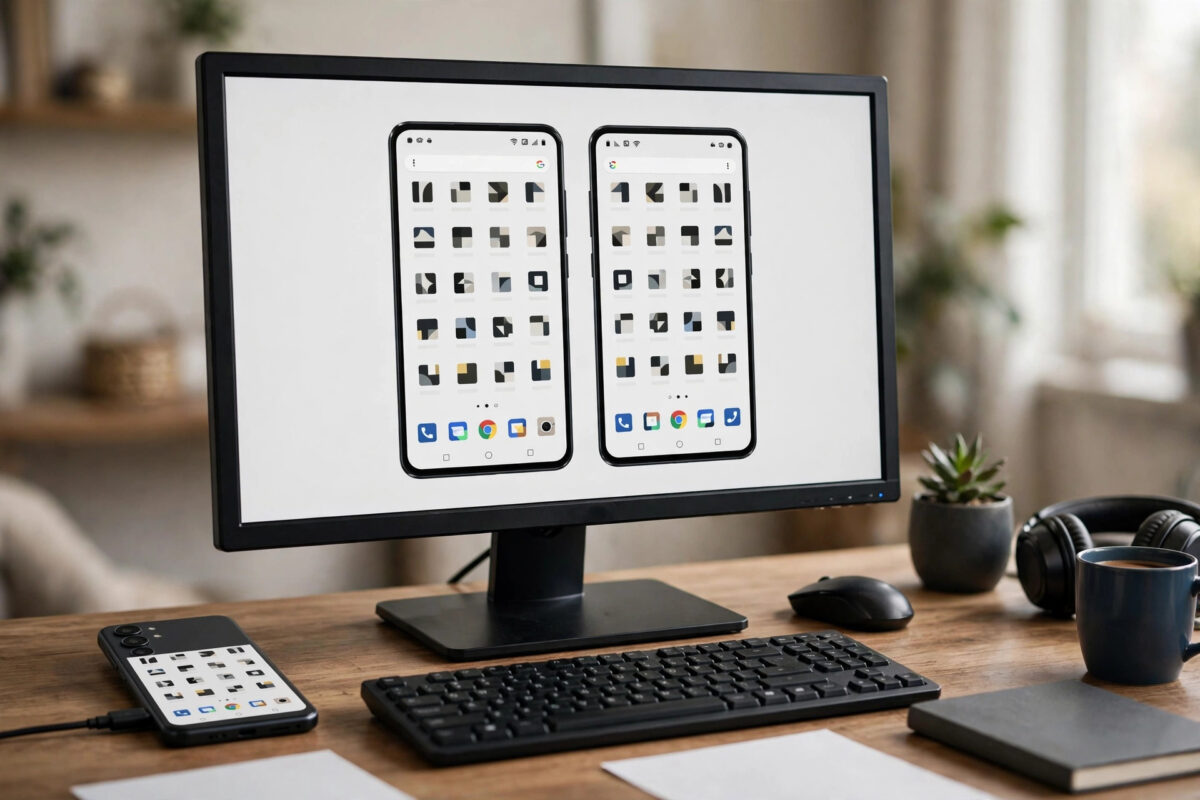
You want your phone screen on a bigger display — photos for the family, a game on a monitor, or a presentation without a TV in sight. Your PC monitor is already on your desk, so casting Android to the PC feels like the obvious answer.
The confusion is that there are several very different methods, and the best one depends on whether your PC runs Windows, whether you need wireless or a cable, and whether you need sound and control as well as a picture.
This guide ranks the methods from easiest to most flexible. Start at the top, follow the numbered steps, and you will be mirrored in minutes without buying extra hardware.
Quick Answer
The easiest way on Windows is the built-in Wireless Display feature: on the PC go to Settings > System > Projecting to this PC and install Wireless Display if needed, then on Android swipe down, tap Cast or Smart View on Samsung, and select your PC. For the most reliable lag-free result, use a USB cable with the free scrcpy tool instead — it needs no install on the phone.
What Casting to a PC Actually Means
Casting to a PC is not the same as casting to a TV or Chromecast. Your PC becomes the receiver, and your monitor shows what the PC receives.
That means the PC must be on, unlocked, and running receiver software. Windows can do this natively, which is why the first method needs no extra apps.
For monitor use — demos, gaming, calls, and general phone viewing — you want full mirroring. Every method in this guide gives you full mirroring unless stated otherwise.
Expect a small delay on Wi-Fi. That is fine for photos, browsing, and presentations, but fast games feel much better over USB.
If you are setting up a home desk or network for this, you will find related walkthroughs on Network Ustad’s homepage for step-by-step tech tutorials covering routers, Wi-Fi, and device setup.
Method 1: Wireless Display to a Windows PC — Easiest, No Extra Apps
This method uses Miracast support built into Windows 10 and Windows 11 and into most Android phones. Both devices must be on the same Wi-Fi network.
On Samsung phones the feature is called Smart View. On Pixel and stock Android it is called Cast, and Pixel phones are the main exception — see the note after the steps.
Set Up the PC First
- On the PC, open Settings > Apps > Optional features.
- Click Add a feature or View features, search for Wireless Display, and install it if it is not already listed.
- Open Settings > System > Projecting to this PC.
- Set the first drop-down to Available everywhere on secure networks.
- Set the PIN option to Never for home use, unless you share the network with strangers.
- Open the Connect app on Windows 10, or the Wireless Display app on Windows 11, and leave it open showing it is ready to connect.
Connect from Android
- Swipe down twice on the phone to open full Quick Settings.
- On Samsung, tap Smart View. On Pixel and stock Android, tap Cast or Screen Cast — use the pencil icon to add the tile if you cannot see it.
- Wait for your PC name to appear in the device list.
- Tap your PC name and accept the connection prompt on the PC if one appears.
- Choose Start now on the phone if Android asks for confirmation.
- Your phone screen now fills a window on the PC. Maximise that window or press full-screen controls to use the whole monitor.
- To stop, open Quick Settings again, tap Cast or Smart View, and tap Disconnect.
Important Pixel exception: Pixel phones cast natively to Chromecast devices, not by Miracast. If your Pixel does not list the PC, use Method 2 or Method 3 below instead — that is a Google design choice, not a fault.
Method 2: USB Cable with scrcpy — Fastest and Most Reliable
If Wi-Fi casting lags, stutters, or simply will not connect, a cable solves it. The free open-source tool scrcpy mirrors the phone to a Windows, Mac, or Linux PC over USB.
It also lets you control the phone with your mouse and keyboard. There is nothing to install on the phone itself.
One-Time Phone Setup
- Open Settings > About phone and tap Build number seven times to enable Developer options.
- On Samsung, this is Settings > About phone > Software information > Build number.
- Go to Settings > System > Developer options on Pixel, or Settings > Developer options on Samsung.
- Turn on USB debugging.
- Connect the phone to the PC with a good USB data cable — not a charge-only cable.
- On the phone, tap Allow when asked to allow USB debugging from this computer.
Run scrcpy on the PC
- Download scrcpy from its official project page and extract the folder on your PC.
- Open that folder, click the address bar in File Explorer, type cmd, and press Enter to open a command window there.
- Type scrcpy and press Enter.
- A window opens showing your live phone screen. Click and type in it to control the phone.
- Close the window or unplug the cable to stop mirroring.
Keep the project details handy via the overview of scrcpy and how screen mirroring over USB works if you want background on its options, such as recording and bit-rate settings.
Turn USB debugging off again in Developer options when you no longer need cable mirroring, especially if you use the phone for work or banking on shared computers.
Method 3: Use Your Phone Maker’s PC App or Phone Link
If you want calls, notifications, and photos alongside the screen, a companion app may suit you better than pure mirroring.
Microsoft Phone Link on Windows pairs with Link to Windows on many Samsung, Honor, and other Android phones. Its screen mirroring feature is called Apps or Phone screen, depending on the model.
- On the PC, open Phone Link from the Start menu and sign in with your Microsoft account.
- On the phone, open Settings > Connected devices or search Settings for Link to Windows, and sign in with the same account.
- Approve the permissions Phone Link requests for screen sharing.
- In Phone Link on the PC, open the phone screen view and enter your phone PIN on the PC if asked to start mirroring.
- Use the PC window to view and control supported phone features. Close it to end the session.
Common Mistakes and Troubleshooting Tips
PC does not appear in the Cast list. Check both devices are on the same Wi-Fi network and the same band where possible. Open the receiver app on the PC before you search on the phone.
Connection works but the picture freezes. Move closer to the router, switch both devices to the 5 GHz Wi-Fi band, and close other large downloads. If freezing persists, switch to the USB scrcpy method.
No sound on the PC. Raise media volume on the phone, check the PC output device, and note that Miracast audio support varies. Cable mirroring with newer scrcpy versions handles audio more consistently on supported Android versions.
- Restart both the phone and the PC if pairing worked yesterday but fails today, then connect the PC receiver first.
- Turn off any VPN on phone and PC, as VPN routing commonly blocks local discovery.
- On Samsung, check Settings > Connected devices > Smart View if the Quick Settings tile behaves differently.
- Try a different USB cable and USB port if scrcpy says no device found — charge-only cables are the usual culprit.
- Hide sensitive notifications before presenting: use Settings > Notifications to hide notification content on the lock screen and during casting.
Conclusion
For most Windows users, Wireless Display plus Cast or Smart View is the easiest path: install the feature once, open the receiver, and tap your PC name on the phone. No accounts and no extra phone apps are needed.
When wireless lets you down — especially on Pixel phones or for gaming — plug in a USB cable and use scrcpy. It is the fastest, sharpest, and most dependable option in this guide.
Pick the method that matches your phone and your tolerance for lag, test it before you actually need to present or play, and remember to disconnect and turn off USB debugging when you are finished.
Frequently Asked Questions
Can I cast my Android screen to a PC without Wi-Fi?
Yes, with a USB cable and scrcpy. That method does not need Wi-Fi at all once the tool is on your PC. Wireless Display and Smart View methods do need both devices on the same Wi-Fi network.
Why does my Pixel not find my Windows PC in Cast?
Pixels cast natively to Chromecast, not to Miracast receivers like Windows Wireless Display. Use scrcpy over USB, Phone Link where supported, or cast to a Chromecast plugged into the monitor instead.
Can I control my phone from the PC while casting?
With basic Wireless Display mirroring you mainly view the screen and control stays on the phone. With scrcpy and with Phone Link’s phone screen, you can click, type, and navigate from the PC.
Is there a delay when casting to a PC monitor?
On Wi-Fi, expect a small delay — fine for video, photos, and slides, noticeable in fast games. A USB connection with scrcpy reduces the delay to near real time for most uses.
How do I show my phone on the monitor full-screen?
Maximise the receiver window on the PC and rotate the phone to landscape for video and games. On a second monitor, drag the receiver window onto that monitor first, then maximise it there.



Leave a Reply