
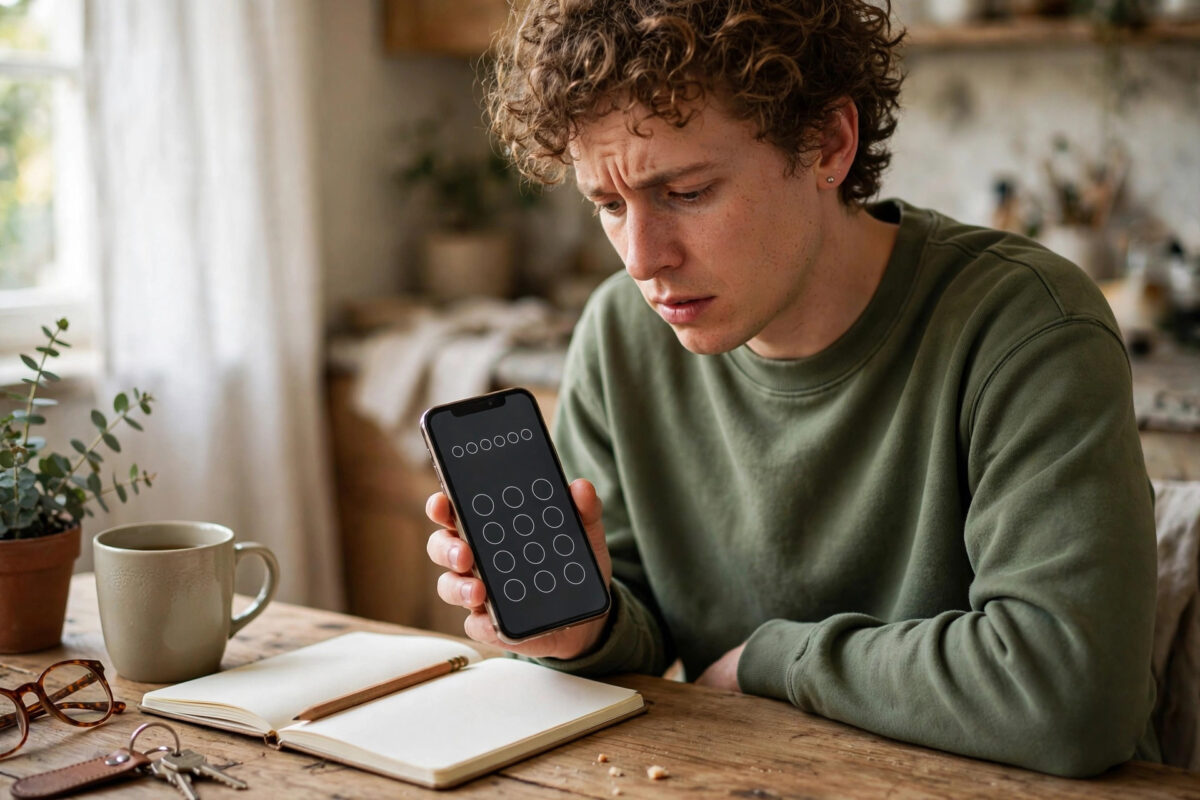
You open Messenger, tap a private conversation, and instead of your messages you get a prompt asking for a PIN you are sure you never created. It feels alarming, but many people hit this screen after updating the app, signing in on a new phone, or reinstalling Messenger.
The good news is that this prompt is usually a normal part of how Messenger protects end-to-end encrypted chats, not a sign that your account has been taken over. The tricky part is knowing what the PIN actually is, where it came from, and what you can safely do if you genuinely do not know it. This guide explains it all in plain language.
Quick Answer
Messenger asks for a PIN to unlock your secure storage, which holds the keys for your end-to-end encrypted chats. The PIN is one you created when secure storage was first set up, even if you do not remember doing it. Enter that PIN if you can recall it, or use another recovery method such as a 40-character recovery code or a trusted device. If you reset secure storage, your encrypted chat history on this device may be lost, although your account itself stays safe.
Why Messenger Is Asking for a PIN
End-to-end encrypted chats are different from normal Messenger chats. In an encrypted chat, only you and the other person can read the messages — not even Facebook can read them in transit. To make that possible, each device holds special cryptographic keys.
Messenger backs up those keys using a feature called secure storage, so you do not lose your encrypted conversations every time you change phones. Secure storage is protected by a PIN, a recovery code, or a key stored on your device. When Messenger needs to restore or unlock that storage — after an update, a reinstall, or a new sign-in — it asks you to prove it is really you by entering the PIN.
But I Never Set a PIN — How Is This Possible?
This is the most common confusion. You may have created the PIN quickly during setup without realising its importance, a family member who helped set up your phone may have chosen it, or you set it long ago and forgot it. The prompt itself does not mean someone else set a PIN on your account.
First, Check What Kind of PIN Screen You See
Not every PIN prompt is the same, and the wording on screen tells you what to do next.
- Create a PIN: Messenger is asking you to choose a new PIN for secure storage. This is safe — pick one you will remember and store it securely.
- Enter your PIN to restore chat history: Messenger found existing secure storage and needs your original PIN to unlock it.
- Confirm your PIN: You just created a PIN and Messenger wants you to type it again to confirm it. Enter the same numbers.
Read the small text on the screen carefully before typing anything. If it is a creation screen, you are not locked out at all — you are simply finishing setup.
How to Try to Recover Your PIN Access
If the screen asks for an existing PIN, work through these options in order. Avoid guessing endlessly, as repeated wrong attempts can cause temporary delays.
- Think about PINs you commonly use and may have chosen during setup, such as a simple personal code you reuse for apps. Try only the most likely ones.
- Check your password manager, notes app, or any secure note where you might have saved a Messenger recovery code or PIN.
- Ask yourself whether anyone helped set up your phone or Messenger. If so, ask them privately whether they created a PIN during setup.
- Look for the option on the PIN screen that says you forgot your PIN or offers other ways to verify.
- If you have another phone or tablet where your encrypted chats still open normally, keep it safe — it may serve as your way back in.
Meta explains how secure storage and recovery methods work in the Messenger Help Centre guide to secure storage for encrypted chats, which is the safest reference if your app shows slightly different wording.
Use a Recovery Code or Another Device Instead
The PIN is not the only key to secure storage. When secure storage was created, Messenger also offered other recovery methods that many people saved without realising their value.
The 40-Character Recovery Code
Some users were shown a long recovery code made of letters and numbers when they set up secure storage. If you saved that code in a password manager, a screenshot in a protected folder, or even on paper, you can use it instead of the PIN. On the verification screen, look for an option to use a recovery code, then type the code exactly as saved, including checking for similar-looking characters.
A Trusted Device That Still Works
If your encrypted chats open normally on another device, do not log out of it or reset it. From that working device, you may be able to review your secure storage settings, generate a new recovery method, or approve access elsewhere depending on the options your app version shows. Our practical guide to keeping Messenger chats safe when switching phones covers how to prepare devices before a move so this situation does not happen again.
What Happens If You Reset Secure Storage?
If you cannot find the PIN or any recovery method, the final option on the screen is usually to reset secure storage and start again. You should understand exactly what this does before you tap it.
- Your Facebook account, friends list, and normal non-encrypted chats are not deleted.
- You will be able to use Messenger again and start new encrypted chats with a new PIN.
- Encrypted chat history that was only protected by the old secure storage may not be recoverable on this device.
- People you chat with keep their own copies on their devices, so the conversation is not erased for them.
- You will need to set up secure storage again carefully and save the new details properly this time.
- On the PIN screen, choose the forgot PIN or reset option.
- Confirm that you understand your previous encrypted history may not be restored.
- Create a new PIN that you will genuinely remember, but that others cannot easily guess.
- Save the new recovery code in a password manager straight away, before closing the app.
- Test by opening an encrypted chat and sending a message to confirm everything works.
How to Set a Good PIN and Never Lose It Again
A good PIN is hard for others to guess, but easy for you to retrieve months later.
- Avoid obvious sequences, repeated numbers, and well-known dates linked to you.
- Do not use the same code as your phone lock screen if you can avoid it, so one revealed code does not unlock everything.
- Store the PIN and recovery code in a reputable password manager, not in a plain note or a chat with yourself.
- Never share your PIN with anyone claiming to be support. Genuine support staff will never ask for it.
- After setup, open your secure storage settings once to confirm your recovery methods are listed correctly.
You can review the official background on how this protection works through the Messenger Help Centre information on end-to-end encryption, which explains why these keys stay on your devices rather than being readable by the company.
Common Mistakes to Avoid
- Guessing the PIN over and over: Random guessing wastes attempts and can trigger a wait. Stop, think, and check your saved records instead.
- Resetting secure storage too quickly: A reset can cost you your encrypted history on that device. Always check for a recovery code or a working second device first.
- Believing a stranger can bypass the PIN: Nobody can legitimately bypass end-to-end encryption for you. Anyone offering this is attempting a scam.
- Saving the recovery code in the chat itself: If you are locked out of the chats, a code stored inside them is useless. Save it outside Messenger.
- Skipping the confirmation step: When you create a new PIN, enter it carefully both times. A typo at setup becomes a mystery PIN later.
Conclusion
A Messenger PIN prompt for encrypted chats is frustrating, but it is the security system working as designed — your keys are locked, and Messenger is asking for proof before unlocking them. First check whether the screen wants a new PIN or an old one, then search your password manager and other devices for the PIN or recovery code before considering a reset. If you do reset, set up the new PIN slowly and store the recovery details somewhere safe. Five careful minutes now will save you from seeing this confusing screen again on your next phone.
Frequently Asked Questions
Can Facebook support tell me my Messenger PIN?
No. Because the chats are end-to-end encrypted, Facebook does not know or store your PIN in a readable form. Support cannot reveal it or bypass it, which is why your own recovery code and trusted devices matter so much.
Will resetting secure storage delete my whole Messenger account?
No. Resetting only affects the protected backup of your encrypted chat keys. Your account, contacts, and regular chats remain. What you may lose is access to older encrypted chat history on that device.
I entered the wrong PIN several times. Am I locked out forever?
Usually not. Repeated wrong attempts may cause a temporary wait before you can try again. Use the pause to search for your saved PIN or recovery code rather than guessing further.
Why did the PIN prompt appear after an update?
Updates, reinstalls, and new sign-ins can all require Messenger to unlock secure storage again to restore your encrypted chats. The timing is normal and does not by itself mean your account was hacked.
Where should I store my new recovery code?
Store it in a trusted password manager or another secure place outside Messenger itself. Avoid plain notes, screenshots in an unprotected gallery, or messages inside the chats the code is meant to protect.



Leave a Reply