
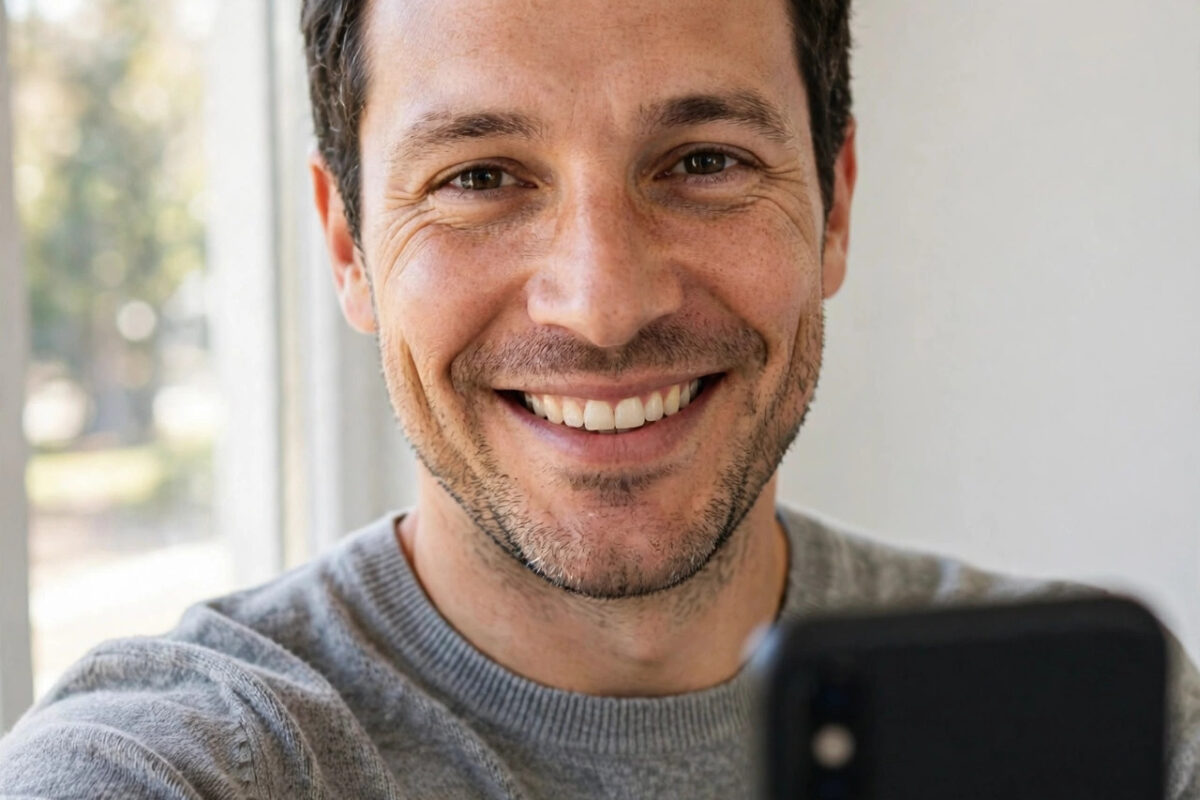
You choose a clear, high-quality photo for your WhatsApp profile. It looks perfect in your gallery. Then, after uploading, it appears blurry, soft, or pixelated to you and to everyone who views your profile. It is frustrating, especially when the original photo is sharp.
WhatsApp compresses profile photos heavily, and it also crops them into a small circle. If your original image is too large, too small, or the wrong shape, that compression and cropping will show. The fix is to give WhatsApp an image that is already close to the size and shape it wants.
Quick Answer
To fix a blurry WhatsApp profile photo, upload a square image that is at least 640 by 640 pixels, ideally 800 by 800 or 1080 by 1080, in JPG format, with your face centered and plenty of space around it. Use the original photo, not a screenshot or a photo downloaded from another app, crop it to a square before uploading, and upload on a stable connection. WhatsApp will still compress it, but starting from the right size keeps it sharp.
Why WhatsApp Profile Photos Become Blurry
WhatsApp profile photos are displayed very small on most screens, often as a tiny circle in a chat list. Because of that, WhatsApp does not store your full original photo at full quality. It creates a much smaller version. Any weakness in the original file becomes obvious in that small version.
Aggressive Compression for a Small Display Size
WhatsApp reduces a multi-megabyte photo down to a file that may be only a few dozen kilobytes. Fine details like hair, skin texture, and patterns on clothing are the first things lost. Dark photos and photos taken in low light suffer the most, because they already contain noise that compression turns into blotches.
Wrong Image Size Before Upload
If your photo is smaller than about 192 by 192 pixels, WhatsApp has to stretch it, and stretching always causes blur. If your photo is extremely large and in an unusual ratio, WhatsApp crops and shrinks it quickly, which can also soften it. Both extremes cause problems. The middle ground, a clean square image around 800 to 1080 pixels, works best.
Source of the Photo Matters
A photo taken directly from your camera is very different from a photo you saved from Facebook, received in a chat, or captured as a screenshot. Each time a photo passes through another app, it is compressed again. By the time it reaches your WhatsApp profile, there may be very little detail left.
Best Size and Format for a Sharp WhatsApp Profile Photo
- Shape: Square, 1:1 ratio, because WhatsApp displays it in a circle cropped from a square.
- Size: Minimum 640 by 640 pixels. Recommended 800 by 800 to 1080 by 1080 pixels for a balance of sharpness and clean compression.
- Format: JPG is the safest choice. PNG also works but often creates a larger file that WhatsApp compresses more.
- Subject placement: Face in the center, with space on all sides so the circular crop does not cut off your head or chin.
- Lighting: Bright, even light with no heavy filters. Filters that add grain or fade will look worse after compression.
The WhatsApp FAQ and Help Center explains how profile photos are shown to contacts and how privacy settings control who can see them, which is useful to check while you are updating your picture.
Step-by-Step: Upload a Sharp WhatsApp Profile Photo
- Choose the original photo from your camera gallery, not from a chat or a social media download.
- Open the photo in your gallery editor or a free editor like Snapseed.
- Crop it to a square, keeping your face in the center and leaving space around your head and shoulders.
- Resize or export it so the final size is between 800 by 800 and 1080 by 1080 pixels.
- Apply only light editing. Increase brightness and sharpness slightly if needed, and avoid heavy beauty filters.
- Save the edited version as a new JPG file at high quality.
- Open WhatsApp, tap your profile photo in Settings, and upload this prepared file.
- When WhatsApp shows its own crop screen, zoom out as much as possible so you use your prepared square rather than cropping again.
- Save, then view your profile as a contact would see it, and check it on Wi-Fi after a minute or two.
If you also struggle with images looking soft elsewhere, our tutorial on fixing blurry profile pictures across social media apps covers the same sizing logic for other platforms.
Improve the Photo Itself Before You Upload
Use a Better Original Photo
Take a new photo specifically for your profile if your current one is old, dark, or taken from far away. Stand facing a window or a soft light source, hold the phone at eye level, and fill most of the frame with your head and shoulders. A close, well-lit photo survives compression far better than a distant group photo cropped down to one face.
Sharpen and Clean Up Lightly
A small sharpening boost, around 20 to 30 in most editors, helps features stay defined after WhatsApp shrinks the image. Reduce noise first if the photo was taken indoors at night. Do not apply sharpening twice, and do not use aggressive skin-smoothing tools, because they remove the very detail that makes a face look clear at small sizes.
Avoid Text and Busy Backgrounds
Text in a profile photo becomes unreadable after compression, and busy backgrounds compete with your face at tiny display sizes. Choose a plain or softly blurred background, wear colors that contrast with that background, and keep the focus entirely on your face.
Check App and Phone Issues
Sometimes the photo is fine and the app is the problem. Make sure WhatsApp is updated from the Google Play Store or Apple App Store. An outdated version can handle media poorly. If the new photo still looks blurry only on your phone but sharp on a friend’s phone, your app may be showing you a cached low-quality preview. Close WhatsApp, reopen it, or restart your phone and check again.
Also upload on a stable connection. If your connection drops mid-upload, WhatsApp may complete the upload with a lower-quality version. Connect to Wi-Fi, upload once, and avoid repeatedly deleting and re-uploading the same photo in a short period, because repeated attempts do not improve the stored quality.
Remember who can see the result. In WhatsApp Settings under Privacy, you can control whether everyone, your contacts, or nobody sees your profile photo. Checking that setting, as described in WhatsApp’s official FAQ on profile photo privacy, ensures you are testing the view your contacts actually get.
Common Mistakes to Avoid
- Using a screenshot as a profile photo: Screenshots are low resolution and often include compression from the source app.
- Cropping one face from a group photo: That small crop has very few pixels and will always look blurry when enlarged.
- Uploading a very wide or tall photo: WhatsApp will crop it unpredictably, often cutting off the top of your head.
- Applying heavy filters and beauty modes: These soften skin and detail, and compression makes the softness worse.
- Re-uploading a photo downloaded from WhatsApp itself: That file is already the compressed version, so uploading it again doubles the damage.
- Expecting print-level sharpness: A profile photo is shown tiny. Judge it at the size contacts actually see, not zoomed in full screen.
Conclusion
A blurry WhatsApp profile photo is usually a size and source problem, not a camera problem. Start with an original, well-lit photo, crop it to a square between 800 and 1080 pixels, center your face with space around it, sharpen it lightly, and upload it once on a good connection. That simple preparation gives WhatsApp’s compression far less damage to do. Try it with one new prepared photo and compare it side by side with your old picture. The difference at normal viewing size is usually clear and immediate.
Frequently Asked Questions
What is the best size for a WhatsApp profile photo?
Use a square image of at least 640 by 640 pixels. A size between 800 by 800 and 1080 by 1080 pixels is ideal because it is sharp enough for WhatsApp’s display without triggering excessive shrinking.
Why does my profile photo look blurry to others but fine in my gallery?
Your gallery shows the original full-quality file. WhatsApp stores and shows a compressed small version. That compression is the difference you are seeing, which is why preparing the right size helps.
Does WhatsApp support PNG for profile photos?
Yes, you can upload a PNG, but JPG is usually better for photos. PNG files are larger and WhatsApp will convert and compress them anyway, so a high-quality JPG normally gives a cleaner result.
How can I see my profile photo the way contacts see it?
Ask a trusted contact to open your profile and show you, or view your account from another phone where you are saved as a contact. This shows the real compressed version, not your gallery original.
Will changing my photo many times improve its quality?
No. Re-uploading the same weak source will not help. Prepare a better square version first, then upload that version once. Quality comes from the source file, not from repeated attempts.



Leave a Reply