
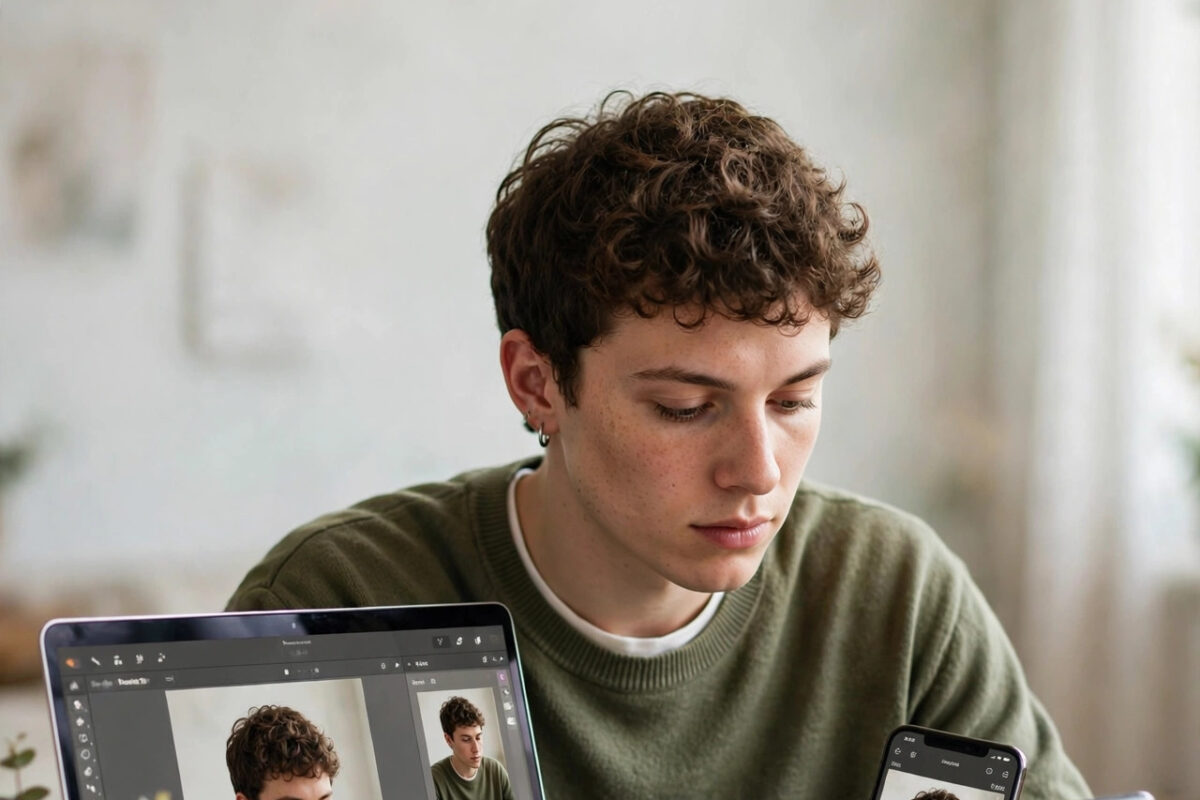
You upload a perfectly good photo to Facebook, and the profile picture preview cuts off the top of your head. Your forehead disappears, your hair is sliced away, or your chin ends up too close to the bottom edge. It looks unprofessional, and it feels like Facebook is cropping your photo for no reason.
The reason is simple once you see it. Facebook displays profile pictures in a circle, but it stores them as a square. If your face is too close to the top of your square photo, the circle crop will cut into it. The fix is not to fight the crop tool. The fix is to prepare a photo with enough space above your head before you upload it.
Quick Answer
To stop Facebook cutting off the top of your head, upload a square photo of at least 720 by 720 pixels with your head centered and clear empty space above it, then zoom out fully in Facebook’s crop tool before saving. Keep your eyes around the middle of the image and leave the top 15 to 20 percent of the frame empty. Facebook shows the picture in a circle, so anything near the corners or top edge will be hidden.
How Facebook Crops Profile Pictures
Facebook profile pictures appear as circles on profiles, in comments, in search results, and in Messenger. The circle is not the whole photo. It is a circular window cut from the center of a square image. Everything outside that circle still exists in the stored file, but viewers never see it in most places.
This is why a photo can look fine in the upload preview as a square and still lose the top of your head afterward. The top center of a square sits close to the edge of the inscribed circle, and hair that touches the top edge of the square will be clipped by the circle.
Different Places Show Different Crops
Your profile page shows the largest version of the circle. Comments and reactions show a much smaller circle. A crop that barely works at large size can look even tighter at small size. That is another reason to leave generous space around your face rather than filling the whole frame.
Desktop and Mobile Behave Slightly Differently
On a computer, Facebook gives you a drag-and-zoom crop tool with a circular guide. On mobile, the same idea applies, but it is easier to accidentally save while zoomed in because the preview is smaller. Many head-cutting mistakes happen on mobile uploads where the user never zooms out fully.
Facebook’s own guidance in the Meta Facebook Help Center for profile pictures notes that profile pictures are displayed as circles and should be at least 720 pixels wide, which is the starting point for a clean crop.
Prepare Your Photo Before Uploading
The most reliable method is to fix the composition in an editor before Facebook ever sees the photo. This takes two minutes and works on both desktop and mobile uploads.
- Open your chosen photo in your phone gallery editor, Canva, Snapseed, or any basic editor.
- Choose a square crop, with a 1:1 ratio.
- Position the crop so your face sits in the center of the square.
- Leave empty space above your head equal to about 15 to 20 percent of the image height.
- Leave similar space on both sides of your face, and keep your chin well above the bottom edge.
- Resize or export the image to at least 720 by 720 pixels, ideally 1080 by 1080 pixels.
- Save it as a new JPG file and upload this prepared version to Facebook.
A Simple Rule for Headroom
Imagine your head height from chin to the top of your hair. Leave at least half of that distance again as empty space above your head. If your photo was taken very close up and there is no space above your head in the original, zooming out is impossible in the editor. In that case, add a border or extend the canvas with a matching background color, or simply choose a different photo taken from a little further away.
Using a Photo Taken From Further Away
A photo that shows your head and shoulders, taken at arm’s length or by someone else, is almost always a better profile picture than a tight selfie. It gives you pixels to work with, room to center your face, and a more natural, professional look at the small sizes where profile pictures are actually seen.
If your issue is with cover images rather than profile pictures, our walkthrough on correct Facebook cover photo size and positioning explains how the cover crop differs and where its safe area sits.
Fix the Crop Inside Facebook Step by Step
On a Computer
- Go to your Facebook profile and click your current profile picture.
- Choose Update profile picture and upload your prepared square photo.
- When the crop tool appears, drag the slider to zoom out as far as it will go.
- Drag the image so your face sits inside the circular guide with space above your head.
- Check that no part of your hair touches the top of the circle.
- Click Save and view your profile to confirm the result.
On the Facebook Mobile App
- Open your profile and tap your profile picture, then tap the edit or camera option.
- Select your prepared photo from your gallery.
- Use two fingers to pinch and zoom out until the whole square fits comfortably.
- Move the photo so your head is centered inside the circle guide.
- Tap Save or Done, then check how the picture looks in a comment preview if possible.
What If the Photo Is Already Uploaded and Cropped Wrong?
You cannot fully un-crop a saved profile picture if the original upload was zoomed in, because the displayed circle is based on the crop you confirmed. The practical fix is to upload again. Open your profile picture options, choose to update it, and re-upload either the original photo or your newly prepared square version. This time, zoom out completely and center your face before saving. Your posts and account are not affected by changing the picture, and you can do this as many times as you need.
If Facebook seems to remember an old crop position, try uploading from a different device, for example from a computer after preparing the photo on your phone. Desktop gives you a larger preview and finer control, which makes the headroom much easier to judge.
Common Mistakes to Avoid
- Filling the frame with your face: A tight close-up leaves no headroom, so the circular crop will cut your hair or forehead.
- Saving while zoomed in: Many users accept the default zoom in the crop tool. Always zoom out fully first.
- Using a tall portrait photo without preparing it: Facebook will crop a tall photo to a square and then to a circle, often removing the top.
- Placing your face near the top third: Portraits composed with eyes near the top look artistic full-size but fail as circular profile pictures.
- Uploading a very small image: Below 720 pixels, the picture looks soft and the crop tool gives you less flexibility.
- Ignoring the small preview: Check how the picture looks at comment size, not only on your full profile page.
Conclusion
Facebook is not randomly cutting off your head. It is showing a circular crop of a square photo, and any face placed too high or too large will lose its top edge. Prepare a square photo of at least 720 by 720 pixels, center your face, leave 15 to 20 percent empty space above your head, and zoom out fully in the crop tool before you save. Do that once, and your profile picture will look complete and professional everywhere it appears, from your profile page to the smallest comment thread.
Frequently Asked Questions
What is the best size for a Facebook profile picture?
Upload a square image of at least 720 by 720 pixels. Using 1080 by 1080 pixels is a good choice because it stays sharp on larger screens while still being easy for Facebook to process.
Why does Facebook show my profile picture in a circle?
Facebook uses a circular display for profile pictures across profiles, comments, and Messenger for a consistent look. The stored image is square, but viewers see the circular center portion, so corners and edges are hidden.
Can I show my full photo without the circle crop?
No, the circular display is fixed. You can only control which part of your square photo sits inside the circle by positioning and zooming during upload. Preparing headroom in advance gives the best result.
How do I fix a profile picture that is already cropped badly?
Upload the photo again and set the crop correctly this time. Zoom out fully, center your face, and leave space above your head before saving. Editing the saved picture alone cannot restore the clipped area.
Why does my head get cut off on mobile but not on desktop?
The mobile crop preview is smaller, so it is easier to save while still zoomed in. Prepare a square photo with headroom beforehand, or make the final upload from a computer where the guide is larger and clearer.



Leave a Reply