
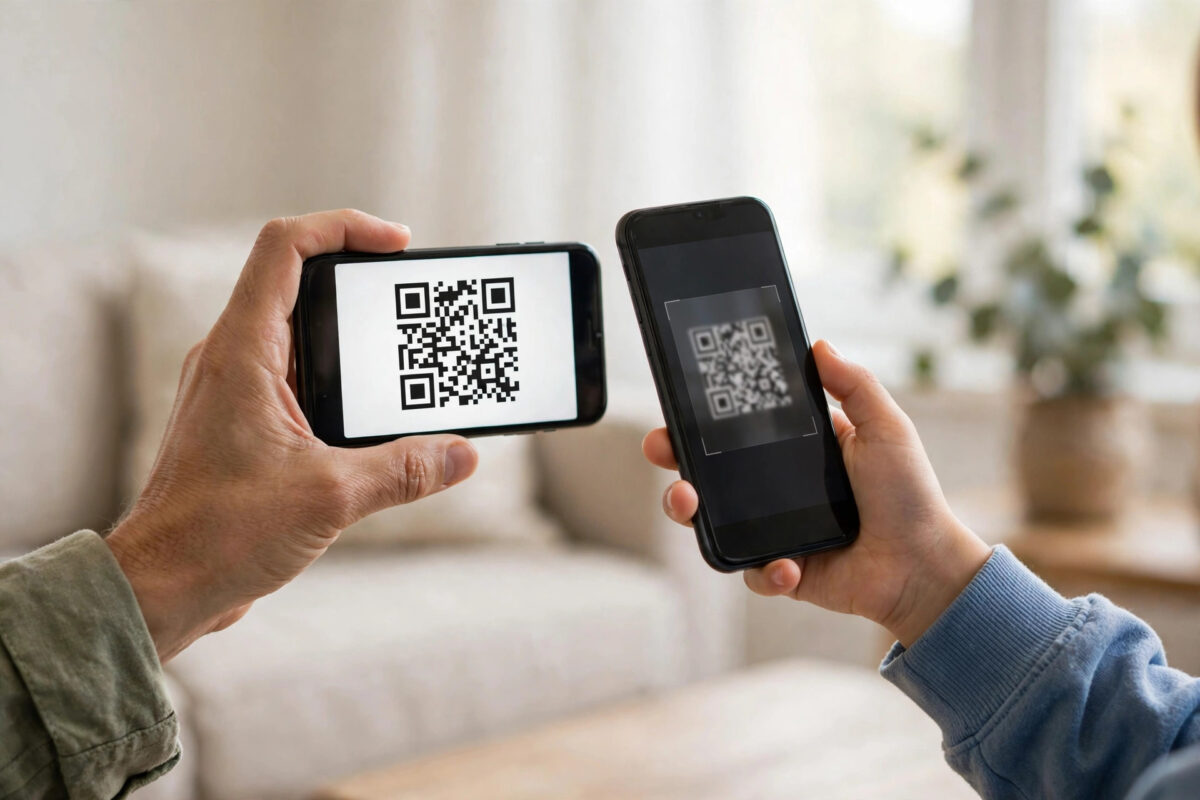
You sit down with your child’s phone in one hand and yours in the other, ready to set up TikTok Family Pairing. You point the camera at the QR code, and nothing happens. You try again, a little closer, a little further away, and still nothing.
This is one of the most common Family Pairing problems, and it is usually caused by something simple: a permission, a smudged lens, an out-of-date app, or an account age setting. This guide works through the fixes in a sensible order, then shows you a backup method if the code refuses to scan.
Quick Answer
Update TikTok on both phones, allow camera access for TikTok on your child’s phone, clean both lenses, and increase the brightness on the phone showing the QR code. Then restart the pairing process from the beginning on the parent account so a fresh code is generated, hold the child’s phone 15 to 20 centimetres away, and tap the screen to focus. If scanning still fails, check that the child’s account has the correct teen birthdate and that both accounts are signed in on the right profiles.
How Family Pairing QR Scanning Is Supposed to Work
Family Pairing links a parent’s TikTok account to a teen’s account. The parent opens Family Pairing in settings, and the app shows a QR code. The teen opens the same section on their phone and scans that code with TikTok’s built-in scanner.
That last detail matters. You must scan from inside the TikTok app, not with the normal camera app in most cases. The code is also time-sensitive and tied to the parent account that created it, so a screenshot sent hours ago or a photo of the code often will not work.
Once linked, the parent can set daily screen time, schedule downtime, filter content, limit direct messages, and manage search and privacy settings. The official TikTok Support guide to Family Pairing outlines each control so you know what to expect after the link succeeds.
Fix 1: Check the Basics Before Anything Technical
- Clean the camera lens on your child’s phone with a soft cloth. Fingerprints are the number one cause of failed scans.
- Turn the brightness to maximum on the phone displaying the code.
- Remove any glare by moving away from bright windows or lamps shining on the screen.
- Hold the scanning phone steady, about 15 to 20 centimetres from the screen, for several seconds.
- Tap the code on the scanning screen to help the camera focus.
- If the parent phone has a cracked screen protector over the code, enlarge the code or remove reflections by tilting it slightly.
Try the scan again after each small change instead of all at once if you can. That way, you learn what actually fixed it, which helps if you ever need to pair a second child’s account.
Fix 2: Allow Camera Permission for TikTok
If TikTok does not have camera permission on your child’s phone, the scanner may open as a black screen, freeze, or do nothing at all.
On Android
- Open Settings, then Apps, then TikTok.
- Tap Permissions and select Camera.
- Choose Allow only while using the app.
- Reopen TikTok and start the scan again.
On iPhone
- Open Settings and scroll down to TikTok.
- Switch the Camera toggle on.
- Return to TikTok and reopen the Family Pairing scanner.
Also check that no other app is using the camera at the same time, such as a video call running in the background. Close it and retry.
Fix 3: Update Both Apps and Generate a Fresh Code
QR pairing depends on both apps speaking the same language. A parent app updated last week and a child app that has not updated in months is a common mismatch.
- Open the App Store or Google Play on both phones and update TikTok to the latest version.
- Restart both phones. This clears temporary camera and app glitches.
- On the parent phone, go to Settings and Privacy, then Family Pairing, and start the linking process again from the first step.
- Use only the new code shown now. Old codes and screenshots of codes usually expire quickly.
- Scan within a minute or two of the code appearing.
If the code keeps expiring before you finish, keep both phones side by side before you begin, rather than generating the code and then going to find your child and their phone.
Fix 4: Check the Accounts and Ages Being Paired
Sometimes the camera works perfectly, but TikTok rejects the pairing behind the scenes, which looks like a scanning failure.
- Confirm you are signed in to the correct parent account on your phone, especially if you have more than one TikTok account.
- Confirm your child’s phone is signed in to their own account, not yours and not a sibling’s.
- Check your child’s birthdate in their profile settings. Family Pairing is designed for teen accounts, and a wrong birthdate can block the link.
- Make sure neither account is already paired with a different account. A teen account can only be paired with one parent account at a time.
If a previous pairing exists, unlink it first from the Family Pairing screen, wait a moment, and then start again. Our related walkthrough on how to set up TikTok Family Pairing from start to finish covers the unlinking and control settings in more depth.
Fix 5: Rule Out Network and Device Problems
Both phones need a working internet connection during pairing, because TikTok confirms the link on its servers, not just between the two cameras.
- Connect both phones to the same reliable Wi-Fi network if possible.
- Turn off any VPN on either phone, as VPNs sometimes block the confirmation step.
- Free up storage if the child’s phone is almost full, since very low storage can cause camera and app errors.
- Try the scan with the phones swapped in position if lighting is uneven, keeping the parent phone as the one showing the code.
- As a last resort, sign out of TikTok on the child’s phone, sign back in, and repeat the pairing from the start.
Common Mistakes to Avoid
- Scanning with the normal camera app: Always use the scanner inside TikTok’s Family Pairing section so the code is recognised as a pairing code.
- Using a screenshot of the code: Codes expire and are meant to be scanned live. Generate a fresh one each attempt.
- Holding the phone too close: Very close distances stop the camera focusing. Step back to about 15 to 20 centimetres.
- Skipping updates: An outdated app on either phone is a frequent hidden cause. Update both before deeper troubleshooting.
- Pairing the wrong account: Double-check usernames on both phones before scanning, especially in homes with several accounts.
Conclusion
A Family Pairing QR code that will not scan is annoying, but the cause is almost always ordinary: a dirty lens, low brightness, a missing camera permission, an old app version, or an expired code. Work through the fixes in order, generate a fresh code with both updated phones in front of you, and the pairing usually completes in under a minute. Once linked, take a few minutes to set screen time and content controls together with your child, so the settings feel agreed rather than imposed.
Frequently Asked Questions
Why does the QR code scan but then fail to link?
This usually points to an account problem rather than a camera problem. Check that the teen account is not already paired, that the birthdate is correct for a teen account, and that both phones have a stable internet connection, then try again with a fresh code.
Can I send the QR code to my child by message?
It is not recommended. Pairing codes are short-lived and designed for a live scan inside the app. A screenshot sent earlier will often be expired by the time your child tries to use it.
Does my child need their own TikTok account for Family Pairing?
Yes. Family Pairing links two separate accounts: the parent’s account and the teen’s account. Your child signs in with their own account on their phone, and you scan to link the two together.
The scanner shows a black screen. What should I do?
A black scanner almost always means camera permission is off or another app is using the camera. Allow camera access for TikTok in your phone settings, close other camera apps, restart TikTok, and try again.
Can Family Pairing be removed later?
Yes. Either side can start the unlinking process from the Family Pairing settings, and the teen’s controls then return to their own account settings. Pairing also ends automatically when the teen reaches 18, depending on your region’s rules.



Leave a Reply