
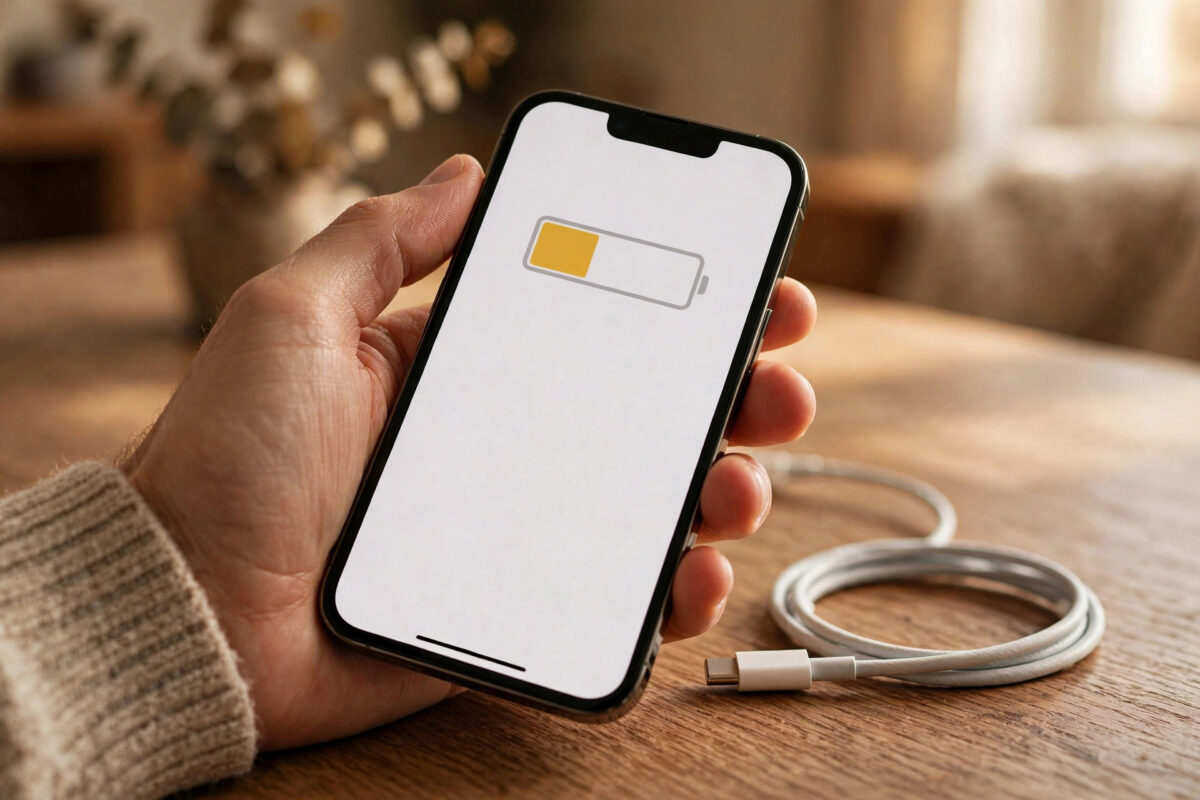
Social apps are some of the biggest battery users on an iPhone. Facebook, Instagram, TikTok, Snapchat, and X can keep working in the background even when you are not using them. They fetch new posts, download videos, check messages, and update your location.
Background App Refresh makes this activity even heavier. When you turn it on, apps are allowed to update content while they are closed. That keeps your feed fresh, but it can also drain your battery much faster, warm up your phone, and use more mobile data.
The good news is you do not need to delete your social apps to fix this. A few simple settings changes can cut the drain while still keeping notifications and messages working properly.
Quick Answer
To fix social apps draining battery after enabling Background App Refresh on iPhone, go to Settings, then General, then Background App Refresh, and turn it off for heavy social apps like Instagram, Facebook, and TikTok. Also turn off Precise Location, limit notifications, and enable Low Power Mode when your battery is low. These steps stop apps from constantly updating in the background while still letting you use them normally.
Why Social Apps Drain Battery So Fast in the Background
Social apps are designed to keep your attention. To do that, they need fresh content ready the second you open them. In the background, they may check for new messages every few minutes, preload videos so they play instantly, and sync photos and stories.
When several social apps do this at the same time, your iPhone processor, Wi-Fi or mobile radio, and location services all stay active. That constant activity is what drains the battery, even when your screen is off.
What Background App Refresh Actually Does
Background App Refresh lets apps download new content when your iPhone is connected to Wi-Fi or mobile data. It does not affect push notifications for messages, but it does control whether an app can quietly refresh its feed, ads, and media in the background. Turning it off for one app does not delete the app or your account.
Check Which Apps Are Using the Most Battery
Before you change random settings, check the real data first. Your iPhone already tracks battery use for you.
- Open the Settings app.
- Tap Battery.
- Scroll down to see battery use by app for the last 24 hours and the last 10 days.
- Tap an app name to see how much time it spent on screen and in the background.
- Look for social apps with high background time. That is usually the main problem.
If Instagram shows two hours of background activity but only thirty minutes on screen, Background App Refresh and location access are likely the cause. Focus on those apps first instead of changing settings for every app on your phone.
How to Turn Off Background App Refresh for Social Apps
You can turn off Background App Refresh for all apps, or only for the heavy ones. Turning it off only for social apps is the better choice for most people.
Turn It Off for Individual Apps
- Open Settings.
- Tap General.
- Tap Background App Refresh.
- Tap Background App Refresh again at the top and make sure it is set to Wi-Fi or Wi-Fi and Mobile Data.
- Scroll down to Facebook, Instagram, TikTok, Snapchat, and X.
- Turn off the switch next to each social app you want to limit.
After this change, the apps will still work when you open them. Your feed will simply load at that moment instead of loading all day in the background. You may see a short loading spinner when you open the app, but your battery life should improve within a day.
Turn It Off Completely
If your battery is draining very fast, you can turn off Background App Refresh for every app at once. On the same screen, tap Background App Refresh at the top and select Off. This is helpful for older iPhones or when you are traveling and need your battery to last longer.
Email and messaging apps may then only update when you open them, so many people prefer the individual app method instead.
Other Settings That Reduce Social App Battery Drain
Background App Refresh is important, but it is not the only cause. Fixing these extra settings gives you a much better result. You can learn more in the official guidance on how to prolong battery life and lifespan on iPhone from Apple Support, which explains how background activity affects power use.
Limit Location Access
Many social apps track location to tag posts, show local content, and serve ads. Constant location checks use a lot of power.
- Open Settings and tap Privacy and Security.
- Tap Location Services.
- Tap each social app in the list.
- Change the setting to Never or While Using the App.
- Turn off Precise Location if the app does not need your exact position.
For most social apps, While Using the App is enough. You can still tag a location manually when you post.
Reduce Notifications
Every notification wakes your screen and makes the phone vibrate or play a sound. Social apps can send dozens of notifications a day for likes, comments, live videos, and suggested posts.
- Open Settings and tap Notifications.
- Tap a social app.
- Turn off notifications you do not need, such as suggestions and promotions.
- Keep only direct messages and mentions if those matter to you.
Fewer notifications also mean you check the apps less often, which saves even more battery.
Stop Auto-Playing Videos
Auto-playing videos inside social apps uses both the processor and the network. Open each app, go to its settings, and look for options like Data Saver, Media Quality, or Autoplay. Set videos to play only on Wi-Fi or turn autoplay off completely.
On Instagram and Facebook, you can also choose to upload photos and videos in lower quality when using mobile data. This helps battery and data at the same time.
Use Low Power Mode Wisely
Low Power Mode reduces background activity, mail fetching, and visual effects. It is a good short-term fix when your battery is below 30 percent. Turn it on in Settings, then Battery, then Low Power Mode. You can also add it to Control Center for quick access.
For a longer-term routine that protects your phone, read our guide on how to stop apps draining iPhone battery in the background for more daily habits that keep drain under control.
What to Do If Battery Drain Continues
If you changed the settings above and your battery still drops quickly, try these extra checks.
- Update the social apps in the App Store. Old versions sometimes have bugs that cause extra drain.
- Update iOS in Settings, then General, then Software Update.
- Restart your iPhone once. This clears temporary glitches after a settings change.
- Check Battery Health in Settings, then Battery, then Battery Health and Charging. If maximum capacity is below 80 percent, the battery itself may need service.
- Delete and reinstall a problem app. Sometimes its cached data becomes corrupted and causes constant background work.
Test your battery for 24 hours after each big change. It is easier to see what worked when you do not change everything at once again.
Common Mistakes to Avoid
- Turning off notifications completely for messaging apps: You may miss important direct messages. Limit promotional notifications instead of blocking everything.
- Force closing apps all day: Swiping apps away constantly does not save battery. iOS has to relaunch them from scratch, which can use more power.
- Keeping brightness at maximum: Screen brightness is a huge battery user. Use Auto-Brightness and lower brightness indoors.
- Ignoring background time in Battery settings: Many people only look at total percentage. The background time detail tells you the real story.
- Using unofficial social app versions: Modified apps from outside the App Store often run extra background processes and are a security risk.
Conclusion
Social apps draining your iPhone battery after enabling Background App Refresh is a common and fixable problem. The main fix is to turn off Background App Refresh for heavy social apps, then limit location access, cut extra notifications, and stop video autoplay.
Start with the Battery screen to find the worst offenders, apply the changes, and watch your battery for a day or two. In most cases you will see a clear improvement without deleting any app or losing any important feature. Small settings changes, used together, make the biggest difference.
Frequently Asked Questions
Will turning off Background App Refresh stop my notifications?
No. Push notifications for messages, calls, and mentions come through a separate system. Turning off Background App Refresh stops the app from preloading feeds and videos in the background, but important notifications will still arrive.
Should I turn off Background App Refresh for WhatsApp and Messenger?
It is better to leave it on for messaging apps you rely on for timely updates, or test it carefully. If you turn it off, messages will still arrive, but the app may take a moment longer to load new content when you open it.
Why does TikTok use more battery than other social apps?
TikTok preloads many short videos and keeps the feed ready to scroll. That means more network activity and more processor work in the background. Turning off its Background App Refresh and enabling its data saver mode helps a lot.
How long does it take to see better battery life?
Most people notice a difference within one full day of normal use. Check Settings, then Battery after 24 hours and compare the background activity time for your social apps with the previous day.
Does Low Power Mode turn off Background App Refresh automatically?
Yes, Low Power Mode reduces or stops many background activities, including Background App Refresh, mail fetching, and automatic downloads. It is a useful temporary option, but setting per-app controls is better for everyday use.



Leave a Reply