
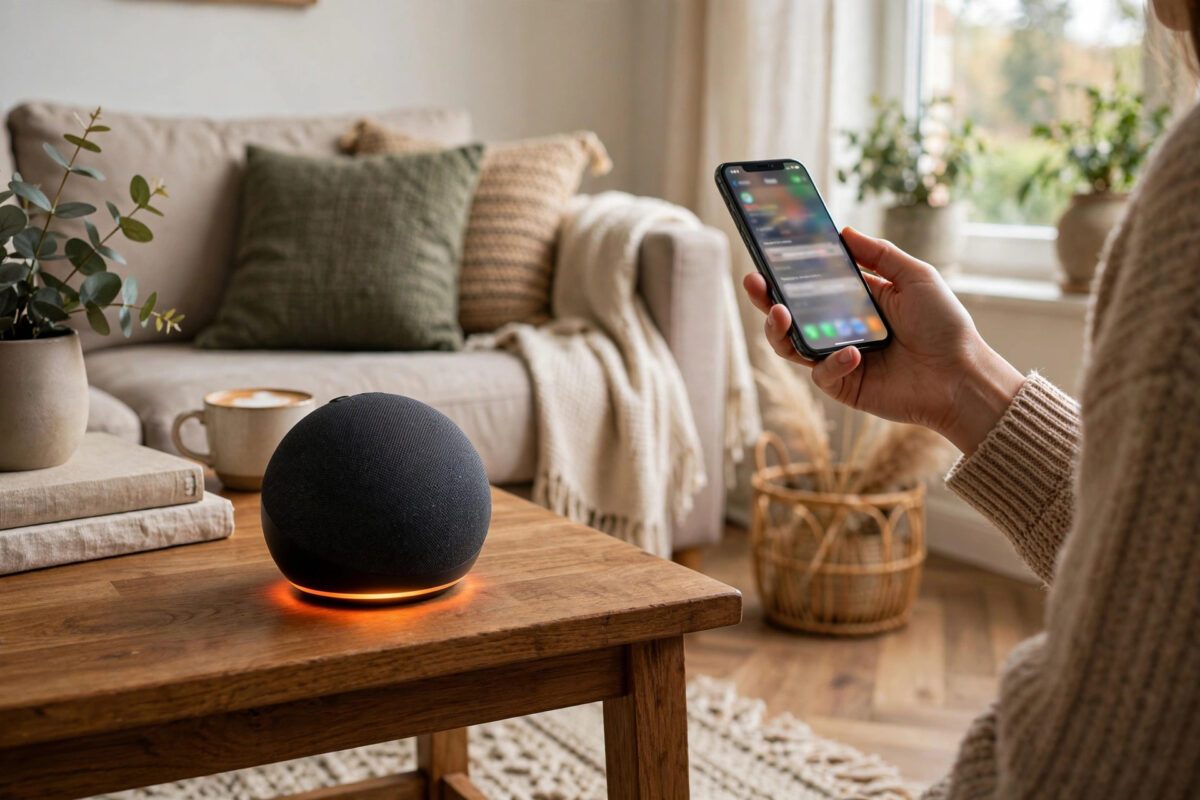
Your Echo Dot is supposed to glow blue when it is listening and stay dark when it is idle. So when you see an orange ring spinning around and around without stopping, it is natural to worry that something is broken. The good news is that an orange spinning ring is rarely a sign of permanent damage. In most homes, it simply means the speaker is trying to connect to Wi-Fi and cannot finish the job.
This guide explains what the orange light means and the exact steps to get your Echo Dot 5th generation back online.
Quick Answer
An Echo Dot 5th gen stuck with an orange spinning ring is stuck in setup mode because it cannot connect to Wi-Fi. Unplug it for 30 seconds, plug it back in, then open the Alexa app and reconnect it to your 2.4 GHz home network. If that fails, hold the Action button for 15 seconds to reset the Wi-Fi settings and set it up again as a new device.
What Does the Orange Spinning Ring Mean?
Amazon uses the light ring as a simple status language. Each colour tells you what the speaker is doing at that moment.
- Spinning orange: The device is in setup mode and is trying to connect to the internet.
- Solid red: The microphone is muted or there is a connection problem.
- Spinning white: Alexa Guard is in Away mode.
- Purple flash: Do Not Disturb is on, or there was a Wi-Fi issue during setup.
When you first plug in a new Echo Dot, orange is completely normal for a minute or two. The problem starts when the ring keeps spinning for five, ten, or even thirty minutes and never moves on. That means the speaker started setup but could not finish joining your network.
Why the Ring Gets Stuck on Orange
There are several common reasons, and most of them are easy to fix once you know what to look for.
- Your Wi-Fi password was changed and the Echo still has the old one saved.
- The router was restarted, replaced, or moved and the signal no longer reaches the speaker well.
- The Echo is trying to join a 5 GHz band that is too weak in that room, when a 2.4 GHz band would be more stable.
- Your phone was connected to mobile data or a different network while you ran setup in the app.
- A temporary glitch in the speaker software stopped the setup process halfway through.
Fix 1: Restart Everything in the Right Order
Start with a clean restart. This clears temporary glitches in both the speaker and your network connection.
- Unplug the power cable from the back of your Echo Dot. Do not just mute it. Remove the power fully.
- Wait a full 30 seconds. This matters because the internal memory needs time to clear.
- While you wait, restart your router if you can. Unplug it for 30 seconds as well, then plug it back in and wait until your phone shows Wi-Fi is working again.
- Plug the Echo Dot back in, close to the router for this test if possible.
- Watch the light ring. It will spin orange at first. Give it up to two minutes to connect on its own.
If the ring stops spinning and turns off, try saying a simple command like asking for the time. If Alexa answers, you are done. If the orange ring returns and keeps spinning, move to the next fix.
Fix 2: Reconnect Wi-Fi in the Alexa App
If a restart alone is not enough, the saved Wi-Fi details are probably wrong. You can update them without a full reset.
- Open the Alexa app on your phone and make sure Bluetooth and location permissions are allowed for the app.
- Connect your phone to the same home Wi-Fi network you want the Echo Dot to use.
- Turn off mobile data temporarily, so your phone does not switch away from Wi-Fi during setup.
- In the app, tap Devices, then Echo and Alexa, and choose your Echo Dot.
- Tap the settings gear, find Wi-Fi Network, and tap Change.
- Follow the on-screen prompts. When asked, press and hold the Action button on top of the Echo until the ring turns orange.
- Select your home network from the list, type the password very carefully, and confirm.
Password mistakes are common. Wi-Fi passwords are case-sensitive, so check the sticker on your router if you are unsure.
If this is your first time setting up any smart speaker, our complete guide on how to set up a smart speaker with Alexa or Google Home walks through the whole process step by step, including where to place the speaker for the best response.
Fix 3: Check Your Network Band and Signal
The Echo Dot 5th gen supports both 2.4 GHz and 5 GHz Wi-Fi, but that does not mean both work equally well in every room. The 5 GHz band is faster but travels a shorter distance and struggles through walls. The 2.4 GHz band is slower but far more reliable for smart home devices.
Simple Signal Checks You Can Do
- Stand next to the Echo Dot with your phone and check how many Wi-Fi bars you see. If your phone struggles there, the Echo will too.
- Move the Echo Dot to a different spot in the same room, away from TVs, microwaves, baby monitors, and thick metal objects.
- If your router shows one combined network name for both bands, try temporarily separating them in your router settings, then connect the Echo to the 2.4 GHz name.
Also check your internet is working on your phone using Wi-Fi only. If nothing loads, the problem is your broadband or router, not the Echo Dot.
Fix 4: Reset the Echo Dot and Set It Up Again
If the ring is still stuck, a reset is the most reliable fix. This clears the old network details and lets you start fresh. Your Alexa account, routines, and smart home groups stay saved in your Amazon account, so you will not lose everything. You will only need to reconnect this one speaker.
- With the Echo Dot plugged in, press and hold the Action button, which is the round button on top, for about 15 seconds.
- Wait until Alexa says the device is resetting, or until the light ring turns off and then turns orange again.
- Let go of the button. The speaker is now in setup mode, which is exactly what you want.
- Open the Alexa app, tap the + icon, choose Add Device, then Amazon Echo, then Echo Dot.
- Follow the prompts, choose your Wi-Fi network, and enter the password carefully.
- Choose the room name, test a voice command, and wait a few minutes for any automatic software update to finish.
Do not unplug the speaker during an update, even if the ring looks odd for a few minutes. Interrupting an update is one of the easiest ways to end up stuck again.
If setup still fails after a reset, check the official guidance on the Amazon Alexa help and customer support pages for device-specific error messages and account checks.
Common Mistakes to Avoid
- Rushing the restart: Plugging the Echo back in after two seconds does not clear the glitch. Always wait the full 30 seconds.
- Setting up from too far away: Keep your phone, the Echo, and the router in the same room during setup, then move the speaker afterwards.
- Using a guest network: Guest networks often block devices from talking to each other. Use your main home network instead.
- Ignoring router restarts: If several devices lost connection at the same time, restart the router first before resetting speakers one by one.
- Repeating the same failed setup: If the app fails three times in a row, stop and do the full reset rather than tapping retry endlessly.
Conclusion
An orange spinning ring on your Echo Dot 5th gen looks worrying, but it almost always means one simple thing: the speaker cannot finish joining your Wi-Fi. A full power restart fixes quick glitches, reconnecting in the Alexa app fixes saved password problems, and a 15-second Action button reset fixes almost everything else. Work through the steps in order, connect to a strong 2.4 GHz signal during setup, and your Echo Dot should be answering questions again within ten minutes.
Frequently Asked Questions
How long should the orange ring spin during normal setup?
During normal setup, the orange ring usually spins for one to two minutes. If it is still spinning after five minutes, something is wrong and you should restart setup using this guide.
Will resetting my Echo Dot delete my routines and smart home devices?
No. Routines, skills, and smart home groups are saved to your Amazon account in the cloud, not only on the speaker. After you set the Echo Dot up again with the same account, your routines and connected devices will still be there, though you may need to select the speaker again in some groups.
Why does my Echo Dot keep dropping back to an orange ring every few days?
Repeated drops usually point to a weak signal, router channel congestion, or the speaker sitting on the edge of your 5 GHz coverage. Move it closer to the router, connect it to the 2.4 GHz band, and restart your router. If many devices drop at once, your router may need a firmware update.
Can I set up an Echo Dot without the Alexa app?
For the 5th generation Echo Dot, the Alexa app on a phone or tablet is the standard and most reliable setup method. Keep the app updated, allow Bluetooth and location permissions during setup, and connect your phone to the same Wi-Fi network you want the speaker to use.
My Echo Dot shows orange but the app says it is offline. What should I do?
That combination confirms the speaker is in setup mode but has not joined your network. Unplug it for 30 seconds, hold the Action button for 15 seconds to reset it, then add it again in the app while standing close to your router with your phone on the correct home network.



Leave a Reply