
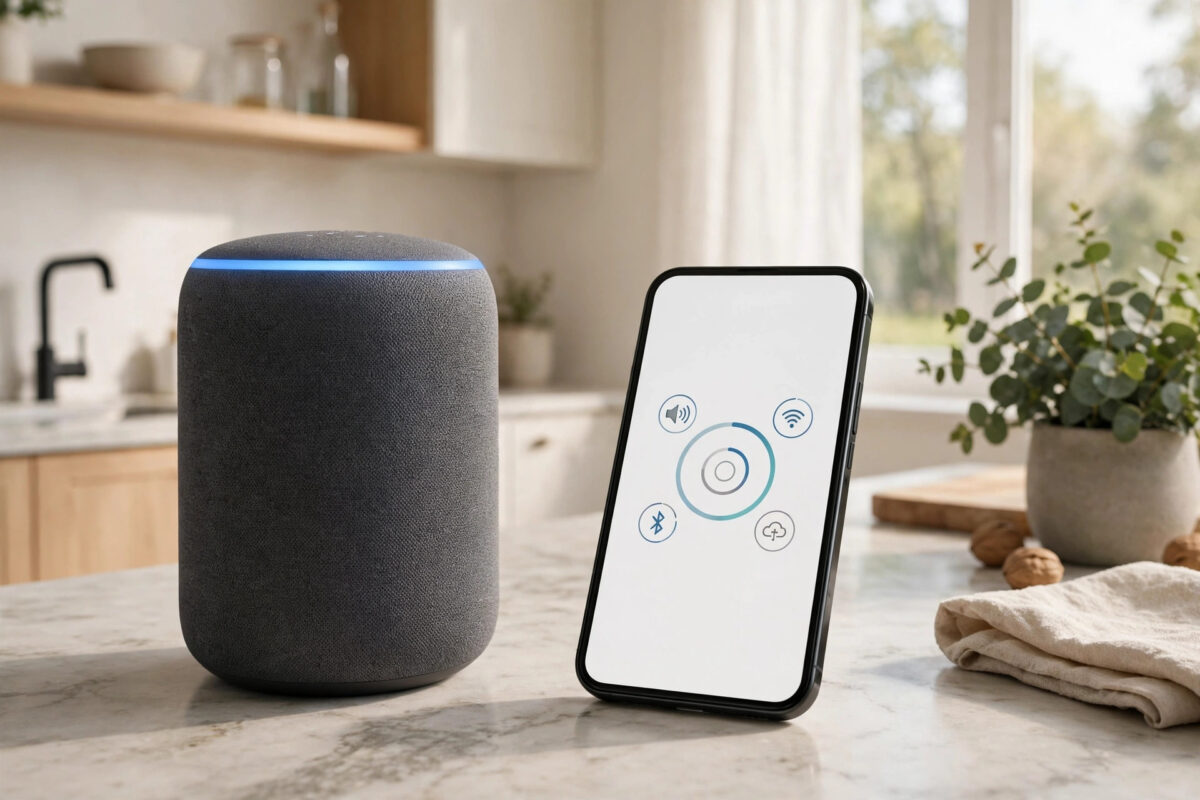
A smart speaker is often the first smart home device people buy, and for good reason: ten minutes after opening the box you can ask for music, timers, weather, and news with nothing but your voice. Whether you chose an Amazon Echo with Alexa or a Google Nest speaker with Google Assistant, the setup follows the same pattern — plug in, connect to the app, join your Wi-Fi, and personalise. This guide covers both ecosystems step by step, plus the settings that make the speaker genuinely useful instead of a novelty.
Quick Answer
Download the Amazon Alexa app (for Echo) or Google Home app (for Nest), plug the speaker into power, open the app, tap Add Device, and follow the prompts to connect the speaker to your 2.4GHz or 5GHz home Wi-Fi. Then set its room, link your music service, and train voice recognition for each person in the house. The whole process takes about ten minutes.
What You Need Before You Start
- A smartphone or tablet with Bluetooth turned on, signed in to your Amazon or Google account.
- Your home Wi-Fi name and password. Smart speakers work on both 2.4GHz and 5GHz bands.
- A good spot for the speaker: central in the room, away from walls by at least 20cm for better sound, and not next to the TV, which can trigger false wake-ups and muddy listening.
- The latest version of the Alexa or Google Home app from your phone’s app store.
Setting Up an Amazon Echo (Alexa)
- Plug in the Echo using the power adapter in the box. The light ring turns blue, then orange — orange means it is in setup mode. If it does not turn orange, hold the Action button (the dot) for about 15 seconds until it does.
- Open the Alexa app and sign in with the Amazon account you want the speaker tied to. Purchases and calendars come from this account.
- Tap Devices (bottom right) > the + icon > Add Device > Amazon Echo > Echo, Echo Dot, Echo Pop and pick your model.
- Follow the prompts: the app finds the speaker over Bluetooth, asks you to choose your Wi-Fi network, and you enter the password.
- Assign the speaker to a room (Kitchen, Living Room, and so on). Room groups let you say “turn off the kitchen lights” later when you add more devices — see our guide on controlling your home lights with your phone for what to add next.
- Choose your music service (Spotify, Amazon Music, Apple Music) and link the account so “play my playlist” works.
- Set up Voice ID: In the app, go to More > Settings > Your Profile & Family and teach Alexa your voice so it can tell household members apart.
Setting Up a Google Nest Speaker (Google Assistant)
- Plug in the Nest speaker or display. It plays a chime and says it is ready to be set up through the Google Home app.
- Open the Google Home app, sign in with your Google account, and create a “home” if this is your first device.
- Tap Devices > Add > New device. The app scans and finds the speaker; confirm the code shown matches if asked, and play the test sound to confirm you are setting up the right one.
- Connect Wi-Fi: The app can reuse the password saved on your phone (Android) or ask you to type it.
- Choose the room, link your music and video services under the speaker’s settings, and agree to Voice Match so the Assistant recognises you.
- Finish the tutorial and try a command: “Hey Google, what’s the weather today?”
Google’s own Google Nest support pages include model-specific diagrams if your speaker behaves differently during any of these steps.
Settings to Adjust After Setup
Privacy Controls
Both platforms record voice requests to improve recognition, and both let you limit that. In the Alexa app, go to More > Settings > Alexa Privacy to auto-delete recordings after 3 or 18 months and to review what the speaker heard. In Google Home, open Settings > Privacy and set your activity to auto-delete, and use the physical microphone mute switch on the back of the speaker whenever you want complete privacy.
Routines
Routines string commands together. A “Good morning” routine can read the weather, your calendar, and the news headlines in one go. Create them under More > Routines in the Alexa app or Automations in Google Home.
Equaliser and Volume Limits
In each speaker’s device settings you can adjust bass and treble, enable a night mode that caps volume in the evening, and (on Google devices) turn on “Lower volume when listening” so the speaker ducks the music while it hears you.
Troubleshooting Setup Problems
- The app cannot find the speaker: Make sure the phone’s Bluetooth and location permissions are allowed for the app, and that the speaker shows its setup light (orange on Echo). Move within two metres during setup.
- Wi-Fi password rejected: Re-enter it slowly; if your router uses a combined smart-connect band name, the speaker usually still connects, but an older Echo may need the 2.4GHz band visible separately.
- Setup stalls at “connecting”: Restart the speaker and your router, then repeat. Keep the phone off mobile data during setup so it stays on the home network.
- The speaker answers from the wrong room: Check each speaker is assigned to the correct room in the app, and that you did not create duplicate homes.
Common Mistakes to Avoid
- Using a work or school Amazon/Google account: Personal purchases, photos, and calendars get tangled. Use your personal account.
- Placing the speaker inside a cabinet: It muffles the microphones and the sound. Open air, near ear level, works best.
- Skipping Voice ID / Voice Match: Without it, anyone can ask the speaker to read your calendar or messages.
- Leaving voice purchasing on with children in the house: Set a voice confirmation code in Alexa, or turn off personalised results for kids’ rooms in Google Home.
Conclusion
Setting up a smart speaker is a ten-minute job: app, power, Wi-Fi, room, music service, voice training. The difference between a gimmick and a genuinely helpful device is the follow-up — set the privacy auto-delete, build one or two routines, and place the speaker where it can hear you clearly. From there, adding lights, plugs, and cameras to the same app takes minutes each.
Frequently Asked Questions
Can I set up an Echo or Nest speaker without a smartphone?
Not easily — both ecosystems require the mobile app for the initial Wi-Fi setup. A tablet works just as well. After setup, the speaker works independently and the phone is only needed to change settings.
Does a smart speaker need Wi-Fi all the time?
Yes for voice commands, music streaming, and smart home control, because requests are processed in the cloud. An Echo can act as a plain Bluetooth speaker from your phone without Wi-Fi, but you lose the assistant features.
Which Wi-Fi band should I connect the speaker to?
Either works. 2.4GHz reaches further through walls, which suits speakers in bedrooms and kitchens far from the router; 5GHz is fine for the same room. Keep all your smart home devices on the same network so they can talk to each other.
Can I change the wake word?
On Echo devices you can choose Alexa, Amazon, Echo, Computer, or Ziggy in the device settings. Google speakers only respond to “Hey Google” or “OK Google” — the wake phrase cannot be changed.
How do I move the speaker to a new house or network?
In the Alexa app, open the device settings and tap Change next to the Wi-Fi network. In Google Home, open the speaker’s settings, choose Wi-Fi > Forget network, then set it up again on the new network. A factory reset (hold the mute and volume-down buttons on most Echo models) is the fallback if it refuses to cooperate.



Leave a Reply