
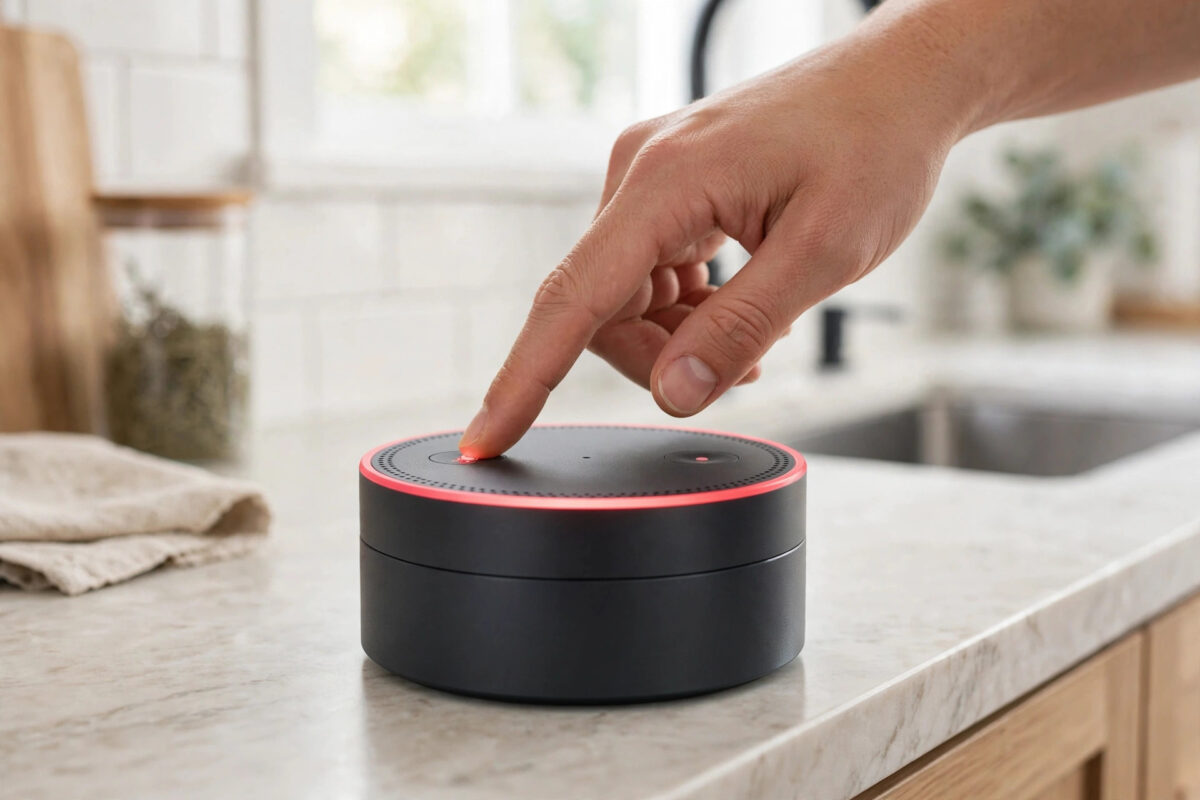
You say the wake word, and nothing happens. No blue light, no answer, just a solid red ring staring back at you from your Echo speaker. It can feel like Alexa has suddenly gone deaf or the speaker has broken overnight. In reality, a solid red ring is one of the clearest signals Amazon built into the device, and in most cases you can fix it in under a minute.
This guide explains exactly what a solid red ring means, how to tell the difference between a muted microphone and a connection problem, and the steps to get Alexa hearing and responding to you again.
Quick Answer
A solid red ring usually means your Echo microphone is muted. Tap the microphone on/off button on top of the speaker once, and the red ring should turn off. If the ring stays red after unmuting, unplug the speaker for 30 seconds, restart your router, and reconnect the Echo to Wi-Fi in the Alexa app.
What Does a Solid Red Ring Mean?
Unlike some lights that can mean several things, the solid red ring has two main meanings, and context helps you tell them apart.
The first and most common meaning is privacy. When you press the microphone off button, the Echo disconnects its microphones so it cannot hear anything, not even the wake word. The red ring stays on to remind you listening is off. Many people press it by accident while dusting or moving the speaker.
The second meaning is a problem. If the microphone is not muted but the ring is red, the speaker may have lost its internet connection or run into an error that stops it processing requests. In that case Alexa might say she is having trouble understanding, or you may have heard an error message just before the ring appeared.
How to Tell Which Problem You Have
- Look at the buttons on top of the speaker. If the microphone button itself is lit red, the mic is muted.
- Try pressing the Action button and speaking up close. A muted speaker will not respond at all.
- Check the Alexa app. A speaker with a connection problem often shows as offline.
Start with the mute check every time. It is the cause in most red ring cases.
Fix 1: Unmute the Microphone
- Find the microphone on/off button on top of your Echo. Its icon looks like a microphone with a line through it, or a circle with a line, depending on your model.
- Press it once, firmly. You should hear Alexa say that the microphone is back on, or see the red ring disappear.
- Wait a few seconds for the ring to go dark.
- Say the wake word clearly, from a normal distance, and ask a simple question like what time it is.
If Alexa answers, you are finished. The speaker was never broken. Someone in the house may have muted it for privacy during a call or a meeting and forgotten to turn it back on.
When the microphone is muted, no voice command can unmute it, because the speaker cannot hear you. You must press the physical button.
Fix 2: Restart the Speaker Properly
If the mute button is not lit, or unmuting does not clear the red ring, restart the speaker to clear a temporary software or connection error.
- Unplug the power cable from the Echo or from the wall socket.
- Wait a full 30 seconds. Do not rush this step.
- Plug it back in and let it boot up. This can take about a minute.
- Watch the ring. It may spin orange or blue during startup, then it should go dark.
- Test with a simple voice command once the ring has settled.
If the red ring returns straight after a restart, the speaker is still failing to connect or still detecting a problem. Continue to the network checks below.
Fix 3: Check and Restore Your Wi-Fi Connection
An Echo without internet is a speaker that cannot think. Alexa processes your voice in the cloud, so even a perfect microphone is useless if the connection is down.
Quick Network Checks
- Check whether your phone can browse the web on Wi-Fi with mobile data turned off.
- Restart your router. Unplug it for 30 seconds, plug it back in, and wait two to three minutes for it to fully reconnect.
- Move the Echo closer to the router temporarily to rule out a weak signal.
- Make sure you have not changed your Wi-Fi name or password recently without updating the Echo.
Reconnect the Echo in the App
- Open the Alexa app and tap Devices, then choose your Echo speaker.
- If it shows as offline, open its settings and find the Wi-Fi Network option.
- Choose Change and follow the prompts to join your home network again.
- Enter the password carefully. Wi-Fi passwords are case-sensitive.
- Keep your phone on the same network and close to the speaker during the process.
If you are still learning the basics of these speakers, following a clear walkthrough for setting up a smart speaker with Alexa step by step can help you confirm every setting, from wake word choice to which room the speaker belongs to.
Fix 4: Check for Other Reasons Alexa Cannot Hear You
Sometimes the red ring clears, but Alexa still seems to ignore you, or you had a red ring together with poor hearing. Work through these checks.
- Noise: A TV, fan, or loud music near the speaker can drown out your voice. Move the Echo away from noise sources.
- Placement: A speaker pushed into a corner, behind books, or inside a shelf hears you worse. Give it open space around it.
- Wake word: Confirm which wake word the speaker uses in the app. It might be set to Echo, Computer, or Ziggy instead of Alexa.
- Multiple speakers: Another Echo in a nearby room may be answering instead. Check the app activity history to see which device heard you.
Review What Alexa Heard
The Alexa app keeps a voice history under More, then Activity History. If a recording is clear but the text is wrong, the issue is recognition. If there is no recording at all, the speaker truly did not hear you.
Fix 5: Update, Reset, or Check the Device
If the red ring keeps coming back, leave the speaker plugged in and online for a full day so it can install software updates overnight.
As a last step, you can reset the device and add it again. The exact button combination depends on your model. For most Echo Dot models, holding the Action button for about 15 to 20 seconds starts a reset. After the reset, add the speaker again in the app as a new device. Your routines and smart home setup remain in your account.
For model-specific button diagrams and error explanations, the official Amazon device support and help pages are the safest reference, especially if your speaker shows a red ring together with a spoken error about its registration or account.
Common Mistakes to Avoid
- Shouting at a muted speaker: If the ring is red and the mute button is lit, no volume of shouting will help. Press the button.
- Pressing the wrong button: The Action button and the microphone button sit close together on some models. Check the icons before you press.
- Resetting too quickly: A factory reset should be your last step, not your first. The mute button and a restart fix most cases.
- Ignoring the router: If phones and laptops also lost connection, fix the network first instead of resetting every speaker in the house.
- Leaving the mic muted for privacy, then forgetting: If you mute Alexa for a private conversation, make a habit of unmuting right after, so the red ring does not confuse the rest of the household.
Conclusion
A solid red ring on Alexa is almost never a sign of a dead speaker. Most of the time it simply means the microphone is muted, and one press of the button on top brings Alexa back. If unmuting does not help, a proper 30-second restart and a Wi-Fi reconnection clear the remaining cases. Check the mute button first, work through the network next, and save the full reset for last.
Frequently Asked Questions
Why is my Alexa red even though I did not mute it?
Someone else in the house may have pressed the mute button, or the button was pressed by accident while cleaning or moving the speaker. A red ring can also appear when the speaker loses its internet connection or hits a software error, so if the mute button is not lit, restart the speaker and check your Wi-Fi.
Can Alexa hear anything at all when the ring is red?
If the red ring means the microphone is muted, then no. The microphones are disconnected and the speaker cannot hear the wake word or any command. That privacy protection is the whole point of the mute button. You must press the physical button to turn listening back on.
Alexa says she is having trouble understanding. Is that the same problem?
Usually, yes, it is related. That message often appears when the speaker can hear you but cannot reach Amazon servers to process your request. Check your internet connection, restart your router and the speaker, and try again once other devices confirm the Wi-Fi is stable.
How do I stop the red ring from coming back?
Keep the speaker within a good Wi-Fi range, leave it plugged in so it can install updates overnight, and avoid placing it where the mute button gets knocked. If the red ring returns daily at the same time, your router may be restarting on a schedule or your broadband may be dropping.
Is a red ring different from a red light on the mute button?
They normally appear together when the microphone is muted: the button glows red and the ring turns solid red. Seeing both together is the clearest confirmation that the speaker is muted rather than faulty, and one press of that same button clears both lights.



Leave a Reply