
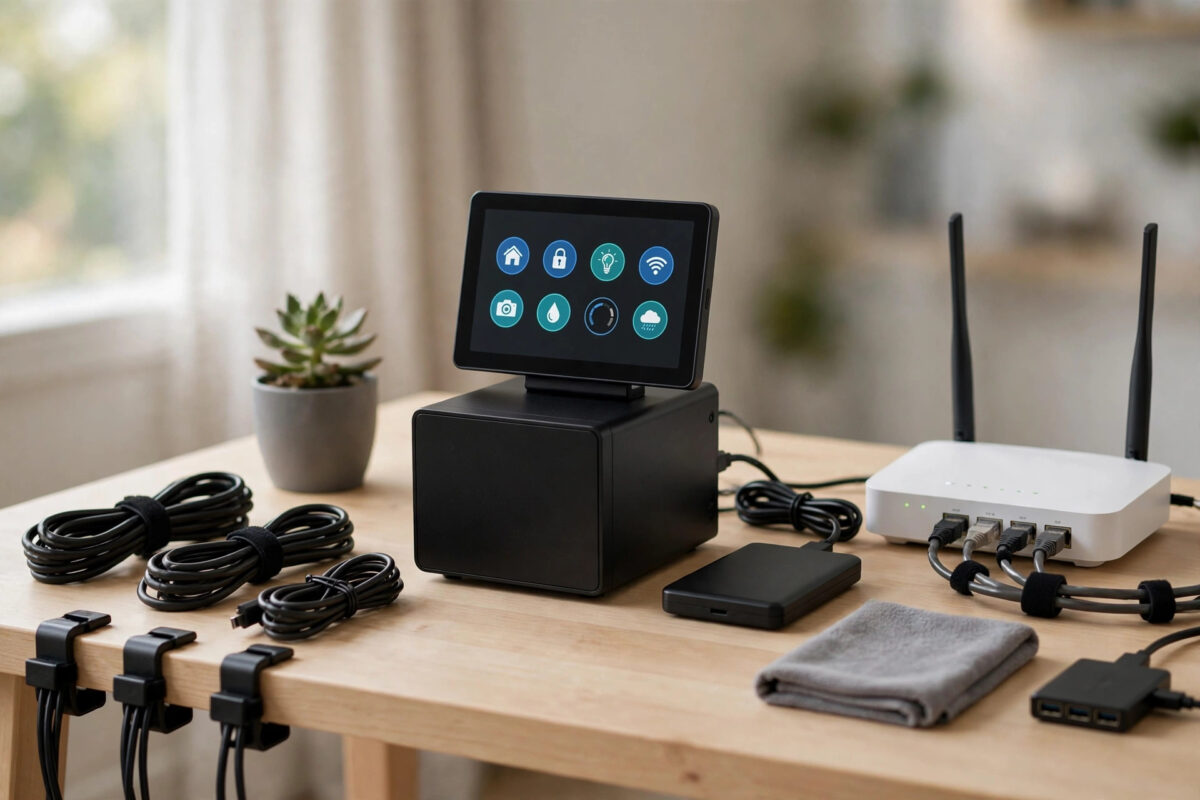
Your Home Assistant setup probably represents months of small wins: automations that finally work, dashboards your family actually understands, and integrations that took real patience to configure. Losing all of that to a failed SD card, a bad update, or a corrupted drive is a sickening thought — and it happens more often than people admit.
The fix is a backup that runs itself, lives outside your house, and is easy to restore. Google Drive is a practical place for that copy because most people already have an account and plenty of storage. In this guide you will learn how to back up your Home Assistant configuration to Google Drive automatically, how to test a restore, and how to avoid the quiet mistakes that leave people with a backup folder that was never actually working.
Quick Answer
To back up Home Assistant to Google Drive automatically, install the Google Drive Backup add-on from the Home Assistant add-on store, sign in with your Google account, and set a schedule such as daily backups kept for the last seven to fourteen days, plus a few older snapshots. Turn on automatic backups before updates, confirm the first backup appears in a Home Assistant folder in your Google Drive, and download and test-restore one backup to a spare system or test instance so you know it works. Keep at least one local copy as well for the fastest recovery.
Why Automatic Off-Site Backups Matter
Home Assistant has built-in backup tools, and they are good — but a backup stored only on the same machine does not help if that machine fails, is stolen, or suffers a house-level problem like a flood or power surge. An automatic copy in Google Drive protects you from the most common disasters.
A sensible backup plan gives you three things:
- Automation: Backups happen on a schedule whether you remember or not, including before updates.
- Separation: A copy lives away from the device, so a hardware failure does not take the backup with it.
- History: Several dated copies let you roll back to last week, not just to a broken backup made five minutes ago.
Home Assistant’s own guidance in the official backup documentation explains what a full backup contains and how restoring works, and it is the right reference to check before any major system change.
What a Home Assistant Backup Actually Contains
Before you set a schedule, it helps to know what you are protecting. A full backup can include your configuration files, automations, scenes, dashboards, add-ons and their data, and media or share folders, depending on the options you choose. That means a good restore can bring back not just settings but the add-ons you rely on daily.
Decide whether to password-protect backups — store any password in a password manager — and what to exclude. Huge media libraries can make backups enormous, so handle large files separately.
Step 1: Take a Manual Backup First
- Go to Settings, then System, then Backups in Home Assistant.
- Create a full backup now, name it clearly with today’s date, and wait for it to finish.
- Download a copy to your computer and keep it in a named folder.
- Note the size and how long it took. That baseline tells you whether your later automatic backups look healthy or suspiciously small.
Never set up an automatic system and walk away without one known-good manual copy. That first backup is your safety net while you configure everything else. Our guide to keeping your smart home running when the internet goes down also covers local copies and power basics that pair well with a cloud backup routine.
Step 2: Install the Google Drive Backup Add-on
The most popular route is the community Google Drive Backup add-on, available through the add-on store in Home Assistant OS and Supervised installs. Names and menus can shift slightly between versions, so follow the prompts on your system.
- Open Settings, then Add-ons, then Add-on Store.
- Search for Google Drive Backup and install it.
- Start the add-on and open its web interface from the sidebar or the add-on page.
- Click the option to authenticate with Google Drive and sign in with the Google account you want to own the backups.
- Approve the permissions. The add-on creates and manages its own backup folder — check the folder name so you can find it later in Drive.
- Return to the add-on settings and confirm it can see your existing backups.
If you run Home Assistant Container or Core without add-ons, you cannot use this add-on in the same way. In that case, schedule Home Assistant’s built-in backups to a local folder and use a separate sync tool on the host machine to copy that folder to Google Drive. The principle is identical — automatic, dated, off-site — even if the tool differs.
Step 3: Set a Sensible Schedule and Retention
More backups is not always better. Too many giant copies fill your Drive quota and make finding the right one harder. A balanced setting for most homes looks like this:
- Back up automatically every day at a quiet time, such as 3 am, when nobody is editing automations.
- Keep the last seven daily backups in Home Assistant and in Google Drive.
- Keep a small number of older generational copies, such as one per week for a month, if your storage allows.
- Turn on the option to back up before an add-on or system update, where available.
- Enable notifications for backup failures, so a silent error does not go unnoticed for weeks.
Check your Google storage quota after the first week. If backups are growing fast, look for a media folder or database that is inflating them rather than simply raising the limit without thinking.
Step 4: Confirm the Backup Really Reached Google Drive
- Open Google Drive in a browser and find the Home Assistant backup folder.
- Confirm the newest file name and date match the backup you just ran.
- Compare the file size with your manual baseline. A file that is dramatically smaller may be partial.
- Open the add-on log in Home Assistant and check for upload errors, authentication warnings, or skipped files.
- Rename nothing in the Drive folder by hand unless the add-on instructions say it is safe — the add-on tracks files by name and ID.
Step 5: Test a Restore Before You Need One
An untested backup is a hope, not a plan. Testing does not mean wiping your live system. You can restore to a spare Raspberry Pi, a virtual machine, or a temporary test install.
- Install a clean copy of Home Assistant on the test device.
- During setup, choose the option to restore from a backup, or upload the backup file from Google Drive after setup.
- Enter the backup password if you set one.
- Wait patiently. Restores that include add-ons can take a long while and a reboot or two.
- Check that automations, dashboards, and a key integration all appear and work.
Note how long the restore took. In a real emergency that knowledge calms everyone down. The Google Drive help pages on storage and file management are useful if you need to check quotas, sharing, or how to download a large backup file reliably.
Common Mistakes to Avoid
- Only storing backups on the same machine. That protects against an accidental delete, not against hardware failure.
- Forgetting the backup password. Store it in a password manager and tell a trusted household member where to find it.
- Never checking Drive. Authentication can expire. Open the folder monthly and confirm fresh files are arriving.
- Keeping too few or too many copies. One copy gives no history, while hundreds waste storage. Seven to fourteen recent copies suits most homes.
- Backing up recordings you do not need. Large camera or media data can balloon backups. Exclude bulk media and protect it separately.
- Sharing the backup folder publicly. A Home Assistant backup can contain sensitive configuration details. Keep the Drive folder private.
Helpful Tips for Long-Term Peace of Mind
Check the backup folder monthly, take a manual backup before big changes, and keep one local copy for the fastest restore. Write a short recovery note with the backup location and password storage details.
Conclusion
Backing up Home Assistant to Google Drive automatically is one of the highest-value jobs you can do for your smart home, and it takes less than an hour to set up properly. Take a manual backup first, install the Google Drive Backup add-on, set a daily schedule with sensible retention, confirm files are landing in Drive, and test a restore on a spare system. After that, your automations, dashboards, and hard-won configuration are protected by a routine that quietly looks after itself — exactly as a backup should.
Frequently Asked Questions
Is the Google Drive Backup add-on an official Home Assistant add-on?
It is a widely used community add-on available through the add-on store, rather than a core feature built by the Home Assistant team. Always install it from the store, read its current instructions, and keep it updated.
How much Google Drive space does a Home Assistant backup use?
It varies widely. A simple setup may be a few hundred megabytes, while a system with large databases or media can be several gigabytes. Check your first few backups and adjust retention or exclusions to fit your quota.
What happens if my Google authentication expires?
Uploads will fail until you sign in again from the add-on. That is why failure notifications and a monthly folder check matter. Re-authenticate promptly and run a manual backup to confirm the fix.
Can I restore a Google Drive backup to different hardware?
Yes, in most cases. Install Home Assistant on the new hardware, restore the backup, and give add-ons time to rebuild. Some hardware-specific settings, like radio or network details, may need small adjustments afterwards.
Should I encrypt or password-protect my cloud backups?
It is a wise precaution because backups can contain sensitive configuration information. If you set a password, store it in a password manager separate from Home Assistant so you can always unlock the backup when you need it.



Leave a Reply