
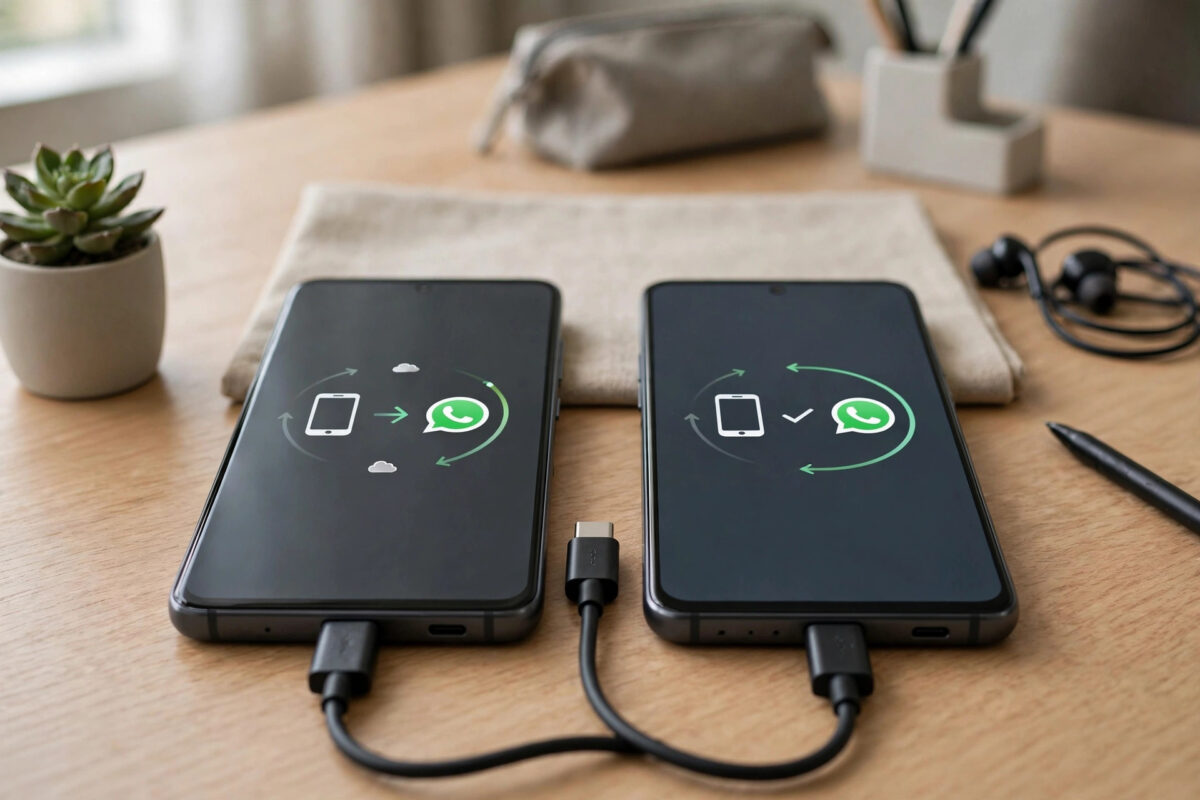
Getting a new phone is exciting until you open WhatsApp and realise years of family chats, work messages, photos, and voice notes are still sitting on the old handset.
The good news is that WhatsApp now offers a fast built-in transfer that moves your chats directly between phones, without relying only on a cloud backup.
This guide covers every reliable method: the official Chat Transfer feature, Google Drive backup for Android-to-Android moves, and the special steps needed if you change your number. Follow the checks in order and you will not lose a message.
Quick Answer
The easiest way is WhatsApp’s built-in transfer: on the old phone go to Settings > Chats > Transfer chats, then scan the QR code shown during WhatsApp setup on the new phone with the same number. Keep both phones on the same Wi-Fi and on charge. Alternatively, back up to Google Drive on the old phone and restore that backup on the new phone during setup.
Before You Start: Checks That Prevent Most Failures
Most failed transfers are not caused by WhatsApp itself. They are caused by a skipped preparation step.
First, confirm your number. Transfers work smoothly when you keep the same phone number and the same Google account.
If you are also changing numbers, change the number inside WhatsApp on the old phone first, before you transfer. The exact steps are covered later in this guide.
Update WhatsApp on both phones to the latest version from the Play Store. The transfer feature needs a recent version on each device.
Charge both phones above 50% and keep them plugged in. A large chat history can take a while to move.
Connect both phones to the same stable Wi-Fi network. Turn off any VPN on both devices during the transfer.
Finally, check free space. Your new phone needs at least as much free space as the WhatsApp data on the old phone, plus room to work.
You will find more phone setup help alongside this guide on Network Ustad’s homepage for step-by-step tech tutorials, including Android and home network walkthroughs.
How to Check Your WhatsApp Size
- Open WhatsApp on the old phone.
- Tap the three-dot menu, then tap Settings.
- Tap Storage and data > Manage storage.
- Note the total size shown at the top.
- Make sure the new phone has more free space than that total in Settings > Storage.
Method 1: Use WhatsApp Chat Transfer — Android to Android, No Cloud Needed
This is the fastest and most complete method for most people. It moves chats directly from phone to phone over your local Wi-Fi connection.
It transfers messages, photos, videos, documents, and voice notes. It does not need a Google Drive backup, so it also works when a backup is old or stuck.
Both phones must use the same phone number. Keep the phones close together and unlocked throughout the process.
Step-by-Step Transfer Using the QR Code
- Install WhatsApp on the new phone, but do not finish setup yet beyond entering and verifying your phone number.
- On the old phone, open WhatsApp and tap the three-dot menu, then Settings.
- Tap Chats > Transfer chats, then tap Start.
- Accept the nearby devices permission if Android asks for it. Without it, the phones cannot find each other.
- On the new phone, proceed with setup using the same number until a QR code for transfer is shown.
- Use the old phone to scan the QR code displayed on the new phone.
- Wait while the transfer progresses. Keep both phones on the transfer screen, on Wi-Fi, and on charge.
- When the old phone shows the transfer as complete, finish setup on the new phone and open your chats to confirm they are all there.
- Do not uninstall WhatsApp or reset the old phone until you have checked messages, media, and recent chats on the new phone.
WhatsApp documents this flow in WhatsApp’s official help page on transferring your chat history, including the permissions Android asks for during the process.
If you have a very large history, be patient. Tens of gigabytes of video can take a long time even on fast Wi-Fi.
Method 2: Back Up to Google Drive and Restore on the New Phone
The cloud method is best when the phones are not together, or when you want a backup safety net before you start.
It only works Android-to-Android with the same Google account and the same phone number. The backup must complete fully before you set up the new phone.
Back Up on the Old Phone
- Open WhatsApp and go to Settings > Chats > Chat backup.
- Check the Google account shown is the one you will use on the new phone.
- Turn on Include videos only if you need videos and have enough Drive space and time.
- Tap Back up and wait until the progress finishes completely.
- Note the date, time, and size of the latest backup shown on that screen.
Restore on the New Phone
- Add the same Google account to the new phone in Settings > Passwords and accounts before opening WhatsApp.
- Install WhatsApp from the Play Store and verify the same phone number.
- When WhatsApp finds the Google Drive backup, tap Restore.
- Wait for messages to restore first, then let media finish downloading in the background.
- Tap Next, complete your profile, and check several chats, including group chats and media.
Important timing rule: you must restore during initial setup. If you skip the restore prompt and open empty WhatsApp, you will usually need to uninstall and set up again to get another restore chance.
Google account problems are the top cause of failure here. If no backup is found, double-check the account and number match exactly.
Changing Your Number or Moving Between Android and iPhone
Changing numbers adds one extra step, but it is simple if you do it in the right order.
If You Are Changing Your Phone Number
- On the old phone, with the old SIM still working, open WhatsApp.
- Go to Settings, tap your profile, and tap your phone number, or use the Change number option in account settings.
- Enter the old number and then the new number, and verify the new number by code.
- Confirm your contacts can see the new number if WhatsApp offers to notify them.
- Only then start the Chat Transfer or Drive restore to the new phone using the new number.
For cross-platform moves, the rules differ. Android to iPhone generally uses Apple’s Move to iOS flow during iPhone setup, while iPhone to Android uses the prompts shown during Android setup and a cable in many cases.
Those flows must be done while the new phone is being set up for the first time. If you have already finished setup, a factory reset of the new phone is normally required to restart them.
Because cross-platform steps change with OS versions, follow the on-screen prompts carefully and keep a cloud backup as a fallback wherever the platform allows it.
Common Mistakes and Troubleshooting
Setting up the new phone first. Opening WhatsApp on the new phone and skipping restore burns your easiest restore chance. Install and verify, then follow the transfer or restore prompt immediately.
Using a different Google account or number. Drive restores silently find nothing when either detail differs. Compare both phones side by side before you begin.
Letting a phone sleep or lose Wi-Fi. Disable battery savers during the move and keep both phones awake, nearby, and plugged in.
- If Chat Transfer cannot find the other phone, toggle Wi-Fi off and on on both phones and retry.
- Grant WhatsApp the nearby devices permission in Settings > Apps > WhatsApp > Permissions.
- If a Drive backup is stuck, free Drive space, switch to a stronger Wi-Fi network, and run the backup again.
- If media is missing after restore, wait on Wi-Fi — media often finishes after messages appear — and check Manage storage.
- Keep the old phone untouched for a few days as your insurance copy.
Conclusion
For most Android-to-Android moves, use Chat Transfer: it is direct, complete, and avoids waiting on a cloud upload. Keep the same number, use the same Wi-Fi, and keep both phones charged and close.
If the phones are not together, use a fresh Google Drive backup and restore it during setup on the new phone with the same account and number. Change your number inside WhatsApp first if the number is changing too.
Whichever method you choose, verify real chats and media on the new phone before you wipe the old one. That single check turns a stressful move into a routine one.
Frequently Asked Questions
Will I lose my chats if I change phones?
No, not if you use Chat Transfer or restore a completed Google Drive backup during setup with the same number. Chats are only lost when setup is finished without transferring or restoring, or when there is no backup at all.
Does WhatsApp Chat Transfer need the internet?
It needs both phones on the same Wi-Fi network for the local transfer and for number verification. The chat data itself moves directly between phones rather than being uploaded to Google Drive first.
Why does WhatsApp say no backup found on my new phone?
Almost always the Google account or phone number on the new phone differs from the one used for the backup. Add the exact same Google account, verify the same number, then uninstall and set up WhatsApp again to retry restore.
Are call logs and payment history transferred?
Chat history and media transfer, but WhatsApp call history may not move with Chat Transfer, and payment history is tied to your number and service rules. Check WhatsApp’s help pages for the current limits before you wipe the old phone.
Can I transfer chats if my old phone screen is broken?
Only if you can still unlock it and approve the transfer or run a backup. If the screen is unusable, your last Google Drive backup — if one exists — is your restore source on the new phone.



Leave a Reply