
You restart your phone and instead of your network name, you see “No SIM”, “SIM not detected”, or “Insert SIM”. Without the SIM being read, you have no calls, no texts, and no mobile data. This problem looks dramatic, but the causes are usually mundane: the card has shifted in its tray, the contacts are dirty, the phone’s software has glitched, or the SIM itself has reached the end of its life. Work through the checks in this guide in order, from the two-minute fixes to the decisive tests, and you will know exactly where the fault lies and how to fix it.
Quick Answer
If your SIM card is not detected, power the phone off, remove the SIM, clean the gold contacts gently, and reseat it firmly in the tray before restarting. If the message remains, restart again, check for software and carrier updates, and test the SIM in another phone. If the SIM fails in every phone, it is faulty and your provider will replace it. If other SIMs also fail in your phone, the phone’s tray, reader, or software is the problem.
Step 1: Restart and Check the Basics
Start with the simplest possibility: a temporary software glitch. Restart the phone fully, not just the screen. When it boots, the phone re-reads the SIM from scratch, and a surprising number of “not detected” warnings vanish at this point.
While it restarts, think about what changed. Did the phone get dropped? Did the problem start after an update, after swapping SIMs, or after the phone got wet? The answer tells you where to look next. Also confirm aeroplane mode is off and that you are not looking at a second, empty SIM slot’s status on a dual SIM phone, which fools more people than you would expect. On dual SIM models, check in Settings that the slot containing your card is the one enabled.
Step 2: Reseat and Clean the SIM
- Power the phone completely off.
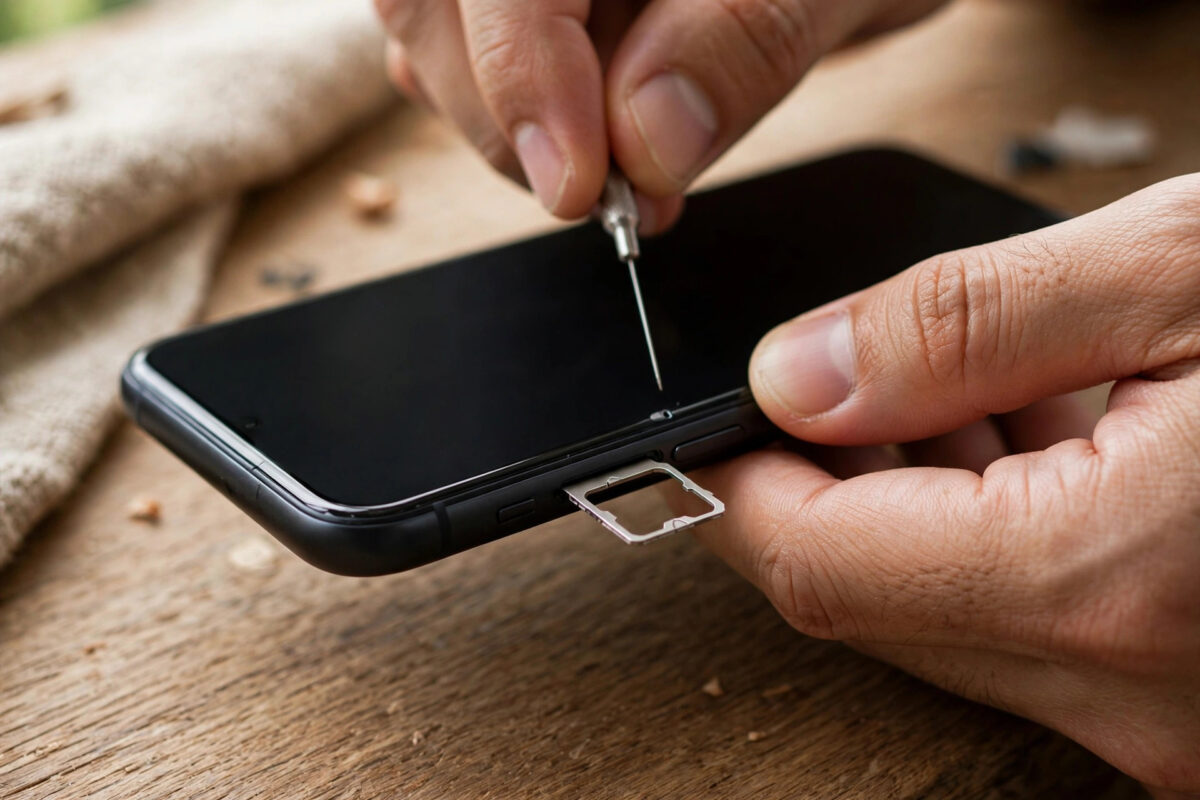
- Eject the SIM tray with the proper tool. Do not lever it with anything sharp that could bend the tray.
- Lift the SIM out and inspect it. Look for scratches across the gold chip, cracks, or a chip that looks dull and dirty.
- Wipe the gold contacts gently with a dry, soft, lint-free cloth. Do not use water or cleaning fluids.
- Place the SIM back exactly as it sat, matching the cut corner, with the gold side facing the correct way for your tray design.
- Slide the tray in fully and power on. Wait a full minute for registration.
If the card is the wrong size in a loose adapter, replace the adapter or ask your provider for a correctly cut replacement SIM. A card that rocks in its tray will keep losing contact, especially in a warm pocket. Samsung’s network troubleshooting guide shows the same reseating steps with pictures for Galaxy phones, and the principle is identical on every brand.
Step 3: Software Fixes
If the SIM is clean and seated but still not detected, turn to software.
- Install updates. Connect to Wi-Fi and install any pending system and carrier settings updates. Modem firmware updates regularly fix SIM-reading bugs.
- Reset network settings. On Android this is under Settings, System, Reset Options. On iPhone it is under Settings, General, Transfer or Reset iPhone, Reset. This clears network configuration back to defaults without deleting your files, though saved Wi-Fi passwords are removed.
- Check the SIM in settings. If the phone lists the SIM slot as empty even in menus, that points back to hardware or the card itself. If the SIM appears but shows no number or network, registration is failing rather than detection, which is closer to the emergency calls only problem and may be an account issue.
Step 4: The Two Decisive Tests
When basic fixes fail, isolate the fault with two swaps.
- Your SIM in another phone. Borrow any unlocked phone. If your SIM is not detected there either, the SIM is faulty. Contact your provider for a replacement; your number and plan move to the new card.
- Another SIM in your phone. If a known-good SIM is also not detected in your phone, the phone is at fault: a bent tray, damaged pins in the slot, or internal damage. A repair shop can confirm, and warranty may cover it.
These two tests take five minutes and prevent pointless factory resets and wasted days waiting for the wrong fix.
Step 5: eSIM Problems Are Different
An eSIM cannot be loose or dirty, so a “no SIM” style failure with an eSIM is a software or profile problem. Check that the eSIM line is switched on in your SIM settings, that you did not accidentally delete the profile, and that the phone has the latest software. If the profile is deleted, you will need a fresh QR code from your provider to install it again, since most codes work only once. Our guide on how to switch your number to a new SIM with eSIM explains how providers reissue profiles safely.
Common Mistakes to Avoid
- Removing the tray while the phone is on and mid-update. Always power off first.
- Scrubbing the gold contacts with anything abrasive. The chip surface is delicate. A dry cloth is enough.
- Pushing the tray in at an angle. This bends the tray and is a common way people turn a small issue into a repair bill.
- Factory resetting before the swap tests. You will lose data for a problem that is usually the card, not the phone.
- Ignoring a SIM that fails intermittently. A SIM that drops out weekly is dying. Replace it on your terms instead of when it fails completely.
When the Problem Keeps Coming Back
An intermittent fault — the SIM vanishes for an hour, returns, then vanishes again next week — deserves special attention because it is easy to ignore until it fails at the worst possible moment. Intermittent detection almost always means a physical connection problem: a SIM whose contacts are worn thin, a tray bent just enough to lose pressure, or a card slightly too small for its slot rattling as the phone warms and cools. Heat is a clue; if the failures cluster after gaming, charging, or a hot day, expansion and contraction are breaking a marginal contact. The cure is the same regardless of which part is at fault: replace the SIM first because it is free and quick, and if the fault continues with a brand-new card seated in a clean tray, book the phone in for a tray and reader inspection before the problem strands you somewhere without any service at all.
Conclusion
Most “SIM not detected” problems end with a clean, a reseat, or a restart. If not, the two swap tests tell you definitively whether the card or the phone is at fault. A faulty SIM is a free or cheap replacement from your provider, and because your number lives on the account rather than the plastic, you lose nothing by replacing it early.
Frequently Asked Questions
Can a SIM card wear out?
Yes. SIMs are small computers with contacts that scratch and oxidise over years of use, heat, and swapping. A SIM that is five or more years old and behaving oddly should simply be replaced.
Will replacing my SIM change my number?
No. A SIM swap moves your existing number, plan, and balance onto the new card. It is a routine provider service and usually activates within minutes to a few hours.
Why is my SIM detected but has no signal?
Detection and registration are different steps. The phone can read the card yet fail to log on because of weak coverage, an account problem, or wrong network settings. Check coverage, restart, and set network selection to automatic.
Can a phone update break SIM detection?
Occasionally a buggy update does exactly this, and manufacturers usually patch it quickly. If your problem started right after an update, check for a follow-up update and your maker’s support forums before assuming hardware damage.
Is it safe to clean a SIM with a pencil eraser?
Opinions vary, but a gentle wipe with a dry microfibre cloth is safer and sufficient for normal dirt. Avoid liquids, sprays, and abrasive materials that can damage the chip.



[…] Power off and reseat the SIM card. A card that has crept in its tray or has dirty contacts fails registration while appearing physically present. Wipe the gold contacts gently with a dry cloth and refit it firmly, as described step by step in our guide on what to do if your SIM card is not detected. […]