
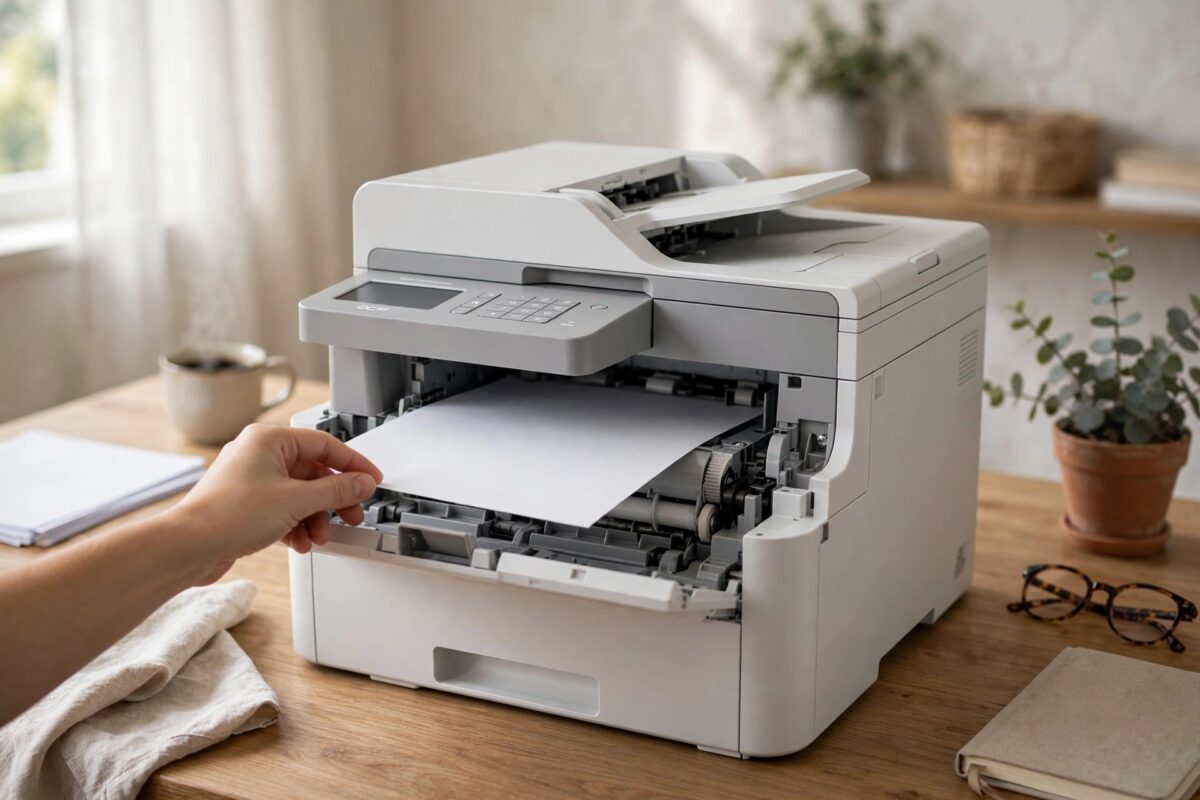
When your Brother DCP-L3550CDW stops mid-job and shows “Unable to Print 36” on the touchscreen, it feels sudden and serious. The printer will not print or copy, and restarting it once often brings the same message straight back. The good news is that this error is usually linked to a mechanical problem in the paper path, not to your computer or Wi-Fi, so you can check several causes yourself before calling for service.
This guide explains what the code means on this colour laser LED model, why it appears, and the checks to work through in a safe order. Most steps need no tools and take only a few minutes.
Quick Answer
The “Unable to Print 36” error on a Brother DCP-L3550CDW means the machine has detected a mechanical failure and has stopped the print engine to protect itself. Turn the printer off, unplug it for 60 seconds, then check carefully for jammed paper, torn scraps, and blockages at the front, back, and tray. If the paper path is completely clear and the error returns on every start-up after a full power reset, the fault is likely a motor, sensor, or board issue that needs a Brother service repair.
What Does Unable to Print 36 Actually Mean?
Brother uses the “Print Unable” family of codes for internal mechanical and electrical faults. Unlike a simple “Paper Jam” message, which tells you where to look, a numbered Print Unable code means a sensor did not see the movement it expected at the right time. The machine therefore locks itself rather than risking damage to the drum units, belt unit, or fuser.
On the DCP-L3550CDW, code 36 is most often reported after a jam, after printing on very thick or damaged paper, or when a small scrap, a label, or a foreign object like a paper clip is stuck where you cannot easily see it. In other cases there is no visible blockage at all. A worn feed roller, a stuck sensor, or a failing motor can produce the same code because, from the printer’s point of view, the result is identical: paper or an internal part did not move as commanded.
Why Restarting Once Rarely Fixes It
A normal restart clears temporary software glitches. Code 36 is stored as a machine error, so the printer runs a self-check on start-up. If the sensor still reports a problem during that check, the code returns within seconds, even before you send a print job. That is why a proper check of the paper path, followed by a full power drain, matters more than pressing the power button a few times.
Before You Start: Safety and Preparation
- Turn the printer off and wait for the screen to go dark.
- Unplug the power cord from the wall socket and from the back of the machine.
- Work with good light. A phone torch helps you see deep inside the paper path.
- Never use metal tools inside the printer. They can scratch the drum surface and damage sensors.
- Avoid touching the drum surfaces and the black transfer belt.
Step-by-Step Fix for Unable to Print 36
Step 1: Do a Full Power Drain Reset
- Turn the DCP-L3550CDW off and unplug the power cord.
- Disconnect the USB or network cable if one is connected.
- Wait a full 60 seconds. This drains stored power from the board.
- Press and hold the power button for 10 seconds while the machine is still unplugged.
- Reconnect the power cord directly to a wall socket for this test.
- Turn the printer on and watch the screen. Note whether the code appears straight away or only when you try to print.
Step 2: Check Every Access Area for Paper
Even a tiny torn corner can trigger this error. Check all areas, not just the paper tray.
- Pull out the paper tray completely. Remove all paper and look inside the empty cavity with a torch for scraps.
- Lift units only by their handles. Do not touch the drum surface.
- Check the manual feed slot at the front. Small labels and envelopes often stick there.
- Check the exit area where printed pages come out.
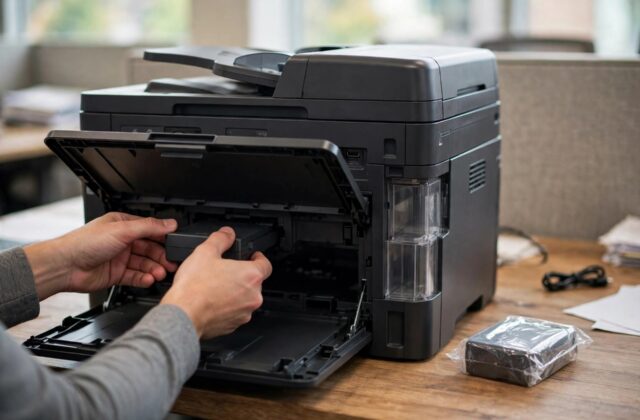
Reload the drum and toner units firmly until each clicks into place, making sure the colours return to the same slots. A unit that is not fully seated can also cause a mechanical error. For more help with media handling, see our guide to choosing the correct Brother paper type and tray settings before trying specialty media again.
Step 3: Inspect the Paper Itself
Bad paper is a common hidden cause. The DCP-L3550CDW is picky about weight and condition.
- Discard any curled, damp, folded, or previously jammed sheets. Never re-use a sheet that has been through a jam.
- Fan a fresh stack of plain A4 or Letter paper to separate the sheets.
- Do not mix paper sizes or types in the same tray load.
- If you were printing labels, envelopes, or thick card when the error appeared, test first with plain paper only.
Step 4: Clean the Paper Feed Rollers
- With the printer unplugged and the tray removed, locate the grey rubber feed rollers inside the tray cavity.
- Lightly dampen a lint-free cloth with distilled water. Wring it out so it is damp, not wet.
- Gently wipe the roller surface while slowly rotating it by hand until the cloth stays clean.
- Let the rollers dry for five minutes before reloading paper.
- Never use alcohol or solvents on the rollers, as these harden the rubber.
Step 5: Check the Back Cover and Fuser Area Again
The rear area deserves a second look because paper often wraps tightly around the fuser roller and looks like part of the machine. With the back cover open and the machine cool, open the fuser cover if your unit has release levers. Look along the full width of the rollers. If you see wrapped paper, pull it slowly and evenly from the back. According to the official Brother DCP-L3550CDW manuals and support pages, you should never force paper out from the front when it is stuck in the fuser, because that can damage the heating element.
How to Tell If It Is a Hardware Fault
- Likely a sensor or motor issue: The code appears during start-up, trays are correctly loaded, and you hear no normal warm-up sounds.
- Likely a fuser or drive issue: Pages come out wrinkled or folded like an accordion before the error occurs.
- Likely a board issue: The screen freezes or shows different Print Unable numbers on each restart.
Common Mistakes to Avoid
- Touching drums with a cloth: Drum surfaces are light-sensitive and scratch easily, creating permanent print defects.
- Using compressed air inside the printer: It pushes toner and dust deeper into sensors and electronics.
- Repeatedly forcing test prints: If the code returns twice after a full check, stop testing to avoid straining the drive system.
- Buying parts before diagnosis: Code 36 alone does not tell you which part has failed.
When to Contact Brother Support
Contact support if the error is constant after all the checks above, if the machine is still under warranty, or if you found a broken part or damaged roller. Note the exact code, when it appears, and what paper you used. That information helps the technician diagnose the printer faster. You can find warranty and repair options through Brother’s official support portal for your country. Do not open covers beyond the user-access areas described in the manual, as internal disassembly can void the warranty. If the printer is out of warranty, ask for a repair quote before approving work and compare it with the cost of a replacement printer.
Conclusion
“Unable to Print 36” on the Brother DCP-L3550CDW is a protective mechanical error, not a software message you can simply dismiss. A full power drain, a careful check of the tray, front, manual slot, and back cover, fresh plain paper, and clean feed rollers fix the cases caused by hidden jams and feeding problems. If the code returns on start-up with a completely clear paper path, the cause is almost certainly a failed internal part and the printer needs professional service.
Frequently Asked Questions
Can I keep printing if Unable to Print 36 disappears after a restart?
Test with a few pages of plain paper first, but do not send a large job straight away. If a scrap or feeding problem caused the code, it may return mid-job. Print a test page, then a small document, and check the output before resuming normal work.
Does Unable to Print 36 mean I need a new drum or toner?
Not usually. Low toner or an end-of-life drum produces different messages on this model. Code 36 points to movement or sensing inside the machine. Only replace a drum or toner if the printer separately reports that part.
Will a factory reset clear Print Unable 36?
No. A settings reset does not clear a mechanical machine error. The printer checks its sensors on every start-up, so the code will return if the physical cause is still present. Focus on the power drain and paper path checks instead.
How long should I leave the printer unplugged for a power drain?
Leave it unplugged for at least 60 seconds. If you are also checking the fuser area after heavy printing, wait 10 minutes or longer for that area to cool before reaching inside the back cover.
Is it safe to use the printer if I hear grinding with this error?
No. Grinding suggests a jammed object, a broken gear, or a failing drive. Turn the printer off and unplug it. Using it in that state can cause further damage and turn a simple jam removal into an expensive repair.
Leave a Reply