
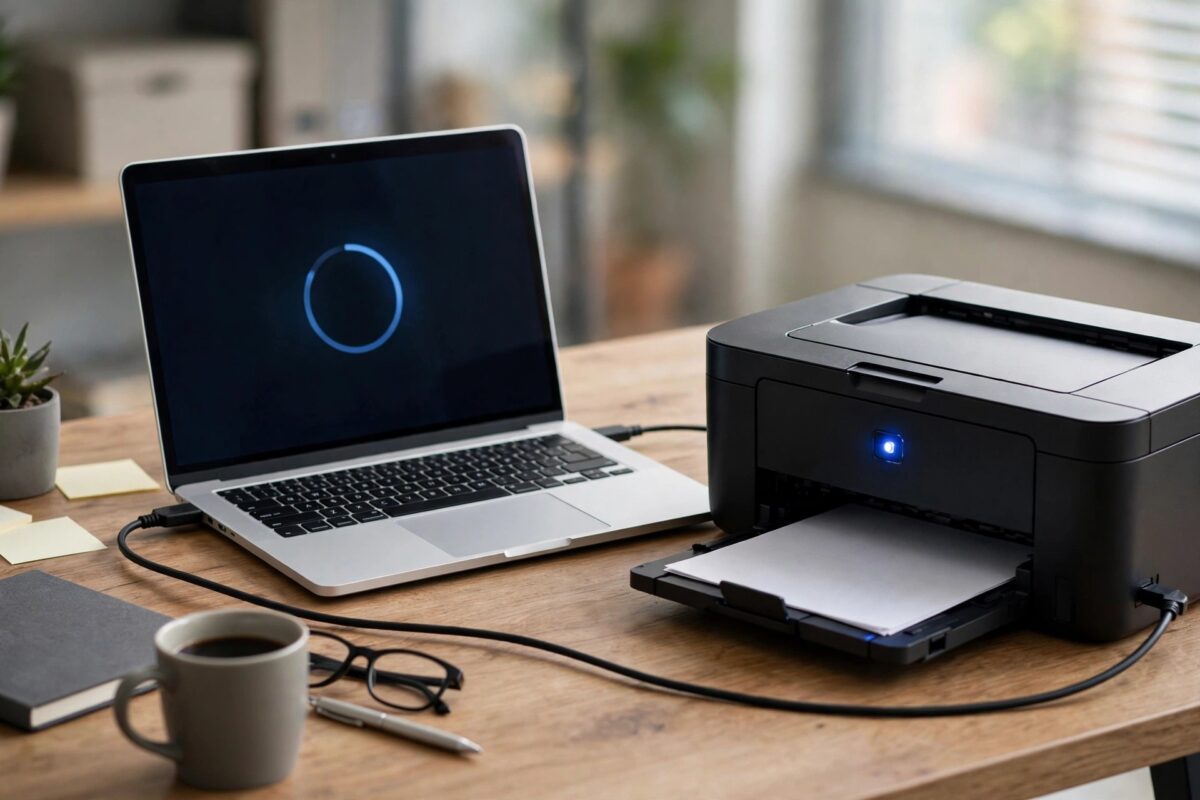
Normally, updating an HP printer’s firmware is a couple of taps in HP Smart or on the printer’s screen. But when the Wi-Fi setup itself has failed — the printer will not join your network, or shows errors that a firmware update is supposed to fix — you have a chicken-and-egg problem. The USB cable route breaks the deadlock: you connect the printer directly to a computer, run HP’s firmware update utility, and only then tackle the wireless setup with healthy firmware in place. This guide walks through the whole process safely.
Quick Answer
To update HP printer firmware over USB, install the printer on your computer with the USB cable first so the PC recognises it, then download the firmware update file for your exact model from HP’s support site and run it — it will detect the USB-connected printer and offer the update. Keep the printer powered and untouched during the update, and restart it afterwards. Then disconnect USB and run the Wi-Fi setup again.
When the USB Route Is the Right Choice
- The printer cannot join your Wi-Fi network, and a firmware fix is listed for that problem.
- The printer’s screen or HP Smart firmware update keeps failing over the network.
- The printer is stuck in an error state that a firmware refresh may clear.
- You manage the printer in an office and prefer not to update firmware over a busy wireless network.
One caution first: if your printer currently works with refilled or third-party ink cartridges, be aware that some HP firmware updates change cartridge acceptance rules. If the update is not fixing a problem you actually have, weigh that before proceeding — our guide to updating printer firmware safely explains the trade-offs in detail.
Step 1: Connect the Printer by USB and Install It
- Connect a USB printer cable (USB-B at the printer end) between the printer and your computer.
- On Windows, let the system detect the printer, or add it manually in Printers & scanners. On a Mac, add it in Printers & Scanners settings.
- Print a test page over USB. This proves the computer can talk to the printer — the firmware utility depends on the same connection.
- If the PC does not see the printer at all, try a different USB port and a different cable; charge-only and damaged cables are a common silent failure.
Step 2: Download the Correct Firmware File
- Go to HP’s official driver and firmware download page.
- Enter your exact model name and number (for example, OfficeJet Pro 9015 or LaserJet Pro M404dn) and select your operating system.
- Open the Firmware section and download the latest firmware update utility.
- Check the file’s release notes if offered — they confirm whether your issue is addressed.
- Do not download firmware for a similar model. Firmware is model-specific, and the utility will refuse a wrong file, but avoid the dead end entirely.
Step 3: Run the Firmware Update
- Make sure the printer is switched on, idle, and showing no errors. Cancel any pending print jobs.
- Close HP Smart and other printer software so nothing else talks to the printer during the update.
- Run the downloaded firmware utility. It searches for connected printers — your USB printer should appear in the list.
- Select the printer, confirm the new firmware version is higher than the installed one, and start the update.
- Do not switch off the printer, unplug the USB cable, let the computer sleep, or close the utility until it reports completion. An interrupted firmware write can leave the printer unbootable.
- The printer will typically restart itself. Wait until it reaches its normal home screen.
Step 4: Verify and Set Up Wi-Fi Again
- Print a Printer Status or Configuration report and check the firmware version matches the update you installed.
- Print a test page over USB once more to confirm normal operation.
- Now run the wireless setup from the printer’s control panel (Setup, Network, Wireless Setup Wizard) and join your Wi-Fi network.
- Once it connects, disconnect the USB cable, add the printer as a network printer on your devices, and print a final test page over Wi-Fi.
Common Mistakes to Avoid
- Interrupting the update — the one unforgivable error. Give it time even if the progress bar seems stuck for several minutes.
- Running the utility before the printer is installed — if the PC cannot print to it over USB, the updater usually cannot find it either.
- Grabbing firmware for the wrong model variant — an M404dn and M404dw are different products with different files.
- Letting the laptop sleep mid-update — plug laptops into mains power and disable sleep for the duration.
- Updating over a USB hub — connect directly to the computer; hubs can drop the connection at the worst moment.
What to Do If the Update Utility Still Fails
If the firmware utility runs but reports a failure, do not simply run it again and again. First, confirm the printer is idle and error-free — a printer showing any warning state often refuses updates, so clear the underlying issue (paper, cartridge, open door) first. Second, check the firmware version actually installed against the version you downloaded: if they already match, the utility may report failure simply because there is nothing to update. Third, try the update from a different computer if one is available; a surprising number of failures trace back to one PC’s USB stack or security software. Fourth, some HP models accept a firmware file from a USB flash drive inserted into the printer’s front USB port, guided from the control panel’s maintenance menu — check your model’s support page to see if that route exists, as it removes the computer from the equation entirely. Only after all four should you suspect the printer’s formatter of having a genuine fault, and at that point HP support can confirm whether a service-mode recovery is possible for your model.
Keep the downloaded firmware file and a note of the version you installed. If you ever speak to HP support about this printer, the firmware version is one of their first questions, and having it to hand — along with the date you applied it — shortens that conversation considerably. It also lets you spot at a glance whether a future automatic update has changed anything without your involvement.
Conclusion
When Wi-Fi will not cooperate, USB firmware updating is simple and safe if you follow the order: install the printer over USB and prove it prints, download the exact model’s firmware from HP, run the update without interruption, then redo the wireless setup. With current firmware in place, many “won’t connect” and mystery error problems disappear before you even start on the network settings.
Frequently Asked Questions
Can I update firmware over USB on a Mac?
Yes — HP provides the firmware utility for macOS for most models. The process is the same: connect and install the printer via USB first, then run the downloaded updater.
The firmware utility cannot find my printer. What is wrong?
Almost always the USB connection or installation. Print a USB test page; if that fails, fix the cable, port, or driver first. Also close HP Smart, which can hold the printer busy.
How long should a firmware update take?
Typically two to ten minutes including the printer’s restart. Long pauses are normal — judge by the utility’s completion message, not the progress bar.
Will updating firmware reset my printer’s settings?
Usually not — network and user settings are preserved. But note your settings beforehand anyway, and expect to re-run wireless setup if you were troubleshooting a connection failure.
Can I downgrade firmware if the update causes problems?
Generally no — HP firmware utilities refuse to install older versions. That is another reason to read the release notes and be sure you need the update before applying it.
Leave a Reply