
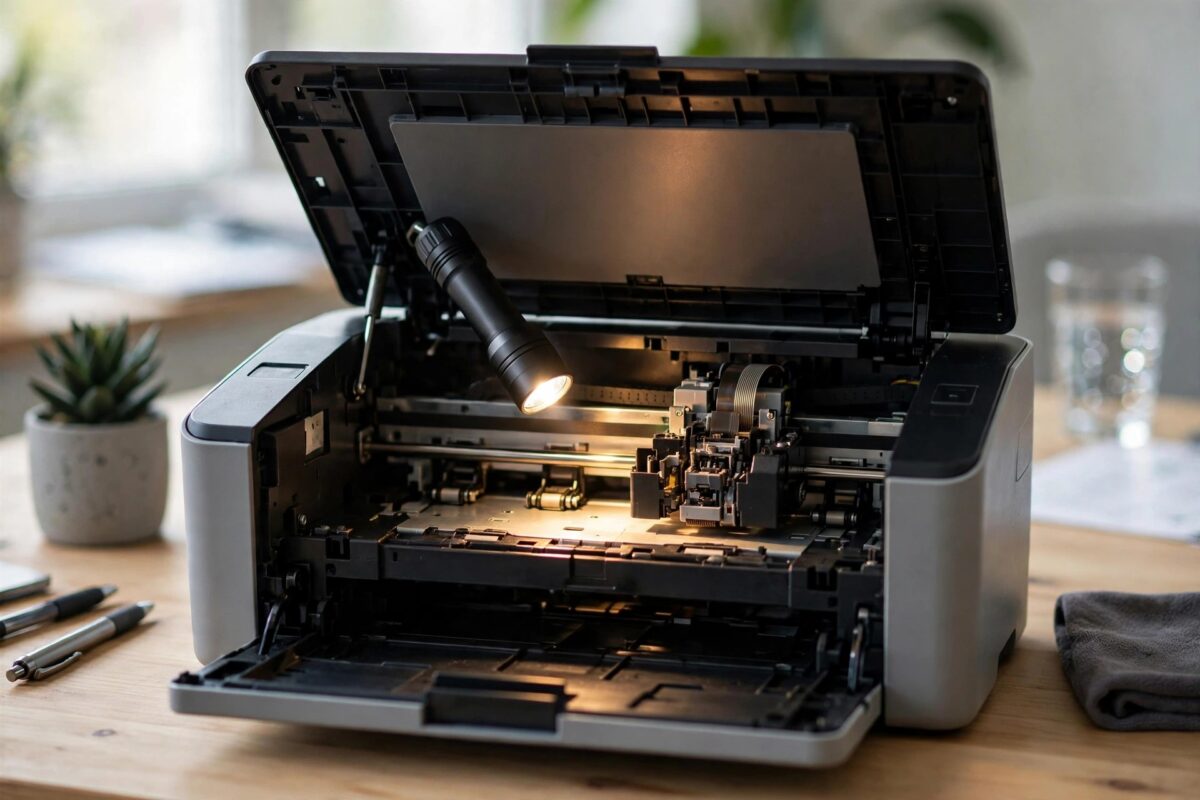
Error 0x6100004a on the HP OfficeJet Pro 8715 tells you there is a carriage jam — the printhead carriage that slides back and forth across the page cannot move freely. Sometimes the cause really is a scrap of paper trapped under the carriage. Just as often, though, the carriage is physically fine and the error is triggered by a jammed paper path, a dirty encoder strip, or a sensor that got confused after a real jam earlier. This guide clears each cause in order, without forcing anything.
Quick Answer
To fix HP error 0x6100004a, switch the printer on, open the cartridge access door, and check whether the carriage can slide freely by hand. Remove any paper or debris from the carriage path, clear paper from the rear duplex area, clean the clear encoder strip gently with a dry lint-free cloth, close everything, and restart the printer. Never force a stuck carriage — find what is blocking it instead.
What the Carriage Does and Why It Reports a Jam
The carriage carries the printhead across the page hundreds of times per print. The printer knows where the carriage is by reading a transparent plastic strip — the encoder strip — that runs the width of the printer behind the carriage. A “carriage jam” error appears when:
- Paper, a torn scrap, or a foreign object physically blocks the carriage’s travel.
- A sheet has bunched up under the carriage in the paper path.
- The encoder strip is dirty, splashed with ink, or has slipped off its mounts, so the printer loses track of the carriage position.
- The carriage is stuck at one end after a power cut mid-print and needs to re-home.
Step 1: Inspect the Carriage Path
- Leave the printer switched on and open the front door and cartridge access door. The carriage should move to the centre. If it does not, note where it is parked.
- Unplug the power cable — with the door open and the printer unpowered, the carriage can be moved by hand safely.
- Shine a torch along the carriage path. Look for paper, labels, paperclips, or dried ink build-up on the rail.
- Gently slide the carriage left and right across its full travel. It should move smoothly with light resistance.
- If it stops at a certain point, look closely at that spot — a small scrap of paper or a dislodged piece of plastic is usually there.
- Remove any obstruction with your fingers or plastic tweezers.
Step 2: Clear the Paper Path Underneath
- Remove the paper from the input tray and check inside the tray cavity for a sheet that fed partway and crumpled under the carriage.
- Turn the printer around (unplugged) and open the rear access or duplexer. Pull out any stuck sheets slowly, in the direction of travel.
- Check the area under where the carriage parks — a surprising amount of debris collects there.
- Remove the cartridges and inspect the service station area on the right for ink sludge build-up that can physically foul the carriage. Wipe excess away with a lint-free cloth.
HP’s carriage jam guidance for OfficeJet Pro models shows the same inspection points for the 8700 series.
Step 3: Clean the Encoder Strip
If the carriage moves freely by hand but the error persists, the encoder strip is the prime suspect:
- Find the thin, clear plastic strip running horizontally behind the carriage, with fine markings on it.
- Dampen a lint-free cloth very lightly with distilled water — almost dry.
- Pinch the strip gently through the cloth and slide along its length to remove ink mist and dust. Be gentle: the strip is delicate and under tension.
- Check both ends are still hooked onto their mounts. If the strip has come off one end, re-hook it carefully.
- Let it dry for a few minutes before powering on.
Step 4: Reset and Test
Reconnect power and switch the printer on. The carriage should sweep back and forth and park itself — that self-test is exactly what failed before. If the printer reaches Ready, print a test page. If the 0x6100004a error returns immediately with a clear path and a clean encoder strip, the carriage motor or the strip itself may be damaged. Also check that the carriage belt (the toothed belt along the top) is intact and not frayed or slack. Those are repair-level faults. For gentler day-to-day head care afterwards, our guide to cleaning printer heads safely helps prevent the ink build-up that contributes to these jams.
Common Mistakes to Avoid
- Forcing the carriage — if it will not move, something is blocking it. Force breaks the belt or encoder mounts and turns a free fix into a repair bill.
- Moving the carriage while the printer is powered — always unplug first so the motor is not fighting you.
- Cleaning the encoder strip with solvents or rough cloth — the printed markings come off, and then the printer truly cannot find the carriage.
- Only checking the front — paper bunched at the rear duplexer blocks the path just as effectively.
Checking the Carriage Belt, Rail, and Parking Area
While you have the printer open, three more inspections are worth the minute they take. The carriage belt — the thin toothed belt running along the top of the carriage path — should be taut and unbroken, with no frayed edges or missing teeth. A belt that has stretched with age lets the carriage overshoot and report false jams, and it is a repair-shop part rather than a cleaning job. The metal carriage rail beneath the carriage should be clean; wipe it with a dry lint-free cloth to remove the gritty mixture of dust and ink that accumulates there, but do not add oil or grease unless your model’s service documentation calls for it — the wrong lubricant attracts more dirt than it displaces. Finally, look at the parking area at the right end of the travel, where the printhead rests. The rubber caps there seal the nozzles between prints; if they are displaced or buried in sludge, the carriage may not dock cleanly, which the printer can interpret as a jam. A careful tidy of that area with a cloth and distilled water resolves a surprising share of repeat errors.
Conclusion
Error 0x6100004a on the OfficeJet Pro 8715 is usually a physical blockage or a dirty encoder strip, both fixable by hand in a few minutes. Inspect the carriage travel, clear the whole paper path including the rear, clean the encoder strip gently, and restart. Reserve repairs for cases where the path is visibly clear, the strip is clean and intact, and the error still appears on startup.
Frequently Asked Questions
The carriage is stuck hard at the right side. How do I free it?
Unplug the printer, then look for what is holding it — usually the service station cap is engaged or debris is packed around it. Wiggle the carriage very gently while looking underneath with a torch. If it truly will not budge, do not force it; that is a service job.
Can old ink really block the carriage?
Yes. Dried ink sludge builds up in the service station area over years and can physically foul the printhead as it parks. Careful cleaning with a lint-free cloth removes it.
The error appeared right after a paper jam. Are they connected?
Almost certainly. A scrap from the jam is likely still in the path, or the jam knocked the encoder strip. Clear the paper path fully and inspect the strip.
What is the encoder strip and why does it matter?
It is a clear strip with thousands of fine lines that the printer reads to know the carriage’s exact position. If it is dirty or displaced, the printer assumes a jam and stops.
How do I stop carriage jams happening again?
Use decent-quality paper, remove any torn page completely (check for missing corners), and keep the printer’s interior dust-free. Most carriage jams trace back to leftover paper fragments.
Leave a Reply