
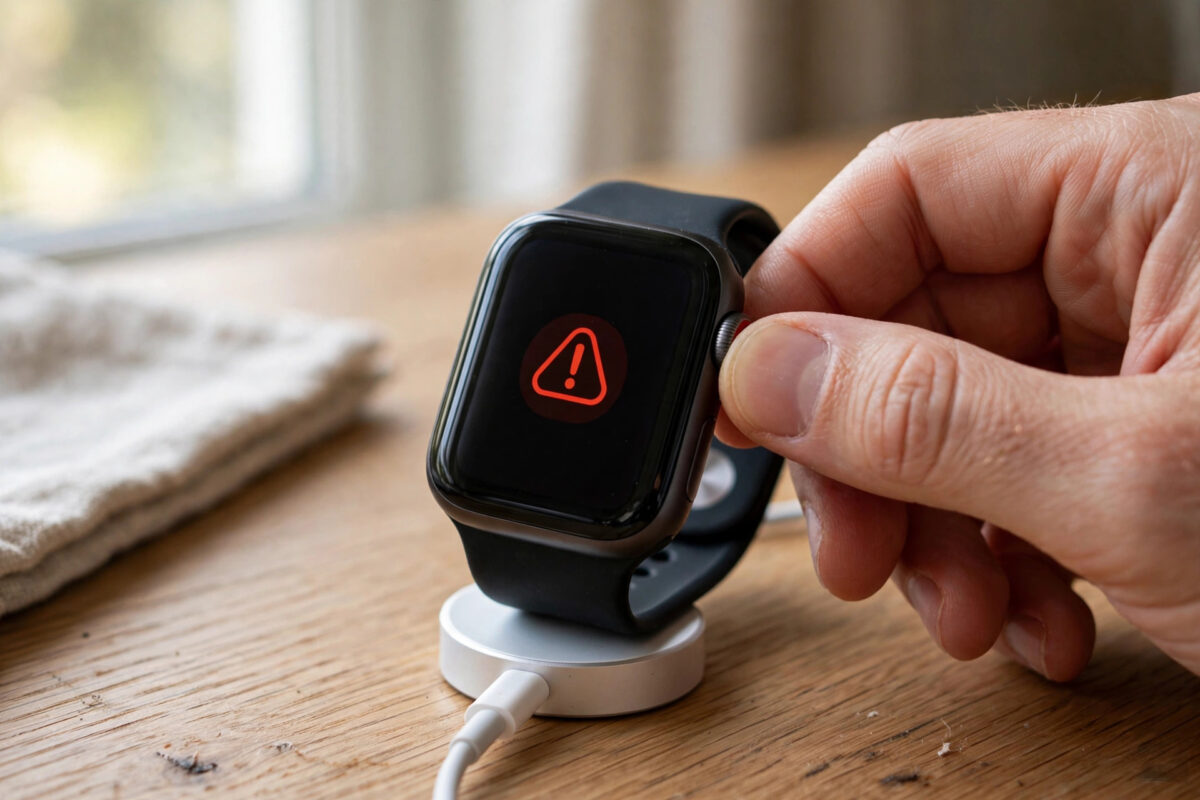
Seeing a red exclamation mark inside a circle on your Apple Watch can feel alarming. The watch suddenly stops working, your apps disappear, and the normal watch face will not load. For many owners, this screen appears after a watchOS update, a failed pairing attempt, or a sudden shutdown.
The good news is that this error does not always mean your watch is broken forever. In many cases, a forced restart brings it straight back to life. In other cases, you may need to erase and restore the watch from a backup. This guide explains what the symbol means, why it shows up, and the exact steps to fix it.
Quick Answer
Press and hold both the side button and the Digital Crown together for at least 10 seconds until you see the Apple logo, then release and let the watch restart. If the red exclamation mark returns, erase the watch from the Watch app on your iPhone or from Settings on the watch itself, then set it up again and restore from backup. If the symbol keeps coming back after a full erase, the watch likely has a hardware fault and needs Apple service.
What Does the Red Exclamation Mark Mean?
The red exclamation mark inside a circle is Apple Watch’s recovery warning. It means the watch software hit a serious problem and could not finish starting up or updating. Think of it like a car dashboard warning light. The watch is telling you it needs help before it can work normally again.
You cannot tap through this screen or use your apps while it is showing. The watch is stuck until the software problem is cleared.
Common Causes of This Error
- Interrupted update: The watch lost power or moved away from the iPhone during a watchOS update.
- Low battery during install: The battery dropped too low while new software was being written.
- Corrupted software files: A previous update did not install cleanly and left broken files behind.
- Pairing failure: The connection between the watch and iPhone broke at a critical moment.
- Hardware issues: Less often, a failing battery, damaged storage, or water damage can trigger the same screen.
Before You Start: Quick Checks
Before you try any fix, take two minutes to prepare. These small checks prevent bigger problems later.
- Place the watch on its charger and leave it there during all repair steps.
- Make sure the charger is the original Apple charger or a trusted certified one.
- Bring your paired iPhone close to the watch and keep it nearby.
- Check that your iPhone has a stable Wi-Fi connection.
- Confirm you know your Apple ID password, as you may need it after a restore.
Do not try to open the watch case yourself. Opening it can damage the water seals and void cover.
Fix 1: Force Restart the Apple Watch
Always start with a force restart. It is quick, safe, and it does not erase your data. Many watches recover at this stage and never show the symbol again.
Steps to Force Restart
- Keep the watch on its charger.
- Press and hold the side button and the Digital Crown at the same time.
- Keep holding both buttons for at least 10 seconds. Ignore anything that appears on screen.
- Release both buttons when you see the Apple logo.
- Wait for the watch to start fully. This can take two or three minutes.
- Enter your passcode when asked and check that your watch face loads normally.
If the watch boots normally, use it for a few hours and check that apps open and notifications arrive. If everything works, it was likely a one-time glitch.
If your watch also freezes on the logo during this process, our guide on how to fix an Apple Watch stuck on the Apple logo covers the next steps for that specific problem in detail.
Fix 2: Erase and Restore From the Watch App
If the red exclamation mark comes back after a force restart, the software needs a clean start. Erasing the watch removes the broken system state, and your iPhone can then restore your data from the automatic backup it keeps.
Steps Using Your iPhone
- Open the Watch app on your paired iPhone.
- Tap the My Watch tab, then tap All Watches at the top.
- Tap the info button next to your watch.
- Tap Unpair Apple Watch and confirm your choice.
- Enter your Apple ID password if asked, to turn off Activation Lock.
- Wait for unpairing to finish. Your iPhone saves a fresh backup first.
- Hold the watch near the iPhone and follow the on-screen setup steps.
- Choose Restore from Backup when offered, and pick the most recent backup.
After setup, keep both devices charging and close together until syncing finishes.
Apple explains this process in its official guide on how to unpair and erase your Apple Watch, which is worth reading if any step looks different on your software version.
Fix 3: Erase Directly on the Watch
Sometimes the watch will not talk to the iPhone at all. In that case, you can erase it using its own Settings, if the menus will open after a restart.
- Try a force restart first so the watch reaches the watch face.
- Press the Digital Crown to open the app list.
- Open Settings, then tap General.
- Scroll down and tap Reset.
- Tap Erase All Content and Settings and confirm.
- If you have a cellular plan, choose whether to keep it. Keeping the plan is usually best if you will pair the same watch again.
- Wait for the erase to finish, then pair the watch with your iPhone as new or from backup.
Note that erasing on the watch alone does not remove Activation Lock. You will still need your Apple ID during setup. This is a security feature that stops a lost or stolen watch from being reused by someone else.
What If the Error Keeps Coming Back?
If you have restored the watch and the red exclamation mark returns within a day or two, stop repeating the same steps. A repeating error points to a deeper problem.
Signs It May Be Hardware
- The watch gets very warm on the charger.
- The battery drains in a few hours even after a clean restore.
- The screen flickers, shows lines, or has lifted at one edge.
- The watch was dropped hard or exposed to water before the error started.
- The error appears even when the watch is set up as brand new with no backup restored.
A swollen battery can push the screen upward and cause strange software errors. If you notice any gap around the screen edge, stop using the watch and take it for service promptly. Do not press the screen back down.
At this stage, contact Apple Support or visit an Apple Store or authorised service provider. You can review your options through Apple Watch service and repair information from Apple Support before you book. If the watch is under warranty or covered by AppleCare+, the repair may cost little or nothing.
How to Prevent This Error in the Future
You cannot prevent every software fault, but good update habits remove most of the risk.
- Only update watchOS when the watch is on its charger and above 50 percent battery.
- Keep your iPhone and watch close together for the whole update.
- Do not force restart the watch in the middle of an update unless it has been stuck for over an hour.
- Keep some free storage on the watch so updates have room to install.
- Install updates within a few weeks of release rather than skipping several versions at once.
- Restart your watch once in a while to clear temporary glitches.
Common Mistakes to Avoid
- Holding only one button: A force restart needs both the side button and Digital Crown together. Holding one alone will not work.
- Letting go too early: Many people release the buttons after five seconds. Hold until the Apple logo appears.
- Skipping the backup: Unpairing through the Watch app creates a backup. Erasing in a panic without that step can lose health and activity data.
- Restoring the same broken backup repeatedly: If a clean setup works but a restored backup fails, set up as new instead.
- Using cheap chargers during repair: Unstable power can interrupt a restore. Use a trusted charger for all fix steps.
- Ignoring repeat errors: If the symbol returns three times, it is a service issue, not bad luck. Book a repair instead of restoring forever.
Conclusion
The red exclamation mark inside a circle looks serious, but most Apple Watches recover with a simple force restart. If that is not enough, erasing and restoring from your iPhone backup clears the faulty software in most remaining cases. Only when the error keeps returning after a clean setup should you suspect hardware and contact Apple for service. Work through the steps in order, keep the watch charging throughout, and your watch will very likely be back on your wrist the same day.
Frequently Asked Questions
Will a force restart delete my data?
No. A force restart only reboots the watch. Your apps, health data, and settings stay exactly as they were. Data is only removed if you choose to erase the watch.
How long should a restore take?
A typical restore takes 15 to 30 minutes, plus extra time for apps, music, and photos to sync afterwards. Keep both devices charging and close together until it finishes.
Why did this happen after an update?
Updates rewrite core software. If power drops, the connection breaks, or storage is nearly full during that process, files can end up incomplete. The watch then shows the red exclamation mark instead of starting normally.
Can I fix this without an iPhone?
You can try a force restart and, if menus open, erase the watch from its own Settings. However, full setup and backup restore normally need the paired iPhone, so borrow one if yours is unavailable.
Is the red exclamation mark covered by warranty?
If the cause is a hardware defect and the watch is within warranty or AppleCare+ cover, Apple will usually repair or replace it. Accidental damage may carry a fee, so check your cover status with Apple Support.


Leave a Reply