
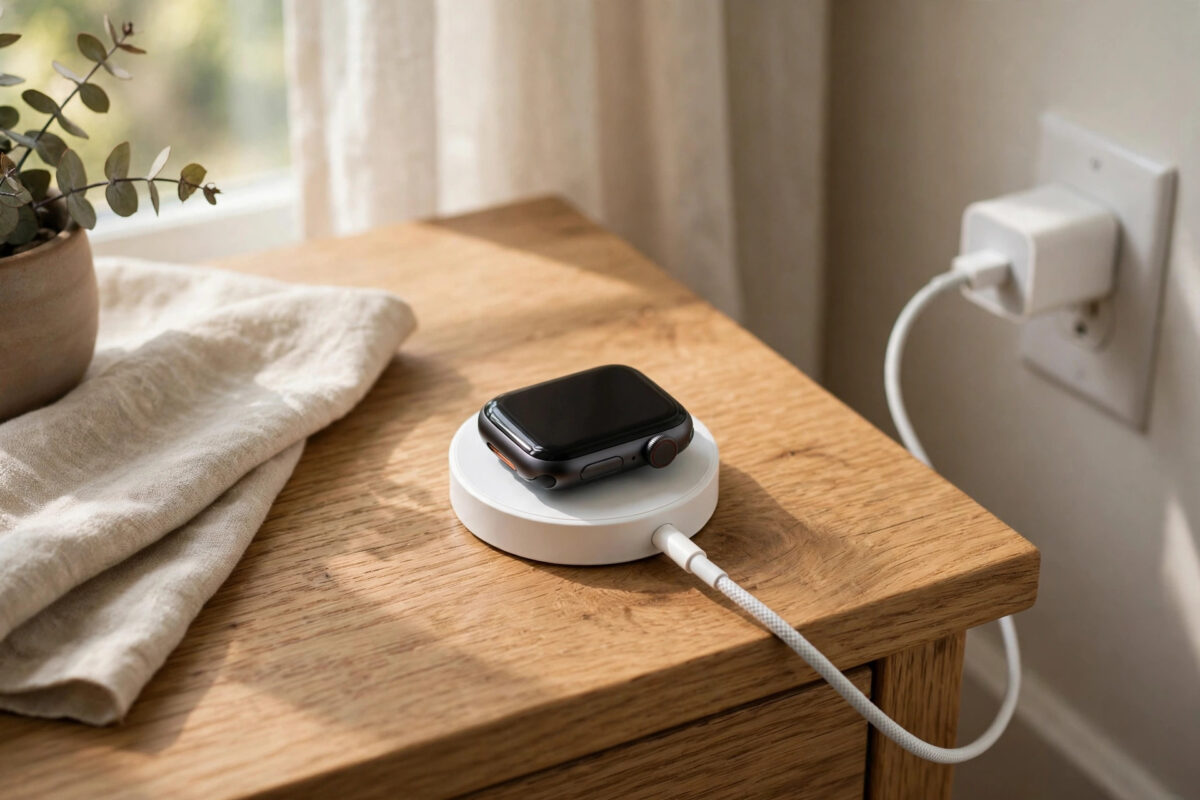
You drop your Apple Watch onto its magnetic puck at night, hear the familiar snap, and go to sleep. In the morning the watch is dead, or sitting at the same low percentage it had hours earlier. Ever since the last software update, the puck that worked perfectly for months seems to have stopped doing its job.
Before you blame the update or buy a new charger, know that charging failures are usually physical and simple: alignment, dirt, a weak power adapter, or a watch that needs a restart to renegotiate charging after new software changed how it manages power. This guide works through every cause in the order you should check them, from a thirty-second reseat to the point where Apple’s help is genuinely needed.
Quick Answer
If your Apple Watch will not charge on the magnetic puck after a software update, clean the back of the watch and the puck, reseat the watch flat and centred, and plug the cable into a proper wall adapter instead of a low-power USB port. Then force restart the watch by holding the side button and Digital Crown for ten seconds, and leave it on the puck for at least 30 minutes. If a different genuine puck also fails, the watch or its battery needs Apple service.
Why Charging Can Break Right After an Update
The timing feels suspicious, and sometimes the update really is involved. But often it simply draws your attention to a setup that was already borderline.
- The watch needs a restart to charge normally. New software changes power management, and a process left in a bad state can stop the watch accepting charge until it reboots.
- Optimized charging settings changed. After an update, Optimized Battery Charging or a charge limit may pause charging around 80 percent, which can look like a failure if you expected 100.
- The puck is not aligned. The magnets usually snap the watch into place, but a thick case, a metal band looped underneath, or a puck sitting at an angle can leave the coils offset.
- Dirt and sweat block the connection. The back crystal and the puck face must sit flush. Dried sweat, lotion, and dust build up fastest exactly where the two meet.
- The power source is too weak. A laptop port, an old 5W phone brick, or a worn cable may no longer deliver what the watch expects, especially for fast-charging models.
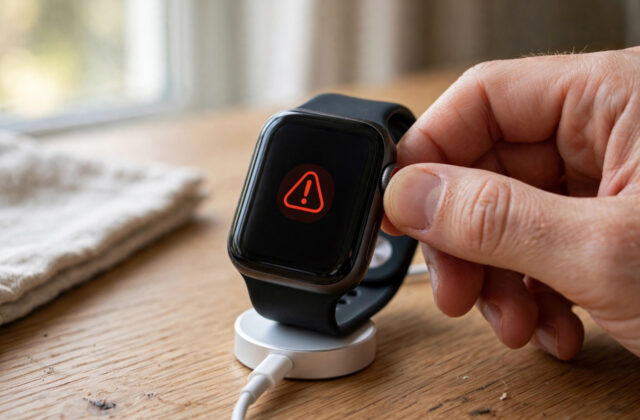
- The battery is deeply drained or worn out. A watch left flat for days can take a long time to show signs of life, and a degraded battery may refuse charge altogether. If your watch instead wakes showing a warning symbol, our guide to the Apple Watch red exclamation mark in a circle explains what that different screen means.
Step 1: Clean and Reseat the Watch on the Puck
- Unplug the puck and wipe its face with a soft, dry, lint-free cloth.
- Wipe the back of the watch the same way, paying attention to the sensor glass in the centre. Use a cloth very slightly dampened with water only if grime is stubborn, then dry it fully.
- Remove any thick protective case from the watch for this test, and make sure nothing sits between the watch and the puck.
- Place the watch back down flat, centred on the puck, and let the magnets pull it into position. You should feel a clean snap.
- Wait for the green charging bolt on screen. On a very flat battery this can take a few minutes, so give it time before judging.
Step 2: Fix the Power Source and Cable
- Plug the charging cable directly into a USB-C wall adapter of at least 20W if you have one, and plug that into a wall outlet you know works. Test the outlet with a lamp or phone if you are unsure.
- Inspect the cable along its whole length for kinks, fraying, or a loose connector, and push it firmly into the adapter until it seats.
- Remove any plastic wrap still on a newer puck. It is surprisingly common and blocks the magnetic connection.
- If the watch still shows nothing, borrow or try a second genuine Apple Watch charging cable. This single swap separates a dead cable from a faulty watch faster than any other test.
- Avoid charging from a computer’s USB port during troubleshooting. Some ports sleep, throttle power, or disconnect, which muddies the result.
Step 3: Restart the Watch and Let It Charge Undisturbed
Software that manages charging loads at startup, so a restart after an update is a real fix, not a ritual. Apple’s guidance on checking battery health and usage on Apple Watch also shows how to confirm afterwards that the charge level is genuinely rising.
- If the watch is on, hold the side button, tap the power icon, and slide to power off. Wait thirty seconds, then hold the side button until the Apple logo appears.
- If the watch is frozen or unresponsive, force restart it: hold the side button and the Digital Crown together for about ten seconds until the Apple logo appears.
- Place the watch back on the puck and leave it completely alone for at least 30 minutes. Do not lift it to check every few minutes, because each lift breaks the connection and restarts the trickle stage on a flat battery.
- After 30 minutes, tap the screen. You should see the charging bolt and a percentage that has clearly climbed.
- If the watch stops at roughly 80 percent and feels cool, check Settings, Battery, Battery Health for Optimized Charge Limit or Optimized Battery Charging. These pause the final charge on purpose and offer a Charge to Full Now option when you need it.
Step 4: Rule Out Heat, Cold, and a Worn Battery
Temperature protection
The watch pauses or slows charging when it is too hot or too cold, to protect the cell. If the watch feels warm, or it has been sitting in sunlight or a cold car, take it off the puck, let it return to room temperature for fifteen minutes, and try again indoors.
Battery condition
If the watch does power on, open Settings, tap Battery, then Battery Health, and read the Maximum Capacity. A figure near or below 80 percent, random shutdowns, or a battery percentage that falls off a cliff after brief charging all suggest a worn battery rather than a charger problem. A watch that gets unusually hot on the puck, or whose back glass is lifting, should be taken off charge and shown to Apple promptly.
Common Mistakes to Avoid
- Declaring the puck dead after two minutes. A deeply drained watch can show a blank screen or a red bolt for ten minutes or more before normal charging appears.
- Charging through a thick case or dock. Extra material between watch and puck weakens the magnetic link and slows or stops charging.
- Testing with five variables changed at once. Swap one thing at a time, cable, adapter, outlet, so you actually learn which part failed.
- Using metal cleaners or soaking the puck. A dry or barely damp cloth is enough. Liquids and abrasives damage both surfaces.
- Ignoring a charge limit. Many “won’t charge past 80 percent” complaints after an update are simply optimized charging doing its job.
Conclusion
When an Apple Watch refuses to charge on its magnetic puck after an update, work from the outside in. Clean both surfaces, seat the watch flat, feed the cable from a strong wall adapter, and restart the watch so its new software can manage charging cleanly. Give a flat battery a full half hour before judging, and check whether a charge limit is pausing things on purpose. If a second genuine puck, a known-good adapter, and a force restart all fail, the fault is in the watch, and the right move is to book help through Apple’s official Apple Watch service and repair page rather than buying more chargers.
Frequently Asked Questions
Why does my Apple Watch show a red lightning bolt on the charger?
The red bolt means the battery is critically low and the watch is receiving little or no usable power, or has only just started charging from empty. Leave it seated on the puck for up to 30 minutes. If the bolt never turns into normal charging, work through the cable and adapter swaps in this guide.
Can a software update really damage my charger?
No. An update cannot physically harm the puck or cable. What it can do is change charging behaviour, enable a charge limit, or leave the watch needing a restart, all of which feel like a broken charger but are fixed in software and settings.
How long should a completely dead Apple Watch take to show it is charging?
Usually a few minutes, but a watch that has been flat for days may need ten to thirty minutes before the screen responds. Keep it on a wall-powered puck the whole time and resist lifting it to check.
Is it safe to leave my watch on the puck overnight?
Yes. The watch manages its own charging, and optimized charging features deliberately slow or pause the final portion to protect the battery. Overnight charging on the genuine puck is the routine the device is designed for.
My watch charges on a friend’s puck but not mine. What does that prove?
It proves the watch is fine and your puck, cable, or adapter has failed. Replace the faulty part rather than troubleshooting the watch further, and choose a genuine or certified charger so fast charging and temperature control work as intended.
Leave a Reply