
Your Apple Watch is supposed to stay unlocked while you wear it. You enter the passcode once in the morning, and the watch quietly stays ready all day. So when it keeps asking for the passcode again and again, even though it never left your wrist, something is wrong.
This problem is common and usually easy to fix. The watch locks itself whenever it thinks it has been taken off. If the fit is loose, the sensors are dirty, or a setting like Wrist Detection is off, the watch keeps making that mistake. This guide explains every cause and the fix for each one.
Quick Answer
Make sure Wrist Detection is on in the Watch app under Passcode, wear the watch snugly so the back sensors touch your skin, and clean the sensor glass. Then restart both the watch and iPhone. In most cases the repeated passcode requests stop once the watch can reliably detect that it is still on your wrist.
How Apple Watch Decides to Lock Itself
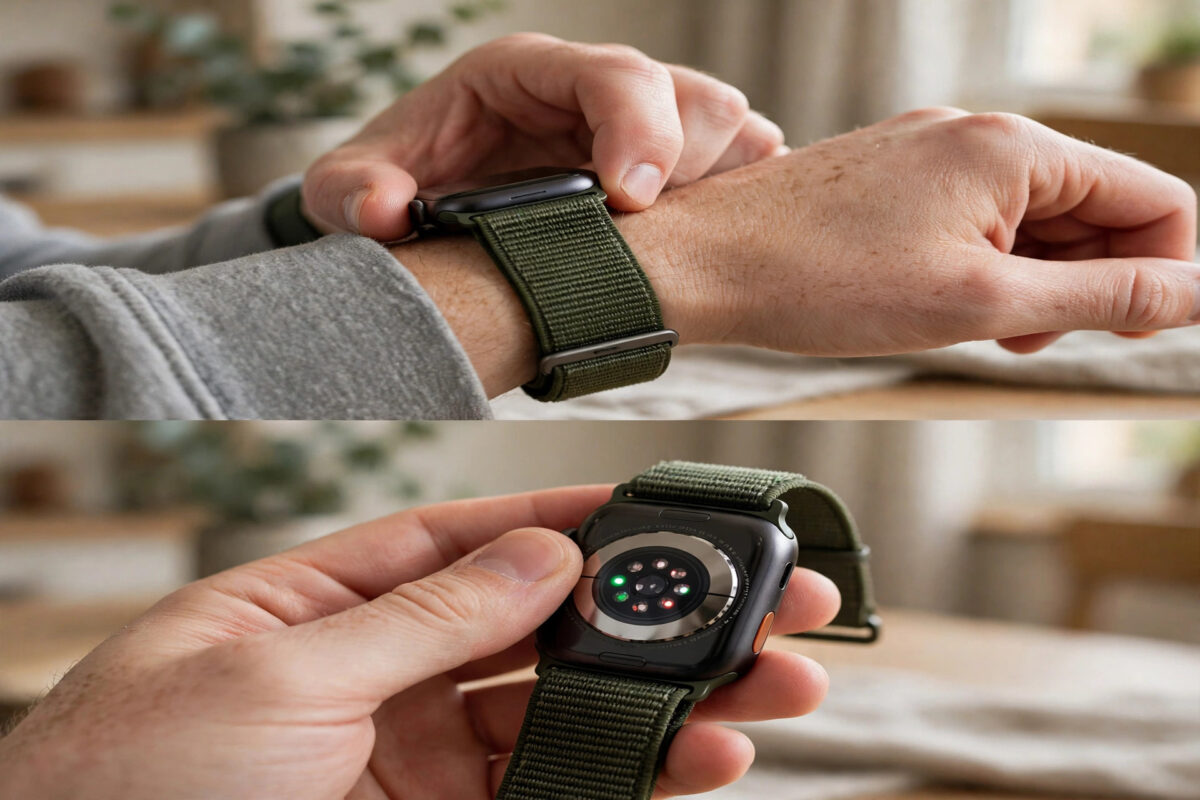
Apple Watch uses the sensors on its back to check that it is being worn. As long as those sensors see your skin, the watch stays unlocked after you enter the passcode. The moment contact is lost, the watch assumes you removed it and locks for security. That lock protects your messages, Apple Pay, and personal data if the watch is ever stolen.
So the repeated passcode problem is rarely about the passcode itself. The watch genuinely believes it was taken off, sometimes dozens of times a day. Your job is to find out why it believes that. The causes fall into four groups: fit, sensors, settings, and software.
Fix 1: Improve the Fit on Your Wrist
Fit is the number one cause. A watch that slides around breaks sensor contact every time you move your arm.
How to Check Your Fit
- The watch should sit flat on top of your wrist, not tilted to one side.
- The strap should be snug enough that the watch does not slide up or down when you shake your arm gently.
- It should not be painfully tight. You should feel it is secure, not squeezed.
- The back of the watch should stay in full contact with your skin during normal movement.
Many people wear their watch too loose for comfort or style. Try tightening the strap by one notch for a full day and see if the passcode requests stop. Solo Loop and Sport Loop owners should check sizing too, because these straps stretch over time. A stretched loop that felt perfect last year may now be too loose. Also move the watch slightly up your arm, away from the wrist bone, where contact is flatter and more stable.
If prompts appear mostly during workouts, sweat and vigorous movement are likely breaking contact. Tighten the strap before exercise, which also improves heart rate accuracy. If delayed alerts have been bothering you as well, you may want to review our advice on why Apple Watch notifications arrive late and how to fix them, since a watch that keeps locking will also delay notifications.
Fix 2: Clean the Back Sensors
The sensor glass on the back of the watch must be clean to read your wrist properly. Sunscreen, moisturiser, dust, and dried sweat all create a thin film that confuses the sensors.
- Remove the watch and turn it over.
- Wipe the back gently with a soft, lint-free cloth.
- If there is stubborn grime, dampen the cloth slightly with fresh water and wipe again.
- Dry the watch fully before putting it back on.
- Also wipe your wrist if you have just applied lotion, and let creams soak in before wearing the watch.
Do not use cleaning sprays, soaps, or abrasive pads on the watch. Plain water and a soft cloth are all Apple recommends, and harsh products can damage the coatings and water seals.
Fix 3: Turn On Wrist Detection
If Wrist Detection is turned off, the watch behaves differently and may lock in ways that feel random. Apple Pay also requires Wrist Detection for proper security, so it should stay on for most people.
Check the Setting on Your iPhone
- Open the Watch app on your iPhone.
- Tap the My Watch tab.
- Tap Passcode.
- Make sure Wrist Detection is switched on.
- Also confirm that Unlock with iPhone is on if you want the watch to unlock when you unlock your phone.
Check the Setting on the Watch
- Open Settings on the watch.
- Tap Passcode.
- Scroll down and confirm Wrist Detection is on.
Apple explains these options in its guide on how to use the passcode settings on Apple Watch.
Fix 4: Consider Tattoos and Skin Factors
This cause surprises many people. Dark tattoos on the wrist can block the light the sensors use. The watch shines green and infrared light into the skin and reads what bounces back. Heavy ink, especially dark solid work right under the watch, absorbs that light and makes the watch think it is not being worn.
If you have a tattoo on one wrist, try wearing the watch on the other wrist for a day. If the prompts stop, you have found the cause. Workarounds include wearing the watch slightly higher where the tattoo fades, or turning off Wrist Detection. Turning it off means the watch stays unlocked even when removed, and Apple Pay will ask for the passcode for each payment. That trade-off is your choice, but understand the security cost before choosing it.
Fix 5: Restart and Update Both Devices
Software glitches can make the lock system misbehave even when fit and settings are perfect. A clean restart clears temporary faults.
- Restart the Apple Watch by holding the side button, tapping the power icon, and sliding to power off. Turn it back on after 30 seconds.
- Restart your iPhone as well.
- Enter the watch passcode once and wear it normally.
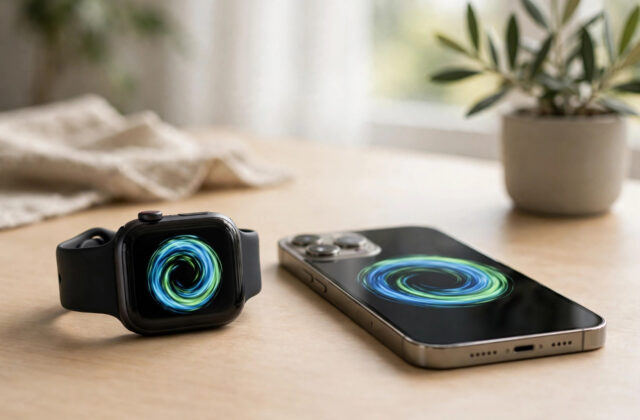
- Check for updates in the Watch app under General, Software Update, and in iPhone Settings under General, Software Update.
- Install any available updates while both devices are charging.
If prompts started right after an update, the next small update often fixes the bug. Keep both devices current rather than skipping versions.
Fix 6: Unpair and Pair Again as a Last Resort
If nothing above works, the pairing itself may be corrupted. Unpairing creates a backup, erases the watch, and lets you restore it cleanly.
- Keep the watch and iPhone close together.
- Open the Watch app, tap All Watches, then the info button next to your watch.
- Tap Unpair Apple Watch and confirm.
- Wait for the process to finish, then pair the watch again and choose Restore from Backup.
- Wear it snugly and test for a full day.
Apple’s support page on unpairing and erasing Apple Watch covers each screen in this process if you want a reference open while you work.
When to Contact Apple Support
If the watch still locks constantly after a clean restore, with a snug fit and clean sensors, the sensor hardware may be faulty. Signs include the heart rate sensor also failing, green lights that never turn on, or a back glass that feels loose or cracked. Book a service appointment rather than fighting the setting forever. A cracked sensor glass can also let in moisture, so do not delay if you can see damage.
Common Mistakes to Avoid
- Wearing the watch loosely all day: Comfort matters, but a sliding watch will lock constantly and track health data poorly.
- Turning off Wrist Detection as the first fix: It works, but it weakens security and changes Apple Pay behaviour. Try fit and cleaning first.
- Ignoring strap stretch: Fabric and solo loops loosen over months. Replace or resize a stretched strap instead of blaming the software.
- Cleaning with sprays or soap: These can damage seals and coatings. Use a soft cloth and plain water only.
- Skipping the iPhone restart: The lock system involves both devices. Restart both, not just the watch.
- Sharing your passcode problem with a random tip: Beware of advice to disable the passcode entirely. That leaves payments and messages open to anyone holding the watch.
Conclusion
An Apple Watch that keeps asking for its passcode is almost always a watch that keeps thinking it left your wrist. Fix the detection and you fix the prompts. Tighten the fit, clean the back sensors, confirm Wrist Detection is on, and restart both devices. Consider tattoos if only one wrist is affected, and restore the pairing if software faults remain. Work through these steps in order and your watch should go back to unlocking once in the morning and staying ready all day.
Frequently Asked Questions
Why does my watch lock when I move my arm quickly?
Fast movement can briefly break sensor contact if the strap is loose. Tighten the strap by one notch and position the watch flat above your wrist bone. If it only happens during workouts, tightening before exercise usually solves it.
Is it safe to turn off Wrist Detection?
It is a personal choice. With it off, the watch stays unlocked off the wrist, so anyone holding it can read your messages. Apple Pay will ask for your passcode each time as protection. Most people should keep it on.
Can a screen protector or case cause this?
Cases that cover the back or lift the watch off your skin can interfere, but most cases only cover the edges and cause no problem. If prompts started after fitting a new case, remove it for a day to test.
Why did this start after I got a new strap?
The new strap probably fits differently. Metal link straps with too many links and oversized loops are common culprits. Adjust or resize the strap so the watch cannot slide, and the prompts should stop.
Will changing my passcode stop the prompts?
No. The prompts appear because the watch locks, not because the passcode is faulty. Changing the code only changes what you type. Fix the detection issue instead and the prompts will go away.
Leave a Reply