
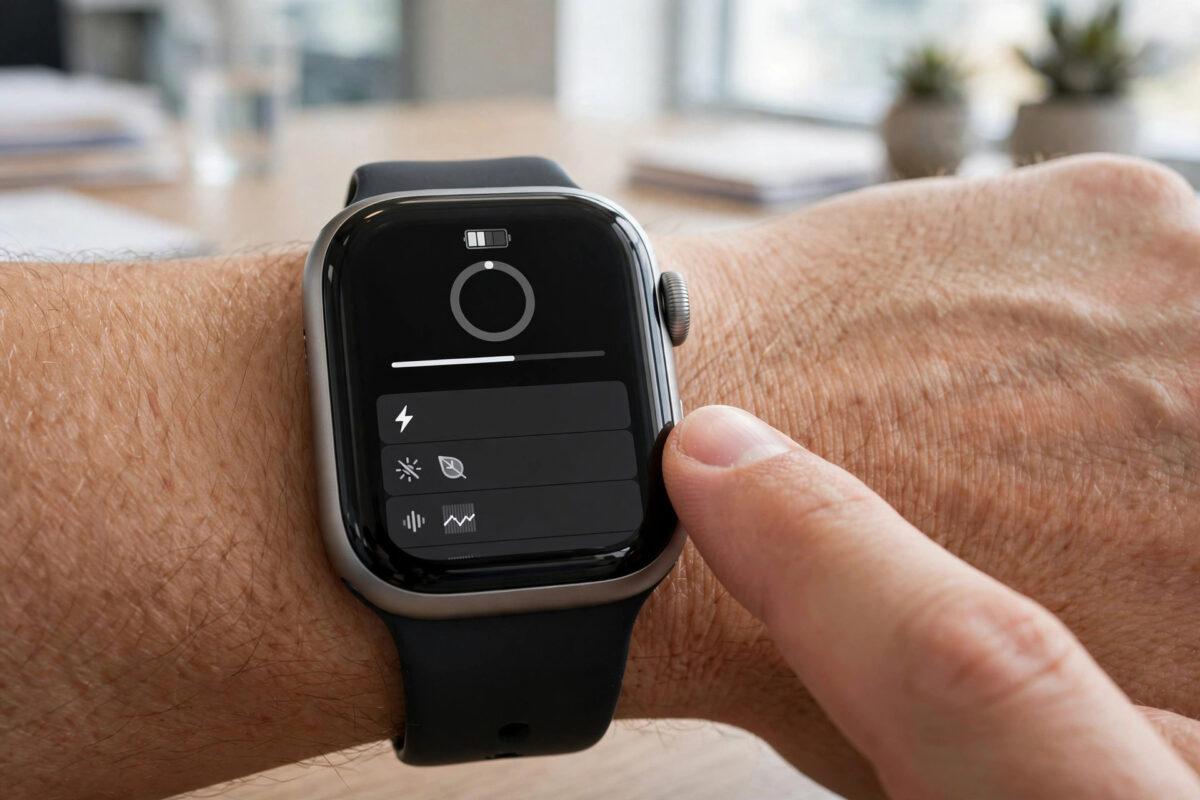
Every rechargeable battery wears out slowly, and the one inside your Apple Watch Series 8 is no exception. When new, it held a full charge that easily lasted a long day. After a year or two of daily charging, workouts, and sleep tracking, it holds a little less. The question is how much less, and whether the shorter days you are noticing are normal wear or something worth fixing.
Apple builds the answer straight into the watch. A Battery Health screen shows the maximum capacity as a percentage, compared with when the battery was new. Checking it takes less than a minute, needs no apps and no iPhone menu hunting, and this guide walks you through it, explains what the number really means, and shows you what to do with each result.
Quick Answer
To check battery health on an Apple Watch Series 8, open Settings on the watch, tap Battery, then tap Battery Health, and scroll down to Maximum Capacity. That percentage shows how much charge the battery can hold compared with when it was new. A reading in the high 80s or 90s is healthy, while a battery at 80 percent or below, or one showing a service message, is worn and may need Apple’s battery service.
What Battery Health Percentage Actually Means
Maximum Capacity is a measure of the battery’s tank size, not how full the tank is right now. Your normal battery percentage tells you today’s charge. Battery Health tells you how big the tank has become after months of chemical ageing.
- 100 percent means the battery holds the same charge it did when it left the factory.
- 90 percent means a full charge now stores about nine-tenths of the original energy, so the watch runs slightly less time per charge.
- 80 percent or below is the level where most people clearly notice shorter days, unexpected shutdowns can begin, and Apple considers the battery significantly degraded.
Every lithium-ion battery loses capacity with charge cycles and time. Heat speeds the process up, which is why charging habits matter. The health figure also works alongside features like Optimized Charging, which slows ageing by not holding the watch at a full charge all night. Apple’s own overview of checking battery health and usage on Apple Watch confirms the same menu path and explains the usage graphs that sit next to the health reading.
Step-by-Step: Check Battery Health on Apple Watch Series 8
The reading lives on the watch itself, not in the iPhone’s Watch app. Follow these steps on your wrist.
- Wake the watch and press the Digital Crown to open the app list or grid.
- Tap the Settings app, the grey icon with a gear.
- Scroll down using the Digital Crown or your finger and tap Battery.
- On the Battery screen you will see the current charge level and a graph of recent charging. Tap Battery Health.
- Scroll down to Maximum Capacity and read the percentage.
- While you are there, note whether the screen shows any message about the battery’s condition or service.
If scrolling feels fiddly on the small screen, take your time with the Digital Crown in short turns. Readers whose crown has stopped responding can follow our fixes for an Apple Watch Digital Crown that is not scrolling and then come back to this check.
How to Read Your Result
95 to 100 percent: excellent
Your battery is effectively new. If the watch still seems to die quickly, the cause is software or settings, such as an app refreshing in the background or a bright always-on face, not battery wear.
86 to 94 percent: normal wear
This is the expected range for a Series 8 that has been charged daily for a year or more. You may lose a little time compared with day one, but nothing is wrong. Sensible habits, covered below, will slow further decline.
80 to 85 percent: noticeably aged
The watch will still work well, but long days with workouts, streaming music, or cellular use may need a top-up charge. Start planning around it, and pay more attention to the charging tips in the next section.
Below 80 percent, or a service message: worn out
At this level Apple treats the battery as degraded. Runtime drops sharply, and the percentage can fall in jumps. If you have AppleCare+ and capacity is below 80 percent, battery service is typically included, so check your coverage before paying for anything.
Check the Battery Usage Graph While You Are There
The Battery screen you passed on the way in is worth a second look. It shows a graph of your recent charge history, including when the battery was last charged and to what level.
- Open Settings, tap Battery, and study the graph before tapping Battery Health.
- Look for a steep, steady fall during hours when you barely used the watch. That pattern suggests a background process draining power.
- Compare it with the last charged information. If the watch claims it was fully charged recently but died within hours, and health is high, suspect an app or a stuck sync rather than the battery.
- Restart the watch and watch the graph for a day. A graph that returns to a gentle slope after a restart points to a temporary software problem.
Habits That Keep the Percentage Higher for Longer
- Keep Optimized Charging on. In Settings, Battery, Battery Health, leave Optimized Battery Charging enabled so the watch avoids sitting at 100 percent for hours.
- Avoid heat. Do not leave the watch charging in direct sun, a hot car, or on top of warm electronics. Heat is the fastest way to age the cell.
- Top up rather than deep-drain. Regular partial charges are gentler than repeatedly running the watch to zero.
- Use the charger that came with the watch. Very cheap third-party pucks can run hot and deliver uneven power.
- Update watchOS. Battery management improvements arrive in software updates, and an efficient system puts fewer cycles on the battery each week.
Common Mistakes to Avoid
- Confusing charge level with battery health. Seeing 40 percent at noon is about today’s use. The health percentage in Settings is the long-term figure that matters here.
- Looking for the reading on the iPhone. The Watch app shows settings and usage, but Maximum Capacity is displayed on the watch itself.
- Panicking over a small drop. Falling from 100 to 97 percent in the first year is normal chemistry, not damage.
- Trusting third-party battery apps. Apps cannot read the watch’s true capacity figure. The built-in Battery Health screen is the only reliable source.
- Charging all night in a hot room with optimized charging off. That combination ages the battery faster than almost anything else in daily use.
Conclusion
Checking battery health on a Series 8 takes four taps: Settings, Battery, Battery Health, then scroll to Maximum Capacity. Read the number calmly. Above the mid-80s, your battery is fine and short days are a settings problem. Near or below 80 percent, or with a service warning on screen, the cell itself is worn and Apple’s battery service is the sensible next step, which you can arrange through Apple’s official Apple Watch service and repair page. Check the figure every few months and you will never be surprised by a watch that suddenly cannot finish the day.
Frequently Asked Questions
Can I check Apple Watch battery health from my iPhone?
No. The Maximum Capacity percentage is shown only on the watch, under Settings, Battery, Battery Health. The iPhone’s Watch app can show the current charge level and settings, but not the health reading itself.
What is a good battery health percentage for a Series 8?
Anything from the high 80s upward is good for a watch in regular use. A Series 8 charged daily since launch will commonly sit in the mid-to-high 80s, which still gives reliable all-day performance for most people.
Why did my battery health drop suddenly by several percent?
The figure is recalculated periodically, so it can move in steps rather than one percent at a time. A drop after a watchOS update usually means the watch recalibrated and is now reporting wear that had already happened gradually.
Does checking battery health affect the battery?
Not at all. Opening the Battery Health screen only reads information the watch already tracks. You can check it as often as you like without any effect on performance or lifespan.
Can I replace the Series 8 battery myself?
It is not designed for home replacement. The watch is sealed for water resistance, and opening it risks the display, the seals, and the battery itself. Use Apple’s service options so the repair is done with the right parts and the watch is resealed properly.
Leave a Reply