
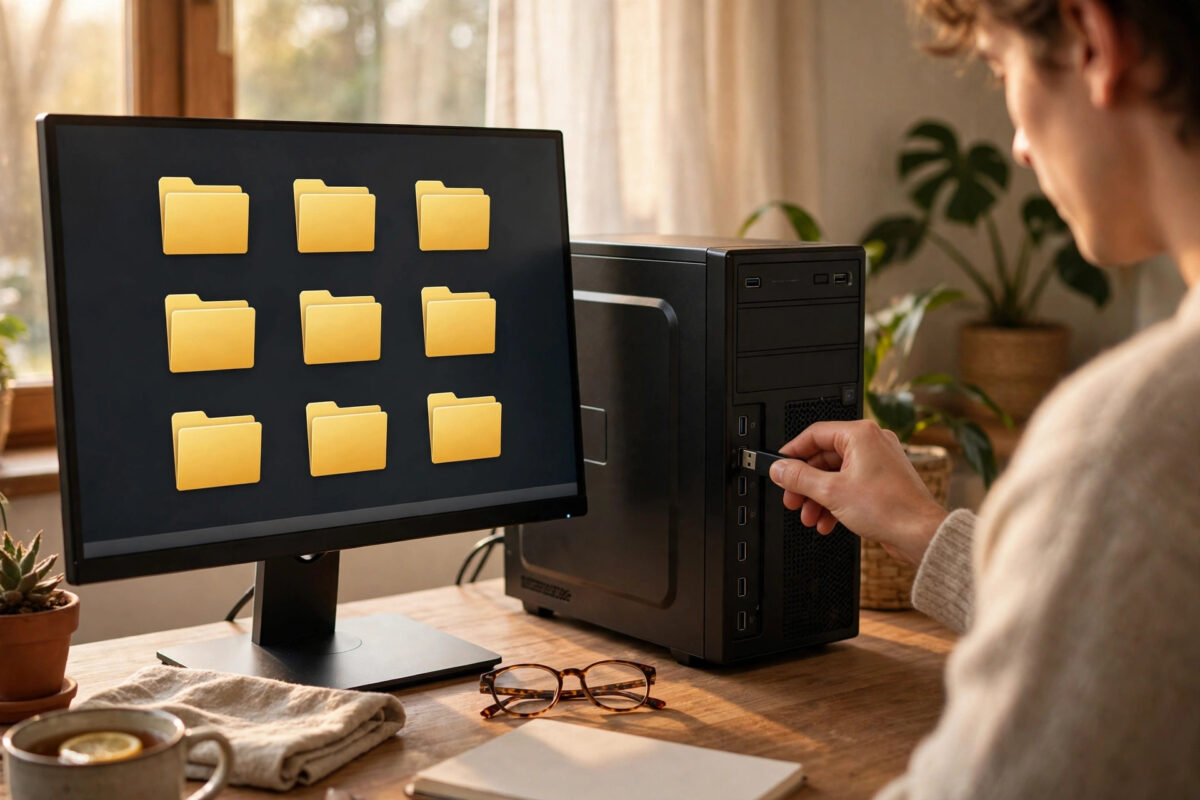
After a USB virus infection, a strange problem often remains even when the antivirus says the drive is clean. Your folders have not come back. Some may appear greyed out, others may not appear at all, and Windows may treat them like protected system files that you should not touch.
This happens because the virus changed your folders’ attributes before it was removed. Windows hides system files by default, so a normal folder carrying a system attribute simply disappears from view.
The fix is to remove those false attributes. This guide explains how to reveal the folders safely, repair them with a simple command, and stop the problem returning.
Quick Answer
Scan the USB drive for malware first and delete any malicious shortcut or script files, because unhiding alone does not clean an infection. Then open Command Prompt and run attrib -s -h -r /s /d E:\*.*, replacing E: with your drive letter, to remove the system, hidden, and read-only attributes from every folder and file. Your folders will then show normally and behave like regular folders again.
Why Folders Turn into System Files
Every file and folder in Windows carries small switches called attributes. Two of them cause this problem. The hidden attribute removes an item from the normal File Explorer view. The system attribute marks an item as part of the operating system, and Windows protects and hides those items even more strongly.
USB viruses deliberately set both attributes on your real folders. That leaves the drive looking empty or filled only with shortcuts, while the virus’s own files stay in control of what you see. Removing the virus does not reset the switches, which is why your folders can stay hidden long after the infection itself is gone.
The important point is that the folders and their contents are usually undamaged. You are not repairing broken data. You are telling Windows that these are ordinary, visible folders again. Our guide on how to scan a recovered drive for viruses covers the cleaning stage that must always come before this repair.
Step 1: Clean the Drive Before You Unhide Anything
Skipping this step is the biggest reason the problem comes straight back. If any part of the virus is still alive, it will reapply the system and hidden attributes as fast as you remove them.
- Insert the USB drive and do not open or double-click anything on it, especially items that look like shortcuts to your folders.
- Open your antivirus, right-click the drive in This PC, and run a full scan of the drive.
- Allow the antivirus to delete or quarantine everything it finds, including hidden malicious files the scan reveals.
- Look through the drive for leftover fake shortcuts and script files with extensions such as .vbs, .bat, .cmd, or .js that you do not recognise, and delete them.
- Scan your computer too, because an infected PC will re-infect a clean drive the next time you plug it in.
Never double-click the fake shortcuts during this stage. They are the trigger that runs the malicious script, and one click can restart the whole infection cycle.
Step 2: Reveal the Hidden Folders Temporarily
Before repairing the attributes, it helps to see what is actually on the drive. Changing the Explorer view does not fix anything, but it confirms your folders exist.
- Open File Explorer and go to the View menu, then Options, then the View tab in Folder Options.
- Select Show hidden files, folders, and drives.
- Untick Hide protected operating system files and accept the warning. This is the setting that hides items carrying the system attribute.
- Open the USB drive. Your missing folders will probably appear as pale, transparent icons, which is how Windows displays hidden and system items.
Microsoft’s own support guidance on showing hidden files in Windows explains these view settings. Remember that this only changes what you can see. The folders are still marked as system items until you repair the attributes in the next step, and you should restore the protective setting at the end.
Step 3: Remove the System Attribute with Attrib
The attrib command is the proper repair. The attrib reference on Microsoft Learn confirms the switches used here.
- Confirm your USB drive letter in This PC, for example E:.
- Open Command Prompt from the Start menu by typing cmd.
- Type attrib -s -h -r /s /d E:\*.* with your own drive letter in place of E:.
- Press Enter and wait quietly until the command prompt line returns. Large drives can take a couple of minutes.
- Close Command Prompt, eject and reconnect the drive, and open it again in File Explorer.
What the Command Changes
- -s clears the system attribute, the main cause of folders being treated as protected system files.
- -h clears the hidden attribute, so folders show in the normal view.
- -r clears the read-only attribute, which some infections set to make changes harder.
- /s includes files inside subfolders, and /d includes the folders themselves.
After this repair, go back to Folder Options and restore the setting that hides protected operating system files. Your real folders will stay visible, because they no longer carry the system attribute, while genuine Windows system files on your PC stay safely hidden again.
Step 4: Verify the Recovery and Protect the Data
Open several recovered folders and test a few files of different types, such as a photo, a document, and a video. Check that folder names are correct and that nothing opens a shortcut instead of the real item.
Next, copy the recovered data to your computer or another trusted drive. Until you have that copy, the USB drive is still the only home of your files. Once the copy is verified, consider formatting the USB drive and then copying the clean data back. Formatting clears any hidden leftovers that a scan may have missed, including stray scripts sitting in folders you rarely open.
Common Mistakes to Avoid
- Unhiding without scanning first. An active infection will simply hide everything again and may spread to your PC.
- Leaving the fake shortcuts and scripts in place. Delete the malicious shortcut and VBS files before or right after unhiding, so nothing can re-trigger the infection.
- Double-clicking a folder to test it too early. Before cleaning, that folder icon may be a shortcut in disguise. Test files only after the scan and repair are complete.
- Removing attributes on your Windows drive by mistake. Double-check the drive letter. Running this command on your system drive would unhide protected Windows files unnecessarily.
- Leaving protected system files visible forever. Restore the Folder Options setting afterwards so you cannot delete a genuine system file by accident later.
- Assuming greyed-out folders are damaged. A pale icon only means the attributes are still set. The contents are usually perfectly fine.
Conclusion
Folders turned into system files after a USB virus are a display problem, not lost data. Clean the drive first, delete the malicious shortcuts and scripts, reveal the folders through Folder Options if you want to confirm they exist, and then clear the false attributes with the attrib command. Verify the files, back them up somewhere safe, and restore your normal Windows view settings to finish the job properly.
Frequently Asked Questions
Why do my folders reappear as hidden again after I fix them?
Something malicious is still running, either on the drive or on your PC. Do a full antivirus scan of both, delete every flagged item and leftover script, and only then run the attrib command again.
Is the attrib command safe to use?
Yes, when you aim it at the correct drive letter. It only changes visibility and protection switches on files and folders. It does not delete or alter the contents of your files.
My folders show but their names look strange or changed. What happened?
Some infections rename folders or add odd extensions. Compare the contents with what you expect, rename the folders back manually, and make sure no extra shortcut files with the original names are still sitting beside them.
Can I fix this without Command Prompt?
Partially. Folder Options can reveal the folders, but it does not remove the system attribute, so the folders stay marked as system items. The attrib command is the reliable way to make the repair permanent.
Should I format the drive after recovering my folders?
It is a sensible final step once your data is safely copied elsewhere. Formatting removes any hidden infection leftovers. Copy your verified, clean files back afterwards and scan the drive one last time.



Leave a Reply