
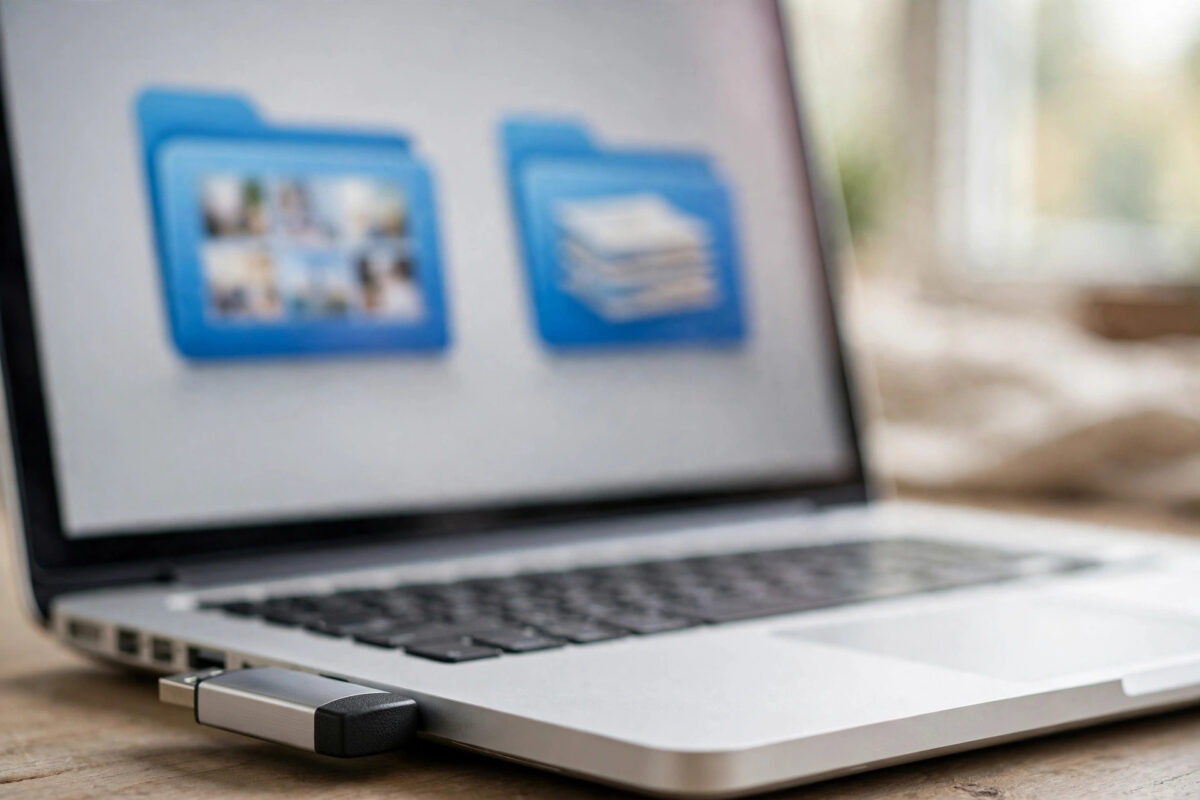
You plug in your USB drive and something looks badly wrong. Your folders have turned into shortcuts, and clicking one opens errors or strange windows. Your photos, documents, and work files seem to have vanished, even though the drive still shows that space is used.
This is the classic shortcut virus. It rarely deletes your files. Instead, it hides them, marks them as system files, and places fake shortcuts in front of them so you click the trap instead.
The fix has two halves, and the order matters. First you clean the infection safely. Then you use the Windows attrib command to unhide everything. This guide walks through both halves step by step.
Quick Answer
First scan the USB drive with your antivirus and let it remove the infection, and never double-click the fake shortcuts. Then delete any suspicious shortcut and script files left on the drive, open Command Prompt, and run attrib -h -r -s /s /d E:\*.*, replacing E: with your USB drive letter. This removes the hidden, read-only, and system attributes the virus set, and your real files and folders reappear.
How the Shortcut Virus Works
The malware copies your real folders, hides the originals by setting the hidden and system attributes, and creates shortcut files with the same names and folder icons. When you double-click what looks like your folder, you actually run the virus, which then opens the real folder behind the scenes to keep you unsuspicious.
Because the files are only hidden, the drive’s used space stays almost the same. That is the hopeful clue in this whole problem: if the space is still occupied, your data is almost certainly still there, waiting to be unhidden. Following a careful routine, like the one in our guide on how to scan a recovered drive for viruses, keeps the cleanup safe from start to finish.
Step 1: Scan First and Do Not Click the Shortcuts
This step is not optional. Unhiding files while the virus is still active simply lets it hide them again, and clicking a fake shortcut can spread the infection to your PC and other drives.
- Insert the USB drive but do not open any file or folder on it.
- If a shortcut or program tries to launch automatically, close it at once.
- Open your antivirus, find the USB drive in This PC, right-click it, and choose the scan option.
- Let the scan finish and allow the antivirus to quarantine or delete everything it flags on the drive.
- Run a quick scan of your computer itself as well, because the infection often copies itself onto the PC.
Never double-click the fake shortcuts at any point, even out of curiosity to see where they lead. Each click runs the malicious script again and can re-hide your files and infect other removable drives connected later.
Step 2: Delete the Leftover Shortcut and Script Files
After the scan, some harmless-looking leftovers may remain. The virus commonly leaves files with extensions such as .lnk for the shortcuts and .vbs, .bat, .cmd, or .js for its scripts, sometimes alongside an autorun.inf file.
- Open the drive in File Explorer without clicking anything inside it yet.
- Look for shortcut items that carry a small arrow overlay and names matching your folders. These are the fakes, not your data.
- Select the fake shortcut files and any script files you did not put there, and delete them.
- Empty nothing from your real data. If you are unsure about a file, leave it until after the next step, when your real folders are visible and easy to compare.
Deleting the malicious shortcut and VBS files before unhiding matters, because a leftover script can undo your repair the next time it runs. If your antivirus already removed them, this step is a quick visual confirmation.
Step 3: Unhide Your Files with the Attrib Command
Now the repair itself. The attrib command changes file attributes in Windows, and Microsoft’s attrib command reference on Microsoft Learn documents every switch used below.
- Note the drive letter of your USB drive in This PC, for example E:.
- Press the Windows key, type cmd, and open Command Prompt. Administrator rights are not normally needed for a USB drive.
- Type this command with your own drive letter: attrib -h -r -s /s /d E:\*.*
- Press Enter and wait. On a large drive this can take a minute or two, and no progress display appears.
- When the prompt returns, close Command Prompt and reopen the drive in File Explorer.
What Each Part of the Command Means
- -h removes the hidden attribute, so files appear again.
- -r removes the read-only attribute the virus often adds.
- -s removes the system attribute, which is what makes folders stay invisible even when hidden files are shown.
- /s applies the change to files in all subfolders too.
- /d applies it to the folders themselves, not only the files inside them.
Step 4: Check Your Files and Copy Them Somewhere Safe
Your real folders should now be visible with normal folder icons and no shortcut arrows. Open a few files at random and confirm they work. Check that the total contents roughly match the used space you saw earlier.
Then copy everything important to a folder on your PC or to another clean drive. Treat this copy as your rescued data. Only after that copy is verified should you consider formatting the USB drive, which is the most thorough way to be sure no trace of the infection remains on it.
Common Mistakes to Avoid
- Double-clicking the fake shortcuts. This is how the virus runs and spreads. Resist it from the moment you insert the drive.
- Unhiding before scanning. If the infection is still active, it will hide your files again and may spread further.
- Using the wrong drive letter. Check the letter in This PC first. Running the command on the wrong drive changes attributes where you did not intend it.
- Forgetting the /s and /d switches. Without them, only the top level is fixed and files inside subfolders stay hidden.
- Formatting the drive first. Formatting destroys the very files you are trying to rescue. It is a final cleanup step, never the first move.
- Trusting unknown repair tools. Random USB virus remover downloads are a common source of new infections. Your antivirus and the built-in attrib command are enough.
Conclusion
The shortcut virus hides your files rather than deleting them, which makes a full recovery realistic. Scan the drive first, delete the malicious shortcuts and scripts without clicking them, then run the attrib command to strip away the hidden and system attributes. Verify your files, copy them somewhere safe, and only then decide whether to format the drive for a completely clean start.
Frequently Asked Questions
The attrib command finished but my files still do not show. Why?
The infection may still be active and re-hiding them, or you may have used the wrong drive letter. Rescan the drive fully, confirm the letter in This PC, and run the command again, making sure /s and /d are included.
Are my files deleted if the drive looks empty?
Usually not. If the drive still reports used space, your files are almost certainly present but hidden with system attributes. That is exactly what the attrib command reverses.
Can I recover the files on a Mac or Linux computer?
Yes, in principle. Other systems do not respect the Windows hidden and system attributes in the same way, so the real folders often appear normally. Copy the data off there, then clean and format the drive before using it with Windows again.
Is it safe to use the USB drive after recovery?
After a full scan, removal of the malicious files, and successful recovery, many people format the drive for certainty and then copy clean data back. Until that format, avoid using the drive on other computers.
How do I stop the shortcut virus coming back?
Keep your antivirus updated, scan unknown USB drives before opening them, and avoid plugging your drive into public or shared computers without scanning afterwards. Most reinfections come from an infected PC, so scan your own machine too.
Leave a Reply