
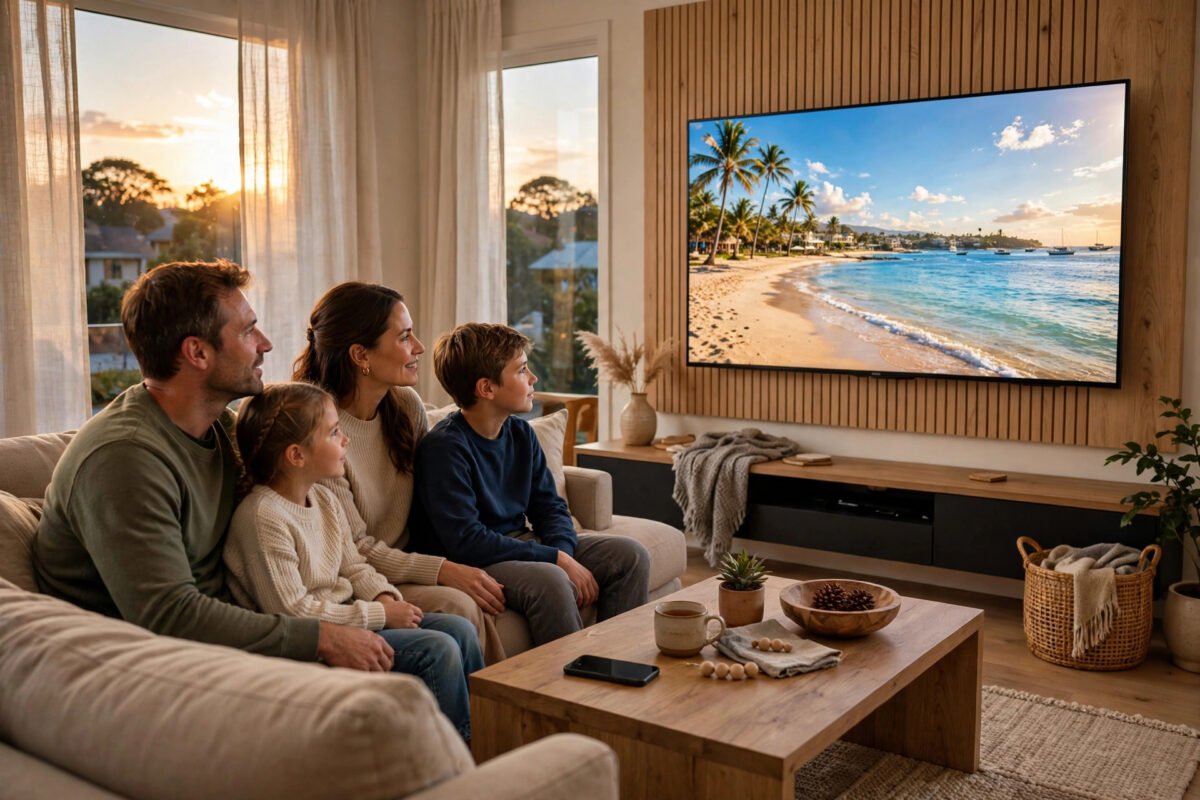
Holiday photos deserve better than being passed around on a small phone screen. Your television is the biggest, brightest screen in the house, and in most homes it is already connected to the same accounts where those photos live. Whether your pictures are stored in Google Photos or iCloud, there are several simple ways to get them onto the TV, and most of them take less than five minutes to set up.
Quick Answer
To show holiday photos on your TV from Google Photos, open the album on your phone, tap the Cast icon, and choose your TV or Chromecast, or open the Google Photos app directly on Android TV or Google TV. For iCloud photos, use the Photos app on an Apple TV, or AirPlay the album from an iPhone, iPad, or Mac to an AirPlay-compatible TV. Both services also let you turn a chosen album into an automatic slideshow or screensaver.
Before You Start: Three Quick Checks
A minute of preparation saves a lot of frustration later. Most failed attempts come down to one of these three basics rather than anything complicated.
- Connect everything to the same Wi-Fi network. Your phone and TV must be on the same home network for casting and AirPlay to find each other. If your router offers separate 2.4 GHz and 5 GHz networks, make sure both devices are not accidentally split between them in a way that blocks discovery.
- Sign in with the right account. Photos only appear if you are signed in to the Google or Apple account that actually holds them. Family holidays are often spread across two or three accounts, so check whose phone took the pictures.
- Organise the album first. Create one album called something like “Summer Holiday 2026” and add only the photos you want to show. A tidy album means no awkward scrolling past screenshots, receipts, and duplicate shots in front of your guests.
Method 1: Cast Google Photos From Your Phone
Casting is the fastest option if you have a Chromecast, a Google TV, an Android TV, or any television with Chromecast built in. You control everything from your phone while the TV does the displaying.
- Open the Google Photos app on your phone and open the album you want to show.
- Tap the Cast icon at the top of the screen. It looks like a rectangle with Wi-Fi waves in the corner.
- Select your TV from the list of available devices.
- Tap the first photo to display it full screen, then swipe through the album at your own pace.
- To run hands-free, tap the three-dot menu while viewing and choose the slideshow option, if available on your device.
- When you finish, tap the Cast icon again and choose Disconnect.
If the Cast icon never appears, work through the checks in the official Google Photos Help Centre guidance on casting and viewing photos, which covers device requirements and account settings in detail.
Method 2: Use Google Photos Directly on the TV
On Android TV and Google TV models, the Google Photos app can be installed straight onto the television. This is the better choice for a long slideshow because your phone is not involved at all.
- Open the Google Play Store on your TV and install Google Photos.
- Open the app and sign in with the Google account that holds your holiday album.
- Go to the Albums or Library section and open your holiday album.
- Select a photo, then use the slideshow option in the menu to play the whole album automatically.
- Adjust the slideshow timing in the app settings if photos change too quickly.
Method 3: Show iCloud Photos on an Apple TV
If your household uses iPhones, an Apple TV box gives the smoothest iCloud experience because the Photos app is built in and stays in sync automatically.
- On the Apple TV, open Settings, go to Users and Accounts, and confirm you are signed in with your Apple ID.
- Open iCloud settings and turn on iCloud Photos.
- Wait for the library to sync. Large libraries can take a while on the first setup, especially over slower Wi-Fi.
- Open the Photos app, choose your holiday album, and press Play to start a slideshow.
- Use the slideshow settings to add transitions, set how long each photo stays on screen, and repeat the album if you want it running in the background.
The official Apple Support pages on iCloud Photos and shared albums explain the storage and sharing limits if you run into them.
Method 4: AirPlay iCloud Photos to Any Compatible TV
You do not need an Apple TV box if your television supports AirPlay 2, which includes many recent Samsung, LG, Sony, and Vizio models.
- Make sure AirPlay is switched on in your TV settings. On some brands it sits under General or Connections rather than Picture.
- On your iPhone or iPad, open Photos and open the holiday album.
- Tap a photo, tap the Share icon, and choose AirPlay, then select your TV.
- For an automatic show, use the slideshow option in the album menu and choose the TV as the output.
- Lock your phone if you wish; the slideshow continues on most recent iOS versions.
If you do not yet have a streaming device set up, our guide on how to set up a Chromecast on any TV step by step walks through the cheapest way to add both casting and AirPlay-style features to an older television.
Method 5: The USB and HDMI Fallbacks
When Wi-Fi is unreliable, or you are showing photos at someone else’s house, the old-fashioned methods still work well.
USB stick
Export the chosen photos from Google Photos or iCloud to a computer, copy them into one folder on a USB stick, and plug it into the TV. Most TVs have a built-in media player that can open the folder and run a slideshow. Keep filenames in the order you want, because many TVs sort alphabetically rather than by date.
HDMI cable
Getting the Pictures to Look Their Best
A few small adjustments make a big difference on a large screen.
- Use the original quality setting. If your photo service is set to save space, the TV copies may be lower resolution versions that look soft on a 55-inch screen. Check the upload quality in your account settings before an important showing.
- Expect black bars on some shots. Phone photos are usually a different shape from a 16:9 TV screen. Slideshow settings often offer a fill or fit option; fit keeps the whole photo visible, while fill crops the edges.
- Turn off vivid picture modes. A Movie or Standard picture mode gives more natural skin tones and skies than a bright Vivid mode designed for shop floors.
Common Mistakes to Avoid
Most disappointing photo evenings come from the same handful of avoidable errors.
- Showing your whole camera roll. Always use a prepared album. Your full library includes screenshots, documents, and private pictures that nobody needs to see on a big screen.
- Forgetting notifications. When you cast or mirror your phone, messages can pop up on the TV. Turn on Do Not Disturb before you start.
- Leaving your account signed in on someone else’s TV. If you signed in at a holiday rental or a friend’s house, sign out before you leave.
- Relying on weak Wi-Fi. Full-resolution photos are large files. If slideshows stutter, move the router closer, use the 5 GHz band, or fall back to the USB method.
Conclusion
Showing holiday photos on your TV is mostly a matter of picking the method that matches your equipment. Google Photos users can cast from a phone in seconds or run the app directly on Android TV and Google TV. iCloud users get the best experience from an Apple TV, with AirPlay as a close second on compatible sets. Prepare one tidy album, protect your privacy, test before your guests arrive, and the biggest screen in the house does the rest.
Frequently Asked Questions
Can I show Google Photos on a Samsung or LG TV without a Chromecast?
Yes. Many Samsung and LG models let you cast from the Google Photos phone app if the TV supports casting, and you can also use the TV’s web browser to open Google Photos and sign in. A plug-in Chromecast remains the simplest and most reliable option if the built-in options are missing.
Why do some of my iCloud photos not appear on Apple TV?
Usually the Apple TV is still syncing, or it is signed in to a different Apple ID than the phone. Check the account in Settings, confirm iCloud Photos is turned on, and give large libraries time to finish syncing over Wi-Fi.
Will showing photos on the TV use a lot of data?
Streaming photos over your home Wi-Fi does not use your mobile data, but the TV and phone do download the images from the cloud. On a capped home broadband plan, a long slideshow of original-quality photos and videos can use a noticeable amount, so the USB method is better for very limited connections.
Can I add music to my TV photo slideshow?
Yes. Apple TV slideshows can play music from your library, and on other platforms you can simply play music from a separate app or speaker while the slideshow runs. Keep the volume low so people can still talk over it.
How do I stop photos from being cropped on the TV?
Look for a fit, aspect, or display size option in the slideshow or picture settings and choose the setting that shows the full image. Avoid the fill or zoom option, which enlarges the photo to cover the screen and cuts off the edges.



Leave a Reply